1. Introduktion
This manual provides comprehensive instructions for the setup, operation, maintenance, and troubleshooting of your Havit MS951GT Wireless Mouse. Please read this manual carefully before using the product to ensure optimal performance and longevity.
2. Pakkens indhold
Kontroller venligst, at alle varer er til stede i din pakke:
- Havit MS951GT Wireless Mouse
- USB-modtager
- Brugervejledning (dette dokument)
Note: An AA battery is typically not included and must be purchased separately.
3. Produktet er slutview
The Havit MS951GT is a wireless optical mouse designed for comfortable and precise control. It features symmetrical ergonomics, making it suitable for both left and right-handed users, and includes multi-level DPI adjustment for varied sensitivity needs.

Billede 3.1: Havit MS951GT Wireless Mouse highlighting key features such as DPI adjustment and side buttons.
Nøglekomponenter:
- Venstre/højre klikknapper: Standard musefunktionalitet.
- Scrollhjul: Til lodret rulning og mellemklikfunktion.
- DPI-justeringsknap: Cycles through sensitivity settings (800-1200-1600 DPI).
- Sideknapper: Multi-functional, typically used for forward/backward page navigation.
- Batterirum: Placeret på undersiden af musen.
- USB-modtagerlagring: A dedicated slot on the underside for the USB receiver when not in use.
4. Opsætning
4.1. Installation af batteriet
- Turn the mouse over to access the underside.
- Locate the battery compartment cover and gently slide or lift it off.
- Insert one AA battery into the compartment, ensuring the polarity (+/-) matches the indicators inside.
- Sæt batteridækslet på plads, indtil det klikker sikkert på plads.
4.2. Tilslutning af USB-modtageren
- Locate the USB receiver, which is typically stored in a slot on the underside of the mouse or within the packaging.
- Sæt USB-modtageren i en ledig USB-port på din computer.
- Your computer should automatically detect and install the necessary drivers. This is a plug-and-play device, so no additional software installation is usually required.
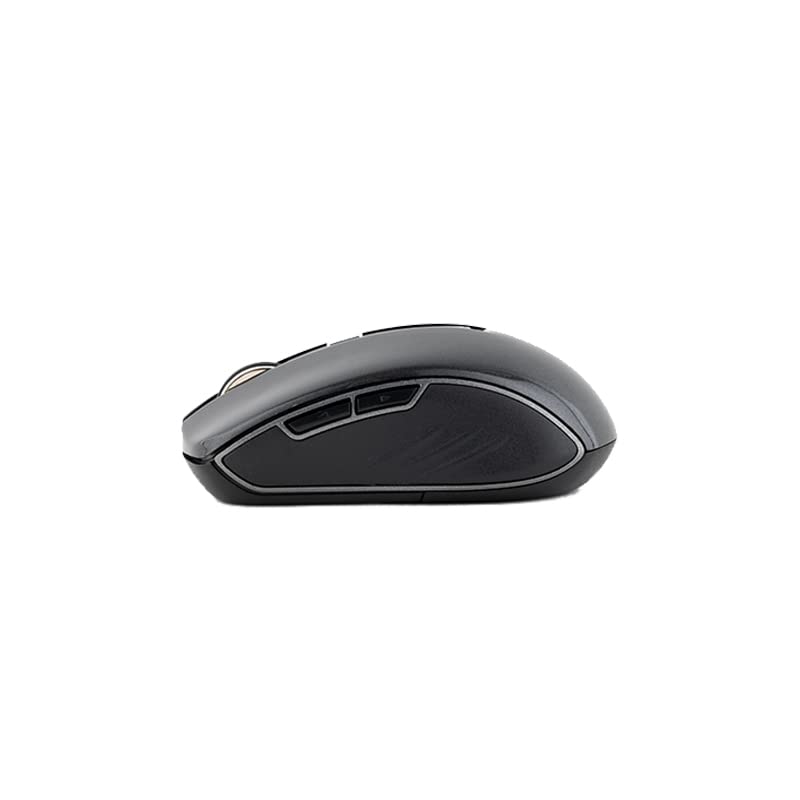
Billede 4.1: The underside of the Havit MS951GT mouse, illustrating the battery compartment and the storage slot for the USB receiver.
5. Betjeningsvejledning
5.1. Grundlæggende musefunktioner
- Venstre klik: Select items, open files, activate links.
- Højreklik: Access context menus.
- Scrollhjul: Rul op eller ned gennem dokumenter og web pages. Pressing the scroll wheel often acts as a middle-click.
5.2. DPI-justering
The DPI (Dots Per Inch) button, located behind the scroll wheel, allows you to adjust the mouse's sensitivity. Pressing this button will cycle through the available DPI settings:
- 800 DPI: Lower sensitivity for precise tasks.
- 1200 DPI: Standardfølsomhed til generel brug.
- 1600 DPI: Højere følsomhed for hurtigere markørbevægelse.
Choose the DPI setting that best suits your preference and task requirements.
5.3. Sideknapper
The Havit MS951GT features multi-function side buttons, typically located on the left side of the mouse. By default, these buttons are configured for:
- Frem-knap: Navigerer fremad i web browsere eller file opdagelsesrejsende.
- Baglæns knap: Navigerer baglæns i web browsere eller file opdagelsesrejsende.
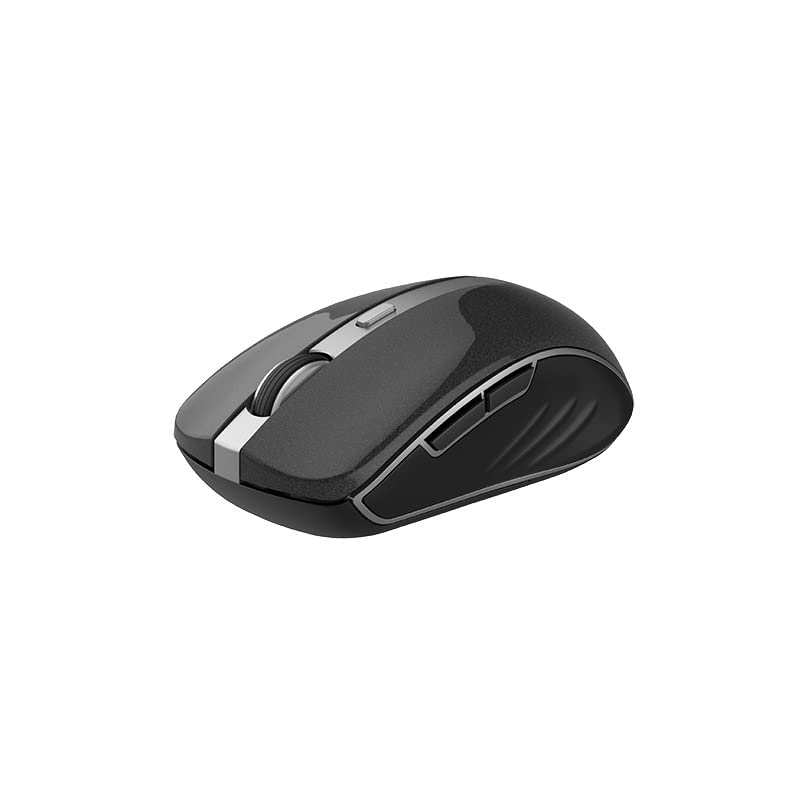
Billede 5.1: Side view of the Havit MS951GT mouse, illustrating the position of the multi-function side buttons.
6. Vedligeholdelse
6.1. Rensning
For at opretholde optimal ydeevne og hygiejne skal du rengøre din mus regelmæssigt:
- Frakobl USB-modtageren fra din computer.
- Brug en blød, fnugfri klud lidt damprengøres med vand eller en mild rengøringsopløsning til at tørre musens overflade af.
- Undgå at bruge skrappe kemikalier eller slibende materialer.
- Use a cotton swab or compressed air to clean around the scroll wheel and optical sensor.
6.2. Udskiftning af batteri
When the mouse performance degrades or it stops responding, it is likely time to replace the AA battery. Refer to Section 4.1 for battery installation instructions.
6.3. Opbevaring
When not in use for an extended period, the mouse features a built-in auto-sleep function to conserve battery life. For transport or long-term storage, it is recommended to:
- Remove the AA battery to prevent leakage.
- Store the USB receiver in its dedicated slot on the underside of the mouse to prevent loss.
7. Fejlfinding
If you encounter issues with your Havit MS951GT Wireless Mouse, please refer to the following common solutions:
7.1. Musen reagerer ikke
- Tjek batteri: Sørg for, at AA-batteriet er isat korrekt og har tilstrækkelig opladning. Udskift det om nødvendigt.
- Tjek USB-modtager: Sørg for, at USB-modtageren er korrekt tilsluttet en fungerende USB-port på din computer. Prøv en anden USB-port.
- Power Cycle: Turn off the mouse (if it has a power switch), remove the battery, wait a few seconds, then reinsert the battery and turn it back on.
7.2. Uregelmæssig markørbevægelse
- Rengør optisk sensor: Dust or debris on the optical sensor can cause erratic movement. Clean the sensor on the underside of the mouse with a soft, dry cloth or compressed air.
- Tjek overflade: Sørg for at bruge musen på en ren, ikke-reflekterende og ensartet overflade. Undgå glas eller meget reflekterende overflader.
7.3. Connection Issues / Lag
- Reducer interferens: Move the mouse closer to the USB receiver. Avoid placing the receiver near other wireless devices (e.g., Wi-Fi routers, cordless phones) that might cause interference.
- Re-plug Receiver: Unplug and re-plug the USB receiver.
8. Specifikationer
| Feature | Specifikation |
|---|---|
| Mærke | Havit |
| Model | MS951GT |
| Trådløs teknologi | 2.4 GHz |
| Trådløs afstand | 10m |
| DPI niveauer | 800-1200-1600 DPI |
| Nøglenummer | 6 (Left, Right, Scroll, DPI, 2 Side Buttons) |
| Strømforsyning | 1 * AA Battery |
| Dimensioner (LxBxH) | 50 x 50 x 50 mm (omtrentligt) |
| Varens vægt | 100 g |
| Operativsystemkompatibilitet | Windows XP and above (PC, Laptop) |
| Materiale | Plast |
| Håndorientering | Ambidekstrøs |
9. Garanti og support
Havit products are designed for reliability and performance. For information regarding warranty coverage, please refer to the warranty card included with your product or visit the official Havit website. If you require technical assistance or have questions not covered in this manual, please contact Havit customer support through their official channels.
Gem venligst dit købsbevis for garantikrav.


