1. Introduktion
This manual provides comprehensive instructions for the operation and maintenance of your Mcbazel Foldable Wireless Keyboard with Trackpad. This device is designed for portability and multi-device compatibility, offering a convenient input solution for various operating systems.

Image: The Mcbazel Foldable Wireless Keyboard with Trackpad, illustrating its compact folded state and its full unfolded layout.
2. Pakkens indhold
- 1 x Mcbazel Foldable Wireless Keyboard with Trackpad
- 1 x USB Charging Cable (55cm)
- 1 x brugermanual

Image: Illustration of the items included in the package: the foldable keyboard, a USB-C charging cable, and the user manual.
3. Produktet er slutview
Familiarize yourself with the key components and indicators of your keyboard.

Billede: Detaljeret view of the keyboard's right panel, highlighting the Charging Indicator Light, Bluetooth Indicator Light, Caps Lock Light, Touchpad, Left Button, Right Button, Power Switch, and Type-C Charging Interface.
4. Opsætning og opladning
4.1 Opladning af tastaturet
The keyboard features a built-in 140 mAh rechargeable battery. Before initial use, ensure the keyboard is fully charged.
- Connect the provided USB Type-C charging cable to the keyboard's charging port.
- Tilslut den anden ende af kablet til en USB-strømkilde (f.eks. computer, vægadapter).
- The Charging Indicator Light will illuminate during charging.
- A full charge typically takes 2-3 hours. The light will turn off or change color when charging is complete.
A full charge provides up to 48 hours of continuous use or 560 hours of standby time.
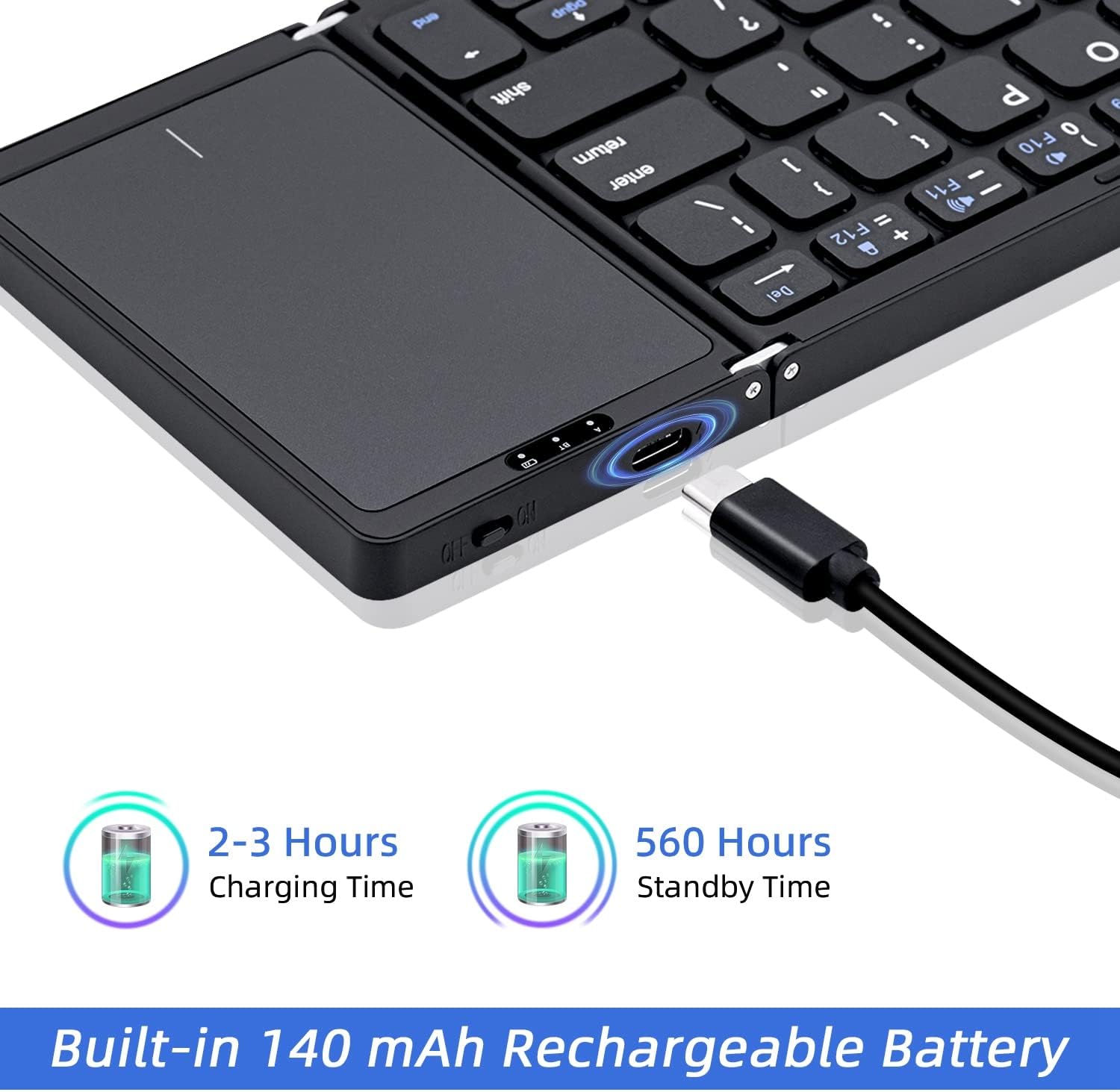
Image: The keyboard being charged via its Type-C port, illustrating the charging duration and standby time.
4.2 Tænd/sluk
- For at tænde skal du skubbe tænd/sluk-knappen til "ON"-positionen.
- For at slukke skal du skubbe tænd/sluk-knappen til "OFF"-positionen.
- The keyboard features an auto-wake function, ensuring it is ready for use after a brief period of inactivity.
4.3 Bluetooth -parring
The keyboard supports Bluetooth 5.1 and can connect to up to three devices simultaneously.
- Sørg for, at tastaturet er tændt.
- Tryk på fn + A keys simultaneously to select Device 1 (BT1) and enter pairing mode. The Bluetooth Indicator Light will flash.
- Aktiver Bluetooth på din enhed (smartphone, tablet, bærbar computer), og søg efter tilgængelige enheder.
- Vælg "Bluetooth-tastatur" eller et lignende navn fra listen over fundne enheder.
- Follow any on-screen prompts to complete the pairing process. The Bluetooth Indicator Light will stop flashing once successfully paired.
- Gentag trin 2-5 ved hjælp af Fn + S for Device 2 (BT2) and Fn + D for Device 3 (BT3) to pair additional devices.

Image: The keyboard demonstrating Bluetooth 5.1 connectivity to three devices, with instructions for switching between them using Fn+A, Fn+S, and Fn+D.
5. Betjening
5.1 Skift mellem enheder
Once multiple devices are paired, you can switch between them seamlessly:
- Trykke fn + A to connect to Device 1.
- Trykke Fn + S to connect to Device 2.
- Trykke Fn + D to connect to Device 3.
The keyboard will automatically reconnect to the last used device upon powering on.
5.2 Brug af touchpad'en
The integrated touchpad provides efficient control, eliminating the need for an external mouse. It supports multi-touch gestures.
- Tryk med en enkelt finger: Venstre klik.
- To-finger tryk: Højreklik.
- To-finger rulning: Rul op/ned eller venstre/højre.
- Knib for at zoome: Zoom in/out (supported on some operating systems).
Note: Touchpad functionality requires iOS 13.4.1 or above. It cannot be used on iOS versions below 13.4.1.

Image: A hand interacting with the sensitive touchpad, illustrating its use for navigation and control.
5.3 Kompatibilitet
The keyboard is compatible with a wide range of devices and operating systems:
- Operativsystemer: iOS, Android, macOS, Windows.
- Enheder: Tablets, Laptops, PCs, Smartphones (Android 4.0 and above).
- For desktop PCs without built-in Bluetooth, a Bluetooth receiver (not included) is required.
Note: This is an English version folding keyboard. Key layout and arrangement may differ from keyboards designed for other languages.
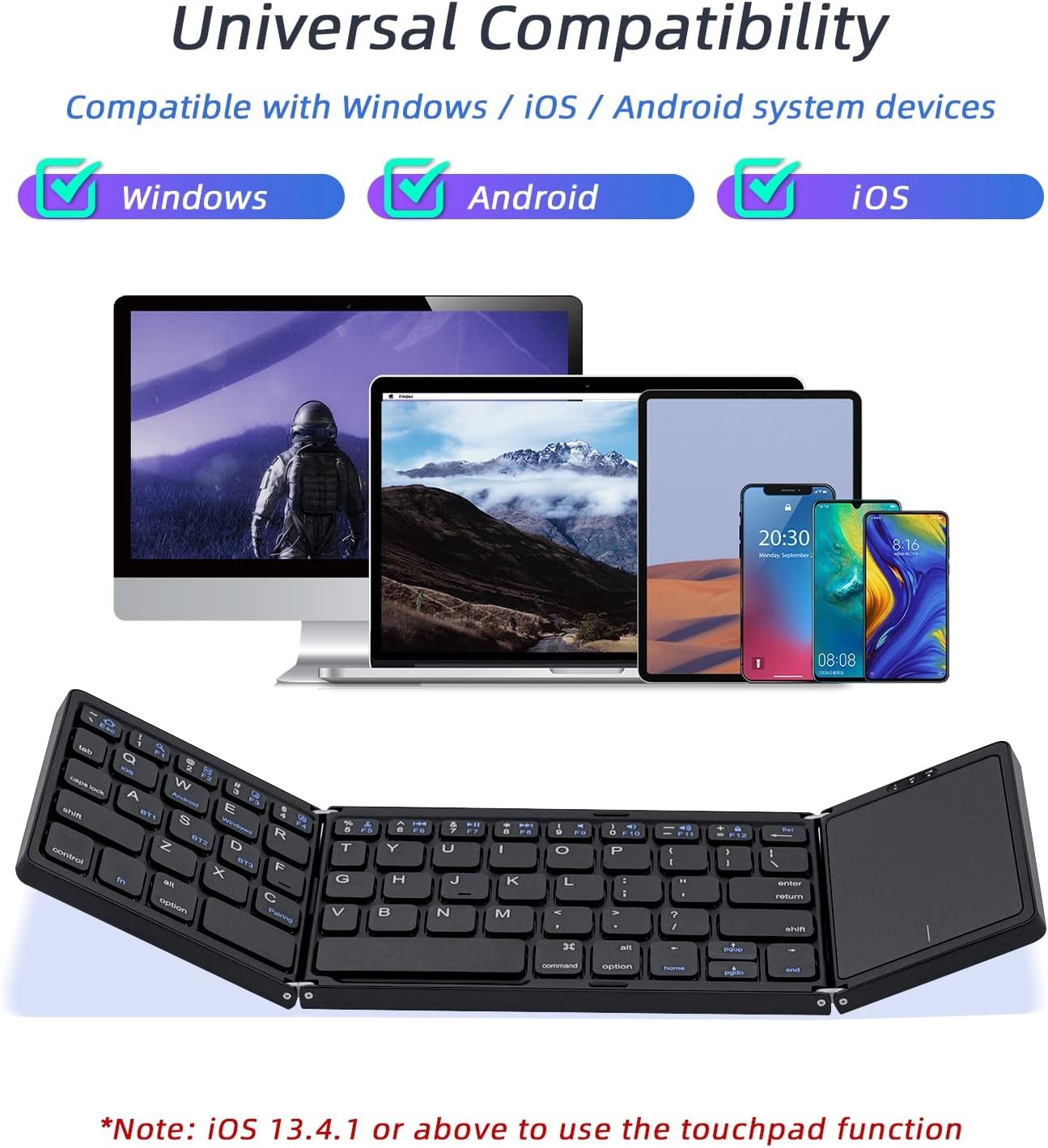
Image: Visual representation of the keyboard's universal compatibility with Windows, Android, and iOS operating systems.

Image: The keyboard positioned with various devices (iOS, Android, Windows, Mac) to illustrate its broad system compatibility.

Image: The keyboard shown with various compatible devices including tablets, laptops, iOS phones, Android phones, and desktops, noting that a Bluetooth receiver is required for desktops without built-in Bluetooth.
5.4 Nøglefunktioner
- Ergonomisk design: The keyboard features an inclined angle design to improve typing comfort during extended use.
- Trådløs rækkevidde: Enjoy a strong wireless connection up to 10 meters (33 feet) from your connected device.

Image: A user typing on the keyboard, highlighting its ergonomically designed inclined angle for improved comfort.

Image: A visual representation of the keyboard's 10-meter strong wireless range, suitable for various environments like a meeting room.
5.5 Sammenklappeligt design
The keyboard features a tri-folding design for maximum portability. It can be easily folded to a compact size, making it convenient for travel and storage.

Image: The keyboard demonstrating its tri-folding design, showing how it collapses into a compact form with dimensions of 15.2cm (5.9in) x 9.8cm (3.8in) x 1.9cm (0.7in).
6. Vedligeholdelse
- Hold tastaturet rent ved at tørre det af med en blød, tør klud. Undgå at bruge skrappe kemikalier eller slibende materialer.
- Opbevar tastaturet et køligt og tørt sted, når det ikke er i brug.
- Avoid exposing the keyboard to extreme temperatures, direct sunlight, or moisture.
- Do not attempt to disassemble or repair the keyboard yourself, as this may void any potential warranty.
7. Fejlfinding
| Problem | Mulig årsag | Løsning |
|---|---|---|
| Tastaturet tænder ikke. | Lavt batteri. | Charge the keyboard for 2-3 hours using the provided USB cable. |
| Kan ikke parres med enheden. | Bluetooth is off on device; keyboard not in pairing mode; device too far. | Ensure Bluetooth is enabled on your device. Put the keyboard into pairing mode (Fn+A/S/D). Move the keyboard closer to the device (within 10 meters). |
| Tastaturet afbrydes ofte. | Lavt batteri; interferens; enhed for langt væk. | Recharge the keyboard. Move away from other wireless devices. Ensure the keyboard is within 10 meters of your device. |
| Touchpad not working on iOS. | iOS-versionen er under 13.4.1. | Sørg for, at din iOS-enhed kører iOS 13.4.1 eller en nyere version. |
| Touchpad clicks open Windows Taskbar. | Potential software conflict or specific gesture interpretation. | Check your device's touchpad settings for gesture customization. Try restarting both the keyboard and the connected device. If the issue persists, contact customer support. |
8. Specifikationer
| Feature | Detalje |
|---|---|
| Modelnummer | INSP0297 |
| Forbindelsesteknologi | Bluetooth 5.1 |
| Wireless Range | Op til 10 meter (33 fod) |
| Batterikapacitet | 140 mAh (genopladeligt) |
| Opladningstid | 2-3 timer |
| Kontinuerlig brugstid | Op til 48 timer |
| Standby tid | Op til 560 timer |
| Produktdimensioner (udfoldet) | 11.97 x 3.86 x 0.35 tommer (30.4 x 9.8 x 0.9 cm) |
| Produktdimensioner (foldet) | 5.9 x 3.8 x 0.7 tommer (15.2 x 9.8 x 1.9 cm) |
| Varens vægt | 9.5 ounce (269 gram) |
| Kompatible operativsystemer | iOS, Android, macOS, Windows |
| Tastaturbeskrivelse | Multi Functional, Foldable |
| Materiale | Aluminium i flykvalitet |
9. Garanti og support
For warranty information or technical support, please refer to the contact details provided with your purchase or visit the official Mcbazel webwebsted.
Gem venligst din købsbevis i tilfælde af garantikrav.