1. Introduktion
This manual provides comprehensive instructions for the Maxcom Fit FW55 Aurum Pro Smartwatch. It covers essential information regarding product setup, operation, maintenance, and troubleshooting to ensure optimal performance and user experience. Please read this manual carefully before using your device.
2. Pakkens indhold
Kontroller venligst, at alle nedenstående varer er til stede i din produktpakke:
- Maxcom Fit FW55 Aurum Pro Smartwatch
- Ladekabel
- Brugervejledning (dette dokument)
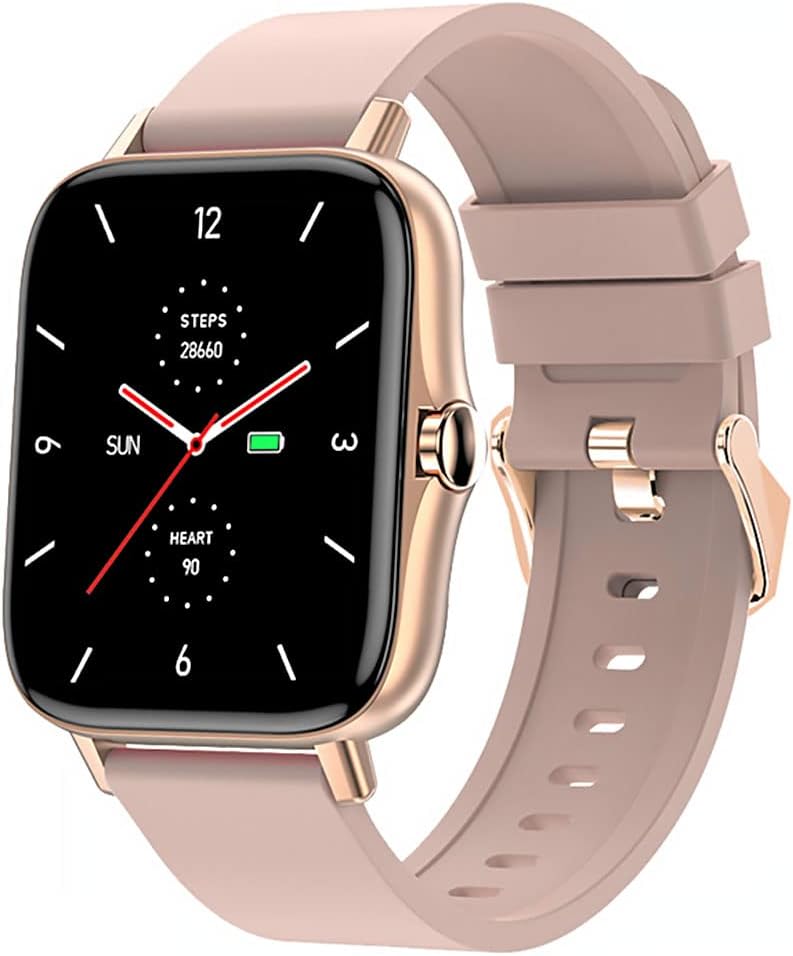
Image 1: Maxcom Fit FW55 Aurum Pro Smartwatch with a pink silicone band. The watch face displays steps, heart rate, and time.
3. Opsætning
3.1. Opladning af smartwatchet
Before initial use, fully charge your Maxcom Fit FW55 Aurum Pro Smartwatch. Connect the provided charging cable to the charging port on the back of the smartwatch and plug the other end into a standard USB power adapter (not included) or a computer's USB port. The watch display will indicate charging status.
- Ensure the charging pins are clean and properly aligned with the watch's charging contacts.
- En fuld opladning tager typisk cirka 2 timer.
3.2. Parring med din smartphone
To unlock the full functionality of your smartwatch, you need to pair it with your smartphone via Bluetooth.
- Download appen: Søg efter the official Maxcom Fit application in your smartphone's app store (iOS App Store or Google Play Store) and install it.
- Aktiver Bluetooth: Sørg for, at Bluetooth er aktiveret på din smartphone.
- Åbn appen: Launch the Maxcom Fit application on your smartphone.
- Tilføj enhed: Follow the in-app instructions to add a new device. Select "FW55 Aurum Pro" from the list of available devices.
- Bekræft parring: A pairing request may appear on both your smartphone and the smartwatch. Confirm the pairing on both devices.
Once successfully paired, the smartwatch will synchronize data with your phone, and you can customize settings through the app.
4. Betjening af smartwatchet
4.1. Tænd/sluk
- Tænd: Press and hold the side button for a few seconds until the Maxcom logo appears.
- Sluk: From the watch face, swipe down to access quick settings, or navigate to the 'Settings' menu. Select 'Power Off' and confirm. Alternatively, press and hold the side button and select 'Power Off'.
4.2. Grundlæggende navigation
- Berøringsskærm: The FW55 Aurum Pro features a 1.7-inch touch screen for intuitive interaction.
- Stryg op/ned: Scroll through notifications, menus, or quick settings.
- Stryg til venstre/højre: Access different widgets or main functions (e.g., heart rate, activity data).
- Tryk på: Vælg et element eller bekræft en handling.
- Side knap: Press to return to the watch face or wake the screen. A long press may access power options.
4.3. Nøglefunktioner
The Maxcom Fit FW55 Aurum Pro Smartwatch offers a range of features to support your daily activities and health monitoring:
- Aktivitetssporing: Monitors steps taken, distance covered, and calories burned.
- Heart Rate Monitoring: Provides real-time heart rate data.
- Søvnovervågning: Tracks sleep patterns and quality.
- Meddelelser: Receives alerts for calls, messages, and app notifications from your paired smartphone.
- GPS: Integreret GPS til præcis sporing af udendørsaktiviteter.
- Tilpasbare urskiver: Personalize your watch face through the companion app.

Image 2: Maxcom Fit FW55 Aurum Pro Smartwatch featuring a gold metal mesh band. The watch face displays digital time, steps, and heart rate.
5. Vedligeholdelse
Proper care and maintenance will extend the lifespan of your smartwatch.
- Rensning: Regularly wipe the watch screen and body with a soft, dry, lint-free cloth. For stubborn dirt, slightly dampRengør kluden med vand. Undgå at bruge skrappe kemikalier eller slibende materialer.
- Vedligeholdelse af rem: Clean the watch strap according to its material. Silicone straps can be washed with mild soap and water. Metal straps may require specific cleaning agents.
- Undgå ekstreme forhold: Do not expose the smartwatch to extreme temperatures, direct sunlight for prolonged periods, or corrosive liquids.
- Vandtæthed: While the watch may have some water resistance, it is not suitable for diving or high-pressure water activities. Refer to the product specifications for detailed water resistance ratings.
6. Fejlfinding
If you encounter issues with your Maxcom Fit FW55 Aurum Pro Smartwatch, try the following solutions:
- Uret tænder ikke: Sørg for, at uret er fuldt opladet. Tilslut det til opladeren i mindst 30 minutter.
- Kan ikke parres med smartphone:
- Sørg for, at Bluetooth er aktiveret på din telefon og uret.
- Sørg for, at uret er inden for din telefons Bluetooth-rækkevidde.
- Genstart både din telefon og smartwatch.
- Prøv at ophæve parringen og parre enheden igen via appen.
- Unøjagtige data (skridt, puls):
- Sørg for, at uret sidder tæt på dit håndled, cirka en fingers bredde over din håndledsknogl.
- Rengør sensoren på bagsiden af uret.
- Update the companion app to the latest version.
- Ikke modtaget meddelelse:
- Check notification settings in the Maxcom Fit app.
- Sørg for, at din telefon har givet tilladelse til notifikationer til appen.
- Verify that the watch is successfully paired and connected to your phone.
If problems persist, consult the Maxcom support webwebsted eller kontakt kundeservice.
7. Specifikationer
Below are the technical specifications for the Maxcom Fit FW55 Aurum Pro Smartwatch:
| Feature | Detalje |
|---|---|
| Mærke | Maxcom |
| Modelnummer | FW55 Aurum Pro |
| Skærmstørrelse | 1.7 tommer |
| Forbindelsesteknologi | Bluetooth |
| Standard for trådløs kommunikation | Bluetooth |
| Kompatible enheder | Smartphone |
| GPS | Integreret GPS |
| Form | Firkant |
| Målgruppe | Adult Unisex |
| Inkluderede komponenter | Oplader |

Billede 3: Forside view of the Maxcom Fit FW55 Aurum Pro Smartwatch with a pink silicone band, highlighting the square display.
8. Garanti og support
For garantioplysninger og kundesupport henvises til den dokumentation, der fulgte med dit køb, eller besøg den officielle Maxcom webwebsted. Gem din købsbevis til garantikrav.
For technical assistance or further inquiries, please contact Maxcom customer service through their official channels.


