Indledning
This manual provides comprehensive instructions for the setup, operation, and maintenance of your Prechen 27 Inch FHD 1080P Computer Monitor. Designed for both business and gaming, this monitor features a 3-sided frameless IPS panel, Full HD 1920x1080P resolution, 75Hz refresh rate, and eye care technology. Please read this manual thoroughly before using the product to ensure proper functionality and longevity.

Billede: Forside view of the Prechen 27 Inch FHD 1080P Computer Monitor, showcasing dens rammeløse design og livlige skærm.
Opsætning
1. Udpakning og montering
Carefully remove all components from the packaging. Ensure all parts are present: monitor panel, stand base, stand neck, power adapter, HDMI cable, and user manual. Assemble the stand by attaching the neck to the base, then secure the assembled stand to the back of the monitor panel.
2. Tilslutningskabler
The monitor supports both HDMI and VGA inputs. Connect the appropriate video cable from your computer or device to the corresponding port on the monitor. Then, connect the power adapter to the monitor's DC input and plug it into a power outlet.
Billede: Bagside view of the monitor showing the HDMI, VGA, and DC power input ports, highlighting the rich connectivity options.
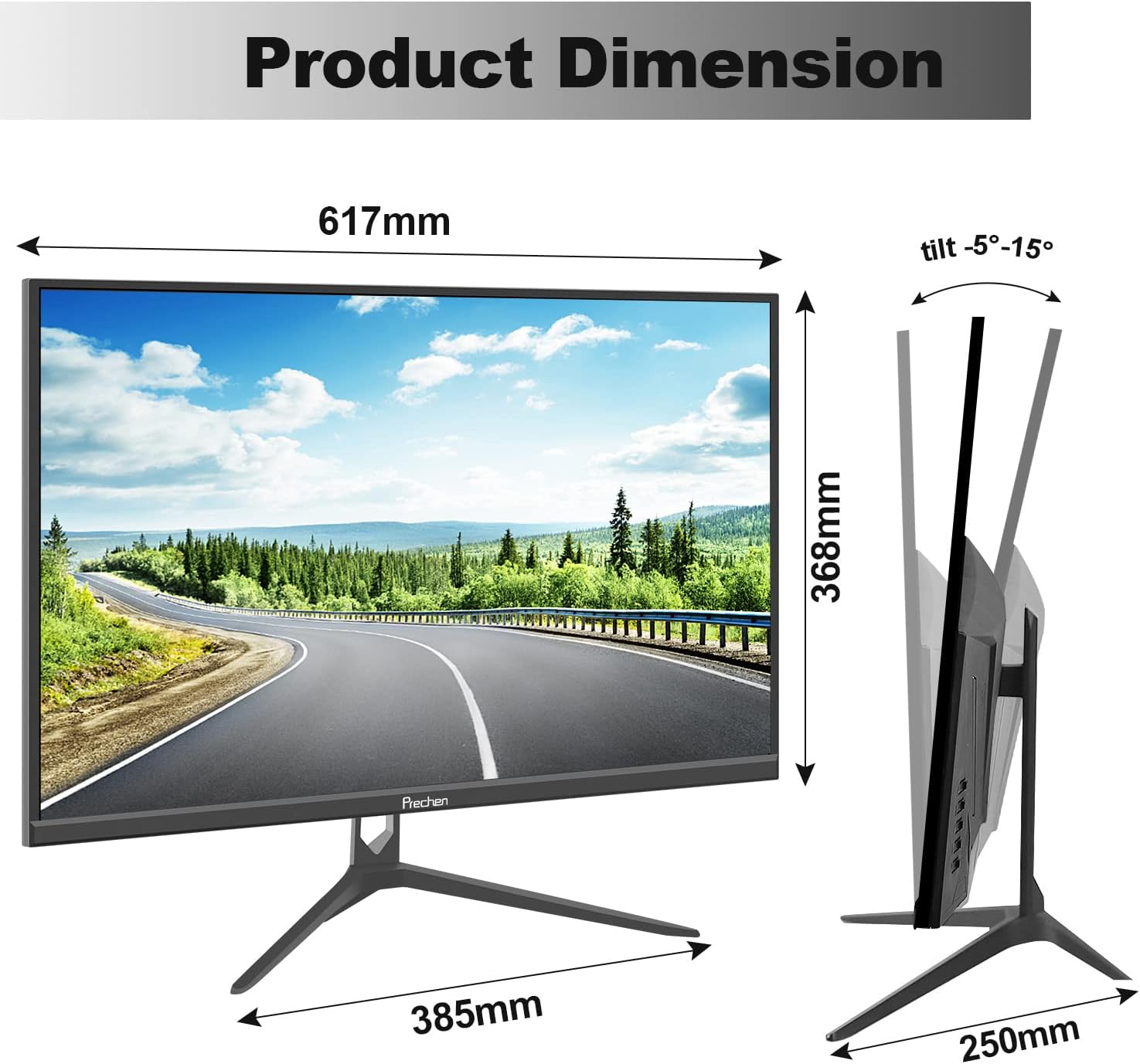
Image: Diagram illustrating multiple connection possibilities for the monitor, including PC, notebook, Xbox, and TV box, demonstrating its versatility.
3. VESA-montering (valgfrit)
This monitor is VESA compatible (100mm x 100mm). If you wish to wall-mount or use a different monitor arm, remove the stand and attach the monitor to your VESA-compatible mount using appropriate screws (not included).

Image: Infographic summarizing key features of the monitor, such as FHD 1080p resolution, IPS panel, Eye Care technology, 178° viewing angle, 99% sRGB, 75Hz refresh rate, VESA 100x100mm compatibility, and 5ms response time.
Betjeningsvejledning
1. Tænd/sluk
Press the power button, usually located on the back or bottom right of the monitor, to turn the monitor on or off. The power indicator light will illuminate when the monitor is active.
2. Valg af input
If you have multiple devices connected, use the input/source button on the monitor to cycle through available inputs (HDMI, VGA) until your desired source is displayed.
3. On-Screen Display (OSD) menu
Access the OSD menu by pressing the Menu button. Use the navigation buttons (up/down/left/right or joystick) to browse through options such as Brightness, Contrast, Color Settings, Input Source, and other display adjustments. Press the Menu button again or an 'Exit' option to close the OSD.

Image: The monitor displaying a vibrant business dashboard with various charts and graphs, illustrating its brilliant visual performance for professional use.
4. Øjenplejefunktioner
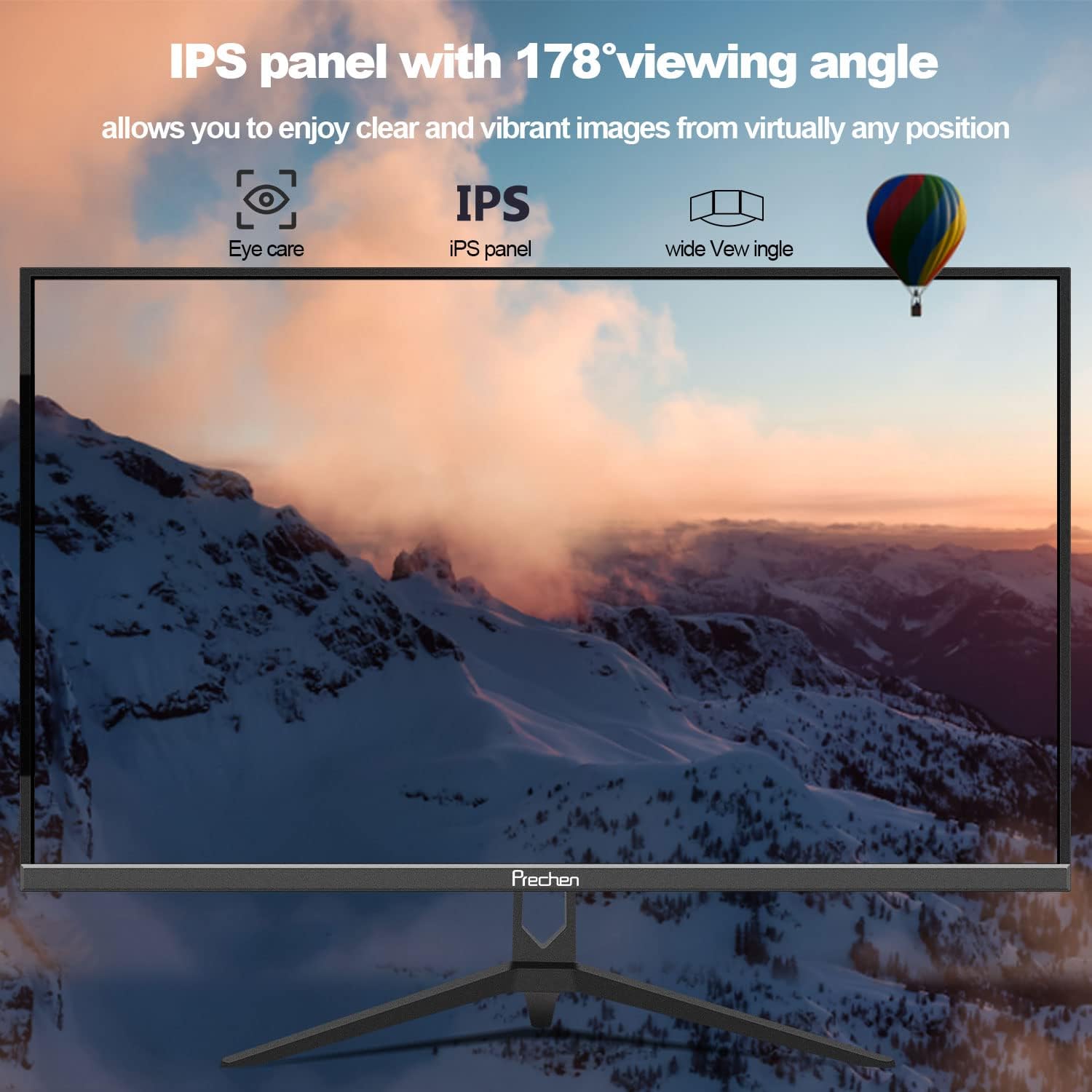
The monitor incorporates low blue light and flicker-free technology to reduce eye strain during prolonged use. These features are designed to protect your eyes and enhance viewkomfort.

Image: The monitor displaying a wide mountain landscape, emphasizing its IPS panel with a 178° viewing angle and integrated eye care features for comfortable viewfra forskellige positioner.
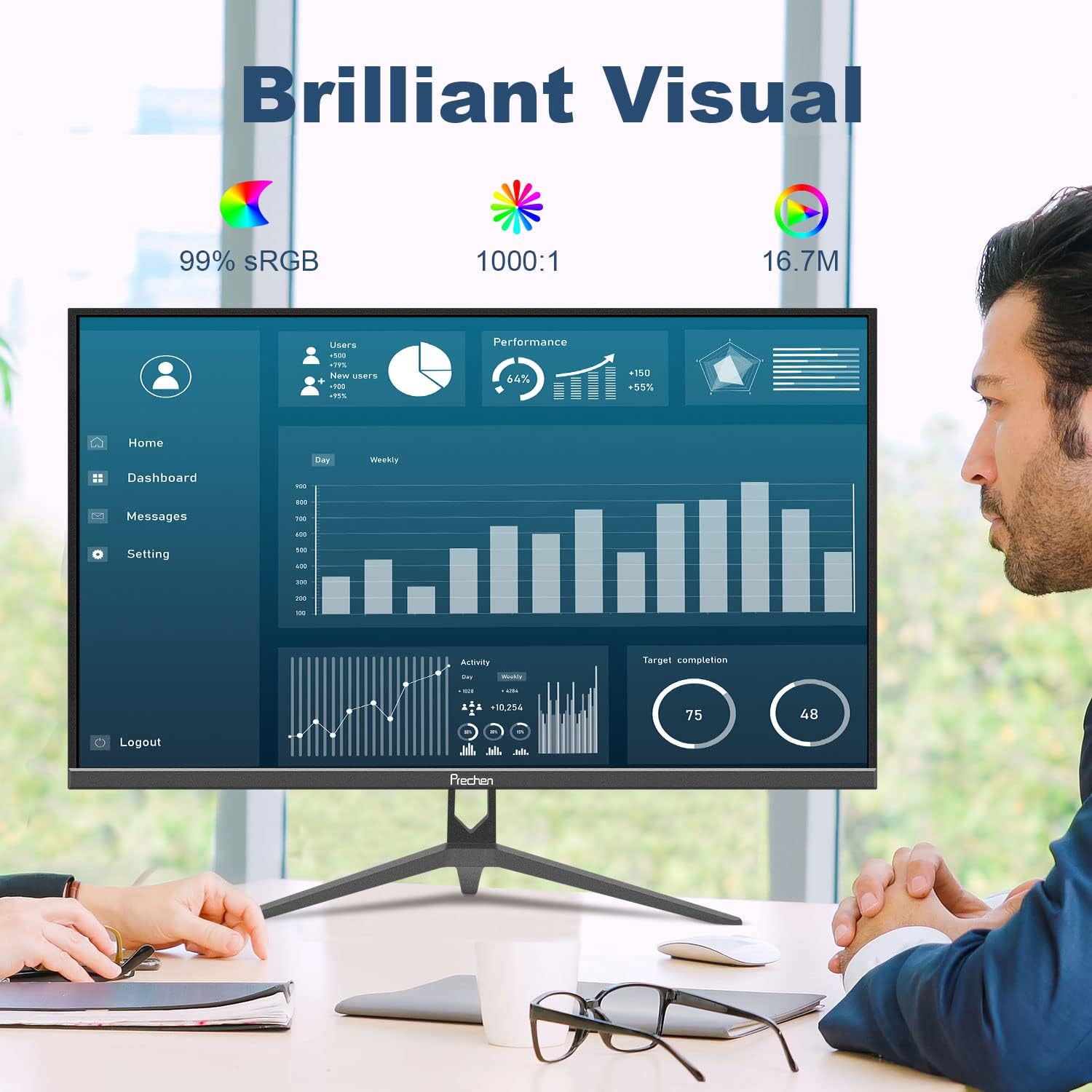
Image: A side-by-side comparison demonstrating the difference between 60Hz and 75Hz refresh rates in a racing game, illustrating the smoother motion provided by the 75Hz refresh rate.
Opretholdelse
1. Rengøring af skærmen
For at rengøre skærmen skal du forsigtigt tørre den af med en blød, fnugfri klud. Ved genstridige mærker, dampen the cloth slightly with water or a non-abrasive screen cleaner. Avoid using alcohol, ammonia, or abrasive cleaners, as they can damage the screen surface.
2. Almen pleje
Keep the monitor away from direct sunlight, excessive heat, and moisture. Ensure proper ventilation around the monitor to prevent overheating. Do not place heavy objects on the monitor or its cables.
Fejlfinding
| Problem | Mulig årsag | Løsning |
|---|---|---|
| Intet billede på skærmen | Strømkabel frakoblet; Videokabel frakoblet; Forkert indgangskilde valgt. | Check power and video cable connections. Ensure the monitor is powered on. Select the correct input source using the monitor's OSD menu. |
| Billedet flimrer eller er ustabilt | Loose video cable; Incorrect refresh rate setting; Interference from other devices. | Securely connect the video cable. Adjust the refresh rate to 75Hz in your computer's display settings. Move interfering electronic devices away from the monitor. |
| Farverne ser forkerte ud | Color settings in OSD are misconfigured; Faulty video cable. | Reset color settings to default in the OSD menu. Try a different video cable. |
Hvis du støder på problemer, der ikke er nævnt her, eller hvis de foreslåede løsninger ikke løser problemet, bedes du kontakte kundesupport.
Specifikationer
| Feature | Detalje |
|---|---|
| Skærmstørrelse | 27 tommer |
| Display Type | IPS LED'er |
| Opløsning | 1920x1080 (FHD 1080p) |
| Opdateringshastighed | 75 Hz |
| Svartid | 5 millisekunder |
| Kontrastforhold | 1000:1 |
| Viewi vinkel | 178 Degrees (Horizontal/Vertical) |
| Farveskala | 99% sRGB, 16.7 Million Colors |
| Forbindelse | HDMI, VGA |
| VESA-kompatibilitet | 100 mm x 100 mm |
| Tilt justering | -5 degrees forward, 15 degrees backward |
| Dimensioner (B x H x D) | Approx. 617mm x 368mm x 250mm (with stand) |
| Vægt | Ca. 4.54 kg |

Image: Diagram illustrating the physical dimensions of the Prechen 27 inch monitor, including its width (617mm), height (368mm), and stand depth (385mm), as well as the tilt adjustment range (-5° to 15°).
Garanti og support
1. Garantioplysninger
Prechen products are covered by a limited warranty. Please refer to the warranty card included in your product packaging for specific terms and conditions, including warranty period and coverage details. Keep your purchase receipt as proof of purchase for warranty claims.
2. Kundesupport
For technical assistance, troubleshooting, or warranty inquiries, please contact Prechen customer support. Contact information can typically be found on the official Prechen website or on the warranty card provided with your product. When contacting support, please have your product model and purchase details ready.


