1. Introduktion
Thank you for choosing the CUPEISI CP20 Android 15 Tablet. This manual provides essential information for setting up, operating, and maintaining your device. Please read it thoroughly to ensure optimal performance and longevity of your tablet.
2. Hvad er der i æsken
Bekræft at alle varer er til stede i din pakke:
- CUPEISI CP20 Android 15 Tablet
- Trådløst tastatur
- Foldable Protective Cover
- Bluetooth Mouse
- Stylus
- Type-C kabel
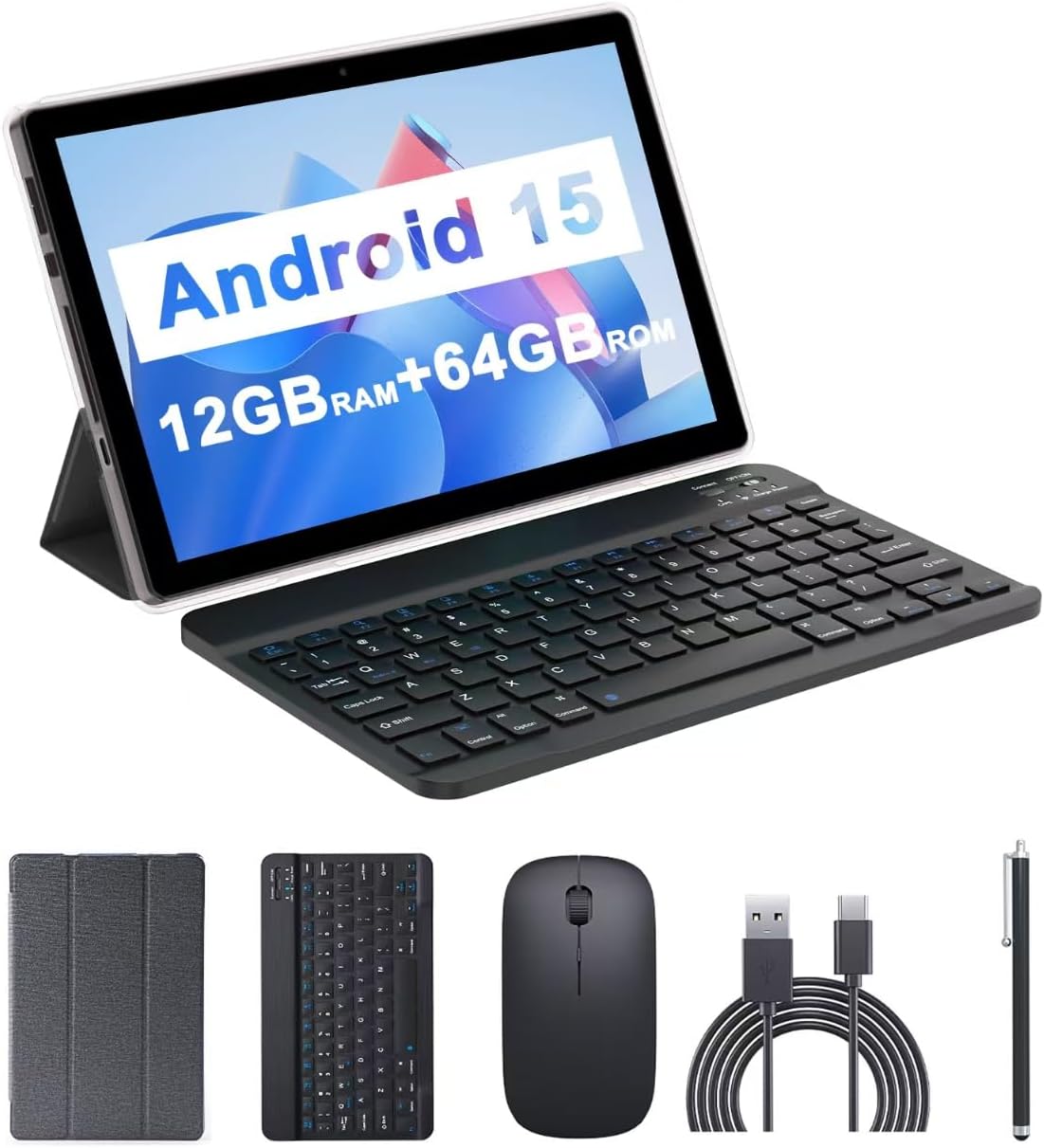
Image: The CUPEISI CP20 Tablet alongside its accessories, including the wireless keyboard, Bluetooth mouse, stylus, and foldable protective cover.
3. Produktfunktioner og komponenter
The CUPEISI CP20 Tablet is designed for versatility and performance, offering a seamless user experience for both work and entertainment.
3.1 Nøglefunktioner
- Operativsystem: Stable Android 15.0 system.
- Processor: Built-in 1.8GHz Quad-core CPU for efficient multitasking.
- Hukommelse og opbevaring: 12GB RAM (4GB+8GB expansion) and 64GB ROM, expandable up to 1TB via microSD card.
- Vise: Stunning 10.1-inch 1280x800 IPS HD touch screen for immersive visuals and eye protection.
- Batteri: Powered by a 6000mAh battery, providing approximately 6 hours of regular operation and up to 12 hours of standby time. Charges via 5V2A Type-C port.
- Kameraer: 8MP rear camera with auto-focus and flash, and a 2MP front camera for clear video calls and photos.
- Forbindelse: Supports 5G WiFi 6 and Bluetooth 5.0.
- 2-i-1 funktionalitet: Transforms into a laptop or computer mode with the included Bluetooth keyboard, wireless mouse, and foldable protective case.

Billede: Overview of the tablet's core specifications and features.
3.2 Fysiske komponenter
Gør dig bekendt med tablettens fysiske layout:
- Power knap: Placeret på siden, bruges til at tænde/slukke tabletten eller vække/sætte skærmen i dvaletilstand.
- Lydstyrkeknapper: Juster lydniveauer.
- Type-C port: Til opladning og dataoverførsel.
- TF/SIM Card Slot: Insert a microSD card for expanded storage.
- Forreste kamera: Til videoopkald og selfies.
- Bagkamera og blitz: Til fotos og videoer i høj kvalitet.
- Højttalere: Two speakers for audio output.

Image: Labeled diagram of the tablet's ports and buttons.
4. Opsætningsvejledning
4.1 Indledende opladning
Before first use, fully charge your tablet. Connect the Type-C cable to the tablet's charging port and the other end to a compatible power adapter (5V2A recommended). The battery indicator will show charging status.
4.2 Tænd/sluk
- For at tænde: Tryk og hold tænd/sluk-knappen nede, indtil skærmen lyser.
- For at slukke: Press and hold the Power Button, then select 'Power off' from the options that appear on the screen.
- For at genstarte: Press and hold the Power Button, then select 'Restart'.
4.3 Tilslutning til Wi-Fi
- Gå til Indstillinger > Netværk og internet > Wi-Fi.
- Slå Wi-Fi til.
- Vælg dit ønskede Wi-Fi-netværk fra listen.
- Indtast adgangskoden, hvis du bliver bedt om det, og tryk derefter på Forbinde.
4.4 Pairing Bluetooth Accessories
To use the wireless keyboard and Bluetooth mouse, they must be paired with your tablet.
- Sørg for, at tastaturet og musen er opladet og tændt.
- Gå til din tablet på Indstillinger > Tilsluttede enheder > Bluetooth.
- Slå Bluetooth til.
- The tablet will scan for available devices. Select the keyboard or mouse from the list.
- Følg eventuelle anvisninger på skærmen for at fuldføre parringsprocessen.

Image: Instructions for connecting the wireless keyboard and mouse via Bluetooth.
4.5 Indsættelse af et MicroSD-kort
To expand storage, insert a microSD card (up to 1TB) into the TF/SIM card slot. Ensure the tablet is powered off before inserting or removing the card.
5. Betjening af din tablet
5.1 Grundlæggende navigation
Navigate the Android interface using touch gestures:
- Tryk på: Vælg et element, eller åbn en app.
- Stryg: Rul gennem sider eller lister.
- Knib for at zoome: Forstør eller formindsk indhold.
- Langt tryk: Få adgang til kontekstmenuer eller flyt ikoner.
5.2 Using Keyboard and Mouse
Once paired, the keyboard and mouse function similarly to a laptop. The keyboard allows for efficient typing, while the mouse provides precise cursor control, enhancing productivity.

Image: The tablet in laptop mode, demonstrating its use for productivity tasks.
5.3 Kamerabrug
Open the Camera app to capture photos and videos. Switch between the 2MP front camera and the 8MP rear camera as needed. The rear camera features auto-focus and flash for improved image quality.

Image: Demonstrating the tablet's front and rear camera functionality for video calls and photography.
5.4 Appinstallation og -administration
Download and install applications from the Google Play Store. To manage installed apps, go to Indstillinger > Apps.

Image: The tablet running Android 15 OS, showing popular applications like YouTube, Google Play, and Netflix.
6. Vedligeholdelse
6.1 Rengøring
Brug en blød, fnugfri klud til at rengøre skærmen og tablettens kabinet. Undgå at bruge skrappe kemikalier eller slibende materialer. Tør let ved genstridige pletter.ampRengør kluden med vand eller en skærmrenser beregnet til elektronik.
6.2 Softwareopdateringer
Tjek regelmæssigt efter og installer softwareopdateringer for at sikre, at din tablet har de nyeste funktioner, sikkerhedsrettelser og forbedringer af ydeevnen. Gå til Indstillinger > System > Systemopdatering.
6.3 Lagerstyring
For at opretholde optimal ydeevne, skal du regelmæssigtview og administrer din tablets lagerplads. Slet unødvendige files, afinstaller ubrugte apps og flyt store medier files to external storage (microSD card) if applicable. Go to Indstillinger > Opbevaring til view brug og frigør plads.
7. Fejlfinding
This section addresses common issues you might encounter with your CUPEISI CP20 Tablet.
7.1 Tablet tænder ikke
- Sørg for, at tabletten er tilstrækkeligt opladet. Tilslut den til opladeren i mindst 30 minutter.
- Perform a forced restart by pressing and holding the Power Button for 10-15 seconds.
7.2 Langsom ydeevne
- Luk ubrugte programmer, der kører i baggrunden.
- Clear cached data for apps (Settings > Apps > [App Name] > Storage & cache > Clear cache).
- Sørg for tilstrækkelig ledig opbevaringsplads.
- Genstart tabletten med jævne mellemrum.
7.3 Problemer med Wi-Fi-forbindelse
- Slå Wi-Fi til og fra i Indstillinger.
- Genstart din Wi-Fi-router.
- Glem netværket, og genopret forbindelse (Indstillinger > Netværk og internet > Wi-Fi > [Netværksnavn] > Glem).
7.4 Hurtig batteriafladning
- Reducer skærmens lysstyrke.
- Deaktiver Wi-Fi, Bluetooth og GPS, når de ikke er i brug.
- Begræns opdatering af apps i baggrunden.
- Tjek batteriforbruget i Indstillinger > Batteri for at identificere strømkrævende apps.
8. Specifikationer
| Feature | Specifikation |
|---|---|
| Mærke | CUPEISI |
| Modelnavn | CP20 |
| Operativsystem | Android 15 |
| Skærmstørrelse | 10 tommer |
| Skærmopløsning | 1280 x 800 pixels (IPS HD) |
| Processor | 1.8 GHz firekernet |
| VÆDDER | 12 GB (4GB+8GB expansion) |
| Flash-hukommelsesstørrelse | 64 GB |
| Udvidelig opbevaring | Op til 1 TB (microSD) |
| Bag Webcam opløsning | 8 MP |
| Forreste kameraopløsning | 2 MP |
| Trådløs type | 802.11ax (5G WiFi 6) |
| Bluetooth | Bluetooth 5.0 |
| Batterikapacitet | 6000mAh Lithium Polymer |
| Gennemsnitlig batterilevetid | 8 timer |
| Varens vægt | 1 pund |
| Produktdimensioner | 9.7 x 6.5 x 0.3 tommer |
9. Garanti og support
For warranty information and technical support, please refer to the documentation included with your purchase or visit the official CUPEISI webwebsted. Gem din købsbevis til garantikrav.
If you encounter issues not covered in this manual, please contact CUPEISI customer service for assistance.


