1. Introduktion og overview
The Calix GigaCenter 844E-1 is a high-performance wireless router and modem designed to provide robust and reliable internet connectivity for home and small office environments. It supports dual-band Wi-Fi (2.4GHz and 5GHz) for optimal wireless performance and includes multiple Ethernet ports for wired connections. This manual provides detailed instructions for setting up, operating, maintaining, and troubleshooting your GigaCenter 844E-1 device.
2. Produktfunktioner
- Dual-band Wi-Fi: Supports 2.4GHz and 5GHz frequencies for flexible and high-speed wireless connections (802.11ac, 802.11n, 802.11a/g/b compatible).
- High LAN Data Rate: Capable of up to 1000 Mbps for fast wired connections.
- Flere porte: Includes Ethernet (RJ-45) ports (4 LAN ports), USB 2.0, and RJ-11 ports for versatile connectivity.
- Integrated Modem: Functions as both a router and a modem, simplifying network setup.
- Kompakt design: Designed for efficient space utilization.
3. Pakkens indhold
Kontroller venligst, at alle varer er til stede i din pakke:
- Calix GigaCenter 844E-1 Wireless Router Modem
- Strømforsyning til lysnetadapter
- (Optional: Ethernet Cable, Phone Cable - may vary by package)
4. Opsætningsvejledning
Follow these steps to set up your Calix GigaCenter 844E-1:
- Placering af enheden: Place the GigaCenter 844E-1 in a central location in your home, away from obstructions and sources of interference (e.g., microwaves, cordless phones). Ensure adequate ventilation.
- Tilslut strøm: Connect the provided AC Adapter Power Supply to the "POWER" port on the back of the GigaCenter 844E-1 and then plug the adapter into a standard electrical outlet. The Power indicator light on the front panel should illuminate.

Figur 4.1: Forside view of the Calix GigaCenter 844E-1 showing indicator lights and the included power adapter.
- Connect to Internet Source: Connect your internet service provider's (ISP) cable or fiber optic line to the appropriate WAN/Broadband port on the GigaCenter 844E-1. This port is typically labeled "ETH-WAN" or "Broadband". The Broadband indicator light should turn solid green once a connection is established.

Figur 4.2: Side view of the GigaCenter 844E-1 highlighting the ETH-WAN, Power, and Phone ports.
- Tilslut kablede enheder (valgfrit): Use standard Ethernet cables to connect computers, gaming consoles, or other network devices to the "ETHERNET 1-4" ports on the back of the GigaCenter 844E-1. The corresponding Ethernet indicator light will illuminate when a device is connected and active.

Figure 4.3: Top/back view of the GigaCenter 844E-1 displaying the USB, Reset, Ethernet (LAN), and Phone ports.
- Connect Phone Devices (Optional): If your service includes voice, connect analog phones to the "PHONE 1" or "PHONE 2" ports using RJ-11 cables.
- Første Wi-Fi-forbindelse:
- Locate the Wi-Fi Network Name (SSID) and Password (WPA Key) on the label usually found on the bottom or back of your GigaCenter 844E-1.
- Søg efter tilgængelige Wi-Fi-netværk på din trådløse enhed (bærbar computer, smartphone, tablet).
- Select your GigaCenter's SSID and enter the WPA Key when prompted.
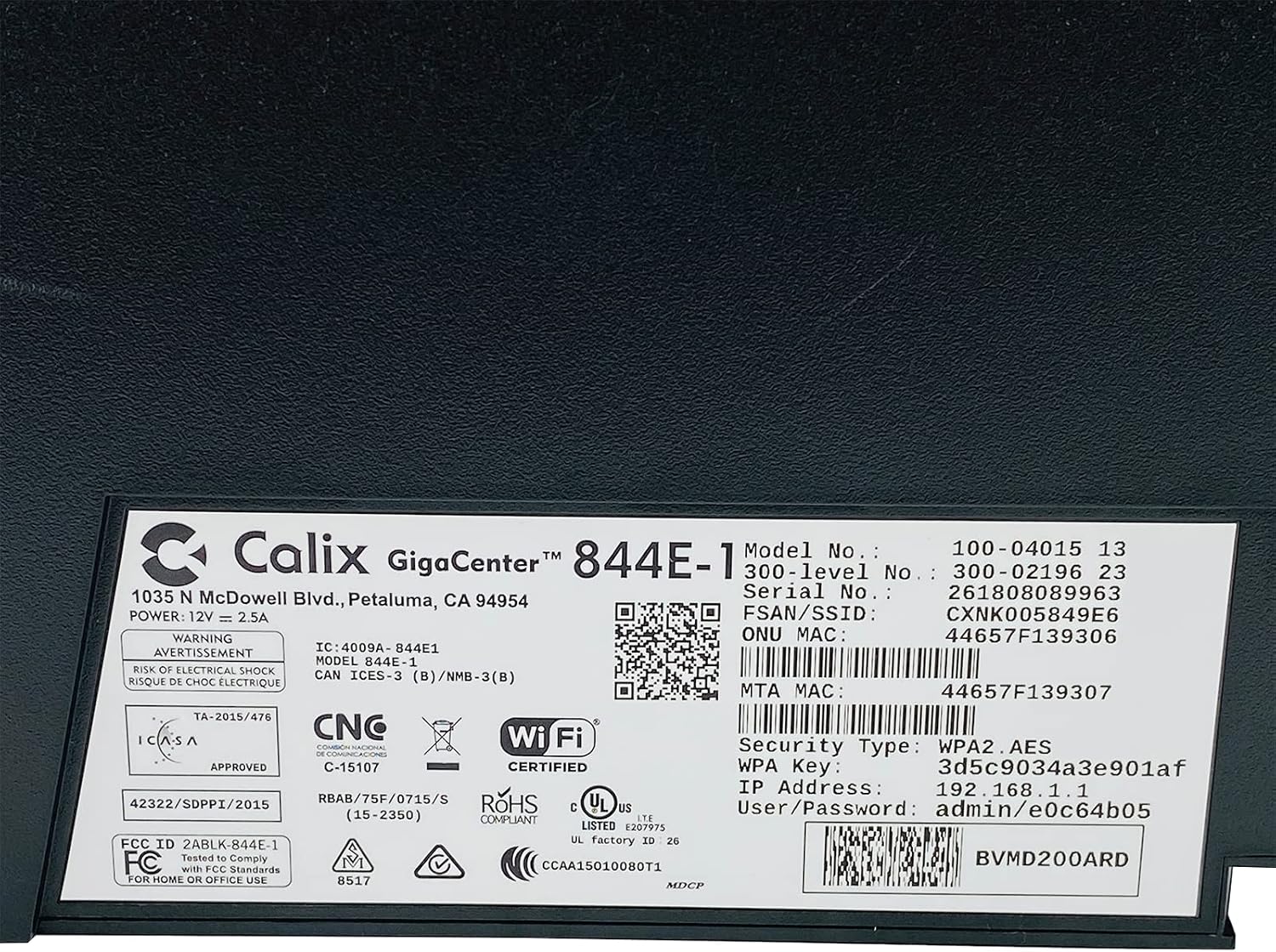
Figur 4.4: Detaljeret view of the bottom label, providing essential information such as model number, serial number, Wi-Fi SSID, and WPA Key for network access.
- Bekræft forbindelsen: Når du er tilsluttet, skal du åbne en web browser and try to access a webwebsted (f.eks. www.google.com). If successful, your GigaCenter 844E-1 is set up and ready for use.
5. Betjeningsvejledning
5.1 Indikatorlys
The front panel of the GigaCenter 844E-1 features several indicator lights that provide status information:
| Lys | Status | Beskrivelse |
|---|---|---|
| MAGT | Solid grøn | Enheden er tændt. |
| bREDBÅND | Solid grøn | Internet connection is active. |
| SERVICE | Solid grøn | Service is active and provisioned. |
| WIFI 2.4 GHz | Solid Green/Flashing | 2.4 GHz Wi-Fi is active/data transfer. |
| WIFI 5 GHz | Solid Green/Flashing | 5 GHz Wi-Fi is active/data transfer. |
| ETHERNET 1-4 | Solid Green/Flashing | Wired connection active/data transfer. |
| PHONE 1-2 | Solid Green/Flashing | Phone service active/in use. |
| USB | Solid Green/Flashing | USB device connected/data transfer. |
| WPS | Blinker | WPS-parring er i gang. |
5.2 Adgang til Web Interface
To configure advanced settings, you can access the GigaCenter's web grænseflade:
- Ensure your device is connected to the GigaCenter via Wi-Fi or Ethernet.
- Åbn a web browser and enter the IP Address (e.g., 192.168.1.1) found on the product label into the address bar.
- Enter the User/Password (e.g., admin/e0c64b05) from the product label when prompted.
- You can now configure settings such as Wi-Fi name, password, port forwarding, and parental controls.
6. Vedligeholdelse
- Rensning: Brug en blød, tør klud til at rengøre enhedens yderside. Brug ikke flydende rengøringsmidler eller aerosoler.
- Ventilation: Ensure the device's ventilation slots are not blocked to prevent overheating.
- Firmwareopdateringer: Periodically check with your Internet Service Provider (ISP) for available firmware updates to ensure optimal performance and security.
- Genstart: Hvis du oplever forbindelsesproblemer, kan du prøve at genstarte enheden ved at tage strømadapteren ud i 10 sekunder og derefter sætte den i igen.
7. Fejlfinding
Dette afsnit omhandler almindelige problemer, du kan støde på:
7.1 Ingen internetforbindelse
- Tjek kabler: Ensure all cables (power, internet source, Ethernet) are securely connected.
- Indikatorlys: Verify that the POWER, BROADBAND, and SERVICE lights are solid green. If not, refer to Section 5.1 or contact your ISP.
- Genstart enhed: Power cycle the GigaCenter 844E-1 by unplugging it for 10 seconds and plugging it back in.
- Internetudbyder Outage: Check with your ISP for any service outager i dit område.
7.2 Wi-Fi Not Working or Slow
- Wi-Fi-lys: Ensure the WIFI 2.4 GHz and/or WIFI 5 GHz lights are solid green.
- Adgangskode: Double-check that you are entering the correct Wi-Fi password (WPA Key).
- Signalstyrke: Move closer to the GigaCenter 844E-1 to improve signal strength.
- Interferens: Reducer interferens fra andre elektroniske enheder.
- Kanaloptimering: Få adgang til web interface to change Wi-Fi channels if experiencing congestion.
7.3 Kan ikke få adgang Web Interface
- IP-adresse: Confirm you are using the correct IP Address (e.g., 192.168.1.1).
- Forbindelse: Ensure your device is connected to the GigaCenter's network.
- Akkreditiver: Verify the User/Password from the product label.
- Firewall/antivirus: Deaktiver midlertidigt enhver firewall eller antivirussoftware på din computer, der muligvis blokerer adgang.
7.4 WPS-funktionalitet
The WPS (Wi-Fi Protected Setup) button allows for easy connection of WPS-compatible devices without manually entering the password. Press the WPS button on the GigaCenter 844E-1 and then activate WPS on your client device within two minutes. The WPS light will flash during the pairing process.
8. Specifikationer
| Feature | Detalje |
|---|---|
| Model | GigaCenter 844E-1 (100-04015 13) |
| Mærke | Calix |
| Forbindelsesteknologi | Wireless-Wi-Fi 802.11ac, Ethernet (RJ-45) Hub/Switch, 5G |
| Trådløse standarder | 802.11ac, 802.11n, 802.11a/g/b |
| Frekvensbåndsklasse | Dobbeltbånd (2.4 GHz, 5 GHz) |
| Maximum LAN Data Rate | 1000 Mbps |
| Havne | 4 x Ethernet (RJ-45), 1 x USB 2.0, 2 x RJ-11 (Phone) |
| Kompatible enheder | Personlig computer, netværksenheder |
| Anbefalet brug | Hjem |
| Inkluderede komponenter | Strømforsyning |
| Varens vægt | 3 pund |
9. Sikkerhedsoplysninger
- Udsæt ikke enheden for vand eller fugt.
- Åbn ikke enheden casing. Overlad al service til kvalificeret personale.
- Brug kun den medfølgende strømadapter.
- Hold enheden væk fra varmekilder og direkte sollys.
- Sørg for korrekt ventilation for at forhindre overophedning.
10. Garanti og support
For warranty information and technical support, please contact your Internet Service Provider (ISP) or the vendor from whom you purchased this device. The Calix GigaCenter 844E-1 is typically provided and supported by your ISP as part of your internet service package.
For general inquiries or to find more information about Calix products, you may visit the official Calix website (if available, search online for "Calix official website").


