1. Introduktion
This manual provides detailed instructions for the setup, operation, maintenance, and troubleshooting of your Cmokifuly GK102 Wired Mechanical Keyboard. Please read this manual thoroughly before using the product to ensure optimal performance and longevity.
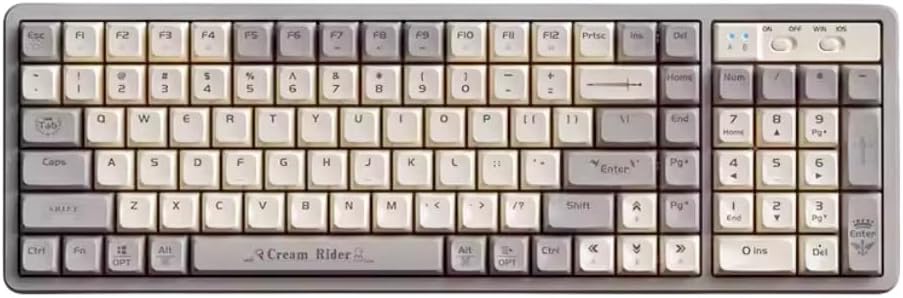
Billede 1.1: Overview of the Cmokifuly GK102 Wired Mechanical Keyboard.
2. Pakkens indhold
Bekræft at alle varer er til stede i pakken:
- Cmokifuly GK102 Wired Mechanical Keyboard
- USB-kabel (Type-C)
- Keycap aftrækker
3. Opsætning
- Tilslut tastaturet: Locate the USB Type-C port on the back of the keyboard. Connect one end of the provided USB cable to this port and the other end to an available USB port on your computer (PC, Mac, or compatible device).

Image 3.1: The keyboard features a detachable USB-C cable for stable wired connection and portability.
- Systemgenkendelse: Your operating system (Windows or macOS) should automatically detect and install the necessary drivers for the keyboard. This process may take a few moments.
- Indledende test: Åbn en teksteditor eller et andet program, der accepterer tekstinput, og test indtastningen for at sikre, at alle taster fungerer korrekt.
4. Betjeningsvejledning
4.1. Forbindelse
The GK102 keyboard utilizes a stable wired USB Type-C connection. The detachable cable design allows for easy transport and storage, separating the keyboard from its connection cable.
4.2. RGB-baggrundsbelysning
The keyboard features RGB backlighting with 19 distinct effects. You can cycle through these effects and adjust brightness directly on the keyboard. For advanced customization and to program specific backlight modes, dedicated software is available. Refer to the manufacturer's webhjemmeside til download af software og instruktioner.
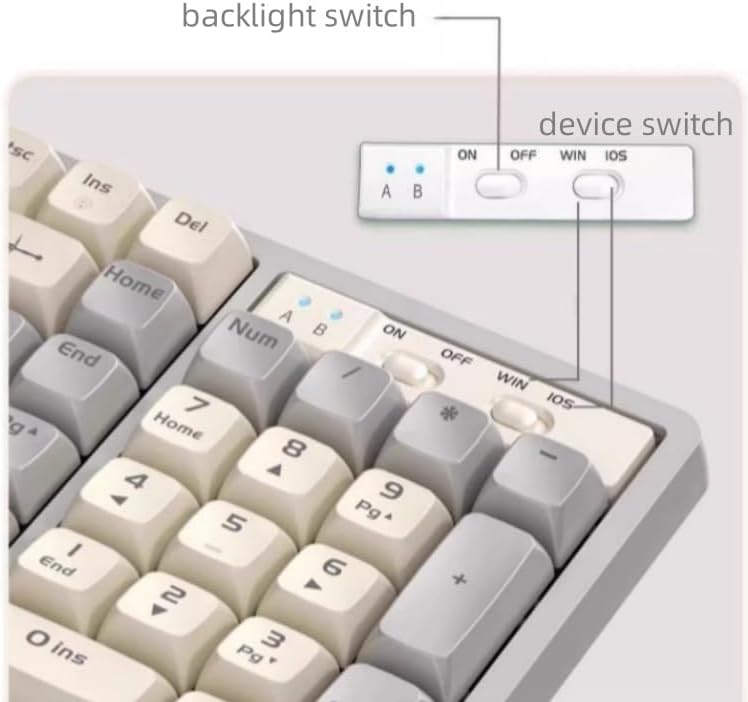
Image 4.1: Top-right switches for backlight control and operating system selection.
4.3. Hot-swap-kontakter
The GK102 is equipped with 3-pin hot-swappable sockets, allowing users to easily remove and replace mechanical switches without soldering. This feature enables customization of typing feel and simplifies switch maintenance or replacement.
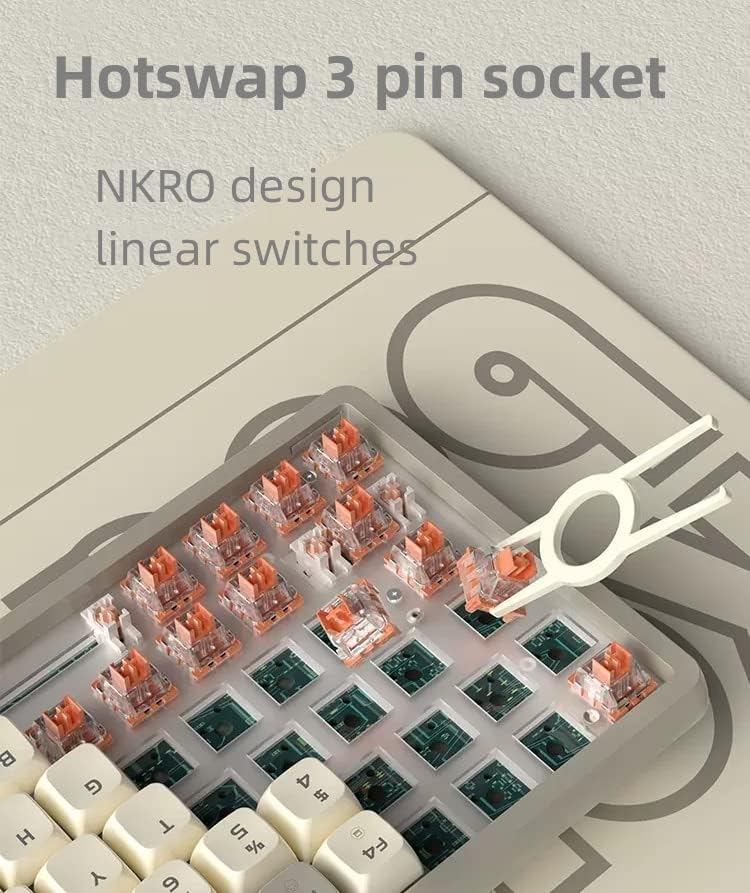
Image 4.2: Illustration of the hot-swappable switch design, allowing easy removal and replacement of switches.

Billede 4.3: Eksploderet view of a GK Orange linear switch, detailing its components and specifications.
4.4. MDA Profile tasterne
The keyboard features MDA profile keycaps, designed for ergonomic comfort during extended use. This profile is slightly lower than SA profile keycaps, with a sculpted shape that conforms to the natural arc of finger movement, reducing fatigue.

Billede 4.4: Nærbillede view of the MDA profile keycaps, highlighting their ergonomic shape.
4.5. Dual Silencing Design
To enhance the typing experience, the GK102 incorporates a dual silencing design. A noise-absorbing pad is placed between the PC positioning plate, and sound-deadening cotton fills the bottom of the keyboard. This construction reduces noise generated by switch presses and ensures a more comfortable key sound. The stabilizers are also pre-lubricated for smoother operation.

Image 4.5: Diagram illustrating the internal layers, including EVA sandwich cotton and sound insulation cotton, for noise reduction.
4.6. Kompatibilitet
The Cmokifuly GK102 is compatible with various operating systems, including Windows 10, Win 8, Win 7, Win Vista, Windows XP, and Mac OS. Simply connect the USB cable to your device for immediate use.

Image 4.6: Comparison of the 102-key layout, demonstrating a compact design that saves approximately 60mm compared to standard 104-key keyboards.
5. Vedligeholdelse
- Rensning: Rengør tastaturet regelmæssigt med en blød, tør klud. Brug en dåse trykluft til at fjerne støv og snavs mellem tasterne for at opnå en grundigere rengøring.
- Fjernelse af nøglekapsel: Use the provided keycap puller to carefully remove keycaps for cleaning or replacement. Gently pull straight up to avoid damaging the switch stem.
- Udskiftning af kontakt: Utilize the keycap puller to remove the keycap, then use a switch puller (not included, but often comes with replacement switches) to carefully extract the switch from its socket. Align the new 3-pin switch with the socket and press firmly until it clicks into place. Ensure pins are not bent.
- Undgå væsker: Udsæt ikke tastaturet for væsker. I tilfælde af utilsigtet spild skal du straks frakoble tastaturet og lade det tørre helt, før du tilslutter det igen.
6. Fejlfinding
- Tastaturet reagerer ikke:
- Sørg for, at USB-kablet er korrekt tilsluttet til både tastaturet og computeren.
- Prøv at tilslutte tastaturet til en anden USB-port på din computer.
- Test tastaturet på en anden computer for at udelukke systemspecifikke problemer.
- Hvis du bruger en USB-hub, kan du prøve at tilslutte den direkte til computeren.
- Specifikke taster virker ikke:
- Due to the hot-swappable design, a switch might be improperly seated or faulty. Carefully remove the keycap and then the switch using a switch puller. Reinsert the switch firmly, ensuring the pins are straight and fully engaged.
- If a switch is confirmed faulty, replace it with a new 3-pin mechanical switch.
- Backlighting Issues (Flickering/Not Working):
- Check the backlight switch on the keyboard (refer to Image 4.1).
- Sørg for, at tastaturet modtager tilstrækkelig strøm fra USB-porten.
- If using the programmable software, ensure settings are correctly applied and try resetting them.
- Inputforsinkelse eller afbrydelser:
- Ensure the USB cable is not damaged. Try using a different compatible USB Type-C cable.
- Avoid connecting through unpowered USB hubs.
7. Specifikationer
| Modelnummer | GK102 |
| Mærke | Smukt |
| Forbindelsesteknologi | USB-C (kablet) |
| Tastaturbeskrivelse | Mekanisk |
| Switch Type | Linear (Hot-swappable 3-pin) |
| Keycap Profile | MDA Profile |
| Baggrundsbelysning | RGB (19 effects, programmable) |
| Kompatible enheder | PC (Windows 10, 8, 7, Vista, XP), Mac OS |
| Materiale | Plast |
| Varens vægt | 2.18 pund |
| Pakkedimensioner | 17.28 x 7.05 x 2.24 tommer |
| Dato først tilgængelig | 31. oktober 2022 |
8. Garanti og support
For warranty information and technical support, please refer to the documentation included with your purchase or visit the official Cmokifuly website. If you encounter any issues not covered in this manual, please contact Cmokifuly customer service for assistance.


