Indledning
This manual provides comprehensive instructions for the NOVOO 11-in-1 USB-C Triple Display Docking Station. This device expands the connectivity of your USB-C enabled laptop, offering multiple display outputs, high-speed data transfer ports, network connectivity, and power delivery capabilities. Please read this manual thoroughly before use to ensure proper operation and to maximize the benefits of your docking station.

Billede: Overview of the NOVOO 11-in-1 USB-C Triple Display Docking Station, showcasing its compact design and various ports including USB, HDMI, DisplayPort, Ethernet, and card reader slots.
Produktegenskaber
The NOVOO 11-in-1 USB-C Triple Display Docking Station offers the following features:
- Tredobbelt displayudgang: Two HDMI ports (up to 4K@60Hz) and one DisplayPort (up to 8K@30Hz or 4K@120Hz, depending on laptop DP version).
- Højhastighedsdataoverførsel: Two USB 3.0 ports (up to 5Gbps) and two USB 2.0 ports (for peripherals like keyboard/mouse).
- Hukommelseskortlæser: SD and TF card slots (up to 104Mbps).
- gigabit ethernet: RJ45 port for stable wired network connection (up to 1000Mbps).
- Strømforsyning: USB-C PD charging port (up to 100W input) to power your laptop.
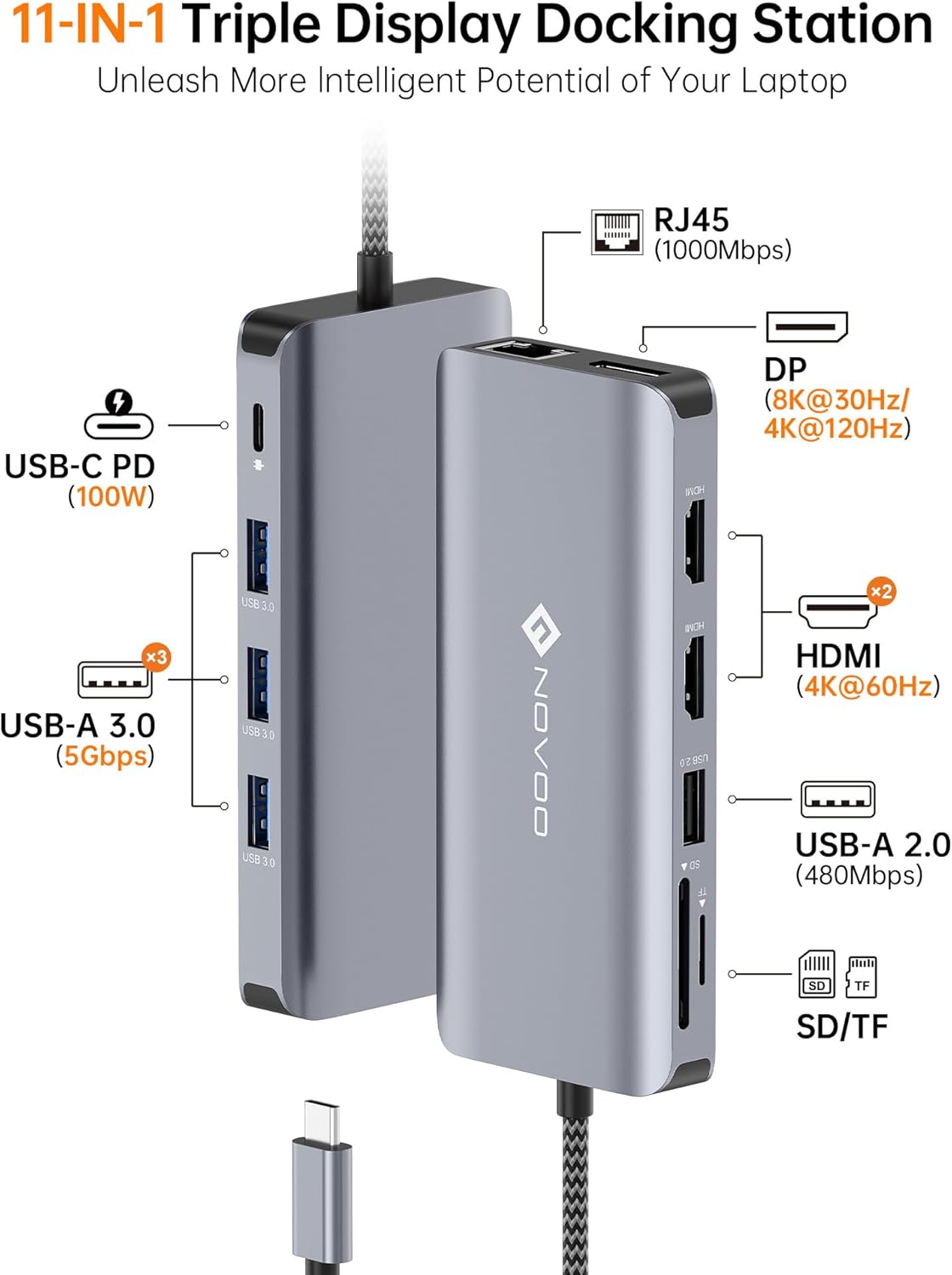
Image: Detailed diagram illustrating each port on the docking station, including USB-C PD, USB-A 3.0, USB-A 2.0, SD/TF card slots, HDMI, DisplayPort, and RJ45 Ethernet, along with their respective specifications.
Opsætningsinstruktioner
- Bekræft kompatibilitet med bærbare computere: Ensure your laptop's USB-C port supports full functionality (Power Delivery + DisplayPort Alt Mode + Data Transfer). Refer to your laptop's specifications or user manual. Ports that only support charging or data transfer will not enable all docking station features.
- Tilslut til bærbar computer: Sæt det integrerede USB-C-kabel fra dockingstationen i din bærbare computers kompatible USB-C-port.
- Tilslut strømadapter (valgfrit, men anbefalet): For optimal performance and to charge your laptop, connect your laptop's original USB-C power adapter (up to 100W) to the docking station's USB-C PD input port.
- Tilslut eksterne skærme:
- For HDMI-skærme skal du tilslutte HDMI-kabler fra dine skærme til HDMI-portene på dockingstationen.
- For DisplayPort displays, connect a DisplayPort cable from your monitor to the DP port on the docking station.
- Tilslut ydre enheder: Plug your USB devices (e.g., keyboard, mouse, external hard drives, USB flash drives) into the available USB 3.0 and USB 2.0 ports.
- Tilslut netværkskabel: For en kablet internetforbindelse skal du tilslutte et Ethernet-kabel til RJ45-porten på dockingstationen.
- Indsæt hukommelseskort: Indsæt om nødvendigt SD- eller TF-kort i deres respektive slots.

Image: Visual guide for checking laptop USB-C port compatibility, distinguishing between full-function ports (Data + PD + DisplayPort Alt) and limited ports (Charging only, Data only, Data + charging only).
Betjeningsvejledning
Skærmkonfiguration
The docking station supports various display modes depending on your operating system and laptop capabilities.
- Windows-systemer: Supports both Mirror Mode (AAAA) and Extend Mode (ABBB/ABCD) for dual or triple displays (MST mode).
- macOS-systemer: Supports Mirror Mode (AAAA) and Extend Mode (ABBB). Due to macOS limitations, all extended monitors will display the same content.
For at konfigurere dine skærme skal du gå til dit operativsystems skærmindstillinger:
- Windows: Right-click on the desktop, select "Display settings," then choose your preferred display mode (Duplicate these displays, Extend these displays).
- MacOS: Go to "System Settings" > "Displays," then arrange or mirror displays as desired.

Image: Visual representation of different display configurations (Mirror Mode, Extend Mode) for both Windows and macOS, highlighting the differences in multi-monitor support between operating systems.
Dataoverførsel
Utilize the USB 3.0 ports for high-speed data transfer and the USB 2.0 ports for connecting standard peripherals.
- USB 3.0-porte (x2): Ideal for external hard drives, SSDs, and other devices requiring fast data transfer (up to 5Gbps).
- USB 2.0-porte (x2): Suitable for keyboards, mice, printers, and other low-bandwidth devices.
- SD/TF-kortlæser: Insert your SD or TF (MicroSD) cards to access photos and videos directly (up to 104Mbps).

Image: A laptop connected to the docking station, demonstrating the use of USB 3.0 ports for external storage and SD/TF card slots for memory cards, emphasizing high-speed data transfer capabilities.
Strøm levering
The USB-C PD port allows you to charge your laptop while using the docking station. Connect your laptop's power adapter to this port.
- Supports up to 100W power input.
- Actual power output to the laptop depends on the connected power adapter and the power consumption of the docking station and connected peripherals.
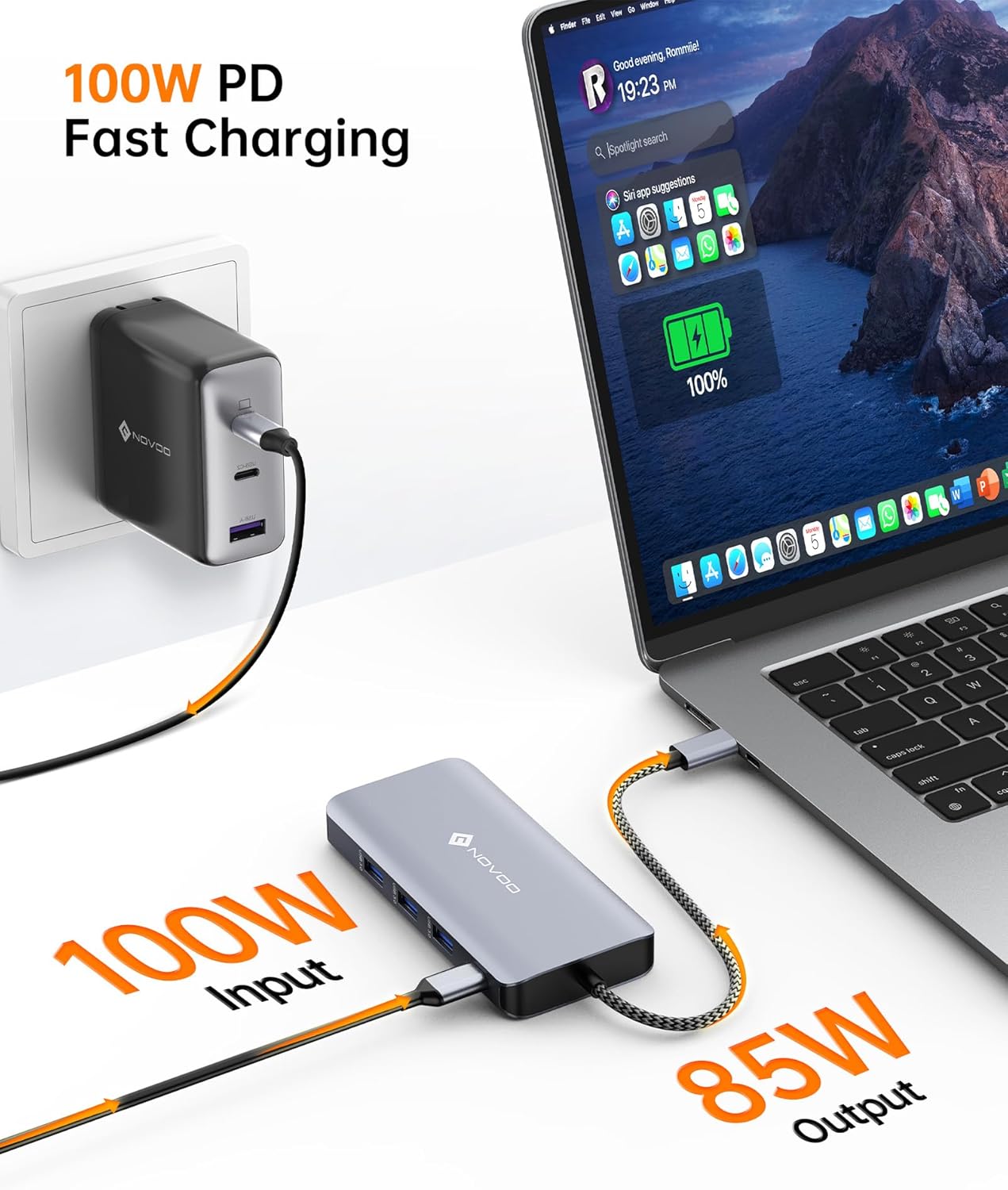
Image: A NOVOO docking station connected to a laptop and a wall charger, illustrating the 100W Power Delivery feature for fast charging the laptop.
Netværksforbindelse
Gigabit Ethernet-porten giver en stabil og hurtig kabelbaseret netværksforbindelse.
- Supports speeds up to 1000Mbps (1 Gigabit per second).
- Ensures reliable internet access, especially beneficial for large file transfers or online gaming.

Image: A close-up of the docking station's RJ45 Ethernet port with a connected network cable, indicating a stable 1000Mbps Gigabit Ethernet connection.
Opretholdelse
- Hold dockingstationen ren og fri for støv. Brug en blød, tør klud til rengøring.
- Undgå at udsætte enheden for ekstreme temperaturer, fugt eller direkte sollys.
- Do not attempt to disassemble or repair the docking station yourself. This may void the warranty and cause damage.
- Ensure cables are connected securely but without excessive force to prevent port damage.
Fejlfinding
- Ingen skærmoutput:
- Sørg for, at din bærbare computers USB-C-port understøtter DisplayPort Alt-tilstand.
- Kontrollér alle kabelforbindelser (USB-C til bærbar computer, HDMI/DP til skærme).
- Kontroller, at skærmens inputkilde er korrekt valgt.
- Genstart din bærbare computer, og tilslut dockingstationen igen.
- Opdater din bærbare computers grafikdrivere.
- Bærbar computer oplader ikke:
- Confirm your laptop's USB-C port supports Power Delivery.
- Ensure your power adapter is connected to the docking station's PD port and is functioning correctly.
- Kontroller, om strømadapteren leverer tilstrækkeligt med strømtage for your laptop and the docking station.
- USB-enheder genkendes ikke:
- Tilslut USB-enheden igen.
- Prøv en anden USB-port på dockingstationen.
- Connect the device directly to your laptop to confirm it functions independently.
- Problemer med Ethernet-forbindelse:
- Kontroller Ethernet-kabelforbindelsen til både dockingstationen og din router/modem.
- Verify your network settings on your laptop.
- Prøv et andet Ethernet-kabel.
- Intermittent Connectivity / Device Gets Warm:
- Ensure adequate ventilation around the docking station.
- Reduce the number of high-power devices connected simultaneously if possible.
- Ensure the power adapter is connected for stable operation, especially with multiple displays and peripherals.
Specifikationer
| Feature | Detalje |
|---|---|
| Model | 11 in 1 DP |
| Produktdimensioner | 3.94 x 1.57 x 0.39 tommer |
| Varens vægt | 0.705 ounce |
| Hardware-interface | Ethernet, HDMI, MicroSD, USB 2.0, USB 3.0, USB Type C |
| HDMI udgang | 2x HDMI (up to 4K@60Hz) |
| DisplayPort-udgang | 1x DP (up to 8K@30Hz / 4K@120Hz with DP 1.4 HBR3 DSC enabled) |
| USB 3.0 porte | 2x USB-A (up to 5Gbps) |
| USB 2.0 porte | 2x USB-A (for keyboard/mouse) |
| Kortlæser | SD/TF (up to 104Mbps) |
| Ethernet-port | RJ45 Gigabit Ethernet (op til 1000 Mbps) |
| Strøm levering | USB-C PD (op til 100W input) |
| Kompatible enheder | Laptops with full-featured USB Type-C port (e.g., M1/M2 MacBook Pro/Air, Dell XPS, Lenovo Yoga, Microsoft Surface, HP Spectre/Elite) |
Garanti og support
NOVOO products are designed for reliability and performance. For warranty information and technical support, please refer to the warranty card included with your product or visit the official NOVOO webwebsted. Gem din købskvittering for garantikrav.
For further assistance, you may contact NOVOO customer support through their official channels.


