1. Introduktion
This manual provides detailed instructions for the setup, operation, maintenance, and troubleshooting of your vretti Thermal Label Printer. Please read this manual thoroughly before using the printer to ensure proper functionality and to prevent damage.
The vretti 420B is a versatile thermal label printer designed for various applications, including shipping labels, address labels, barcodes, and custom labels. It supports both USB and 2.4G WiFi connectivity for Windows, macOS, iOS, Android, and Chrome OS systems.
2. Opsætning
2.1 Pakkens indhold
- vretti Thermal Label Printer (Model 420B)
- Strømadapter
- USB kabel
- USB Flash Drive (containing drivers, manual, and video tutorials)
- Label Spindle and Fasteners
- Hurtig startvejledning
2.2 Fysisk forbindelse
- Placer printeren på en stabil, flad overflade.
- Connect the power adapter to the printer's power port and plug it into a power outlet.
- For USB connection: Connect the USB cable from the printer to your computer.
- Turn on the printer using the power switch located at the rear. The indicator light will illuminate.

Image: The vretti 420B Thermal Label Printer, demonstrating its compact design and a label being fed through the output slot. A USB drive and a smartphone displaying the EZLABEL app are also shown, indicating connectivity options.
2.3 Ilægning af etiketter
- Åbn printerens topdæksel.
- Place the label roll onto the label spindle and secure it with the fasteners.
- Insert the label roll with the spindle into the internal label bin. Ensure the labels feed smoothly from the bottom of the roll.
- Træk etiketternes forkant gennem printerens udgangssprække, indtil den stikker lidt forbi skæreenheden.
- Juster etiketstyrene, så de passer perfekt til bredden på dine etiketter, uden at være for stramme.
- Luk topdækslet.

Billede: En intern view of the vretti thermal label printer, highlighting the built-in label bin designed to hold a roll of labels, eliminating the need for an external label holder.
2.4 Driver Installation & Software
The printer supports various operating systems. Drivers and necessary software are provided on the included USB flash drive. It is recommended to download the latest drivers from the official vretti website for optimal ydeevne.
- Windows (11/10/7/XP): Insert the USB drive, locate the Windows driver folder, and follow the installation wizard.
- MacOS: Insert the USB drive, locate the macOS driver folder. If you encounter a "The application can't be opened" message, go to "System Settings" > "Privacy & Security", scroll down, and click "Open Anyway".
- Linux: Refer to the instructions on the USB drive for Linux driver installation.
- Chrome OS: Obtain the Chrome OS extension from the USB drive and drag it to the Chrome extensions page.
- iOS (iPhone/iPad) & Android: Download the "EZLABEL" app from your device's app store to print wirelessly. Download EZLABEL App
- Etiketdesignsoftware: For advanced label design, consider using the 4Barcode software. Download 4Barcode Software

Image: The vretti thermal label printer positioned between a laptop and a smartphone, illustrating its dual connectivity options: USB for computers and WiFi for mobile devices. Icons for Windows, Linux, macOS, Android, and iOS are displayed, indicating broad compatibility.

Image: A split image showing two primary printing methods: on the left, a user printing via USB cable from a laptop, compatible with Mac, Windows, and Linux; on the right, a user printing wirelessly via WiFi from a smartphone, compatible with iPhone, Android, Tablet, Windows, and Mac.

Image: A screenshot demonstrating how to install the Chromebook extension for the printer. It shows navigating to the Chrome extensions page and dragging the printer's extension file fra USB-drevet.
2.5 Label Calibration
After loading labels, press the feed button (the single button on top of the printer) once. The printer will automatically detect the label size and calibrate itself. This ensures accurate printing and prevents blank labels.
3. Betjeningsvejledning
3.1 Printing via WiFi (2.4GHz)
Ensure your printer is connected to a 2.4GHz WiFi network (5GHz networks are not supported). Use the "EZLABEL" app on your iOS or Android device to connect to the printer and initiate print jobs. Follow the in-app instructions for WiFi setup and printing.
3.2 Printing via USB
Once the drivers are installed, your computer will recognize the vretti printer. You can print directly from any application that supports printing, such as shipping software, word processors, or image editors. Select the vretti printer from your printer list and ensure the correct label size is selected in the print settings.
3.3 Supported Label Types and Sizes
The printer supports direct thermal labels with widths between 1 inch (25.4mm) and 4.5 inches (115mm). The maximum print width is 4.25 inches (108mm). It is ideal for 4x6 inch shipping labels, warehouse labels, barcode labels, ID labels, package labels, mailing labels, and round labels.

Image: A visual guide demonstrating the adjustable label width of the vretti printer, supporting labels from 0.78 to 4.6 inches (19-116mm). Various label examples are shown, including standard shipping labels, custom designs, and circular labels, highlighting the printer's versatility.

Billede: En illustrationasing the printer's capability to handle various label sizes and shapes, including circular labels (e.g., 2"x1", 3"x2", 3"x3") and standard 4"x6" shipping labels, along with examples of printed barcodes and text.
3.4 Printing Speed and Quality
The printer offers clear and high-speed printing, with a maximum print speed of 152mm/s, capable of printing approximately 72 labels per minute (4x6 inch labels).

Image: A person working in a warehouse setting, surrounded by boxes, while the vretti thermal label printer rapidly prints labels. Text overlays indicate a print speed of 152mm/s and 72 labels per minute, emphasizing its efficiency for high-volume printing.

Image: A comparison showing the vretti printer's speed of 72mm/s for 4x6 labels per minute, contrasted with a generic 'Other' printer, implying faster output from the vretti model.
3.5 Platformkompatibilitet
The vretti printer is compatible with major logistics and e-commerce platforms, including but not limited to UPS, eBay, Amazon, Shopify, FedEx, DHL, USPS, EasyShip, PayPal, Wish, Lazada, Walmart, AliExpress, ShipWorks, EasyPost, Stamps.com, Etsy, Endicia, J&T Express, Shippo, ShipStation, Shipwire, XPS Ship, Flash Express, and Canada Post.

Image: A group of people collaborating around a laptop, with a graphic displaying logos of numerous major e-commerce and shipping platforms such as Amazon, eBay, Shopify, UPS, FedEx, and USPS, indicating the printer's wide compatibility.

Image: A wide shot showing the vretti printer on a desk with a background of a living room, overlaid with logos of various e-commerce and shipping platforms like Amazon, eBay, Shopify, UPS, and FedEx, emphasizing its broad applicability for small businesses.
3.6 No Ink Cartridge Required
As a direct thermal printer, the vretti 420B does not require ink cartridges or toner. It uses heat to print on thermal labels, reducing ongoing costs and maintenance.
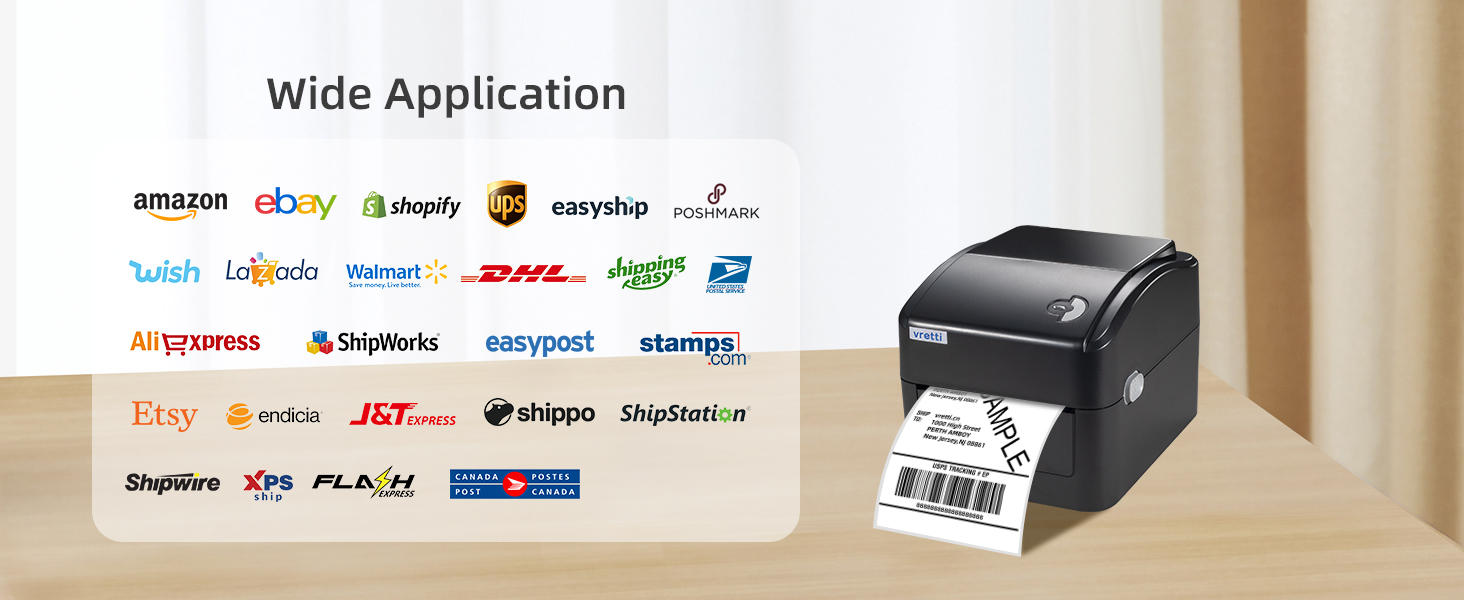
Image: A visual representation emphasizing that the printer does not require ink cartridges. The image shows a forest background with the text 'NO INK CARTIDGE' and an inset of the printer's internal mechanism, highlighting the absence of an ink system.
4. Vedligeholdelse
4.1 Rengøring af printhovedet
To maintain print quality, regularly clean the print head. Turn off the printer and unplug it. Use an alcohol swab or a lint-free cloth lightly dampened with isopropyl alcohol to gently wipe the print head surface. Allow it to dry completely before closing the cover and turning the printer back on.
4.2 Generel pleje
- Opbevar printeren i et rent og støvfrit miljø.
- Avoid exposing the printer to direct sunlight or extreme temperatures.
- Do not use abrasive cleaners or solvents on the printer's exterior.
- Sørg for tilstrækkelig ventilation omkring printeren under drift.
5. Fejlfinding
5.1 Almindelige problemer og løsninger
- Printeren svarer ikke: Ensure the power cable is securely connected and the printer is turned on. Check USB or WiFi connection.
- Dårlig udskriftskvalitet: Clean the print head. Ensure you are using direct thermal labels. Check print darkness settings in your printer driver.
- Etiketter fremføres ikke korrekt: Recalibrate the labels by pressing the feed button. Ensure labels are loaded correctly and guides are adjusted properly.
- Problemer med WiFi-forbindelse: Verify your router is broadcasting a 2.4GHz signal. The printer does not support 5GHz WiFi. Ensure the printer is within range of the WiFi signal.
- "Application can't be opened" on Mac: This is a common macOS security feature. Go to "System Settings" > "Privacy & Security", scroll down, and click "Open Anyway" next to the driver application.
- Printer offline: In your computer's printer settings, ensure the printer is not set to "Use Printer Offline".
For further assistance, refer to the detailed troubleshooting guides and video tutorials on the included USB drive or visit the official vretti support webwebsted.
6. Specifikationer
| Feature | Specifikation |
|---|---|
| Mærke | vretti |
| Modelnavn | 420B |
| Udskrivningsteknologi | Termisk |
| Forbindelsesteknologi | Wi-Fi (2.4 GHz), USB |
| Printer output | Monokrom |
| Maksimal udskrivningshastighed | 152 mm/s (72 labels/minute for 4x6) |
| Maksimal udskrivningsbredde | 4.25 tommer (108 mm) |
| Label Width Range | 1 inch (25.4mm) to 4.5 inches (115mm) |
| Maksimal kopiopløsning (sort-hvid) | 203 DPI |
| Produktdimensioner | 8 x 6.69 x 5.9 tommer |
| Varens vægt | 4.58 pund |
| Speciel funktion | Bærbar, indbygget etiketbeholder |
7. Garantioplysninger
The vretti Thermal Label Printer comes with a limited warranty. For specific terms and conditions, please refer to the warranty card included in your product packaging or visit the official vretti webwebsted. Behold din købskvittering som købsbevis i tilfælde af garantikrav.
8. Support
For technical support, driver downloads, or additional resources, please visit the official vretti website or contact their customer service. Contact information can typically be found on the quick start guide or the brand's official online presence.
Online ressourcer:
- Official vretti Store on Amazon: vretti Store


