1. Introduktion
This manual provides detailed instructions for the installation, operation, and maintenance of your Spedal MINIEYE AC1 Dash Cam. Please read this manual thoroughly before using the device to ensure proper functionality and safety. The MINIEYE AC1 is designed to record your driving journey in high definition and offers advanced features for enhanced road safety.
2. Produktet er slutview
2.1 Nøglefunktioner
- 1944P Ultra Full HD Recording: Optager klar videotage with a 140° wide-angle field of view.
- AI ADAS (Advanced Driver-Assistance System): Provides real-time alerts for collision avoidance.
- Indbygget G-sensor: Automatically detects sudden movements or impacts and locks footage.
- 24-timers parkeringsovervågning: Monitors your vehicle even when parked (requires hardwire kit, sold separately).
- Kraftfuldt nattesyn: Ensures clear recordings in low-light conditions.
- Loop-optagelse: Overskriver den ældste fødevaretage når hukommelseskortet er fuldt, hvilket sikrer kontinuerlig optagelse.
- APP kontrol: Administrer indstillinger, view footage, and download videos via a dedicated mobile application.
2.2 Pakkens indhold
Bekræft, at alle nedenstående varer er til stede i din pakke:
- MINIEYE AC1 Dash Cam Unit
- Bil oplader
- Strømkabel
- monitor kabel
- Host Base
- GPS modul
- Elektrostatisk mærkat
- Koben (til kabelføring)
- Boble niveau
- Free 32GB TF Card (MicroSD Card)
- Brugervejledning (dette dokument)
2.3 Enhedskomponenter
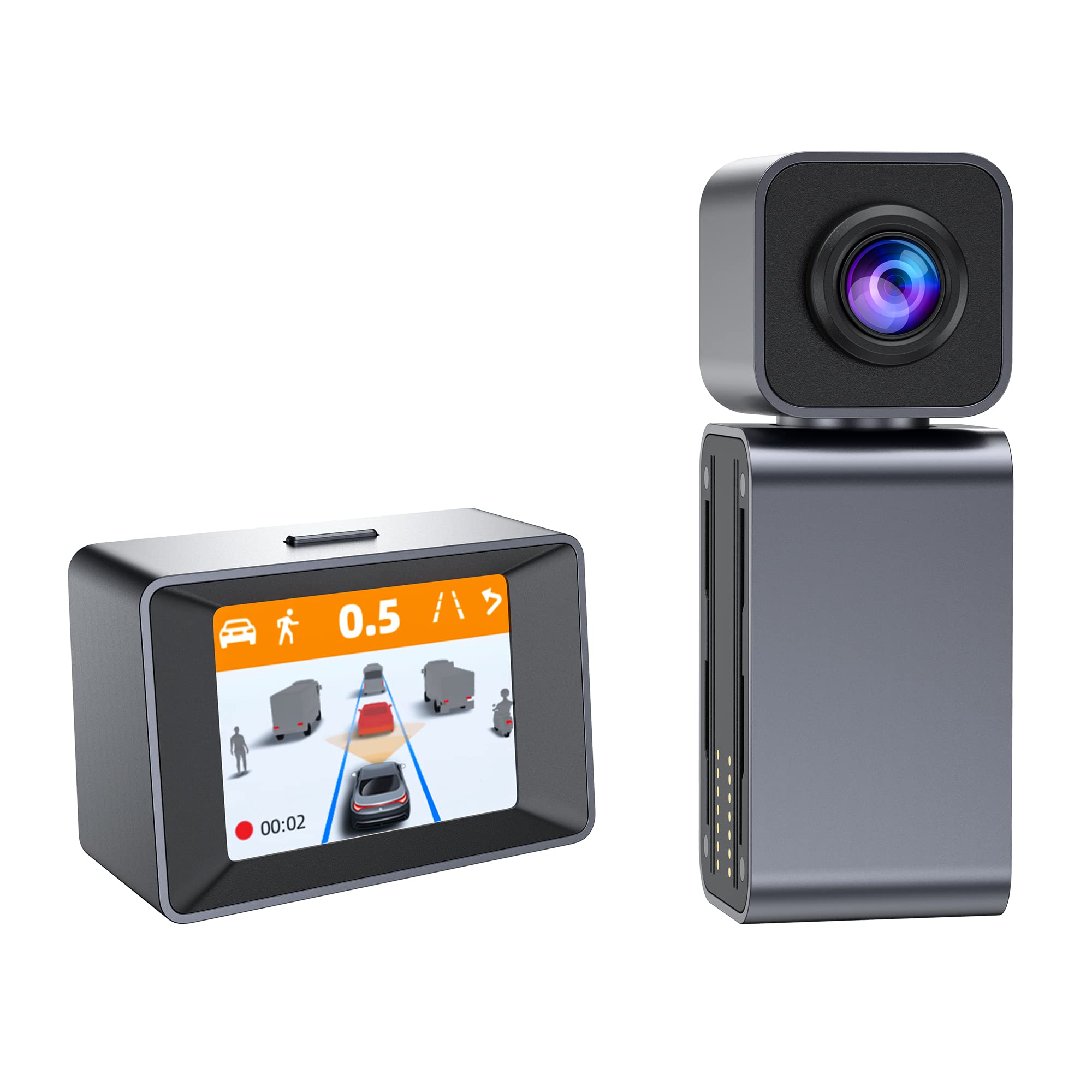
Image: The MINIEYE AC1 Dash Cam showing the main recording unit with its lens and the separate display unit. The display unit shows a simulated traffic scenario with distance warnings, illustrating the ADAS functionality.
3. Opsætning
3.1 Installation
- Forbered forruden: Rengør området på din forrude, hvor dashcam'et skal monteres. Sørg for, at det er fri for støv og fedt.
- Påfør elektrostatisk klistermærke: Apply the electrostatic sticker to the cleaned area. This helps in easy removal and prevents residue on the windshield.
- Attach Host Base: Secure the host base to the electrostatic sticker. Use the bubble level to ensure the base is level for optimal camera angle.
- Monter dashcam: Attach the MINIEYE AC1 Dash Cam unit to the host base.
- Indsæt TF-kort: Insert the provided 32GB TF card into the designated slot on the dash cam. Ensure it is inserted correctly until it clicks into place.
- Tilslut strøm: Connect the power cable to the dash cam and route it along the windshield edge and dashboard using the crowbar to tuck it neatly. Plug the car charger into your vehicle's cigarette lighter socket.
- Connect Monitor (if applicable): If using an external monitor, connect it using the monitor cable.
- Tilslut GPS-modul: Attach the GPS module to the dash cam for location and speed data recording.
3.2 Første opstart og indstillinger
- Tænd: Start your vehicle. The dash cam will automatically power on and begin recording.
- Formater TF-kort: It is recommended to format the TF card upon first use and periodically thereafter to ensure optimal performance. This can usually be done through the device settings or the mobile app.
- Juster kameravinkel: Adjust the camera lens to ensure it captures the road ahead clearly, covering the desired field of view.
3.3 Opsætning af app-kontrol
- Download app: Søg efter the "MINIEYE" in your smartphone's app store (iOS or Android) and install it.
- Opret forbindelse til Wi-Fi: Enable Wi-Fi on your smartphone and connect to the dash cam's Wi-Fi network. The network name and password can typically be found in the dash cam's settings or manual.
- Par enhed: Open the MINIEYE app and follow the on-screen instructions to pair your dash cam.
- Konfigurer indstillinger: Use the app to adjust recording resolution, G-sensor sensitivity, parking monitoring settings, and other preferences.
4. Betjeningsvejledning
4.1 Grundlæggende optagelse
Once powered on, the MINIEYE AC1 automatically begins continuous loop recording. Video fileOptagelserne gemmes i segmenter (f.eks. 1, 3 eller 5 minutter) på TF-kortet. Når kortet er fuldt, fjernes den ældste ubeskyttede files overskrives.
4.2 G-sensor og nødoptagelse
The built-in G-Sensor detects sudden impacts or rapid acceleration/deceleration. When triggered, the current video segment is automatically locked and saved to a protected folder, preventing it from being overwritten by loop recording. The sensitivity of the G-Sensor can be adjusted via the mobile app.
4.3 Parkeringsovervågning
With the optional hardwire kit (not included), the dash cam can monitor your vehicle while parked. If an impact or motion is detected, the dash cam will automatically record a short video segment. Ensure this feature is enabled and configured in the app settings.
4.4 ADAS (Advanced Driver-Assistance System)
The AI ADAS features provide real-time alerts to enhance driving safety:
- Advarsel om fremadrettet kollision (FCW): Alerts you if you are approaching a vehicle ahead too quickly.
- Vognbaneskiftassistent (LDW): Giver dig besked, hvis dit køretøj kommer ud af sin vognbane uden at blinke.
- Front Vehicle Start Alert: Informs you when the vehicle in front of you has started moving after a stop.
These alerts are typically visual on the display and/or audible. Calibration may be required for optimal ADAS performance.
4.5 Viewing og downloading Footage
Footage kan være viewed directly on the dash cam's display (if available) or more conveniently through the MINIEYE mobile application. Use the app to browse recorded videos, download important clips to your smartphone, or share them.
5. Vedligeholdelse
- Rengør linsen: Regularly clean the camera lens with a soft, lint-free cloth to ensure clear video quality.
- Formater TF-kort: Format the TF card every 2-4 weeks to prevent data corruption and maintain optimal recording performance. Back up any important files før formatering.
- Firmwareopdateringer: Check the MINIEYE app or official website periodically for firmware updates. Keeping your dash cam's firmware updated ensures access to new features and performance improvements.
- Opbevaring: Når dashcam'et ikke er i brug i længere perioder, skal det opbevares køligt og tørt, væk fra direkte sollys.
6. Fejlfinding
- Dash Cam tænder ikke:
- Check the car charger connection and ensure the vehicle's cigarette lighter socket is functioning.
- Ensure the power cable is securely connected to the dash cam.
- Problemer med optagelse (f.eks. frysning, beskadiget files):
- Formater TF-kortet.
- Try a different high-speed (Class 10 or U1/U3) TF card.
- Ensure the TF card is not full of locked files.
- Problemer med appforbindelse:
- Sørg for, at dashcam'ets Wi-Fi er aktiveret.
- Genstart både dashcam'et og din smartphone.
- Verify you are connecting to the correct Wi-Fi network and using the correct password.
- ADAS-advarsler fungerer ikke:
- Ensure ADAS features are enabled in the app settings.
- Perform ADAS calibration if available in the app.
- Sørg for, at kameralinsen er ren og uhindret.
7. Specifikationer
| Feature | Detalje |
|---|---|
| Modelnavn | MINIEYE AC1 |
| Mærke | Spedal |
| Videooptagelsesopløsning | 1944p |
| Virkelig vinkel på View | 140 grader |
| Forbindelsesteknologi | USB, Wireless (for App Control) |
| Kontrolmetode | App |
| Monteringstype | Sugemontering |
| Type køretøjstjeneste | Bil |
| Fabrikant | Shenzhen Youjia Innov Tech Co., Ltd. |
8. Garanti og support
For warranty information, technical support, or service inquiries, please refer to the warranty card included with your product or visit the official Spedal website. You may also contact Spedal customer service directly through the contact information provided on their website or within the MINIEYE mobile application.
Gem venligst dit købsbevis for garantikrav.


