WHDPETS A4300 Pro Projector User Manual
Model: B0B93MK7WC
Brand: WHDPETS
1. Introduktion
This user manual provides comprehensive instructions for setting up, operating, and maintaining your WHDPETS A4300 Pro Projector. This projector features 5G WiFi and Bluetooth connectivity, native 1080P resolution with 12000 Lumens brightness, and supports 4K content and zoom functions. It is designed for portable use, suitable for home movie theaters and outdoor entertainment, and is compatible with various devices including HDMI, USB, PC, TV Box, iOS, and Android phones.
2. Hvad er der i æsken
Når du åbner pakken, skal du kontrollere, at alle følgende varer er inkluderet:
- WHDPETS A4300 Pro Projector
- Fjernbetjening
- AC Adapter
- AV-kabel
- HDMI kabel
- Stativ
- Linsedæksel
- Projector Dust Cloth
- Protable Bag (Carry Bag)
- Brugervejledning (dette dokument)
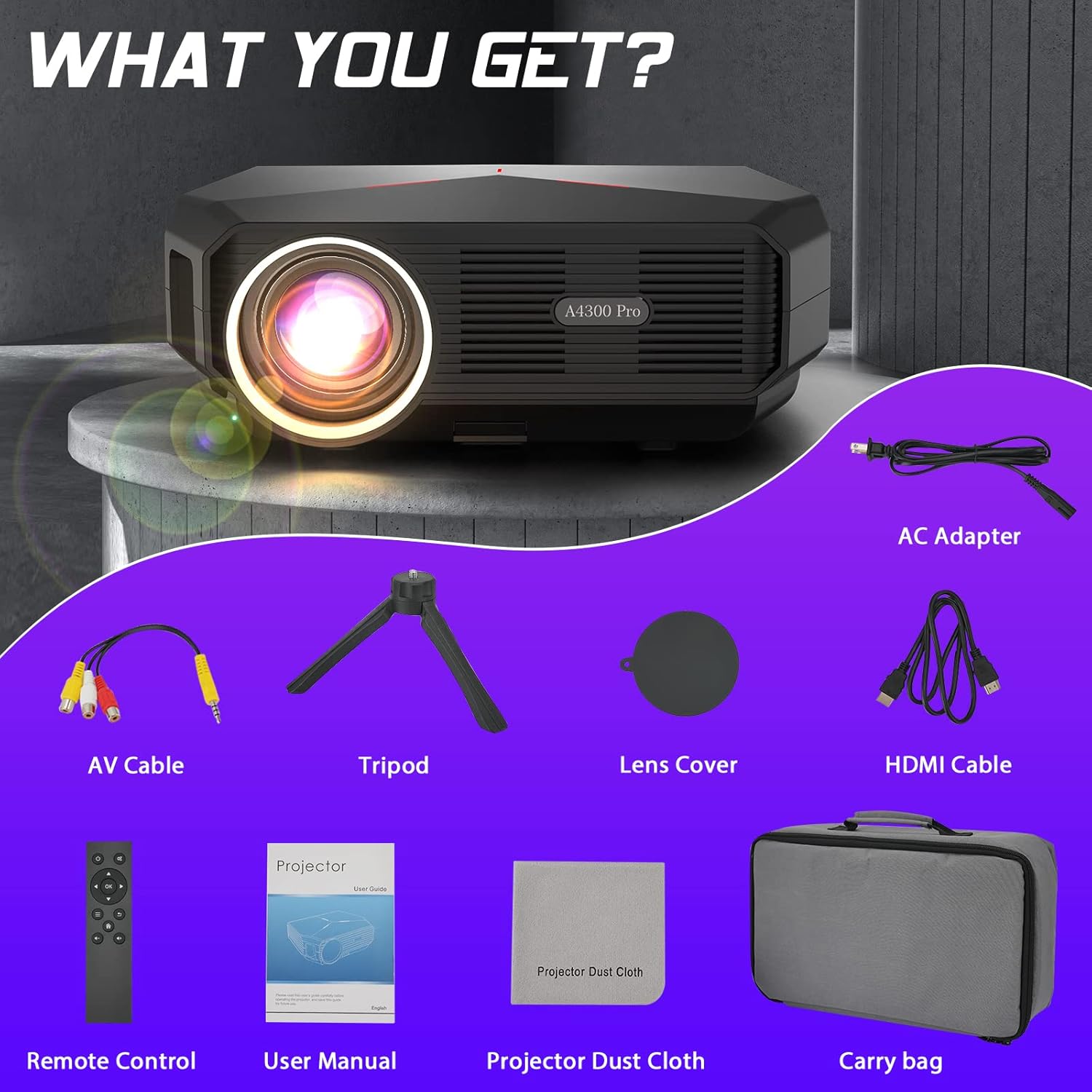
Figure 2.1: All items included in the WHDPETS A4300 Pro Projector package.
3. Nøglefunktioner
- 5G WiFi & Bluetooth Connectivity: Supports both wired and wireless projection for iOS and Android devices, enabling seamless screen mirroring.
- Høj lysstyrke og indbygget 1080P: Equipped with a high light transmission glass lens, offering 12000 Lumens brightness and 10000:1 contrast ratio for sharp, clear images. Supports 4K content.
- Excellent Sound & Advanced Cooling: Integrated speaker provides clear and adjustable audio. An innovative dual-fan cooling system enhances heat dissipation by 20%, ensuring consistent performance and lamp lang levetid.
- Versatile Multimedia Ports: Features USB, HDMI, VGA, and AV ports for connecting to TV sticks, TV boxes, PCs, smartphones, DVD players, USB sticks, laptops, PS4, X-Box, and more.
- Large Projection Size & Zoom: Projects a display from 45 to 200 inches with a projection distance of 4.6ft to 18.7ft. Includes a 25% zoom function for easy image size adjustment without moving the projector.
- Bærbart design: Lightweight and convenient, suitable for various settings including home, parties, schools, and outdoor camping.
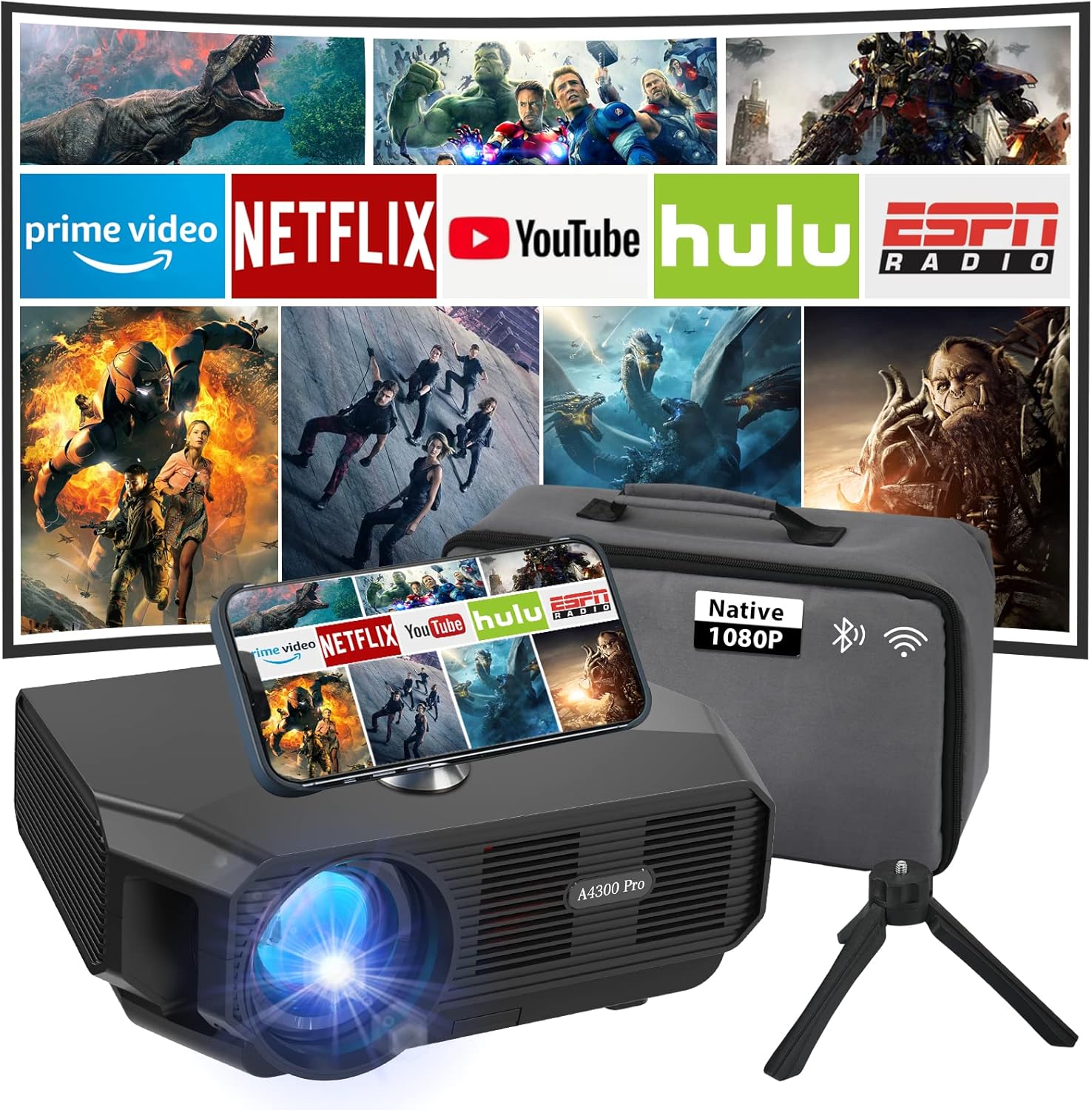
Figure 3.1: The WHDPETS A4300 Pro Projector in a home theater setup, showcasing its multimedia capabilities.

Figure 3.2: Illustration of the projector's 2.4G and 5G WiFi connection capabilities with various devices.

Figure 3.3: The projector's Bluetooth function, allowing connection to external audio devices.

Figure 3.4: The projector's ability to produce a large screen display up to 200 inches.

Figur 3.5: Eksamples of multiple scenarios where the projector can be effectively utilized.
4. Opsætningsvejledning
4.1 Indledende tænding
- Connect the AC adapter to the projector's power input and then to a power outlet.
- Tryk på tænd/sluk-knappen på projektoren eller fjernbetjeningen for at tænde for enheden.
- Allow a few moments for the projector to boot up and display the main interface.
4.2 Fokus- og Keystone-korrektion
- Adjust the focus ring on the projector lens until the projected image appears clear and sharp.
- If the image is trapezoidal, use the keystone correction feature (usually a dial or digital setting) to adjust the image shape until it is rectangular.
4.3 Netværks- og Bluetooth-opsætning
To connect your projector to a wireless network or Bluetooth device:
- Navigate to the 'Settings' menu on the projector's interface using the remote control.
- Select 'Network' for WiFi setup or 'Bluetooth' for Bluetooth device pairing.
- Follow the on-screen prompts to connect to your desired network or pair a Bluetooth audio device.
Video 4.1: A demonstration on how to connect the projector to WiFi and perform screen mirroring for iOS devices. This video shows the steps to navigate the settings, select the network, enter the password, and then initiate screen mirroring from an iPhone's control center.
5. Betjeningsvejledning
5.1 Screen Mirroring (iOS & Android)
The projector supports both wired and wireless screen mirroring. For wireless mirroring:
- Sørg for, at din smartphone og projektoren er forbundet til det samme WiFi-netværk.
- For iOS devices, open the Control Center and tap 'Screen Mirroring'. Select the projector (e.g., "AS-A4300Pro") from the list.
- For Android devices, enable the 'Wireless Projection' or 'Screen Cast' feature in your phone's settings and select the projector.
- For wired mirroring, use an MHL/Lightning-HDMI cable or an Anycast WiFi dongle (not included) to connect your device.
5.2 Tilslutning af eksterne enheder
Projektoren tilbyder flere inputmuligheder:
- HDMI: Connect gaming consoles (PS4, X-Box), laptops, or TV boxes using an HDMI cable. Select the corresponding HDMI input source.
- USB: Insert a USB stick to play media files directly. Navigate to the 'Media' or 'File Manager' section on the projector.
- VGA: Tilslut ældre pc'er eller bærbare computere med et VGA-kabel.
- AV: Use the provided AV cable to connect DVD players or other devices with AV output.
5.3 Zoomfunktion
To adjust the image size without moving the projector:
- Access the 'Picture' or 'Projection' settings in the projector's menu.
- Locate the 'Zoom' or 'Image Scale' option.
- Juster procentdelentage to reduce the image size (up to 25% reduction is supported).
6. Vedligeholdelse
- Rengøring af linsen: Use the provided projector dust cloth or a soft, lint-free cloth to gently wipe the lens. Avoid abrasive materials or harsh chemicals.
- Rengøring af støvfilter: Regularly check and clean the dust filter to ensure optimal airflow and prevent overheating. Refer to the specific location of the filter in the product diagram (if available).
- Opbevaring: When not in use, store the projector in its portable bag in a cool, dry place to protect it from dust and damage.
- Ventilation: Sørg for, at projektorens ventilationsåbninger ikke er blokeret under drift for at forhindre overophedning.
7. Fejlfinding
| Problem | Mulig årsag | Løsning |
|---|---|---|
| Intet billede vises | Power cable loose, incorrect input source, device not connected properly. | Check power connection. Select correct input source (HDMI, USB, etc.). Ensure external device is properly connected and powered on. |
| Sløret billede | Out of focus, incorrect projection distance, keystone not adjusted. | Adjust the focus ring. Ensure projector is within optimal projection distance (4.6ft-18.7ft). Adjust keystone correction. |
| Ingen lyd | Volume too low, external audio device not connected, incorrect audio output setting. | Increase projector volume. Check if external speakers are connected and powered. Verify audio output settings on both projector and source device. |
| Problemer med skærmspejling | Not on same WiFi network, WiFi signal weak, device compatibility. | Ensure both devices are on the same 2.4G or 5G WiFi network. Move closer to the router. Try wired connection if wireless fails. |
8. Specifikationer
| Feature | Detalje |
|---|---|
| Mærke | WHDPETS |
| Model | A4300 Pro (ASIN: B0B93MK7WC) |
| Skærmopløsning | Native 1920 x 1080P (Supports 4K) |
| Lysstyrke | 12000 lumen |
| Kontrastforhold | 10000:1 |
| Forbindelsesteknologi | HDMI, USB, VGA, AV, 5G WiFi, Bluetooth |
| Projektionsstørrelse | 45-200 tommer |
| Projektionsafstand | 4.6 - 18.7 meter |
| Zoomfunktion | 25 % justering |
| Varens vægt | 5.08 pund |
| Produktdimensioner | 10 x 7 x 4 tommer |
| Farve | Sort |
| Særlige funktioner | Internet Built-In |
9. Garanti og support
For detailed warranty information and customer support, please refer to the official WHDPETS website or contact their customer service. You can also find additional support and a downloadable PDF version of the user guide at the following link:
Download den officielle brugervejledning (PDF)
For yderligere hjælp, besøg venligst WHDPETS Store on Amazon.

