1. Introduktion
This manual provides detailed instructions for the setup, operation, and maintenance of your MARVO 2.4G Wireless Keyboard and Mouse Combo. This combo is designed for ergonomic comfort and efficient use across various operating systems.
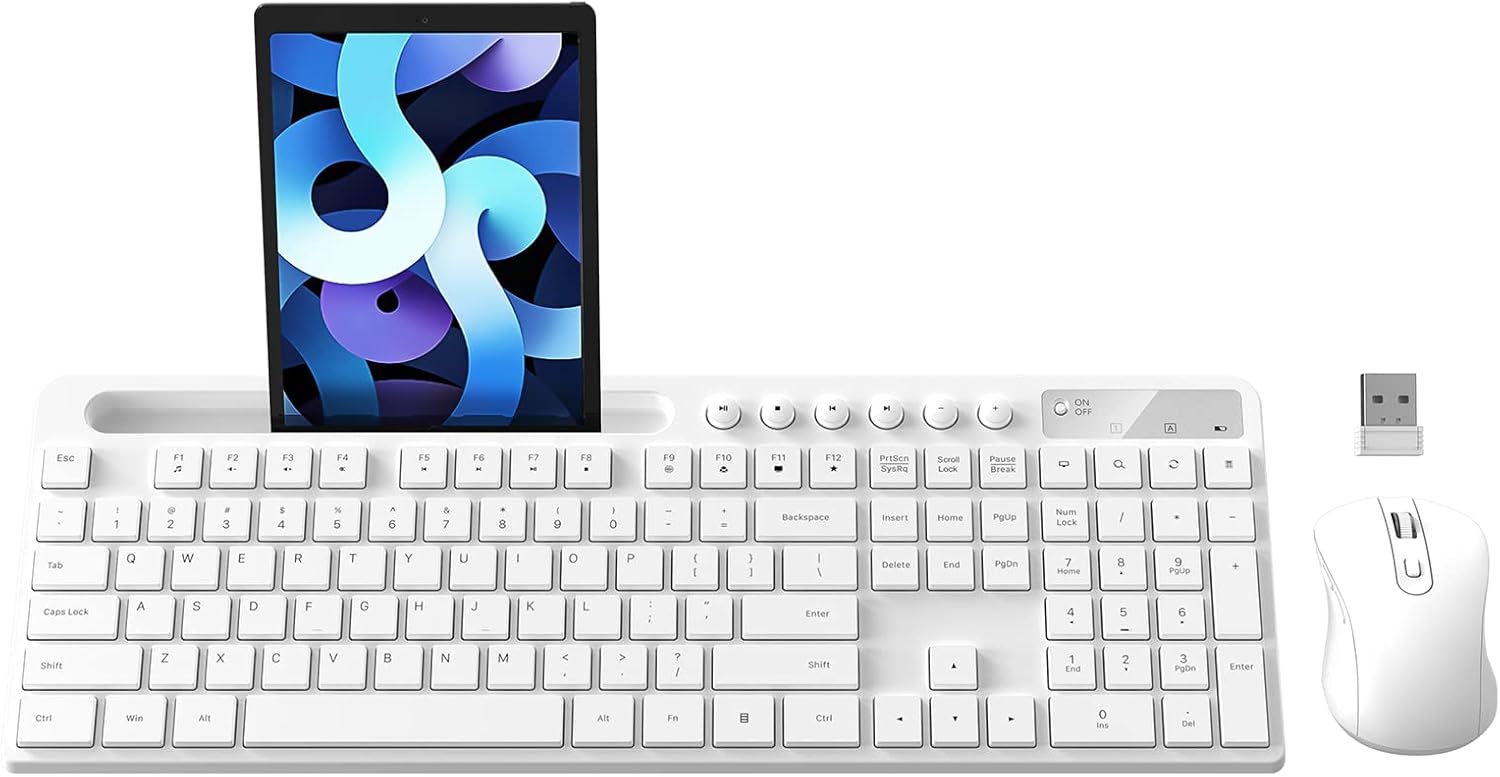
The MARVO Wireless Keyboard and Mouse Combo, featuring a full-size keyboard with an integrated tablet/phone holder, a wireless mouse, and a USB receiver for seamless connectivity.
2. Pakkens indhold
- 1 x MARVO 2.4G Wireless Keyboard
- 1 x MARVO 2.4G Wireless Mouse
- 1 x USB Nano Receiver (stored inside the mouse battery compartment)
- 1 x brugermanual
Note: AA batteries are not included and must be purchased separately (one for the keyboard, one for the mouse).
3. Opsætningsvejledning
3.1 Batteriinstallation
- Til musen: Open the battery compartment cover on the underside of the mouse. Insert one AA battery, ensuring correct polarity (+/-). The USB Nano Receiver is stored here; remove it before closing the compartment.
- Til tastaturet: Open the battery compartment cover on the underside of the keyboard. Insert one AA battery, ensuring correct polarity (+/-).
3.2 Tilslutning af modtageren
- Locate the USB Nano Receiver, typically stored in the mouse's battery compartment.
- Plug the USB Nano Receiver into an available USB port on your computer (laptop, personal computer).
- Turn on the keyboard and mouse using their respective ON/OFF switches. The red power light on the keyboard will blink for 5-8 seconds and then turn off, indicating a normal connection process.
- Your computer should automatically detect and install the necessary drivers. No additional software is required.
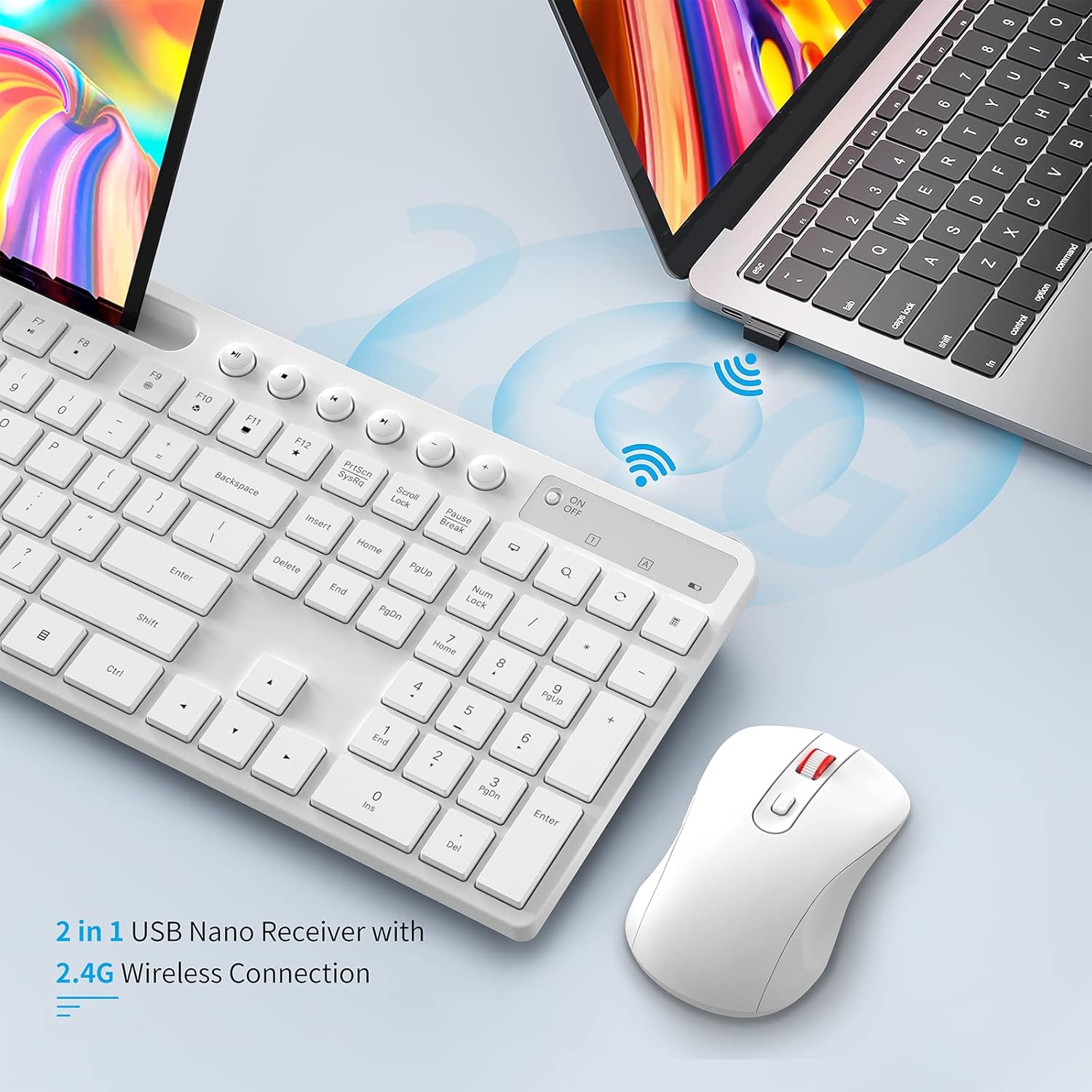
The 2.4G wireless connection is established via a single USB Nano Receiver, simplifying setup and reducing port usage.
4. Betjeningsvejledning
4.1 Tastaturfunktioner
- Ergonomisk design: The keyboard features a comfortable, ergonomic layout.
- Adjustable Stands: Utilize the foldable stands on the underside of the keyboard to adjust the typing angle for personalized comfort.
- Multimedienøgler: Dedicated function keys (F1-F12) provide quick access to multimedia controls (e.g., volume, play/pause).
- Integreret telefon-/tabletholder: A 9.84-inch slot is built into the top of the keyboard to hold your smartphone or tablet, allowing for easy viewing while working.

The keyboard includes a built-in holder designed to securely accommodate phones and tablets ranging from 5.8 to 12.9 inches.
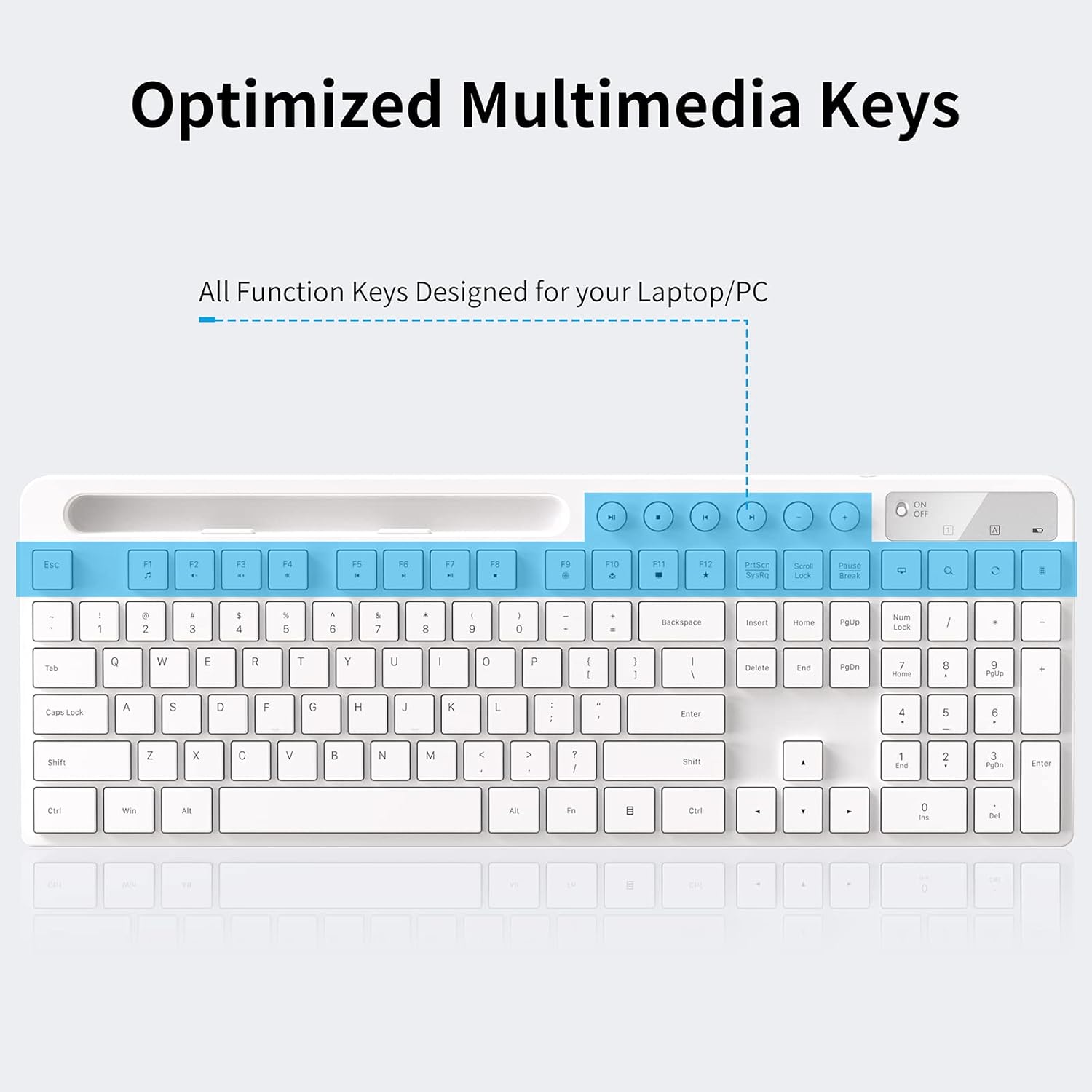
The keyboard features dedicated multimedia keys for quick access to audio controls and other functions.
4.2 Musens funktioner
- Lydløse klik: The mouse is designed for silent operation, reducing noise in quiet environments.
- 6 Knapper: Includes standard left/right click, scroll wheel, DPI switch, and two side buttons for enhanced functionality.
- Justerbar DPI: Cycle through 800, 1200, and 1600 DPI settings using the dedicated DPI button to adjust cursor sensitivity.
- Strømindikator: An LED indicator on the mouse provides battery status.

The silent mouse features a scroll wheel, left and right buttons, DPI switch, page up/down buttons, an LED indicator, and a battery compartment that also stores the USB receiver.
4.3 Kompatibilitet
The MARVO Wireless Keyboard and Mouse Combo is compatible with Windows XP / Vista / 7 / 8 / 10 and macOS operating systems.
5. Vedligeholdelse
- Rensning: Brug en blød, tør klud til at rengøre overfladerne på tastaturet og musen. Undgå at bruge skrappe kemikalier eller slibende materialer.
- Udskiftning af batteri: Replace batteries when the low battery indicator on the keyboard blinks (when any key is pressed) or when mouse performance degrades.
- Opbevaring: When not in use for extended periods, turn off both the keyboard and mouse to conserve battery life. Store the USB Nano Receiver in the mouse's battery compartment to prevent loss.
6. Fejlfinding
6.1 Forbindelsesproblemer
If your keyboard and mouse cannot connect or experience intermittent connection:
- Ensure both the keyboard and mouse have fresh batteries and are switched ON.
- Verify the USB Nano Receiver is securely plugged into a working USB port on your computer.
- Try re-pairing the devices: Press and hold the ESC key, the '=' key, the Scroll Wheel, and the Right Mouse Button simultaneously for 5-10 seconds. Repeat this process 2-3 times until they are successfully connected.
- Try plugging the USB Nano Receiver into a different USB port on your computer.
- Ensure there are no other 2.4G wireless devices causing interference nearby.
6.2 Indikation for lavt batteriniveau
When the red power light on the keyboard blinks upon pressing any key, it indicates low battery. Replace the AA battery in the keyboard. For the mouse, reduced responsiveness or an unlit laser may indicate low battery.
7. Specifikationer
| Feature | Detalje |
|---|---|
| Mærke | MARVO |
| Model | KC-411W |
| Farve | Hvid |
| Forbindelsesteknologi | 2.4G radiofrekvens |
| Kompatible enheder | Laptop, Personal Computer, Smartphone (via holder) |
| Speciel funktion | Ergonomic design, Phone/Tablet Holder |
| Mus DPI-indstillinger | 800 / 1200 / 1600 DPI Adjustable |
| Strømkilde | 1 x AA Battery (Keyboard), 1 x AA Battery (Mouse) - Not Included |
| Produktdimensioner | 17 x 6 x 0.7 tommer |
| Varens vægt | 1.68 pund |
8. Garanti og support
MARVO provides a 12-month worry-free warranty for this product. For any questions, technical support, or warranty claims, please contact MARVO customer service. Refer to the product packaging or the official MARVO webwebsted for kontaktoplysninger.
9. Yderligere ressourcer
9.1 Produktvideoer
Closer Look at the Wireless Keyboard Combo
Denne video giver en detaljeret oversigtview of the MARVO Wireless Keyboard and Mouse Combo, showcasindens design og funktioner.
Keyboard with Phone Holder Demonstration
Watch this video to see the integrated phone holder feature of the keyboard in action, highlighting its convenience for multitasking.
MARVO Wireless Combo Overview
This video offers a general overview of the MARVO Wireless Keyboard and Mouse Combo, covering its key aspects and benefits.


