1. Introduktion
The FINGERS Lil’Clicks is a versatile mini keyboard designed for seamless connectivity across multiple devices and operating systems. It offers dual connectivity options: Bluetooth and 2.4 GHz Wireless, allowing you to switch between your laptop, tablet, or smartphone effortlessly. This manual provides detailed instructions for setup, operation, maintenance, and troubleshooting to ensure optimal use of your keyboard.

Image 1.1: The FINGERS Lil’Clicks Bluetooth Wireless Mini Keyboard, showcasing dens kompakte design.
2. Pakkens indhold
Markér venligst feltet for følgende elementer:
- 1 x FINGERS Lil’Clicks Bluetooth Wireless Mini Keyboard
- 1 x Wireless USB Receiver (for 2.4 GHz connection)
- 1 x Micro USB ladekabel
- 1 x Hurtig brugsvejledning
- 1 x Brand Note

Image 2.1: Contents included in the FINGERS Lil’Clicks keyboard package.
3. Opsætning og tilslutning
The Lil’Clicks keyboard offers two primary connection methods: Bluetooth and 2.4 GHz Wireless.
3.1. Opladning af tastaturet
Before initial use, ensure the keyboard is fully charged. Connect the provided Micro USB charging cable to the keyboard's charging port and the other end to a USB power source (e.g., computer USB port, USB wall adapter). The charging indicator light will show the charging status.
3.2. 2.4 GHz trådløs forbindelse
- Locate the USB Wireless Receiver in the keyboard package.
- Sæt USB-modtageren i en ledig USB-port på din computer eller enhed.
- Tænd tastaturet ved hjælp af tænd/sluk-knappen, som normalt er placeret på siden eller bagsiden.
- Tastaturet burde automatisk oprette forbindelse til din enhed. Der kræves typisk ingen yderligere drivere.
3.3. Bluetooth Connection (Up to 3 Devices)
The Lil’Clicks keyboard can connect to up to three Bluetooth devices simultaneously.
- Tænd for tastaturet ved hjælp af afbryderen.
- Tryk og hold på Fn key and one of the Bluetooth keys (BT1, BT2, eller BT3) for 3-5 seconds until the corresponding Bluetooth indicator light starts blinking. This indicates the keyboard is in pairing mode.
- On your device (laptop, tablet, smartphone), go to Bluetooth settings and enable Bluetooth.
- Søg efter available devices. You should see "FINGERS Lil’Clicks" or a similar name appear in the list.
- Select the keyboard to pair. If prompted, enter the displayed code on the keyboard and press Indtast.
- Once paired, the indicator light will stop blinking and remain solid for a few seconds before turning off.
- To connect another device, repeat steps 2-5 using a different Bluetooth key (BT2 or BT3).
3.4. Skift mellem tilsluttede enheder
To switch between paired Bluetooth devices or the 2.4 GHz wireless connection:
- For Bluetooth devices: Briefly press the Fn key along with the desired Bluetooth key (BT1, BT2, eller BT3).
- For 2.4 GHz Wireless: Briefly press the Fn key along with the 2.4G key (if available, otherwise ensure the USB receiver is plugged in and no Bluetooth connection is active).

Image 3.1: The Lil’Clicks keyboard demonstrating multi-device connectivity with a laptop, monitor, phone, and tablet.
4. Betjening af tastaturet
4.1. Grundlæggende maskinskrivning
The keyboard features a standard QWERTY layout. Simply type as you would on any other keyboard.
4.2. Media Controls
The Lil’Clicks keyboard includes 12 soft-touch media control keys. These functions are typically accessed by pressing the Fn key simultaneously with the corresponding function key (F1-F12 or dedicated media keys).
- Fn+F1-F12: Access various media functions such as play/pause, volume control, track skipping, and more. Refer to the quick usage guide for specific key mappings.

Billede 4.1: Nærbillede view of the keyboard layout, highlighting the media control keys and function row.
4.3. Using the Built-in Cradle
The keyboard features a built-in cradle designed to hold most phones and tablets up to 10 mm thick and 265 mm wide. This allows you to position your device at an optimal viewvinklingsvinkel for komfortabel skrivning.
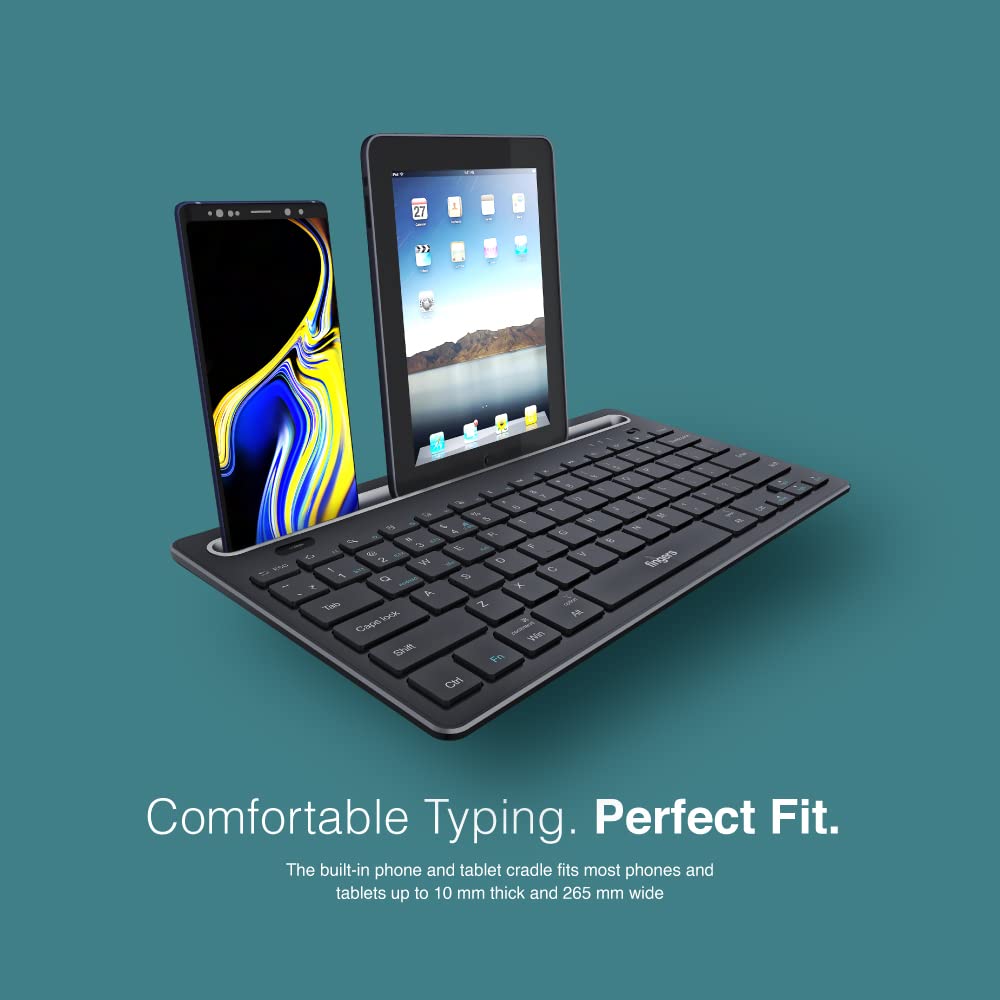
Image 4.2: The keyboard's integrated cradle holding a smartphone and a tablet for ergonomic viewing.
4.4. Operativsystemkompatibilitet
The Lil’Clicks keyboard is compatible with a wide range of operating systems:
- Windows
- macOS
- Android
- Linux
- Chrome OS
The keyboard automatically adapts to the connected operating system for optimal functionality. Some function key behaviors may vary slightly depending on the OS.
5. Vedligeholdelse
5.1. Rensning
To clean your keyboard, gently wipe the surface with a soft, damp, lint-free cloth. Avoid using harsh chemicals, abrasive cleaners, or excessive moisture, as these can damage the keyboard. The membrane-coated sheet beneath the keys helps protect against dust and minor spills.
5.2. Batteripleje
The keyboard features a long-lasting battery, providing up to 45 days of usage on a single charge. To prolong battery life:
- Oplad tastaturet helt før første brug.
- Undgå at aflade batteriet helt ofte.
- Hvis tastaturet opbevares i længere tid, skal det oplades til ca. 50% og opbevares et køligt og tørt sted.
5.3. Opbevaring
When not in use, store the keyboard in a clean, dry environment away from extreme temperatures and direct sunlight. Its compact and lightweight design makes it easy to carry and store.

Image 5.1: The Lil’Clicks keyboard's portability, shown being carried and used in a cafe setting.
6. Fejlfinding
If you encounter issues with your FINGERS Lil’Clicks keyboard, please refer to the following troubleshooting steps:
6.1. Tastatur opretter ikke forbindelse/parrer ikke
- Tjek strøm: Sørg for, at tastaturet er tændt, og at batteriniveauet er tilstrækkeligt.
- Genindtast parringstilstand: For Bluetooth, press and hold Fn + BT1/BT2/BT3 until the indicator blinks. For 2.4 GHz, ensure the USB receiver is securely plugged in.
- Enhedens Bluetooth: Sørg for, at Bluetooth er aktiveret på din enhed, og at den kan ses.
- Forget Device (Bluetooth): If previously paired, try removing/forgetting the keyboard from your device's Bluetooth list and then re-pairing.
- USB-modtager: Try plugging the 2.4 GHz USB receiver into a different USB port on your device.
- Interferens: Flyt tastaturet tættere på din enhed og væk fra andre trådløse enheder, der kan forårsage interferens.
6.2. Taster reagerer ikke eller skriver forkert
- Batteriniveau: A low battery can affect key responsiveness. Charge the keyboard fully.
- Forbindelsesstabilitet: Ensure a stable connection. If using Bluetooth, try switching to a different Bluetooth channel (BT1, BT2, BT3) or re-pairing. If using 2.4 GHz, ensure the receiver is firmly connected.
- Interferens: Wireless interference can sometimes cause missed keystrokes. Try moving to a different location or reducing other wireless activity.
- Rene nøgler: Check for any debris or foreign objects under the keys that might be obstructing their movement.
- Operating System Mode: Ensure the keyboard is in the correct operating system mode if there are specific key combinations for OS switching (e.g., Fn + Android/Win/Mac keys).
6.3. Batteriet oplader ikke
- Tjek kabel: Ensure the Micro USB charging cable is securely connected to both the keyboard and the power source.
- Strømkilde: Try a different USB power source (e.g., another USB port on your computer, a different wall adapter).
- Kabelintegritet: Inspect the charging cable for any signs of damage. Try using a different Micro USB cable if available.
7. Specifikationer
| Mærke | FINGRE |
| Model | Lil’Clicks |
| Forbindelse | Bluetooth, 2.4 GHz Wireless |
| Kompatibilitet | Windows, macOS, Android, Linux, Chrome OS |
| Farve | Sort |
| Dimensioner (LxBxH) | 29 x 16 x 2 cm |
| Varens vægt | 400 g |
| Batterilevetid | Op til 45 dage (på en enkelt opladning) |
| Tastetryk liv | 5 millioner tastetryk |
| Cradle Dimensions | Fits devices up to 10 mm thick and 265 mm wide |
| Strømkilde | Batteridrevet |
8. Garanti og support
8.1. Garantioplysninger
The FINGERS Lil’Clicks Bluetooth Wireless Mini Keyboard comes with a 1 års garanti fra købsdatoen. Denne garanti dækker fabrikationsfejl ved normal brug. Gem venligst din købskvittering som købsbevis i tilfælde af garantikrav.
Garantien dækker ikke skader som følge af:
- Accidental damage, misuse, abuse, or negligence.
- Uautoriseret reparation eller ændring.
- Almindelig slitage.
8.2. Manufacturer and Importer Details
Fabrikant: Dynamic Conglomerate Pvt. Ltd., 329/330, GIDC Phase II, Near Sardar Chowk, Vapi, Dist. Valsad, Gujarat - 396195.
Importør: Dynamic Conglomerate Pvt. Ltd. 4th Floor, Simba Tower, Vishveshwar Nagar, Goregaon (E), Mumbai - 400063, Maharashtra
8.3. Kundesupport
For technical assistance, warranty claims, or any other inquiries, please contact FINGERS customer support through their official website or the contact information provided in your Quick Usage Guide.


