1. Introduktion
Thank you for choosing the GEEKOM Wireless Keyboard and Mouse Combo. This essential work duo provides a reliable and comfortable wireless experience for your PC. Featuring a compact design and quiet click functionality, this combo is designed to enhance your productivity and comfort.
This manual provides detailed instructions on setting up, operating, and maintaining your new wireless keyboard and mouse combo. Please read it carefully before use and retain it for future reference.
2. Pakkens indhold
Kontroller venligst pakkens indhold for at sikre, at alle varer er til stede:
- 1 x GEEKOM Wireless Keyboard
- 1 x GEEKOM Wireless Mouse
- 1 x 2.4GHz USB Receiver (stored inside the mouse battery compartment)
- 1 x brugermanual
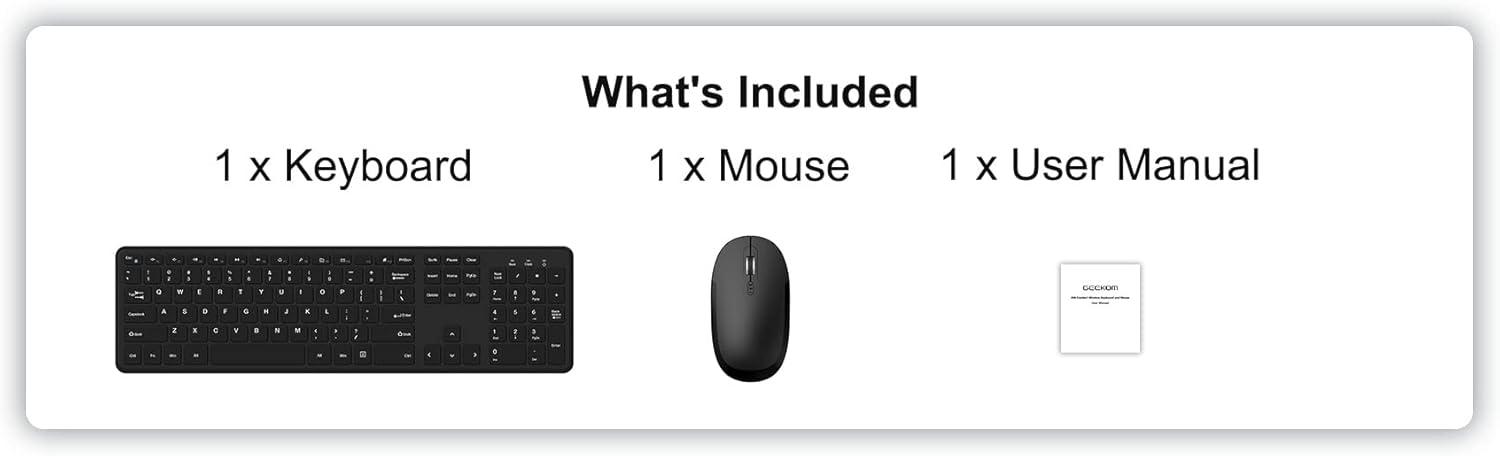
Image: The package contents, showing one keyboard, one mouse, and one user manual.
3. Opsætning og installation
3.1 Batteriinstallation
The keyboard and mouse require batteries (not included) for operation.
- Til tastaturet: Locate the battery compartment on the underside of the keyboard. Insert 2 x AAA batteries, ensuring correct polarity (+/-). Close the battery compartment cover.
- Til musen: Locate the battery compartment on the underside of the mouse. Insert 2 x AAA batteries, ensuring correct polarity (+/-). The 2.4GHz USB receiver is typically stored in this compartment for safekeeping during transport. Remove the receiver before inserting batteries. Close the battery compartment cover.
3.2 Connecting the Combo
The GEEKOM Wireless Keyboard and Mouse Combo uses a single 2.4GHz USB receiver for both devices, offering a simple plug-and-play connection.
- Remove the 2.4GHz USB receiver from the mouse battery compartment.
- Sæt USB-modtageren i en ledig USB-port på din computer.
- Tænd for tænd/sluk-knappen, der er placeret på undersiden af musen.
- Your computer should automatically detect and install the necessary drivers. The keyboard and mouse will be ready for use within a few seconds.

Image: A laptop with the small USB receiver plugged into its side, illustrating the plug-and-play wireless connection for the keyboard and mouse.
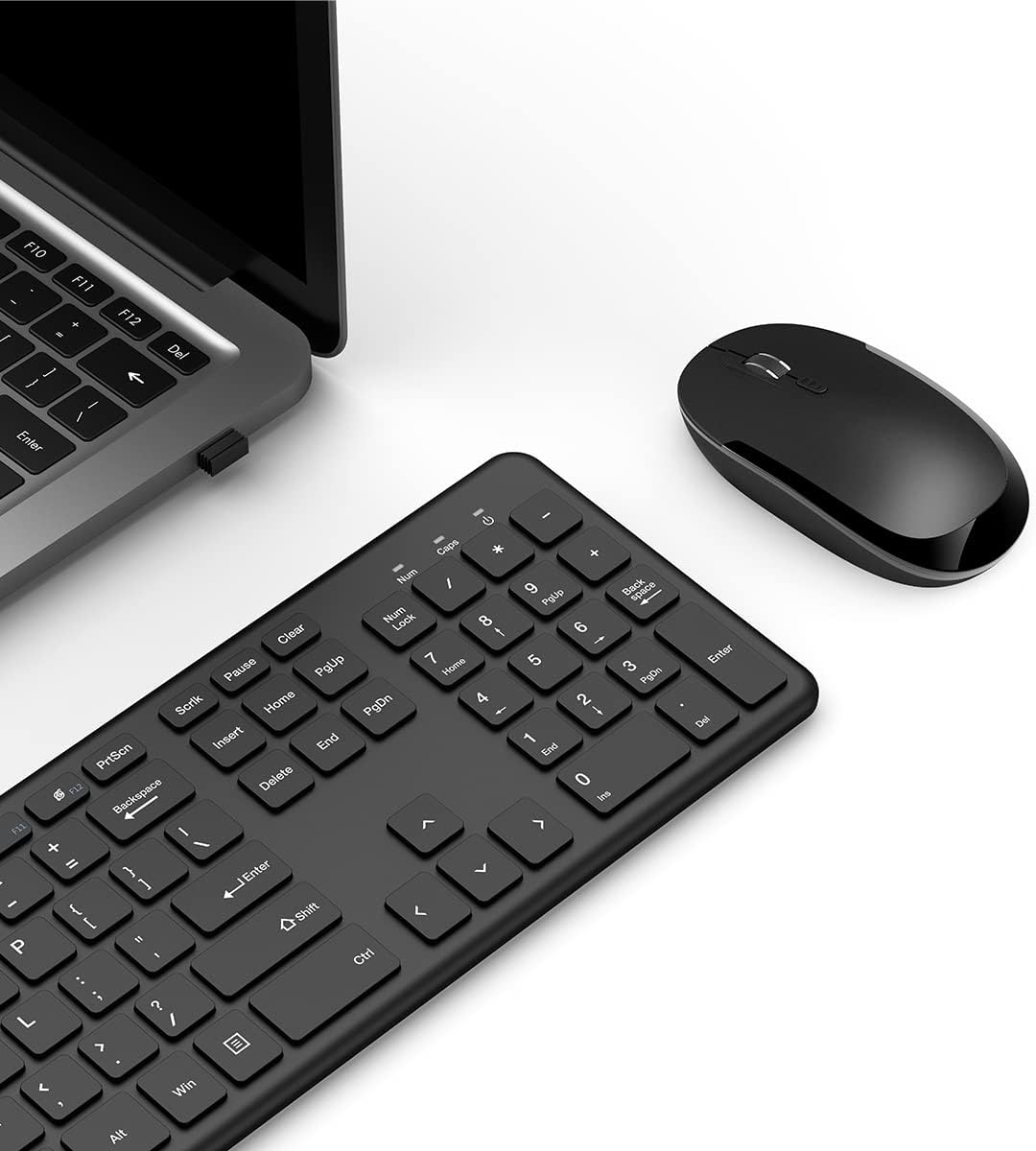
Billede: Et overheadbillede view of the GEEKOM wireless keyboard and mouse, with the USB receiver visible in a laptop's USB port, demonstrating the complete setup.
4. Betjeningsvejledning
4.1 Tastaturfunktioner
The GEEKOM wireless keyboard is a full-size keyboard designed for comfort and efficiency.
- Whisper-Quiet Keys: Designed to minimize typing noise for a more peaceful work environment.
- F-Keys and Number Pad: Includes a full set of function keys and a dedicated number pad for comprehensive input.
- Ergonomiske taster: Shaped for comfortable typing during extended use.
- Multimedie-genvejstaster: Provides instant access to functions such as media player control, homepage, and volume adjustment for convenience.

Image: A close-up, angled view of the GEEKOM wireless keyboard, showcasing its full layout and ergonomic keycap design.

Billede: To views of the GEEKOM wireless keyboard, showing the full key layout from the top and the battery compartment and feet from the bottom.
4.2 Musens funktioner
The GEEKOM wireless optical mouse is designed for comfortable and precise navigation.
- Slim Size and Ergonomic Design: Provides all-day comfort for your hand.
- Justerbar DPI: Features three levels of adjustable DPI (800/1200/1600) for smooth cursor control and accurate tracking on most surfaces. To change DPI, press the DPI button located behind the scroll wheel.

Image: A close-up, angled view of the GEEKOM wireless optical mouse, emphasizing its ergonomic shape and the DPI adjustment button.

Image: Three distinct views of the GEEKOM wireless mouse: top-down, bottom-up showing the power switch and battery compartment, and a side profile illustrating its slim design.
5. Specifikationer
5.1 Keyboard Specifications
| Feature | Beskrivelse |
|---|---|
| Trådløs forbindelse | 2.4 GHz wireless USB receiver |
| Wireless Range | 8 meter |
| Servicelevetid | 3 millioner tastetryk |
| Batteri | 2 x AAA batteri (medfølger ikke) |
| Indikatorlys | Ja |
| Kontinuerlig arbejdstid | 85 timer |
| Dvaletilstand | 5 seconds after stop using |
| Wake-up Way | Click any key for about 3 seconds |
| Størrelse | 428.10 x 125.07 x 16.26 mm |
| Operativsystem | Windows 7 eller nyere |

Image: A table detailing the specifications of the GEEKOM wireless keyboard.
5.2 Mouse Specifications
| Feature | Beskrivelse |
|---|---|
| Trådløs forbindelse | 2.4 GHz wireless USB receiver |
| Wireless Range | 8 meter |
| Batteri | 2 x AAA batteri (medfølger ikke) |
| DPI Frequency | 800/1200/1600 |
| Kontinuerlig arbejdstid | 85 timer |
| Dvaletilstand | 10 minutes after stop using |
| Wake-up Way | Click any key for about 3 seconds |
| Størrelse | 107.5 x 60 x 27.5 mm |

Image: A table detailing the specifications of the GEEKOM wireless mouse.
6. Vedligeholdelse
To ensure the longevity and optimal performance of your GEEKOM Wireless Keyboard and Mouse Combo, follow these maintenance guidelines:
- Rensning: Brug en blød, tør klud til at rengøre overfladerne på tastaturet og musen. For genstridigt snavs, tør letampRengør kluden med vand eller en mild rengøringsopløsning. Undgå at bruge skrappe kemikalier eller slibende materialer.
- Udskiftning af batteri: When the devices become unresponsive or the indicator light (if present) signals low battery, replace the batteries with new ones (2 x AAA for each device). Ensure correct polarity.
- Opbevaring: Når musen ikke er i brug i længere tid, skal den slukkes for at spare på batteriet. Opbevar USB-modtageren i musens batterirum for at forhindre tab.
- Undgå væsker: Keep the devices away from liquids to prevent damage to internal components.
- Temperatur og luftfugtighed: Avoid exposing the devices to extreme temperatures or high humidity.
7. Fejlfinding
If you encounter issues with your GEEKOM Wireless Keyboard and Mouse Combo, please refer to the following common troubleshooting steps:
- Ingen reaktion fra tastatur/mus:
- Sørg for, at musen er tændt.
- Kontroller, om batterierne i både tastatur og mus er korrekt installeret og har tilstrækkelig opladning. Udskift dem om nødvendigt.
- Kontroller, at USB-modtageren er korrekt tilsluttet en fungerende USB-port på din computer. Prøv en anden USB-port.
- Move the keyboard and mouse closer to the USB receiver to ensure they are within the 8-meter wireless range.
- Genstart din computer.
- Lag eller intermitterende forbindelse:
- Ensure there are no large metal objects or other electronic devices (like Wi-Fi routers, cordless phones) operating on the 2.4GHz frequency that might cause interference.
- Reduce the distance between the devices and the USB receiver.
- Try plugging the USB receiver into a different USB port, preferably one on the front of your computer if using a desktop.
- Musemarkøren hopper eller er unøjagtig:
- Rengør den optiske sensor på undersiden af musen.
- Sørg for at bruge musen på en passende overflade. Meget reflekterende eller gennemsigtige overflader kan påvirke sporingen. En musemåtte anbefales.
- Juster DPI-indstillingen ved hjælp af DPI-knappen på musen.
- Multimedia Hotkeys Not Working:
- Ensure your operating system and media player software are up to date.
- Some hotkeys may require specific software or drivers, though this combo is generally plug-and-play. Check the GEEKOM support website for any specific driver updates if issues persist.
8. Garanti og support
GEEKOM products are designed for reliability and performance. For warranty information, technical support, or further assistance, please visit the official GEEKOM webhjemmeside eller kontakt deres kundeservice direkte.
Gem venligst din købsbevis i tilfælde af garantikrav.
GEEKOM Official Webwebsted: www.geekompc.com


