1. Introduktion
Thank you for choosing the HXSJ X50 Wireless Game Mouse. This manual provides detailed instructions for setting up, operating, and maintaining your new wireless mouse. Please read this manual thoroughly before use to ensure optimal performance and longevity of your device.
Pakkeindhold:
- HXSJ X50 Wireless Game Mouse
- USB-modtager

Image 1.1: The HXSJ X50 Wireless Game Mouse and its USB receiver.
2. Sikkerhedsoplysninger
- Udsæt ikke musen for vand eller overdreven fugt.
- Undgå at tabe eller udsætte musen for kraftige stød.
- Hold enheden væk fra ekstreme temperaturer.
- Do not attempt to disassemble or repair the mouse yourself. Contact qualified service personnel if needed.
- Bortskaf batterier i henhold til lokale regler.
3. Opsætning
3.1 Batteriinstallation
The HXSJ X50 Wireless Game Mouse requires batteries for operation. Please ensure you have the necessary batteries (typically 1x AA battery, not included) before proceeding.
- Find batterirummet på undersiden af musen.
- Åbn batterirummets dæksel.
- Insert the battery, ensuring correct polarity (+/-).
- Luk batterirummets dæksel forsvarligt.
3.2 Tilslutning af USB-modtageren
- Find en ledig USB-port på din computer.
- Insert the USB receiver into the USB port. Your computer should automatically detect and install the necessary drivers.
3.3 Tænd
Slide the power switch, located on the underside of the mouse, to the 'ON' position. The mouse is now ready for use.
4. Betjeningsvejledning
4.1 Knapfunktioner
The HXSJ X50 mouse features 6 buttons for enhanced functionality:
- Venstreklikknap: Primær funktion, valg.
- Højreklik-knap: Secondary function, context menus.
- Scrollhjul: Rul op/ned, klik med midten.
- DPI-justeringsknap: Skifter gennem DPI-indstillinger.
- Page Forward Button: Navigerer fremad i web browsere eller file opdagelsesrejsende.
- Page Backward Button: Navigerer baglæns i web browsere eller file opdagelsesrejsende.

Billede 4.1: Side view showing the ergonomic design and side buttons.
4.2 DPI-justering
Press the DPI adjustment button (located behind the scroll wheel) to cycle through the available sensitivity settings: 1000DPI, 1200DPI, 1600DPI, and 2400DPI. Select the DPI that best suits your preference and task.
4.3 Strømbesparelse
The mouse features a power switch on its underside. To conserve battery life, slide the switch to the 'OFF' position when the mouse is not in use for extended periods.
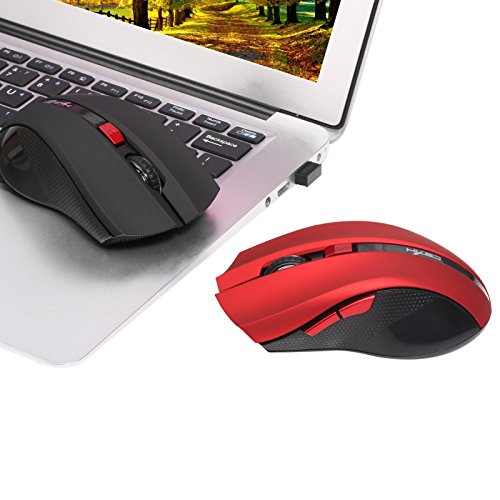
Image 4.2: The HXSJ X50 mouse in use with a laptop.
5. Vedligeholdelse
5.1 Rengøring
To clean the mouse, gently wipe its surface with a soft, dry cloth. For stubborn dirt, slightly dampRengør kluden med vand. Undgå at bruge skrappe kemikalier eller slibende rengøringsmidler.
5.2 Opbevaring
When not in use, store the mouse and USB receiver in a dry, cool place, away from direct sunlight and extreme temperatures. If storing for an extended period, it is recommended to remove the battery.
6. Fejlfinding
- Musen svarer ikke:
Ensure the mouse is powered on. Check if the USB receiver is securely plugged into a working USB port. Replace the battery if it is low or depleted. - Uregelmæssig markørbevægelse:
Clean the optical sensor on the underside of the mouse. Ensure the surface you are using the mouse on is clean and non-reflective. - Forbindelsesproblemer:
Try plugging the USB receiver into a different USB port. Move the mouse closer to the receiver to rule out interference. - Sideknapper virker ikke:
Ensure your operating system and applications support the forward/backward functions. Some software may require specific drivers or settings.
7. Specifikationer
| Feature | Detalje |
|---|---|
| Mærke | HXSJ |
| Model | X50 |
| Forbindelse | Trådløs (USB-modtager) |
| Wireless Range | Op til 10-15 meter |
| Bevægelsesdetektion | Optisk |
| DPI-indstillinger | 1000, 1200, 1600, 2400 (Justerbar) |
| Antal knapper | 6 (Venstre, Højre, Scrollhjul, DPI, Frem, Bagud) |
| Strømkilde | Battery (1x AA, not included) |
| Batterilevetid (gennemsnitlig) | 6 måneder |
| Håndorientering | Ambidekstrøs |
| Materiale | Plast |
| Varens vægt | 80 g |
| Kompatibel OS | Windows 98/ME/2000/XP/Vista/7/8, Linux |
8. Garanti og support
For warranty information or technical support, please refer to the documentation provided with your purchase or contact the retailer/manufacturer directly. Keep your proof of purchase for warranty claims.


