Indledning
This manual provides detailed instructions for the setup, operation, and maintenance of your leQuiven Wireless Charging Station (Model XF-C01). This 3-in-1 charging station is designed to simultaneously charge compatible Samsung Galaxy phones, Galaxy Watches, and Galaxy Buds, offering a streamlined charging experience.
Pakkens indhold
Kontroller venligst, at alle nedenstående varer er inkluderet i din pakke:
- 1 x leQuiven Wireless Charging Station
- 1 x Charging Brick (Power Adapter)
- 1 x USB-C kabel
- 1 x Brugermanual (dette dokument)

Figure 1: Contents of the leQuiven Wireless Charging Station package.
Produkt overview
The leQuiven XF-C01 is a compact and efficient charging solution. It features dedicated charging areas for a smartphone, a smartwatch, and wireless earbuds, along with an integrated digital clock.

Figur 2: Forside view of the leQuiven Wireless Charging Station with devices.
Nøglefunktioner:
- 3-i-1 trådløs opladning: Simultaneously charges a compatible smartphone, Galaxy Watch, and Galaxy Buds.
- Adjustable Digital Clock: Features a digital time display with adjustable brightness levels, including an off option.
- Case-venligt design: Supports charging through phone cases up to 5mm (0.2 inches) thick.
- Multibeskyttelsessystem: Inkluderer overvoltage, overload, undervoltage, static, over-temperature, foreign object detection, and overcurrent protection.
- Horizontal and Vertical Charging: The phone charging pad supports both horizontal and vertical device placement.
Opsætningsinstruktioner
- Tilslut strømadapteren: Insert the USB-C end of the provided cable into the charging station's input port. Connect the USB-A end to the included charging brick.
- Tilslut strøm: Plug the charging brick into a standard wall outlet. The digital clock on the charging station will illuminate, indicating it is powered on.
- Placering: Place the charging station on a flat, stable surface, such as a desk or nightstand.
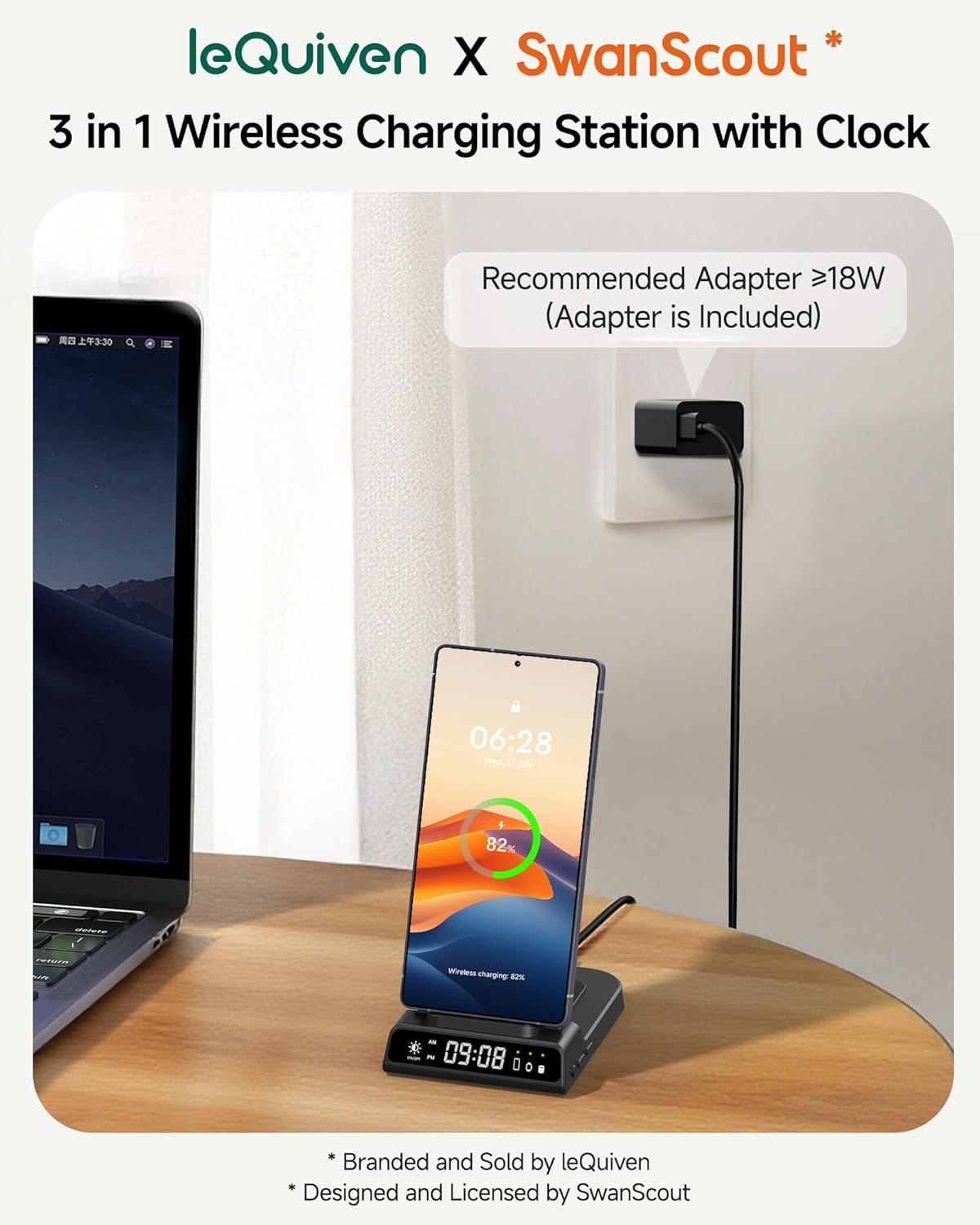
Figure 3: Connecting the charging station to power.
Betjeningsvejledning
1. Opladningsenheder
The charging station features three distinct wireless charging areas:
- Smartphone-opladningspude: Located on the upright stand. Place your compatible smartphone vertically or horizontally on this pad.
- Smartwatch Charging Pad: Located on the top arm of the stand. Place your compatible Galaxy Watch onto this magnetic pad.
- Earbuds Charging Pad: Located on the base of the station, behind the phone charging pad. Place your compatible wireless earbuds case on this flat pad.
A small green LED indicator on the station's base will light up next to the corresponding device icon when a device is successfully charging.
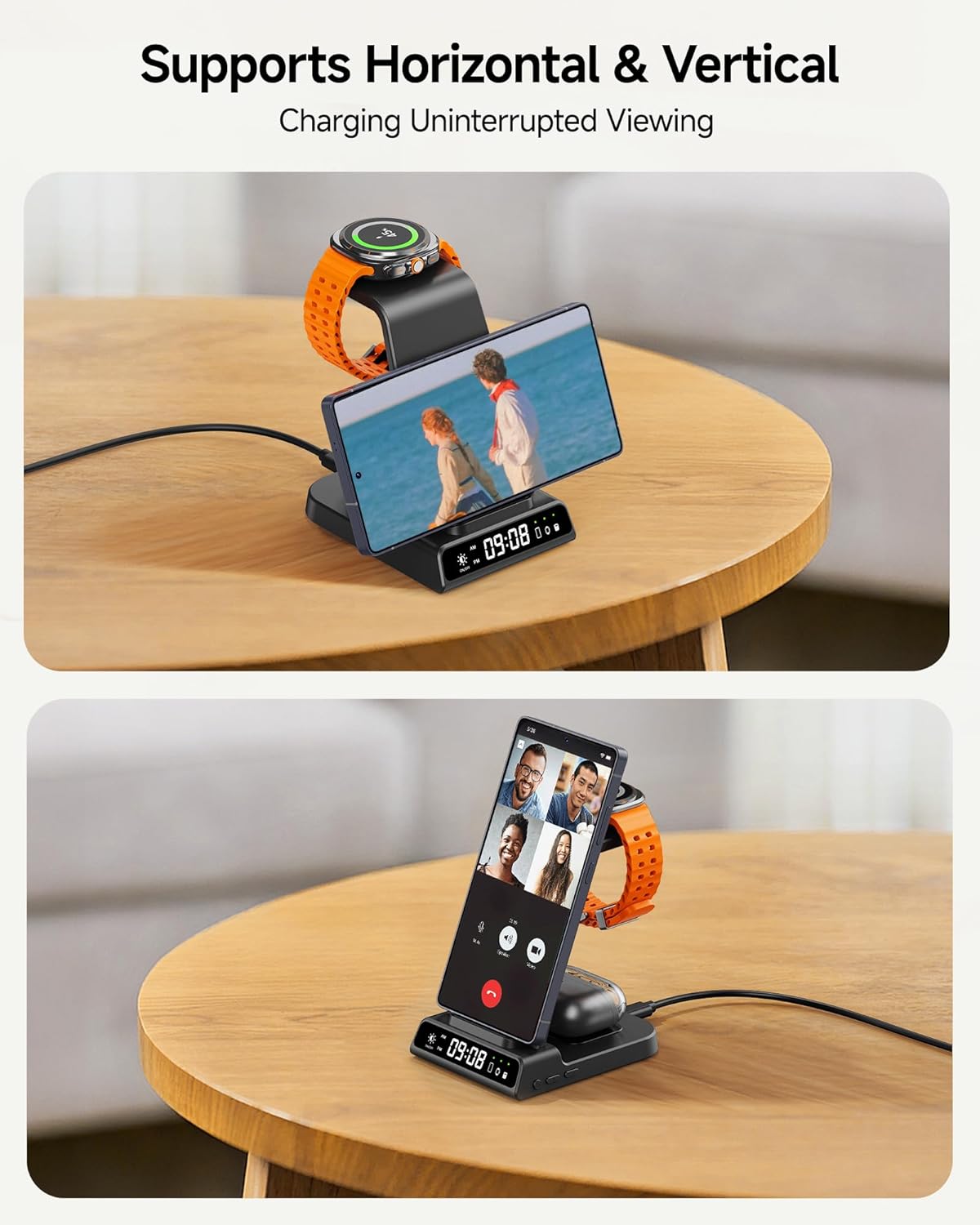
Figure 4: Supports both horizontal and vertical phone charging.
2. Setting the Digital Clock
The digital clock on the charging station can be adjusted using the buttons on the side of the unit.
- 12/24H System Switch: Short press the designated button once to toggle between 12-hour and 24-hour time formats.
- Indtast tidsindstilling: Long press the time setting button (usually marked with a clock icon or similar) for 3 seconds to enter the hour adjustment mode.
- Juster timer/minutter: While in time setting mode, short press the '+' or '-' buttons to adjust the hour. Short press the time setting button again to switch to minute adjustment, then use '+' or '-' to set minutes.
- Exit Time Setting: Long press the time setting button for 3 seconds to save and exit the time setting mode.

Figure 5: Clock setting buttons and functions.
3. Adjusting Clock Brightness
The digital clock's brightness can be adjusted to suit your environment, especially for nighttime use.
- Brightness Touch Button: Locate the touch-sensitive button on the front of the charging station, typically near the digital clock display.
- Cykluslysstyrke: Tap this button to cycle through different brightness levels (100%, 50%, 20%) and an 'Off' setting.
Note: The charging station does not include an alarm clock function; it is for time display only.

Figure 6: Adjusting the digital clock brightness.
Kompatibilitet
The leQuiven Wireless Charging Station is compatible with a wide range of devices. Ensure your device supports wireless charging (Qi standard) for optimal performance.
Kompatible telefoner:
- Samsung Galaxy: Z Flip7/6/5/4/3, Z Fold6/5/4/3, S25 Ultra/+/S25/Edge, S24 Ultra/+/S24/FE, S23 Ultra/+/S23/FE, S22 Ultra/+/S22, S21 Ultra/+/S21/FE, S20 Ultra/+/S20, S10/+/e, Note 20/10/9/8.
- iPhone: 16/15/14/13/12/11 Series, SE, XS MAX/X/XR, 8/8 Plus.
- Google Pixel: 8 Pro/8, 7 Pro/7, 6 Pro/6, 5, 4/3 (XL).
- Other Qi-enabled smartphones.
Note: Not compatible with Samsung Galaxy A/M/J/Tab Series or phones without wireless charging capability.
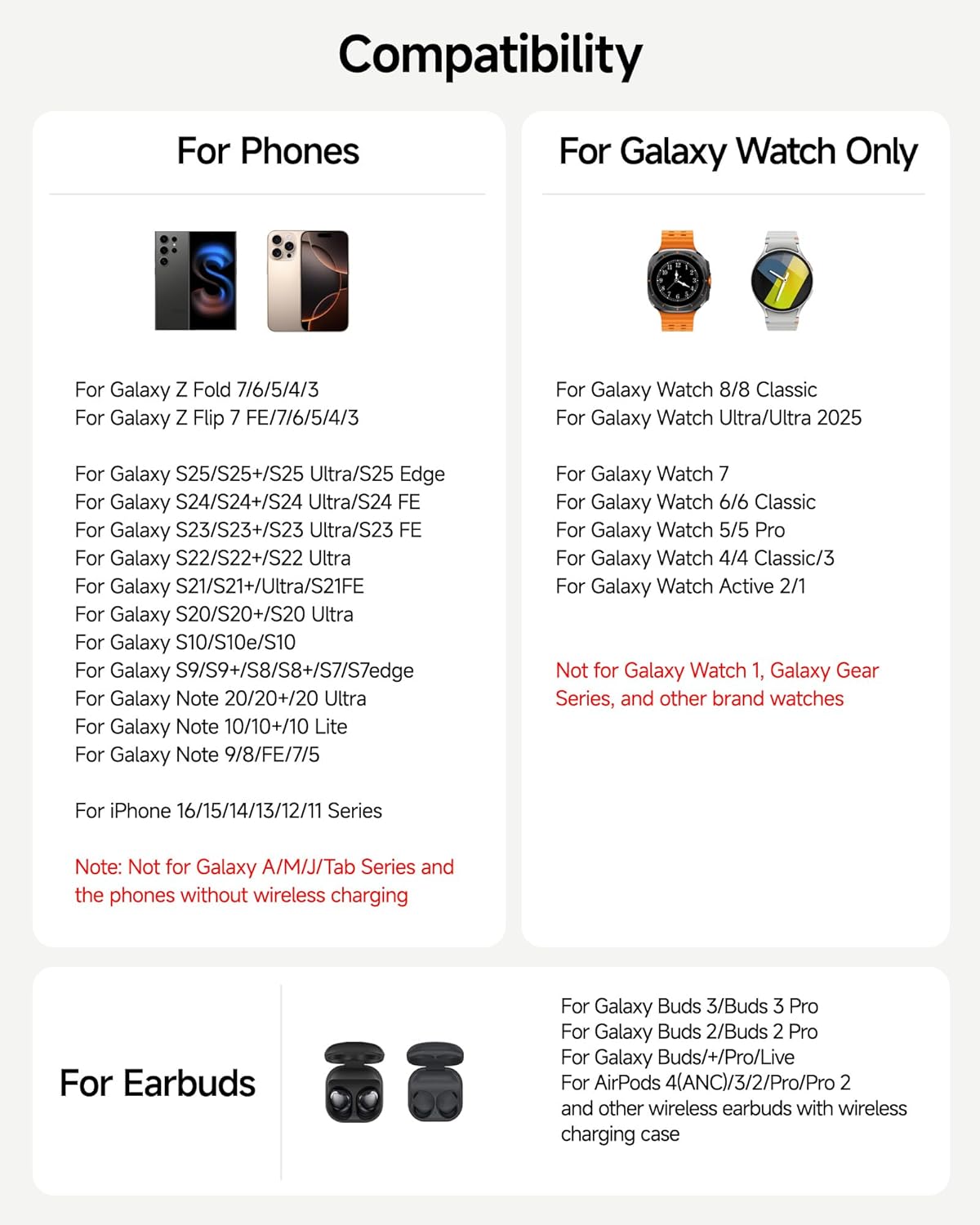
Figure 7: Phone compatibility list.
Compatible Smartwatches:
- Samsung Galaxy Watch: 8 Classic/8, 7, Ultra/Ultra 2025, 6 Classic/6, 5 Pro/5, 4 Classic/4, 3, Active 2/1.
Note: Not compatible with Galaxy Watch 1, Galaxy Gear series, or other brand watches.
Kompatible øretelefoner:
- Samsung Galaxy Buds: 3 Pro/3, 2 Pro/2, Pro, Buds/+, Live.
- Apple AirPods: Pro 2, 3rd generation, 2, Pro.
- Other wireless earbuds with wireless charging cases.
Etui kompatibilitet:
The charging station supports phone cases with a thickness of less than 5mm (0.2 inches). Remove any magnetic pads, metal cases, credit cards, or metal rings from your phone case before charging, as these can interfere with wireless charging.

Figure 8: Phone case compatibility guidelines.
Opretholdelse
For at sikre din ladestations levetid og optimale ydeevne skal du følge disse vedligeholdelsesretningslinjer:
- Rensning: Afbryd strømmen før rengøring. Brug en blød, tør klud til at tørre overfladen af ladestationen af. Undgå at bruge slibende rengøringsmidler, opløsningsmidler eller stærke kemikalier.
- Opbevaring: Når ladestationen ikke er i brug i længere perioder, skal den opbevares køligt og tørt, væk fra direkte sollys og ekstreme temperaturer.
- Håndtering: Håndter enheden forsigtigt. Undgå at tabe den eller udsætte den for hårde stød.
Fejlfinding
If you encounter issues with your leQuiven Wireless Charging Station, refer to the following common problems and solutions:
| Problem | Mulig årsag | Løsning |
|---|---|---|
| Enheden oplader ikke | 1. Device not properly aligned. 2. Phone case too thick or contains metal. 3. Device not compatible. 4. Power adapter not connected or faulty. | 1. Re-position the device on the charging pad. 2. Remove the phone case or use a thinner, non-metallic case. 3. Verify device compatibility (refer to 'Compatibility' section). 4. Ensure the power adapter is securely connected and functioning. Try a different outlet. |
| Opladningen er langsom | 1. Using a non-recommended power adapter. 2. Multiple devices charging simultaneously. 3. Device misalignment. | 1. Use the provided 18W (or higher) charging brick. 2. Charging speed may be reduced when charging multiple devices. 3. Ensure devices are centered on their respective charging pads. |
| Digital clock not displaying or incorrect | 1. Clock brightness set to 'Off'. 2. Time not set correctly. | 1. Tap the brightness touch button to increase brightness. 2. Follow the 'Setting the Digital Clock' instructions to adjust the time. |
| LED-indikator blinker | Foreign object detected (FOD). | Remove any metal objects, keys, coins, or cards from the charging area. |
Hvis problemet fortsætter efter at have forsøgt disse løsninger, bedes du kontakte kundesupport.
Specifikationer
| Feature | Detalje |
|---|---|
| Modelnummer | XF-C01 |
| Mærke | leQuiven |
| Produktdimensioner | 3.94 x 1.97 x 3.94 tommer |
| Input bindtage | 9 volt |
| Input Ampslette | 2.1 Amps |
| Connector Type | USB Type C |
| Samlet USB-porte | 1 (for power input) |
| Trådløs opladningsoutput | Up to 18W total (requires >18W adapter) |
| Særlige funktioner | Built-in Digital Clock, Short Circuit Protection, Foreign Object Detection, Temperature Control, Overvoltage Protection, Overload Protection, Undervoltage Protection, Static Protection, Overcurrent Protection. |
| Fabrikant | Shenzhen Xuanfeng Innovations Technology Co., Ltd. |
Garanti og support
The leQuiven Wireless Charging Station comes with a standard manufacturer's warranty. Please refer to the warranty card included in your package for specific terms and conditions.
For technical support, troubleshooting assistance, or warranty claims, please contact leQuiven customer service through the retailer where the product was purchased or visit the official leQuiven webwebsted.
Note: No official product videos were provided with relevant seller information for embedding in this manual.


