Indledning
This manual provides detailed instructions for the setup, operation, maintenance, and troubleshooting of your Logitech MX Mechanical Full-Size Illuminated Wireless Keyboard and MX Master 3S Performance Wireless Bluetooth Mouse Bundle. This powerful duo is designed for ultimate precision and performance across various operating systems.
The bundle includes the MX Mechanical Keyboard with Linear switches, offering a smooth typing experience, and the MX Master 3S Mouse, featuring an 8K DPI Darkfield sensor for tracking on virtually any surface, including glass.

Figure 1: The Logitech MX Mechanical Keyboard and MX Master 3S Mouse, presented together as a complete bundle.
Opsætning
Follow these steps to set up your Logitech MX Mechanical Keyboard and MX Master 3S Mouse.
1. Opladning af enhederne
Both the keyboard and mouse come with rechargeable Li-Po batteries. It is recommended to fully charge them before first use.
- MX Mechanical Keyboard: Connect the included USB-C cable to the keyboard's USB-C port and the other end to a power source (e.g., computer USB port, USB wall adapter). The keyboard has a 1500 mAh battery.
- MX Master 3S Mouse: Connect the included USB-C cable to the mouse's USB-C port and the other end to a power source. The mouse has a 500 mAh battery.
2. Tilslutningsmuligheder
Your devices can be connected via Bluetooth Low Energy or the Logi Bolt USB Receiver.
- Brug af Logi Bolt USB-modtager: Insert the Logi Bolt USB receiver into an available USB port on your computer. The keyboard and mouse are pre-paired with the receiver for immediate use.
- Brug af Bluetooth Low Energy:
- On the keyboard/mouse, press and hold one of the Easy-Switch buttons (labeled 1, 2, or 3) until the LED indicator blinks rapidly, indicating pairing mode.
- On your computer or device, open Bluetooth settings and select the Logitech MX Mechanical Keyboard or MX Master 3S Mouse from the list of available devices to pair.
- Repeat for the other device if pairing both via Bluetooth.
Note: If FileHvis Vault er aktiveret på din macOS-computer, skal du muligvis bruge Logi Bolt USB-modtageren til at indtaste din adgangskode ved opstart eller genstart, når du er tilsluttet via Bluetooth.
3. Installation af Logi Options+-software
For full customization and advanced features, install the Logi Options+ software. This software is available for Windows and macOS.
- Besøg den officielle Logitech website to download and install Logi Options+.
- The software allows you to customize keyboard Fn-keys, mouse buttons, and manage device settings.
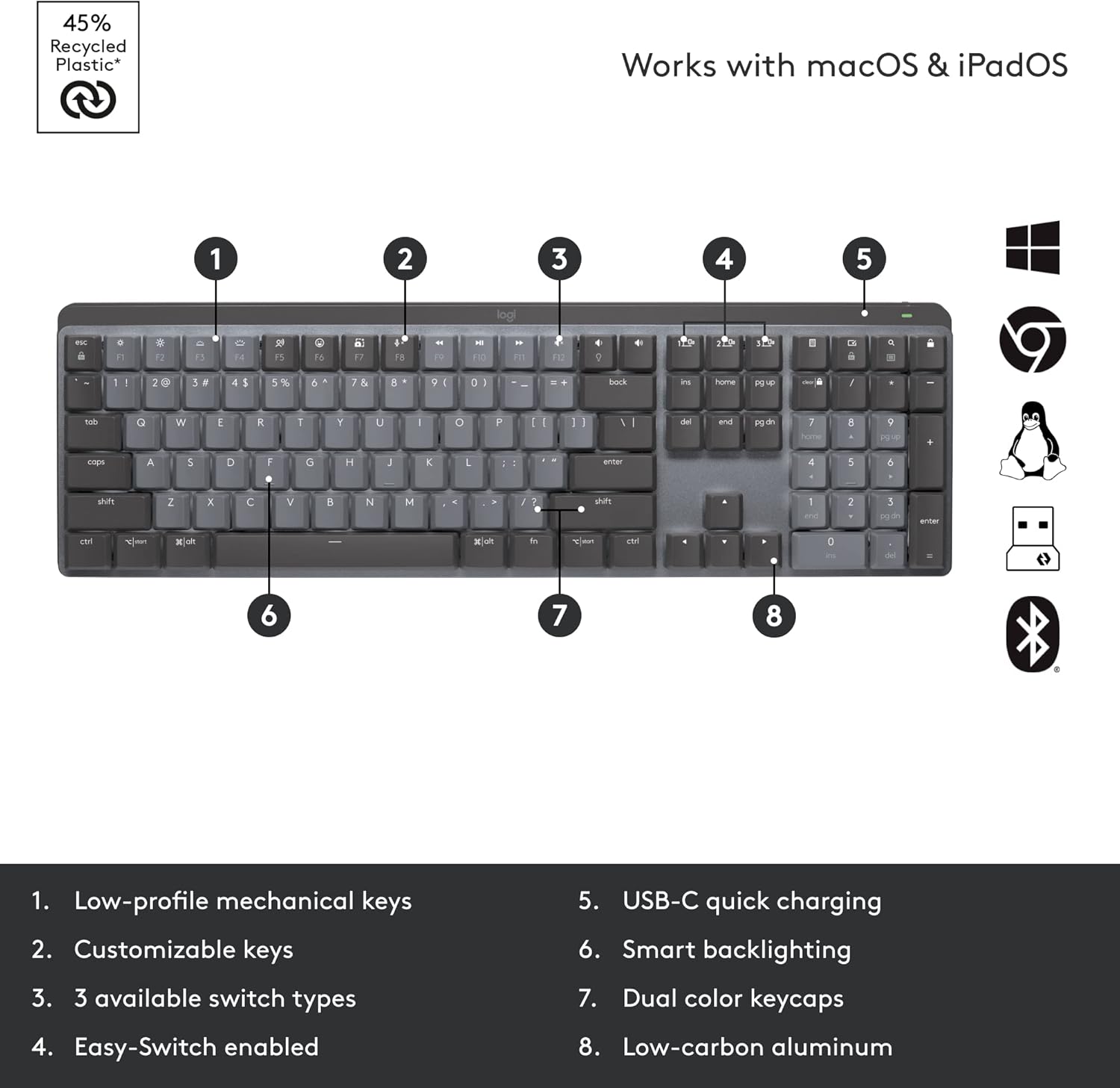
Figure 2: Key features of the MX Mechanical Keyboard, including low-profile mechanical keys, customizable keys, three switch types, Easy-Switch, USB-C charging, smart backlighting, dual color keycaps, and low-carbon aluminum construction.
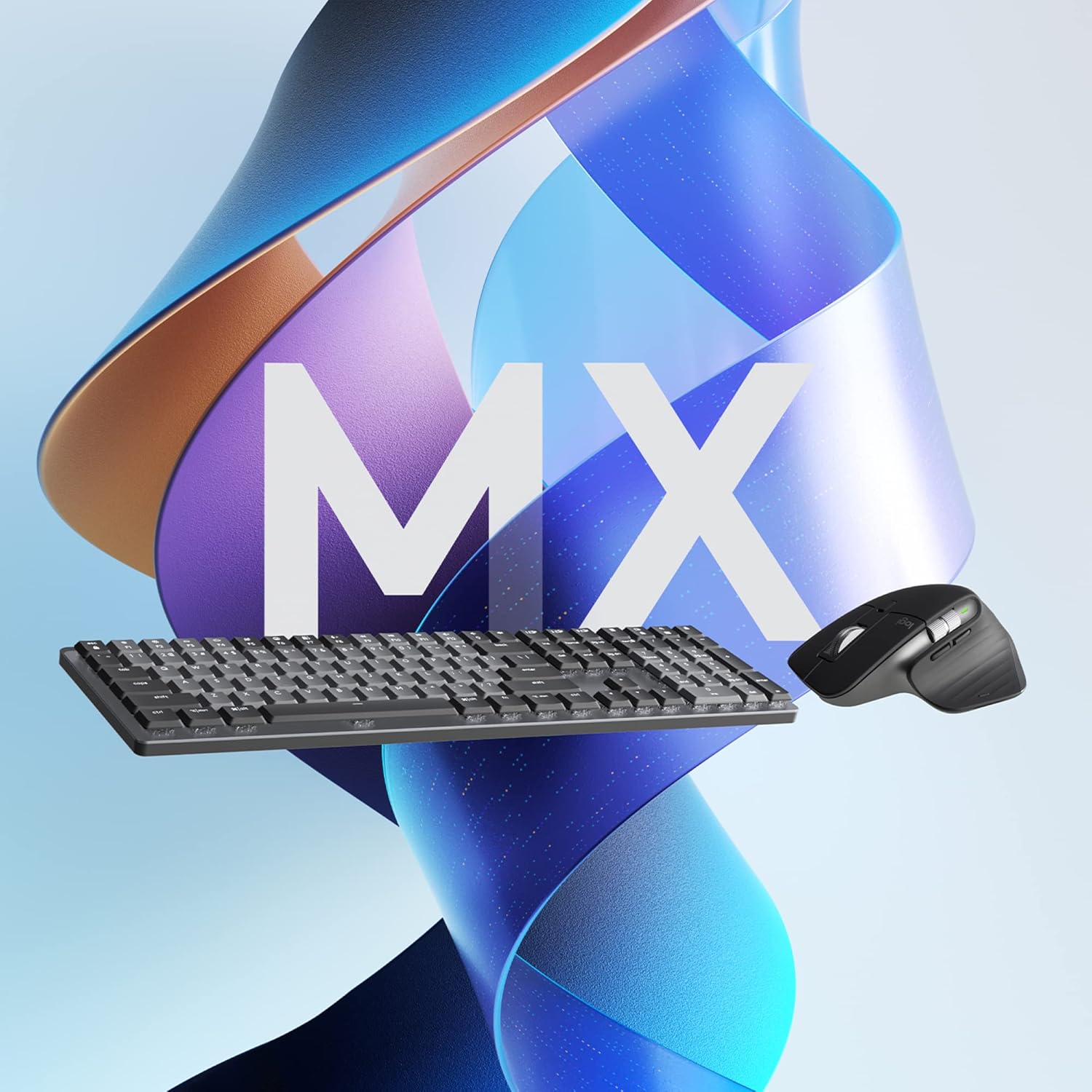
Figure 3: Key features of the MX Master 3S Mouse, including the MagSpeed wheel, thumbwheel, customizable buttons, track-anywhere sensor, USB-C charging, and Easy-Switch buttons.
Betjeningsvejledning
Maximize your productivity with the advanced features of your Logitech MX bundle.
1. Smart Illumination (Keyboard)
The MX Mechanical Keyboard features smart backlighting that illuminates when your hands approach and automatically adjusts to ambient lighting conditions. This feature conserves battery life while providing optimal visibility.

Figure 4: The MX Mechanical Keyboard displaying its smart backlighting, which adjusts automatically to lighting conditions.
2. Magspeed Scrolling (Mouse)
The MX Master 3S Mouse features the MagSpeed Electromagnetic scrolling wheel, allowing you to scroll 1,000 lines in a second or switch to precise, line-by-line scrolling. The thumbwheel provides horizontal scrolling capabilities.
3. Track Anywhere Sensor (Mouse)
The Darkfield high precision sensor on the MX Master 3S Mouse allows it to track on virtually any surface, including glass (minimum 4mm thickness), with up to 8000 DPI precision.

Figure 5: The MX Master 3S Mouse demonstrating its ability to track precisely on a glass surface.
4. Multi-Device and Multi-OS Functionality (Flow)
Both devices can pair with up to three devices simultaneously via Bluetooth Low Energy or the Logi Bolt USB receiver. Use the Easy-Switch buttons to seamlessly switch between connected devices.
With Logi Options+ software, you can enable Logitech Flow, which allows you to control multiple computers (Windows and macOS) with a single keyboard and mouse, and even transfer text, images, and files between them by simply moving your cursor to the edge of the screen.

Figur 6: En overhead view illustrating the multi-device and multi-OS capabilities of the Logitech MX bundle in a typical workspace.

Figure 7: A user's hands on the MX Mechanical Keyboard, highlighting the quiet performance of the linear switches, with the MX Master 3S Mouse in the background.

Figure 8: A user engaged in work, demonstrating the ergonomic design and comfortable use of the MX Mechanical Keyboard and MX Master 3S Mouse.
Opretholdelse
Proper maintenance ensures the longevity and optimal performance of your devices.
1. Batteristyring
The battery life of your devices can vary based on usage and computing conditions. Regular charging is recommended.
- Opladningsindikatorer: LEDs on the devices will indicate low battery status.
- Opladningsfrekvens: Charge as needed. The keyboard can last up to 10 months with backlighting off, and the mouse has a long battery life as well.
2. Rengøringsvejledning
Sådan rengør du dit tastatur og din mus:
- Disconnect devices from power and turn them off.
- Brug en blød, fnugfri klud lidt damprengøres med vand eller en elektroniksikker rengøringsopløsning.
- Undgå barske kemikalier, slibende materialer eller overdreven fugt.
- Brug trykluft til at fjerne snavs mellem tasterne på tastaturet.
Fejlfinding
If you encounter issues with your Logitech MX Mechanical Keyboard or MX Master 3S Mouse, refer to the following common solutions.
1. Forbindelsesproblemer
- Enhed opretter ikke forbindelse: Ensure both devices are charged. Try re-pairing via Bluetooth or re-inserting the Logi Bolt receiver.
- Interferens: Move devices closer to the receiver or computer. Avoid placing them near other wireless devices that might cause interference.
- Logi Bolt vs. Unifying: Note that Logi Bolt technology is not compatible with Logitech Unifying technology. Ensure you are using the correct receiver for your devices.
2. Backlighting Problems (Keyboard)
- Backlight Not Turning On: Ensure the keyboard is sufficiently charged. The smart illumination feature may turn off backlighting in bright environments to save power. Check settings in Logi Options+.
- Justering af lysstyrke: Use the dedicated brightness keys on the keyboard or adjust settings via Logi Options+.
3. Software Issues (Logi Options+)
- Software genkender ikke enhed: Ensure the software is up-to-date. Restart your computer and try again.
- Customization Not Applying: Verify that the settings are saved within Logi Options+.
4. Generel ydeevne
- Lag or Unresponsiveness: Check battery levels. Ensure no physical obstructions are blocking the wireless signal.
- Problemer med musesporing: Clean the mouse sensor. Ensure the surface is suitable for tracking (Darkfield sensor works on most surfaces, including glass).
Specifikationer
Detailed technical specifications for the Logitech MX Mechanical Keyboard and MX Master 3S Mouse.
| Feature | Detalje |
|---|---|
| Dimensions (incl. keycaps) | 26.10 mm x 433.85 mm x 131.55 mm |
| Vægt | 828 g |
| Batteri | Genopladeligt Li-Po (1500 mAh) |
| Switch Type | Linear (smooth typing) |
| Forbindelse | Bluetooth lavenergi, Logi Bolt USB-modtager |
| Operativsystemer | Windows, macOS, Linux, Chrome OS, iPadOS, Android |
| Særlige funktioner | Smart Illumination, Dual Color Keycaps, Low-carbon aluminum |
| Feature | Detalje |
|---|---|
| Dimensioner | 51 mm x 84.3 mm x 124.9 mm (2 x 3.3 x 4.9 in) |
| Vægt | 141 g (4.97 oz) |
| Batteri | Genopladeligt Li-Po (500 mAh) |
| Sensor Technology | Darkfield høj præcision |
| DPI rækkevidde | 200 to 8000 DPI (adjustable in 50 DPI increments) |
| Knapper | 7 knapper (venstre-/højreklik, tilbage-/fremklik, app-skift, hjultilstandsskift, midterklik), rullehjul, tommelfingerhjul, bevægelsesknap |
| Trådløs driftsafstand | 10 m (33 fod) |
| Forbindelse | Bluetooth lavenergi, Logi Bolt USB-modtager |
| Operativsystemer | Windows, macOS, Linux, Chrome OS, iPadOS, Android |
Note: Device basic functions will be supported without software for systems other than Windows and macOS. Wireless range and battery life may vary depending on operating environment and computer setup.
Garantioplysninger
Logitech products are manufactured to high quality standards and are backed by a limited hardware warranty. For specific warranty terms and conditions applicable to your region, please refer to the official Logitech webwebstedet eller garantikortet, der følger med dit produkt.
This product is eligible for a 30-day return policy when purchased from Amazon.
Støtte
For further assistance, product updates, or to access additional resources, please visit the official Logitech support webwebsted:
- Logitech Support Webwebsted
- Download den seneste version af Logi Options+ for enhanced customization and features.
Der blev ikke fundet nogen officielle produktvideoer fra sælgeren indlejret i denne manual.


