1. Introduktion
This manual provides detailed instructions for the setup, operation, maintenance, and troubleshooting of your FMOUSE Slim White Wireless Bluetooth Mouse M113. Please read this manual thoroughly before using the product to ensure optimal performance and longevity.

Image 1: FMOUSE M113 Slim White Wireless Bluetooth Mouse
2. Pakkens indhold
Når du åbner din pakke, bedes du kontrollere, at alle følgende varer er inkluderet:
- 1 x FMOUSE M113 Wireless Mouse
- 1 x USB Charging Cable (Type-C, 80cm/31.5in)
- 1 x USB Receiver (2.4GHz)
- 1 x brugsanvisning

Image 2: Package contents of the FMOUSE M113 mouse
3. Opsætning
3.1 Opladning af musen
Before initial use, fully charge the mouse using the provided Type-C USB cable. The charging port is located at the front of the mouse.
- Opladning: The scroll wheel light will display red.
- Opladning fuldført: The scroll wheel light will turn off.
- Lavt batteri: The scroll wheel light will flash red.

Image 3: Type-C charging port and battery indicators
3.2 Connecting the Mouse (Dual Mode)
The FMOUSE M113 supports two connection modes: 2.4GHz Wireless (via USB receiver) and Bluetooth 5.1. You can switch between modes using the selector switch on the bottom of the mouse.

Image 4: Dual connection options for the mouse
3.2.1 2.4 GHz trådløs forbindelse (USB-modtager)
- Locate the USB receiver stored in the magnetic slot on the bottom of the mouse.
- Sæt USB-modtageren i en ledig USB-port på din computer.
- Slide the switch on the bottom of the mouse to the 2.4G position (indicated by a USB icon).
- Musen burde automatisk oprette forbindelse til din enhed.
3.2.2 Bluetooth 5.1-forbindelse
- Slide the switch on the bottom of the mouse to the Bluetooth position (indicated by a Bluetooth icon).
- The scroll wheel light will flash, indicating it is in pairing mode.
- On your device (e.g., MacBook, iPad, Laptop), navigate to the Bluetooth settings.
- Søg efter available devices and select "FMOUSE M113" (or similar) to pair.
- Once paired, the scroll wheel light will stop flashing and remain solid.
Video 1: Overståetview of FMOUSE M113 features and connectivity
4. Betjening af musen
4.1 Grundlæggende funktioner
- Venstre klik: Primær selektion og aktivering.
- Højreklik: Åbner kontekstmenuer.
- Scrollhjul: Rul indhold lodret.
4.2 DPI-justering
The mouse features 4 adjustable DPI levels (800/1200/1600/2400) to customize cursor sensitivity. Press the DPI knap (located near the scroll wheel) to cycle through the settings. The scroll wheel light color indicates the current DPI level.
- 800 DPI: (Specific color may vary, refer to image)
- 1200 DPI: (Specific color may vary, refer to image)
- 1600 DPI: (Specific color may vary, refer to image)
- 2400 DPI: (Specific color may vary, refer to image)
To turn the scroll wheel light on or off, long-press the DPI button for 2 seconds.

Image 5: 4 Adjustable DPI levels and corresponding light indicators
4.3 Desktop Return Button
The mouse includes a dedicated Desktop Return button. Pressing this button will instantly minimize all open windows and return you to your computer's desktop. This feature is useful for quick privacy or task switching.

Image 6: Function of the Desktop Return button
4.4 Mute/Volume Control Button
De Mute knap provides quick audio control:
- Enkelt tryk: Mutes or unmutes your computer's audio.
- Long Press (2 seconds) and Scroll: After a long press, you can adjust the computer's volume by scrolling the wheel up or down.

Image 7: Mute and volume adjustment functions
4.5 Lydløs klikfunktion
The FMOUSE M113 is designed with silent click buttons, reducing noise during use. This makes it suitable for quiet environments such as libraries, offices, or late-night work.
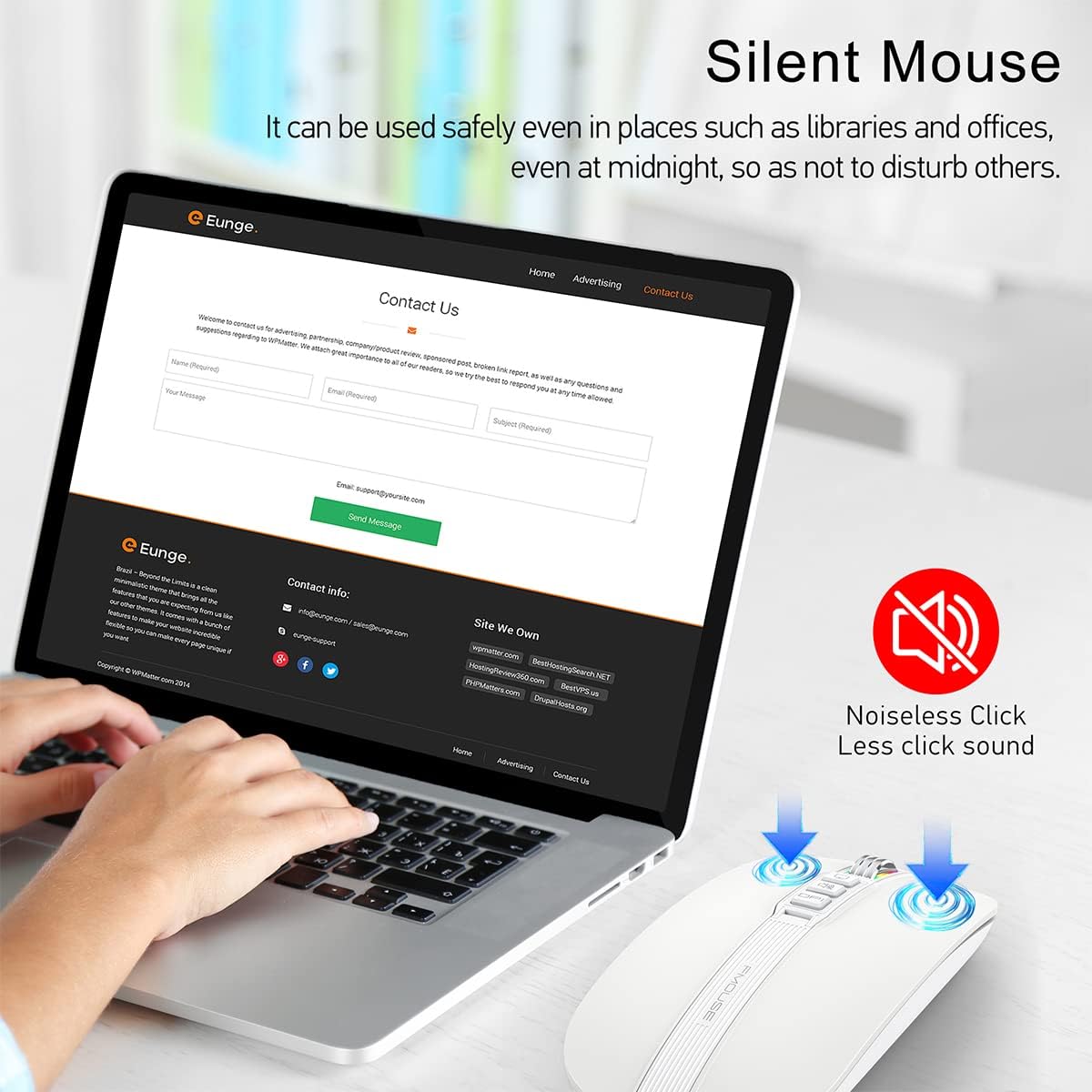
Image 8: Silent click feature of the mouse
5. Vedligeholdelse
5.1 Rengøring
- Frakobl musen fra din enhed, før du rengør den.
- Brug en blød, tør og fnugfri klud til at tørre musens overflade af.
- For genstridigt snavs, let dampen the cloth with water or a mild electronic cleaner. Avoid excessive moisture.
- Brug ikke skrappe kemikalier, slibende rengøringsmidler eller opløsningsmidler.
5.2 Pleje af batterier
- Oplad musen regelmæssigt for at opretholde batteriets sundhed.
- Undgå at aflade batteriet helt ofte.
- Do not expose the mouse to extreme temperatures, as this can affect battery life.
5.3 Opbevaring
- Når musen ikke er i brug i længere perioder, skal den opbevares et køligt og tørt sted.
- Ensure the mouse is turned off to conserve battery life.
- The USB receiver can be stored in its magnetic slot on the bottom of the mouse to prevent loss.
6. Fejlfinding
6.1 Forbindelsesproblemer
- Mouse not connecting via 2.4GHz USB receiver:
- Sørg for, at USB-modtageren er korrekt tilsluttet en fungerende USB-port.
- Verify the switch on the bottom of the mouse is set to the 2.4G position.
- Try plugging the receiver into a different USB port. - Musen opretter ikke forbindelse via Bluetooth:
- Ensure the switch on the bottom of the mouse is set to the Bluetooth position.
- Check that Bluetooth is enabled on your device.
- Remove any previous pairings of the mouse from your device's Bluetooth settings and attempt to pair again.
- Ensure the mouse is sufficiently charged.
6.2 DPI Light Behavior
- DPI light not changing color: Press the DPI button to cycle through settings. If it still doesn't change, ensure the mouse is powered on and charged.
- DPI light is off: Long-press the DPI button for 2 seconds to toggle the light on/off.
6.3 Opladningsproblemer
- Musen oplader ikke:
- Ensure the Type-C charging cable is securely connected to both the mouse and a power source.
- Prøv at bruge en anden USB-port eller strømadapter.
- Check if the charging cable is damaged. - Scroll wheel light flashing red: This indicates a low battery. Connect the mouse to a power source for charging.
6.4 Cursor Movement
- Erratic or no cursor movement:
- Ensure the mouse is properly connected (2.4GHz or Bluetooth).
- Kontroller batteriniveauet, og oplad det om nødvendigt.
- Rengør den optiske sensor på undersiden af musen.
- Ensure the mouse is used on a suitable surface (not highly reflective or transparent).
7. Specifikationer
| Feature | Specifikation |
|---|---|
| Produktdimensioner | 4.45 x 2.24 x 0.98 tommer (113 x 57 x 25 mm) |
| Varens vægt | 2.4 ounce (68 gram) |
| Forbindelsesteknologi | Bluetooth 5.1, 2.4GHz Wireless (USB) |
| Bevægelsesdetekteringsteknologi | Optisk |
| DPI niveauer | 800 / 1200 / 1600 / 2400 |
| Batteritype | 1 lithium-ion batteri (medfølger) |
| Opladningsport | Type-C |
| Særlige funktioner | One-click DPI adjustment, One-click access to desktop, One-click muting, Three shortcut keys |

Image 9: Dimensions of the FMOUSE M113 mouse
8. Garanti og support
8.1 Garantioplysninger
FMOUSE products are designed and manufactured to the highest quality standards. For specific warranty details, please refer to the warranty card included in your product packaging or visit the official FMOUSE webwebsted. Behold din købskvittering som købsbevis i tilfælde af garantikrav.
8.2 Kundesupport
If you encounter any issues or have questions regarding your FMOUSE M113 mouse that are not covered in this manual, please contact FMOUSE customer support through the following channels:
- Officiel Webwebsted: Visit the FMOUSE Store on Amazon
- E-mail: Se produktemballagen eller den officielle webwebsted for kontakt-e-mail.


