1. Introduktion
The ROCCAT Burst Pro Air is a lightweight, symmetrical wireless RGB gaming mouse designed for performance and comfort. It features ROCCAT Stellar Wireless technology, a 19,000 DPI Owl-Eye optical sensor, and Titan Switch Optical buttons. This manual provides instructions for setting up, operating, maintaining, and troubleshooting your Burst Pro Air mouse.

Figure 1: ROCCAT Burst Pro Air Wireless RGB Gaming Mouse
2. Opsætning
2.1 Pakkens indhold
- ROCCAT Burst Pro Air Wireless RGB Gaming Mouse
- USB-C to USB-A PhantomFlex Charging Cable
- USB-A Wireless Dongle
- Hurtig startvejledning (dette dokument)
- Extra set of heat-treated pure PTFE glides
2.2 Tilslutning af musen
The Burst Pro Air offers multiple connectivity options:
- 2.4 GHz trådløs (anbefales til spil):
- Insert the USB-A wireless dongle into an available USB port on your computer.
- Turn on the mouse using the switch on the underside. The mouse will automatically connect to the dongle.
- Bluetooth 5.2:
- Turn on the mouse and switch to Bluetooth mode (refer to the underside switch).
- On your computer, navigate to Bluetooth settings and pair with 'ROCCAT Burst Pro Air'.
- Kablet (USB-C):
- Connect the USB-C end of the PhantomFlex cable to the mouse and the USB-A end to your computer.
- Musen fungerer som en kablet enhed og oplades samtidigt.

Figure 2: Wireless Connectivity Options
2.3 Opladning af musen
To charge the Burst Pro Air, connect it to your computer using the provided USB-C PhantomFlex cable. A 10-minute charge provides approximately 5 hours of battery life, and a full charge can last up to 100 hours depending on usage and RGB settings.
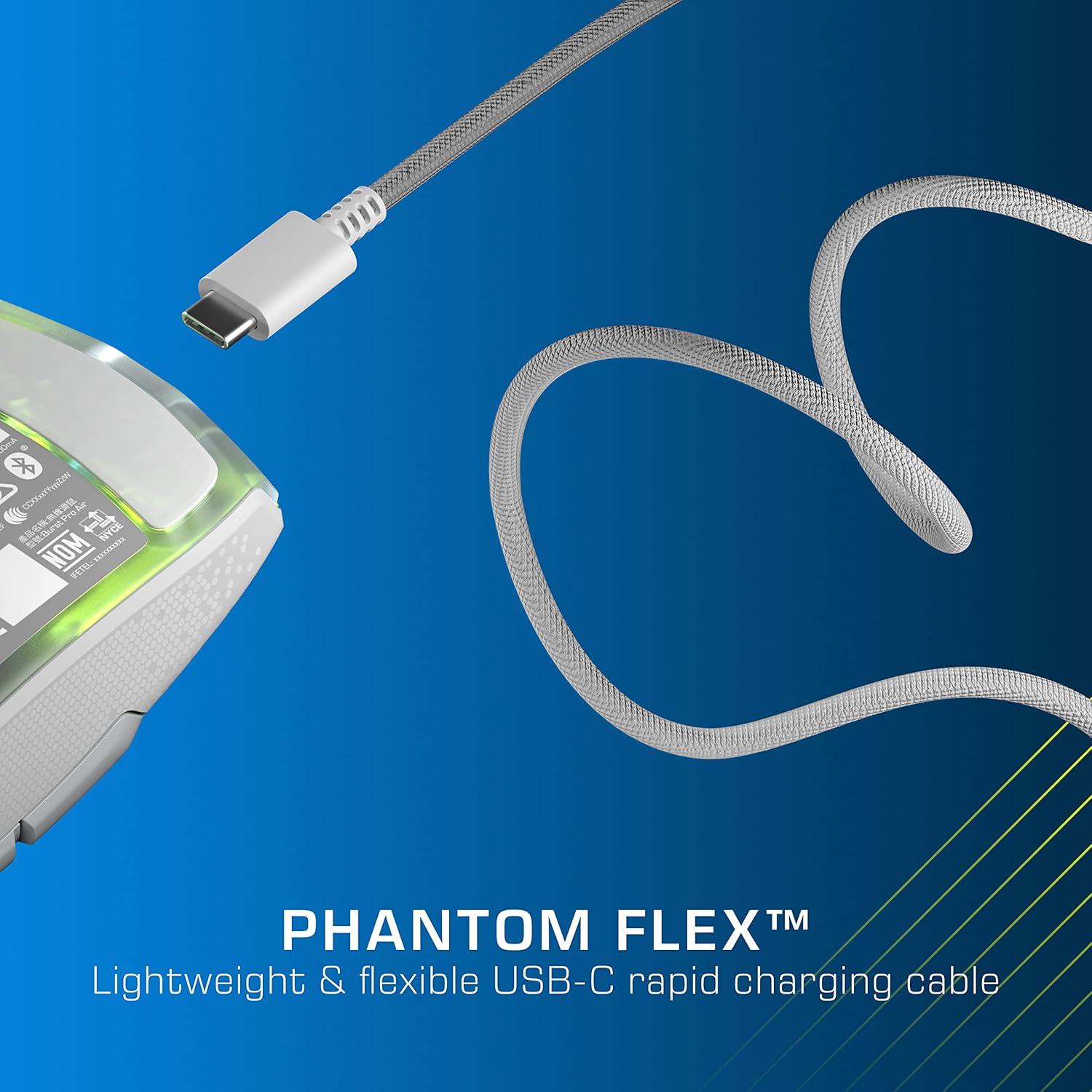
Figure 3: PhantomFlex USB-C Charging Cable
2.4 Softwareinstallation (ROCCAT Swarm)
For full customization of your mouse, including DPI settings, button assignments, and RGB lighting, download and install the ROCCAT Swarm software from the official ROCCAT webwebsted (www.roccat.com/pages/swarmFølg instruktionerne på skærmen for installation.
3. Betjening af musen
3.1 Knapfunktioner
- Left Click (M1): Primær museknap.
- Right Click (M2): Sekundær museknap.
- Scrollhjul: Scrolls content up/down. Can also be pressed for a middle-click function.
- DPI knap: Cycles through pre-set DPI sensitivity levels. These can be customized in ROCCAT Swarm.
- Side Buttons (M4, M5): Typically used for 'forward' and 'back' navigation, customizable via Swarm.
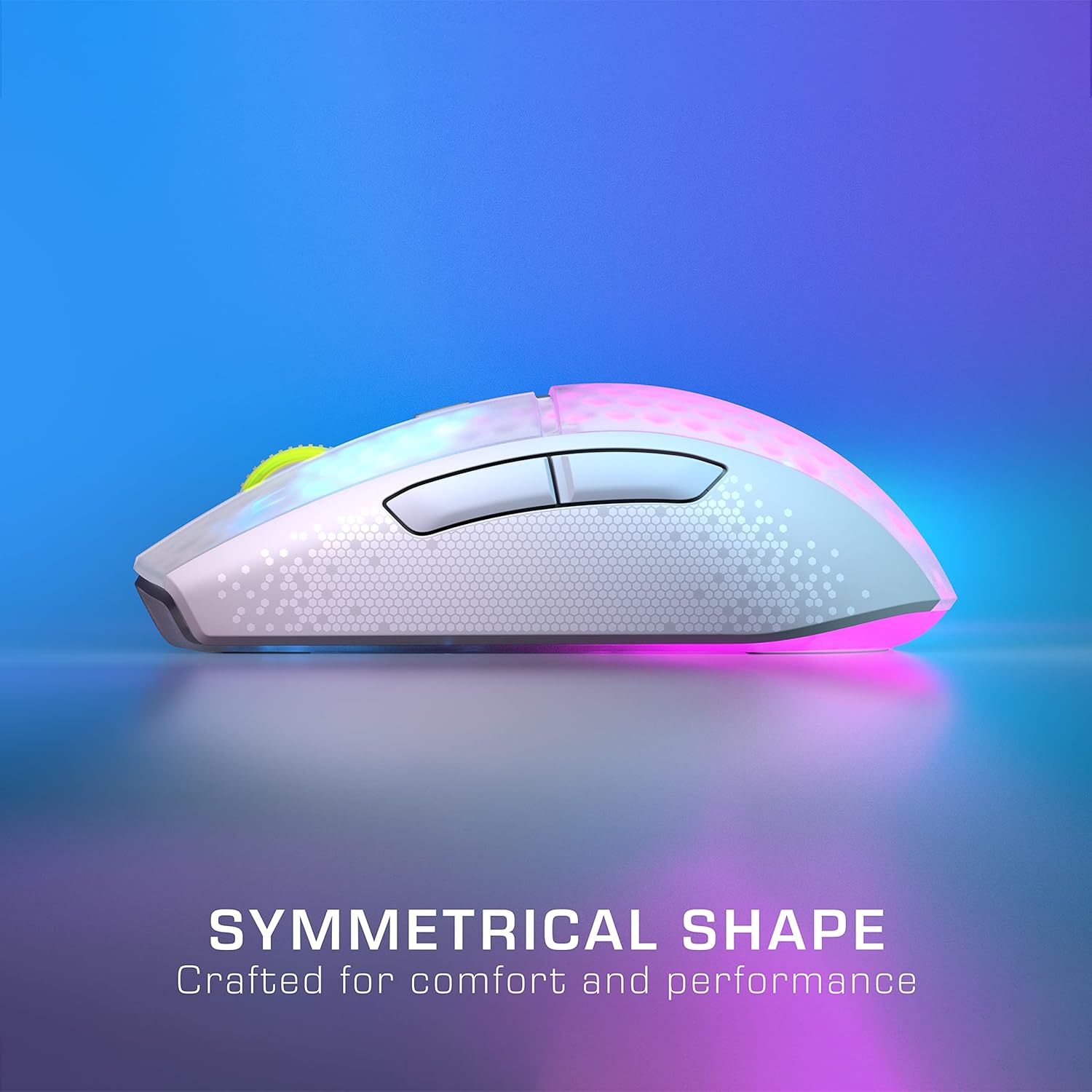
Figure 4: Mouse Buttons and Symmetrical Shape
3.2 DPI-justering
Press the DPI button located behind the scroll wheel to cycle through different sensitivity settings. The default DPI stages can be reconfigured using the ROCCAT Swarm software, allowing you to set your preferred sensitivity levels up to 19,000 DPI.
3.3 RGB Lighting (AIMO Illumination)
The Burst Pro Air features four customizable RGB lighting zones with AIMO intelligent lighting. You can configure lighting effects, colors, and synchronization with other AIMO-compatible devices using the ROCCAT Swarm software.
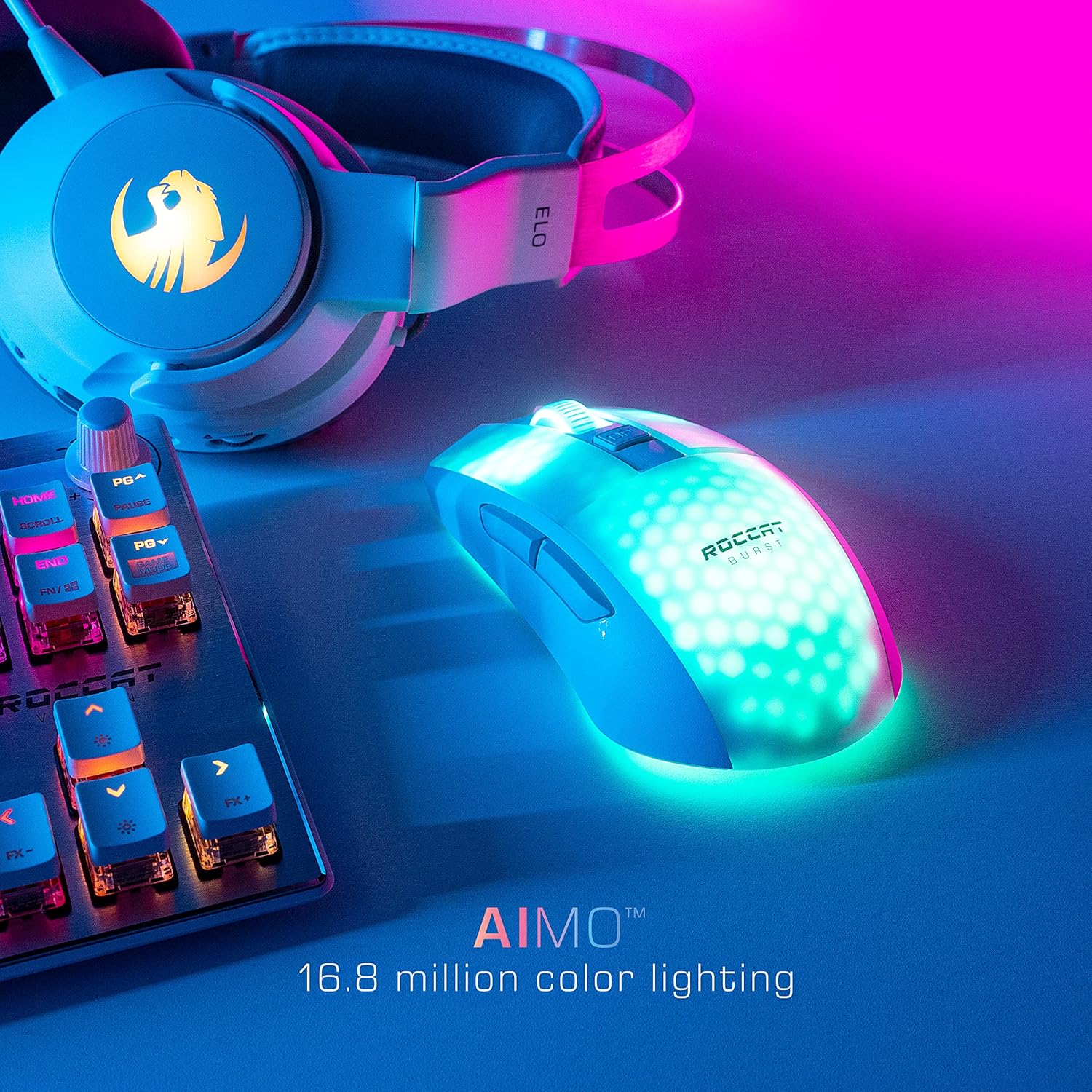
Figure 5: AIMO RGB Lighting
3.4 NVIDIA Reflex Compatibility
The ROCCAT Burst Pro Air is NVIDIA Reflex compatible, which, when paired with GeForce RTX 30 Series GPUs and NVIDIA G-SYNC monitors, helps reduce system latency for faster target acquisition and improved aim precision.
4. Vedligeholdelse
4.1 Rengøring
To clean your mouse, use a soft, dry, or slightly damp cloth. Avoid using harsh chemicals or abrasive materials, as these can damage the surface or internal components. Ensure no liquid enters the mouse.
4.2 PTFE Glides Replacement
The Burst Pro Air comes with heat-treated pure PTFE glides for smooth movement. A spare set is included in the package. If the existing glides show significant wear, carefully peel them off and replace them with the new set, ensuring the surface is clean before application.

Figure 6: Heat-Treated Pure PTFE Glides
5. Fejlfinding
- Musen svarer ikke: Ensure the mouse is charged and turned on. Check that the wireless dongle is securely plugged into a USB port, or that the USB-C cable is properly connected. If using Bluetooth, ensure it is paired correctly.
- Intermitterende forbindelse: Try moving the wireless dongle to a different USB port, preferably a front-facing one, or closer to the mouse. Ensure there are no major obstructions or sources of interference (e.g., other wireless devices) between the mouse and the dongle.
- Sporingsproblemer: Clean the optical sensor on the underside of the mouse with a soft, dry cloth. Ensure you are using the mouse on a suitable surface (a mouse pad is recommended).
- Buttons not registering: Ensure the ROCCAT Swarm software is up to date. If the issue persists, try resetting the mouse to factory defaults via the Swarm software.
- Software registrerer ikke mus: Reinstall the ROCCAT Swarm software. Ensure your operating system is up to date.
For further assistance, please visit the official ROCCAT support webwebsted eller kontakt kundeservice.
6. Specifikationer
| Feature | Detalje |
|---|---|
| Mærke | ROCCAT |
| Modelnummer | ROC-11-435 |
| Forbindelsesteknologi | 2.4 GHz trådløs, Bluetooth 5.2, USB-C kablet |
| Bevægelsesdetekteringsteknologi | Optisk (ugleøjesensor) |
| Max DPI | 19,000 DPI |
| Sporingshastighed | 400 IPS |
| Afbrydere | Titan Switch Optical (100 million click lifecycle) |
| Vægt | 81 gram |
| RGB belysning | AIMO Illumination (4 zones) |
| Batterilevetid | Op til 100 timer |
| Hurtig opladning | 10 min charge for 5 hours play time |
| Glider | Heat-treated pure PTFE |
| Operativsystem | Windows |
| Produktmål (LxBxH) | 4.72 x 2.68 x 1.5 tommer |
7. Garanti og support
7.1 Producentgaranti
The ROCCAT Burst Pro Air mouse is covered by a 2-year limited manufacturer warranty. This warranty covers defects in materials and workmanship under normal use. Please retain your proof of purchase for warranty claims.
7.2 Kundesupport
For technical support, warranty information, or frequently asked questions, please visit the official ROCCAT support webwebsted: www.roccat.com/pages/support.


