1. Introduktion
This manual provides detailed instructions for the setup, operation, and maintenance of your Lazmin112 Wireless Numeric Keypad with Touchpad. This device offers dual-mode connectivity (2.4G wireless and Bluetooth) and is designed for enhanced productivity across various operating systems.

Figure 1: Lazmin112 Wireless Numeric Keypad with Touchpad
2. Produktfunktioner
- Dual Mode Connection: Supports both 2.4G wireless and Bluetooth connectivity for versatile use.
- Integreret touchpad: Features a large touchpad with left and right click buttons, functioning like a laptop touchpad.
- Holdbart materiale: Constructed from ABS material for durability.
- Bærbart design: Kompakt og let, ideel til brug på farten.
- Bred kompatibilitet: Automatically identifies and supports Windows, iOS, Android, and OS X systems.
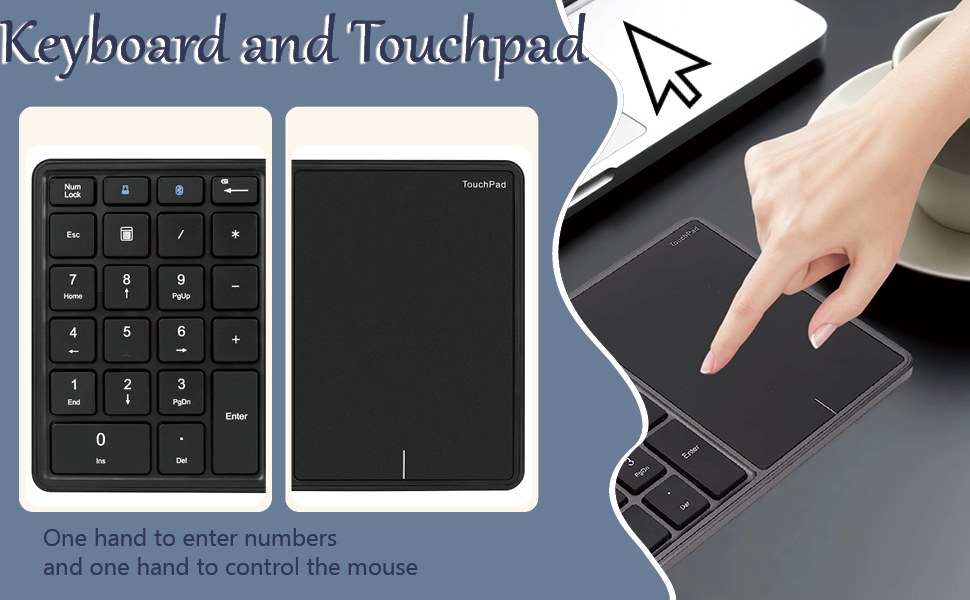
Figure 2: Touchpad Functionality
3. Opsætning og tilslutning
3.1 Tænd/sluk
Locate the ON/OFF switch on the side of the keypad. Slide the switch to 'ON' to power on the device and to 'OFF' to power it off.

Figure 3: Power Switch and Type-C Port
3.2 Dual Mode Connection
The keypad supports two connection modes: 2.4G Wireless and Bluetooth.
3.2.1 2.4G trådløs tilstand
- Ensure the keypad is powered on.
- Locate the 2.4G USB dongle, typically stored in a compartment on the keypad.
- Insert the USB dongle into an available USB port on your computer or device.
- Tryk kort på Esc nøgle efterfulgt af 2.4G knap (usually indicated by a small computer icon). The green indicator light will blink and then become constant, indicating a successful connection.

Figur 4: 2.4G trådløs forbindelse
3.2.2 Bluetooth-tilstand
- Ensure the keypad is powered on.
- Tryk kort på Esc nøgle efterfulgt af BT knap (usually indicated by a Bluetooth icon). The blue indicator light will blink, signifying it is in pairing mode.
- Gå til Bluetooth-indstillingerne på din enhed (computer, tablet, smartphone) og søg efter nye enheder.
- Select "Numeric Keypad" or a similar name from the list of available devices.
- Once paired, the blue indicator light on the keypad will become constant.

Figure 5: Dual Mode Switching Instructions
4. Betjeningsvejledning
4.1 Numeric Keypad Usage
The numeric keypad functions like a standard 22-key number pad. Ensure the 'Num Lock' key is active (indicated by a light) to enable numeric input. Press 'Num Lock' again to toggle its state.
4.2 Brug af touchpad
The integrated touchpad allows for precise cursor control. It supports standard gestures similar to a laptop touchpad. The left and right click buttons are located on the touchpad itself.
When connected to a phone or tablet via Bluetooth, a mouse cursor will appear on the screen, allowing for touch screen and touchpad control simultaneously.
4.3 Specialfunktioner
- Calculator Button: Short press the dedicated calculator button (usually indicated by a calculator icon) to launch the calculator application on your connected device.
- Esc-nøgle: In addition to its standard function, the Esc key is used in combination with the 2.4G and BT buttons to switch between connection modes.
5. Pleje og vedligeholdelse
- Rensning: Use a soft, dry cloth to clean the keypad and touchpad. Avoid using abrasive cleaners or solvents.
- Opbevaring: Opbevar tastaturet et køligt, tørt sted væk fra direkte sollys og ekstreme temperaturer.
- Opladning: Charge the keypad using the provided Type-C interface. The charging signal light will be on during charging.
- Batterilevetid: To maximize battery life, power off the keypad when not in use for extended periods.
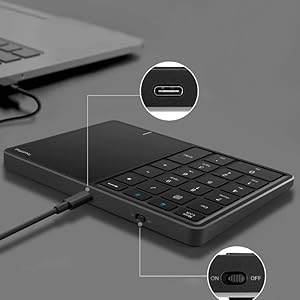
Figure 6: Type-C Charging Port Detail
6. Fejlfinding
| Problem | Mulig årsag | Løsning |
|---|---|---|
| Keypad not connecting via 2.4G. | USB dongle not inserted correctly or driver issue. Keypad not in 2.4G mode. | Ensure dongle is fully inserted. Try a different USB port. Re-select 2.4G mode (Esc + 2.4G button). Check device manager for driver status. |
| Keypad not connecting via Bluetooth. | Keypad not in Bluetooth pairing mode. Bluetooth on host device is off. Interference. | Re-enter Bluetooth pairing mode (Esc + BT button). Ensure Bluetooth is enabled on your device. Move closer to the device. Remove other Bluetooth devices. |
| Tasterne reagerer ikke. | Num Lock is off. Low battery. Connection lost. | Press 'Num Lock' to activate. Charge the keypad. Re-establish connection. |
| Touchpad not working. | Not supported by current OS/application. Connection issue. | Ensure your operating system supports touchpad input. Reconnect the keypad. |
7. Specifikationer
| Feature | Detalje |
|---|---|
| Modelnummer | Lazmin112xtps7qv8au6062-12 |
| Forbindelsesteknologi | Bluetooth, 2.4G trådløs |
| Antal nøgler | 22 |
| Materiale | Acrylonitril Butadien Styren (ABS) |
| Interface | Type-C (til opladning) |
| Transmissionsafstand | Op til 10 m (33 fod) |
| Varens vægt | 9.1 ounce (ca. 258 gram) |
| Pakkedimensioner | 7.09 x 4.92 x 1.38 tommer (ca. 180 x 125 x 35 mm) |
| Kompatible enheder | Win, iOS, Android, OS X Systems |
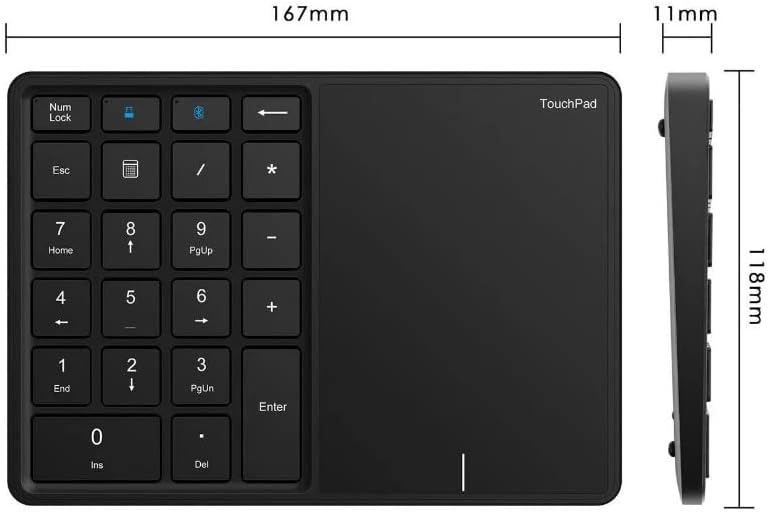
Figur 7: Produktmål
8. Garanti og support
For warranty information and technical support, please refer to the product packaging or contact Lazmin112 customer service through the retailer where the product was purchased. Keep your purchase receipt for warranty claims.


