1. Introduktion
This manual provides comprehensive instructions for the setup, operation, and maintenance of your Epson EcoTank L8180 Multifunction A3+ Photo Printer. Please read this manual thoroughly to ensure proper use and to maximize the performance and longevity of your device. Keep this manual for future reference.
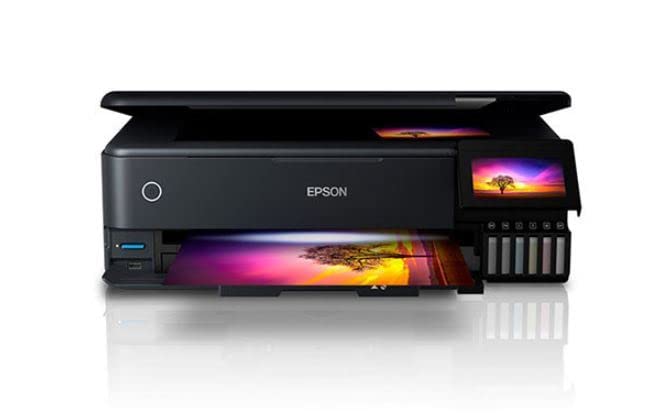
Figure 1: Epson EcoTank L8180 Printer. This image shows the front view of the Epson EcoTank L8180 printer, highlighting its compact design and front-loading paper tray.
2. Pakkens indhold
Kontroller, at alle varer er inkluderet i pakken:
- Epson EcoTank L8180 Printer
- Strømkabel
- Initial Ink Bottle Set (Cyan, Magenta, Yellow, Black, Light Cyan, Light Magenta)
- Opsætningsvejledning
- Software CD-ROM (for Windows/macOS)
- USB kabel
3. Opsætning
3.1 Udpakning og placering
- Remove the printer from its box and remove all protective materials, tapes, and films.
- Place the printer on a flat, stable surface with adequate space around it for ventilation and operation.
3.2 Påfyldning af blækbeholderne
The EcoTank L8180 uses a cartridge-free ink tank system. Follow these steps to fill the ink tanks:
- Open the ink tank unit cover.
- Uncap the ink bottle for the corresponding color. Each bottle has a unique key to prevent incorrect filling.
- Insert the ink bottle into the filling port. The ink will automatically start flowing into the tank. Do not squeeze the bottle.
- Once the tank is full, the ink flow will stop. Remove the bottle and recap it.
- Repeat for all six ink colors (Cyan, Magenta, Yellow, Black, Light Cyan, Light Magenta).
- Close the ink tank unit cover.
3.3 Strømtilslutning og første opsætning
- Connect the power cable to the printer and then to an electrical outlet.
- Tryk på tænd/sluk-knappen for at tænde printeren.
- Follow the on-screen instructions on the 10.9cm color touchscreen to select your language, date, and time.
- The printer will then initiate the ink charging process. This may take several minutes. Do not turn off the printer during this process.
- Once ink charging is complete, the printer is ready for software installation.

Figure 2: Printer Touchscreen Interface. This image displays a close-up of the printer's 10.9cm color touchscreen, showing a user interacting with the interface.
3.4 Softwareinstallation og tilslutning
Install the printer software on your computer or mobile device to enable full functionality.
- For Computer (Windows/macOS): Insert the provided Software CD-ROM or download the latest drivers and utilities from the official Epson support webFølg instruktionerne på skærmen for installation.
- Tilslutningsmuligheder:
- USB-forbindelse: Slut printeren til din computer ved hjælp af et USB-kabel.
- Wi-Fi-forbindelse: On the printer's touchscreen, navigate to the Wi-Fi setup menu and follow the instructions to connect to your wireless network.
- Ethernet-forbindelse: Connect an Ethernet cable from the printer to your router or network hub.
- For mobile enheder: Download the Epson Smart Panel app from your device's app store. Follow the in-app instructions to connect your mobile device to the printer via Wi-Fi.

Figure 3: Wireless Printing from Mobile. This image illustrates the Epson EcoTank L8180 printer receiving a print job wirelessly from a smartphone, demonstrating its Wi-Fi connectivity.
4. Betjeningsvejledning
4.1 Ilægning af papir
The printer supports various paper types and sizes, up to A3+.
- Åbn papirstøtten, og træk udbakken ud.
- Adjust the edge guides to the width of your paper.
- Load paper into the rear paper feed or front paper cassette, depending on the paper type and size. Ensure the print side is facing the correct direction.
- For photo paper, use the dedicated photo paper tray.
4.2 Udskrivning af dokumenter og fotos
- Open the document or photo you wish to print on your computer or mobile device.
- Vælge Trykke fra applikationens menu.
- Choose the Epson L8180 as your printer.
- Adjust print settings such as paper size (e.g., A3+, A4), media type (e.g., Glossy Photo Paper), print quality, and color options.
- Klik Trykke.
4.3 Scanning af dokumenter
The L8180 features a flatbed scanner for scanning documents and photos.
- Løft scannerlåget.
- Placer dokumentet eller fotoet med forsiden nedad på scannerglaspladen, og juster det med hjørnemærket.
- Luk scannerlåget forsigtigt.
- From your computer, open the Epson Scan software or use the scan function on the printer's control panel.
- Select scan settings (e.g., resolution, color mode, destination folder) and initiate the scan.
4.4 Kopiering af dokumenter
Use the printer's control panel to make copies.
- Place the document on the scanner glass as described in Section 4.3.
- På printerens berøringsskærm skal du vælge Kopi valgmulighed.
- Adjust settings such as number of copies, paper size, and quality.
- Tryk på Starte knappen for at begynde kopieringen.
4.5 Direct Printing (Memory Card/USB)
The L8180 allows direct printing from memory cards and USB drives.
- Insert a memory card into the card slot or a USB flash drive into the USB port.
- På printerens berøringsskærm skal du vælge Hukommelseskort or USB valgmulighed.
- Browse and select the photos or documents you wish to print.
- Adjust print settings and press Trykke.
4.6 CD/DVD Printing
The printer supports direct printing onto printable CDs/DVDs.
- Open the CD/DVD tray cover on the printer.
- Place a printable CD or DVD onto the CD/DVD tray, ensuring it is correctly seated.
- Insert the CD/DVD tray into the printer's dedicated slot.
- Use the Epson Print CD software on your computer to design and print onto the disc.

Figure 4: CD/DVD Printing Function. This image shows a printable CD being loaded into the Epson EcoTank L8180 printer's dedicated tray for direct disc printing.
5. Vedligeholdelse
5.1 Blækpåfyldning
When an ink tank level is low, refill it using genuine Epson ink bottles. Refer to Section 3.2 for detailed ink filling instructions.
Vigtig: Use only genuine Epson Claria ET Premium Ink to ensure optimal print quality and prevent damage to the printer.
5.2 Rengøring af printhoved
If print quality declines (e.g., missing lines, faded prints), perform a print head cleaning.
- On the printer's touchscreen, navigate to Opretholdelse or Opsætning.
- Vælge Rengøring af printhoved.
- Follow the on-screen prompts. This process uses a small amount of ink.
- After cleaning, print a nozzle check pattern to verify improvement. If print quality is still poor, repeat the cleaning process up to three times.
5.3 Nozzle Check
Perform a nozzle check to diagnose print quality issues before cleaning.
- On the printer's touchscreen, navigate to Opretholdelse or Opsætning.
- Vælge Dysekontrol.
- The printer will print a pattern. Examine the pattern for any gaps or missing segments.
5.4 Printer Cleaning
Rengør regelmæssigt printerens yderside med en blød, tør klud.amp, fnugfri klud. Brug ikke slibende rengøringsmidler eller opløsningsmidler.
6. Fejlfinding
6.1 Almindelige problemer og løsninger
- Printeren svarer ikke:
- Ensure the printer is powered on and connected securely (USB, Wi-Fi, Ethernet).
- Check for error messages on the printer's touchscreen.
- Genstart printeren og din computer/router.
- Bekræft, at den korrekte printer er valgt i programmets udskriftsdialogboks.
- Dårlig udskriftskvalitet:
- Perform a nozzle check (Section 5.3) and print head cleaning (Section 5.2).
- Ensure ink tanks are adequately filled.
- Use genuine Epson ink and appropriate paper types for your print job.
- Check print settings in your application to ensure they match the paper type and desired quality.
- Papirstop:
- Turn off the printer and carefully remove any jammed paper from the paper trays or inside the printer.
- Sørg for, at papiret er ilagt korrekt og ikke er krøllet eller krøllet.urludg.
- Do not overload the paper trays.
- Problemer med Wi-Fi-forbindelse:
- Ensure the printer is within range of your wireless router.
- Bekræft, at den indtastede Wi-Fi-adgangskode er korrekt.
- Restart your wireless router and the printer.
- Check for any network interference.
6.2 Fejlkoder
If an error code appears on the printer's screen, refer to the on-screen instructions or the Epson support website for specific solutions related to that code.
7. Specifikationer
| Feature | Detalje |
|---|---|
| Modelnavn | L8180 |
| Produktmål (D x B x H) | 37.9 x 52.3 x 16.9 centimeter |
| Varens vægt | 14.6 kg |
| Maksimal mediestørrelse | A3+ |
| Udskrivningsteknologi | Ink Tank (6-colour Epson Claria ET Premium Ink) |
| Ink Colours | Cyan, Magenta, Yellow, Black, Light Cyan, Light Magenta |
| Maximum Print Resolution (Color/B&W) | 5760 x 1440 dpi |
| Maximum Print Speed (Color/B&W) | 32 ppm |
| Scanner type | Flatbed |
| Maximum Copy Speed (Black and White) | 32 ppm |
| Duplex udskrivning | Automatisk |
| Max input arkkapacitet | 120 ark |
| Kontrolmetode | Touch (10.9cm color touchscreen) |
| Forbindelsesteknologi | Wi-Fi, Ethernet, USB |
| Kompatible enheder | Bærbare computere, pc'er, tablets |
| Operativsystemkompatibilitet | Windows XP and later, macOS |
| Wattage | 17 wattimer |
| Særlige funktioner | A3+ Borderless Photo Printing, Direct printing via memory card slot, USB port, Ethernet, CD/DVD printing |

Figure 5: Printer Dimensions. This image provides a diagram showing the physical dimensions (width, depth, height) of the Epson EcoTank L8180 printer in millimeters.
8. Garanti og support
8.1 Garantioplysninger
The Epson EcoTank L8180 printer comes with a Begrænset garanti. For specific terms and conditions, including warranty duration and coverage details, please refer to the warranty card included with your product or visit the official Epson support webwebsted.
8.2 Kundesupport
For technical assistance, troubleshooting, or service inquiries, please contact Epson customer support:
- Online support: Visit the official Epson support website for FAQs, drivers, manuals, and contact information.
- Telefonsupport: Refer to your product documentation or the Epson website for local support numbers.
When contacting support, please have your printer model (L8180) and serial number ready.


