Indledning
The ZAGG InvisibleShield Fusion XTR screen protector for the Samsung Galaxy S22 offers advanced protection and enhanced functionality. This screen protector is reinforced with D3O® for extreme impact protection and features an enhanced Eyesafe® blue light filter. It is optimized for touch sensitivity, making it ideal for gaming, and incorporates biometric technology for seamless compatibility with advanced fingerprint scanners. The nano-coated surface ensures smooth interaction and easy cleaning.

Image: ZAGG InvisibleShield Fusion XTR screen protector on a Samsung Galaxy S22.
Nøglefunktioner
- Extreme Impact Protection: Reinforced with D3O® molecules that lock together on impact to disperse energy and reduce force.
- Enhanced Eyesafe® Blue Light Filter: Filters 40% of peak toxic blue light (435-440nm) for eye protection.
- Ultra Touch Sensitive: Engineered for maximum touch sensitivity, optimized for responsive interaction and gaming.
- Biometric Technology: Designed for compatibility with advanced biometric scanners for reliable fingerprint recognition.
- Anti-microbial Treatment: Contains properties that protect the screen protector by inhibiting the growth of odor-causing bacteria.
- Super Smooth Hydrophilic Surface: Nano-coated layer reduces friction and allows fingerprints to wipe away easily.

Image: Extreme Impact Protection with D3O®.

Image: Enhanced Blue Light Filtration.
Hvad er der i æsken
- InvisibleShield Fusion XTR Screen Protector
- Rengøringsklud
- Mikrofiberklud
- Støvfjerningsmærke
- EZ Apply Tray & Instructions
Opsætning og installation
Proper installation is crucial for optimal performance. Follow these steps carefully:
1. Prepare Your Device
- Sørg for, at din enhed er slukket.
- Use the provided cleaning wipe to thoroughly clean the screen, removing all smudges and oils.
- Dry the screen completely with the microfiber cloth.
- Use the dust removal sticker to pick up any remaining dust particles.
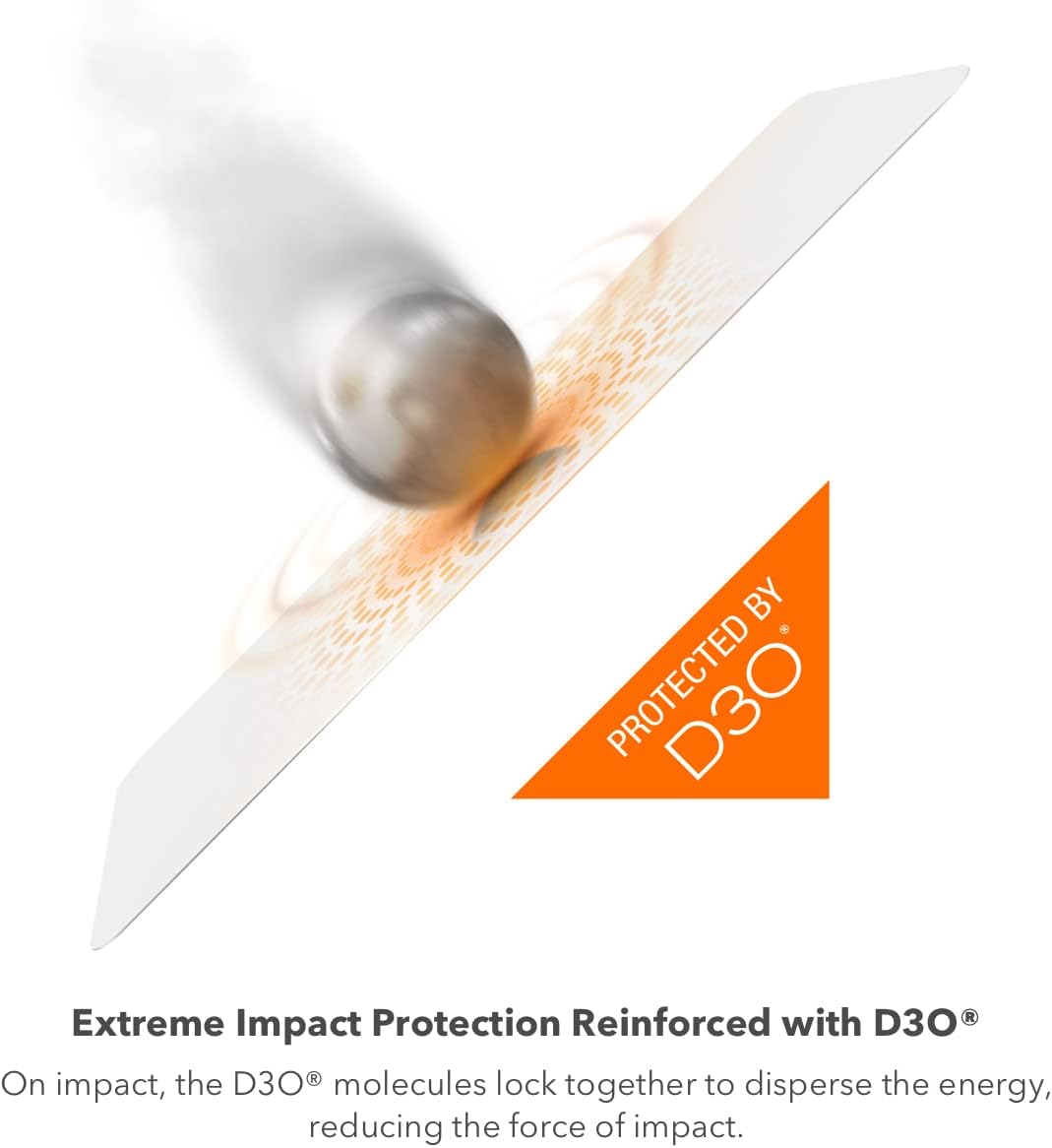
Image: Cleaning the device screen with a wet wipe.

Image: Drying the device screen with a microfiber cloth.

Image: Removing dust with a dust removal sticker.
2. Using the EZ Apply Tray
The EZ Apply Tray simplifies the installation process, ensuring precise alignment.
- Place the EZ Apply Tray on a flat, stable surface with the pegs pointing upwards.
- Carefully place your Samsung Galaxy S22 into the tray, ensuring the top of your phone aligns with the "TOP" marking on the tray.
- Peel away the protective backing from the InvisibleShield screen protector, using the tab marked "1". Avoid touching the adhesive side.
- Align the screen protector with the cutouts on the tray's pegs. The exposed adhesive side should face down towards your phone screen.
- Run your finger across the width of the screen protector in one quick motion to anchor it in place.
- Starting from the center, use the provided squeegee to firmly press and smooth the screen protector towards the top of the phone, then repeat for the bottom half. Use a single, smooth motion for each pass to avoid bubbles.
- Carefully peel away the top protective liner from the screen protector.
- Remove your phone from the EZ Apply Tray.

Image: EZ Apply Tray and screen protector components.

Image: Placing the phone into the EZ Apply Tray.

Image: Aligning the screen protector with the tray.

Image: Smoothing the screen protector with a squeegee.
Installationsvideoer
ZAGG Fusion EZ Apply Install
Video: Official ZAGG installation guide for Fusion screen protectors using the EZ Apply method. This video demonstrates the step-by-step process for cleaning the screen, positioning the device in the tray, applying the screen protector, and removing air bubbles.
How To: install your glass protector using ZAGGs EZ Apply
Video: A detailed guide from ZAGG on installing their glass screen protectors with the EZ Apply system. It covers preparation, alignment, and smoothing techniques for a bubble-free application.
Installing InvisibleShield GlassFusion Screen Protection
Video: This video provides instructions for installing InvisibleShield GlassFusion screen protection, demonstrating the cleaning process and the use of the installation tray for precise placement.
Instruction Video for with Vervsion C Install-Kit
Video: An instructional video demonstrating the installation process using a Version C Install-Kit, covering cleaning, alignment, and smoothing of the screen protector.
Driftsfunktioner
Ultra Touch Sensitivity
The Fusion XTR is engineered for maximum touch sensitivity, providing a responsive and smooth experience, especially beneficial for gaming and fast-paced interactions.

Image: Demonstrating ultra touch sensitivity during mobile gaming.
Biometric Technology Compatibility
This screen protector is designed to ensure compatibility with the most advanced biometric scanners, allowing for seamless fingerprint recognition after installation. It is recommended to re-register your fingerprints after applying the screen protector for optimal performance.

Image: Biometric fingerprint recognition in action.
Opretholdelse
Cleaning the Screen Protector
The Fusion XTR features a super smooth hydrophilic nano-coated surface that reduces friction and allows fingerprints and smudges to wipe away easily. Use a clean microfiber cloth to gently wipe the screen protector as needed.
Image: Super smooth hydrophilic surface for easy cleaning.
Anti-microbial Treatment
The screen protector contains anti-microbial properties that inhibit the growth of odor-causing bacteria, helping to keep your screen cleaner.

Image: Anti-microbial treatment layer.
Fejlfinding
Problemer med fingeraftryksgenkendelse
If you experience issues with fingerprint recognition after installation, it is highly recommended to delete all previously registered fingerprints and re-register them with the screen protector applied. This allows the device to learn your fingerprint with the new screen protector in place, improving accuracy and responsiveness.
To do this, navigate to your phone's Indstillinger > Sikkerhed og privatliv > Biometri > Fingeraftryk, then follow the on-screen prompts to remove existing fingerprints and add new ones.
Luftbobler
Small air bubbles may disappear naturally within 24-48 hours. For larger or persistent bubbles, gently push them towards the nearest edge using the microfiber cloth or the squeegee tool. Avoid excessive force.
Specifikationer
| Produktdimensioner | 6.7 x 4.3 x 0.5 tommer |
| Varens vægt | 2.08 ounce |
| Varemodelnummer | 200309343 |
| Kompatible enheder | Samsung Galaxy S22 |
| Materiale | Fusion Fusion XTR (Hybrid Polymer) |
| Varens hårdhed | 9H |
| Særlige funktioner | Extreme Impact Protection (D3O), Blue Light Filter (Eyesafe), Ultra Touch Sensitive, Biometric Technology, Anti-microbial Treatment |
| Farve | Klar |
| Finish Type | Blank |
Garanti og support
ZAGG InvisibleShield products typically come with a Limited Lifetime Warranty. For detailed warranty information and to register your product, please visit the official ZAGG website or refer to the warranty information included in your product packaging.
For further assistance or support, please contact ZAGG customer service.


