Indledning
This manual provides essential information for setting up, operating, maintaining, and troubleshooting your TomTom GO Expert Truck Sat Nav. Please read it carefully to ensure optimal performance and safe use of your device.
The TomTom GO Expert is designed for professional large vehicle navigation, offering custom routing and POIs for buses, trucks, and coaches, along with live alerts for various road restrictions.
Hvad er der i æsken
Når du åbner pakken, skal du kontrollere, at alle komponenter er til stede:
- TomTom GO Expert Device
- Bil oplader
- Click-and-Drive Mount
- Hurtig startvejledning

Billede: Forside view of the TomTom GO Expert Sat Nav device, showing its 5-inch capacitive screen and the TomTom logo at the bottom.
Opsætning
1. Montering af enheden
- Rengør forruden: Ensure the area where you intend to mount the device is clean and dry.
- Fastgør beslaget: Securely attach the Click-and-Drive mount to your windshield or dashboard. Press the suction cup firmly against the surface and flip the lever to lock it in place.
- Tilslut enheden: Slide the TomTom GO Expert device onto the mount until it clicks securely.
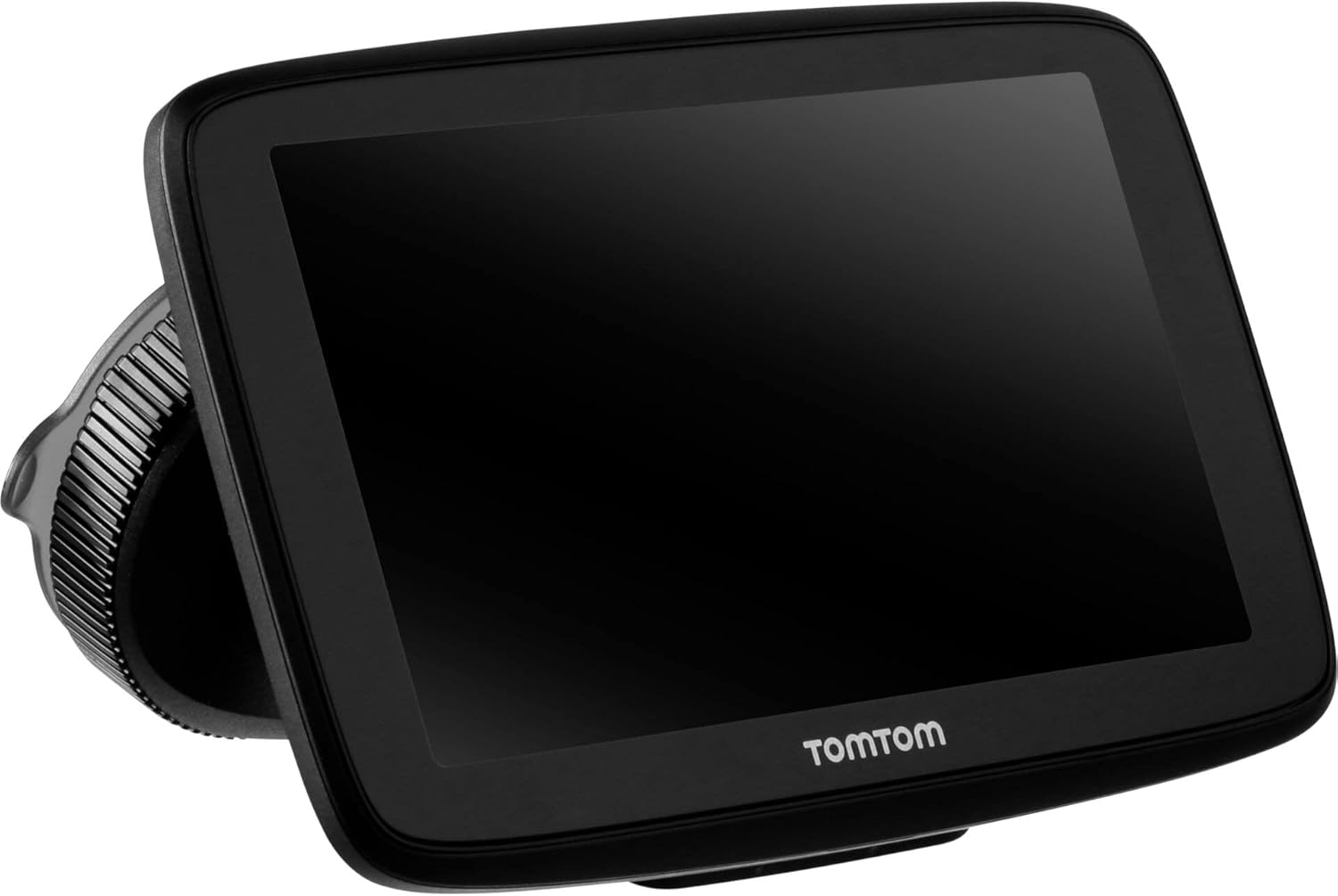
Image: The TomTom GO Expert Sat Nav device attached to its Click-and-Drive mount, viewed from an angle, showing the suction cup base.
2. Tænd og opladning
- Connect the Car Charger: Plug the car charger into your vehicle's 12V power outlet.
- Opret forbindelse til enhed: Connect the other end of the charger to the TomTom GO Expert device.
- Indledende opkrævning: Allow the device to charge for at least 30 minutes before first use, or until the battery indicator shows sufficient charge.

Billede: Side profile of the TomTom GO Expert Sat Nav device, showing its slim design and how it connects to the Click-and-Drive mount.
3. Første opsætning og Wi-Fi-forbindelse
- Følg vejledningen på skærmen for at vælge dit sprog og din region.
- Connect to a Wi-Fi network for quick map updates and traffic information. Navigate to Indstillinger > Wi-Fi og vælg dit netværk.
- Configure your vehicle profile (truck, bus, coach) by entering dimensions, weight, and other relevant details. This is crucial for custom routing.
Betjening af din enhed
Grundlæggende om navigation
- Entering a Destination: Tap the search icon on the main menu and enter an address, POI, or coordinates.
- Brugerdefineret routing: The device will automatically calculate routes based on your configured vehicle profile, avoiding unsuitable roads for large vehicles.
- Live Traffic Updates: With an active Wi-Fi connection, the device provides real-time traffic information to help you avoid delays.
- Lane Guidance: The device displays clear lane guidance to help you prepare for exits and turns.
- Stemmestyring: Use voice commands for hands-free operation. Refer to the on-screen guide for available commands.
Map Updates and Services
Your TomTom GO Expert receives 3X faster updates via Wi-Fi. Ensure your device is connected to a stable Wi-Fi network to download the latest maps and software updates conveniently and at no extra cost.
- Kortopdateringer: Naviger til Indstillinger > Opdateringer og nye elementer to check for and install map updates.
- Fartkameraadvarsler: The device includes 1 year of speed camera alerts. Ensure this service is active for safer driving.
Opretholdelse
- Rensning: Use a soft, lint-free cloth to clean the screen and device casing. Brug ikke slibende rengøringsmidler eller opløsningsmidler.
- Softwareopdateringer: Regularly check for and install software updates via Wi-Fi to ensure optimal performance and access to new features.
- Batteripleje: To prolong battery life, avoid exposing the device to extreme temperatures. If storing for an extended period, ensure the battery is partially charged.
- Opbevaring: When not in use, store the device in a cool, dry place, away from direct sunlight.
Fejlfinding
Fælles problemer og løsninger
- Enheden tænder ikke:
- Ensure the car charger is securely connected to both the device and the vehicle's power outlet.
- Check the vehicle's power outlet for functionality.
- Try resetting the device by holding the power button for 15-20 seconds.
- Intet GPS-signal:
- Sørg for, at enheden har en klar view of the sky. Obstructions like tall buildings or tunnels can block the signal.
- Move to an open area and allow the device a few minutes to acquire satellites.
- Check for any pending software updates that might improve GPS performance.
- Map Not Updating:
- Bekræft, at enheden er forbundet til et stabilt Wi-Fi-netværk.
- Ensure there is sufficient storage space on the device for the new map data.
- Genstart enheden, og prøv at opdatere igen.
- Touchskærm reagerer ikke:
- Udfør en soft nulstilling ved at holde tænd/sluk-knappen nede, indtil enheden genstarter.
- Sørg for, at skærmen er ren og fri for snavs.
Specifikationer
| Feature | Detalje |
|---|---|
| Produktdimensioner | 5.51 x 0.79 x 3.54 tommer |
| Varens vægt | 12.7 ounce |
| Modelnummer | 1YB5.002.20 |
| Batterier | 1 Lithium Ion batteri påkrævet (medfølger) |
| Operativsystem | Windows (internal OS) |
| Forbindelsesteknologier | Bluetooth, trådløs (Wi-Fi) |
| Særlige funktioner | Bluetooth, Lane Assist, Touchscreen |
| Human Interface Input | Touchskærm |
| Farve | Sort |
| Type køretøjstjeneste | Bus, Truck |
| Skærmstørrelse | 5 tommer |
| Korttype | På verdensplan |
| Lydudgangstilstand | Højttaler |
Garanti og support
For detailed warranty information and technical support, please visit the official TomTom support webwebstedet eller se garantikortet, der følger med dit produkt.
Online support: www.tomtom.com/support
Ensure you have your device's serial number and model number (1YB5.002.20) ready when contacting support.


