1. Introduktion
Thank you for choosing the UNIWA F100 4G LTE PoC Radio Smartphone. This device combines the functionality of a modern smartphone with the robust features of a Push-to-Talk over Cellular (PoC) radio, designed for reliable communication in various environments. It features a durable IP54 waterproof rating, a powerful 3800mAh battery, and runs on Android 10.0, offering a versatile and resilient communication tool. Please read this manual carefully to ensure proper use and maintenance of your device.
2. Pakkens indhold
Before you begin, please check the contents of your package. If any items are missing or damaged, contact your retailer.
- UNIWA F100 Smartphone
- Removable Li-polymer Battery (3800mAh)
- Strømadapter
- USB kabel
- Brugermanual
- Charging Dock (if included with your purchase)

Image: Contents of the UNIWA F100 package, including the smartphone, charger, battery, and user manual.
3. Enhedslayout
Familiarize yourself with the physical components of your UNIWA F100 device.

Billede: Flere views of the UNIWA F100 smartphone, showing the front display, side buttons, and rear panel.
- Front: 4-inch IPS WVGA Touchscreen, Front Camera, Earpiece.
- Venstre side: Volume Up/Down Buttons, Push-to-Talk (PTT) Button.
- Højre side: Power/Lock Button.
- Top: Antenna, SOS Button.
- Bund: USB-opladningsport, mikrofon.
- Bag: Rear Camera, LED Flash, Loudspeaker, NFC Area.

Image: Close-up of the rear top section of the UNIWA F100, highlighting the camera, speaker grille, and SOS button.
4. Opsætning
4.1. Installation af SIM-kort og MicroSD-kort
The UNIWA F100 supports dual SIM cards and one MicroSD card for expanded storage (up to 128GB).
- Sluk enheden helt.
- Fjern batteridækslet på bagsiden af enheden.
- Carefully insert the SIM card(s) into the designated SIM slots. Ensure the gold contacts face downwards.
- If using a MicroSD card, insert it into the MicroSD card slot.
- Replace the battery cover, ensuring it clicks securely into place to maintain IP54 rating.

Billede: Bagside view of the UNIWA F100 with the battery cover removed, showing the dual SIM card slots and the MicroSD card slot.
4.2. Batteriinstallation og opladning
The device comes with a removable 3800mAh Li-polymer battery.
- After installing SIM/MicroSD cards, insert the battery into the battery compartment, aligning the contacts.
- Sæt batteridækslet på igen.
- Connect the USB cable to the device's charging port and the other end to the power adapter. Plug the adapter into a power outlet.
- Alternatively, place the device into the charging dock (if purchased) to charge.
- Allow the device to fully charge before first use. The charging indicator will show the charging status.

Image: The UNIWA F100 smartphone placed in its dedicated charging dock.

Image: Two UNIWA F100 devices shown in their respective charging docks, illustrating different angles.
4.3. Første opstart
Press and hold the Power button on the right side of the device until the UNIWA logo appears. Follow the on-screen prompts to complete the initial setup, including language selection, Wi-Fi connection, and Google account setup.
5. Betjeningsvejledning
5.1. Grundlæggende navigation
- Touchskærm: Tap, swipe, pinch-to-zoom as you would on any Android smartphone.
- Lydstyrkeknapper: Adjust media volume during playback or call volume during a call.
- Power knap: Short press to lock/unlock the screen. Long press to power off or restart the device.
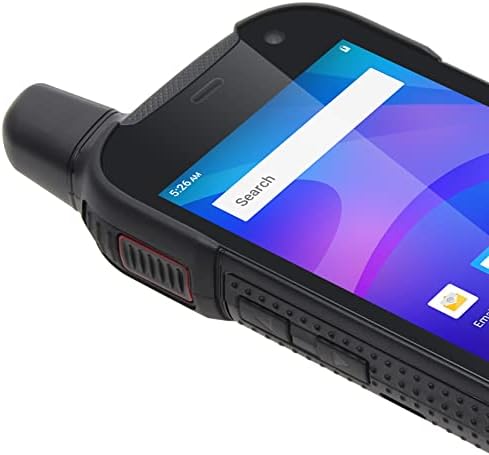
Image: Close-up of the side of the UNIWA F100, showing the textured grip and physical buttons.
5.2. Foretage opkald
Use the standard Phone application to dial numbers or select contacts for voice calls over the cellular network.
5.3. Using PoC (Push-to-Talk over Cellular)
The UNIWA F100 is designed for PoC communication, often utilizing applications like Zello.
- Ensure you have a PoC application (e.g., Zello) installed and configured with your account and channels.
- Select the desired channel or contact within the PoC application.
- Press and hold the dedicated PTT button on the left side of the device to transmit your voice. Release to listen.
- The φ36 loudspeaker ensures clear audio even in noisy environments.
5.4. Kamerabrug
The device features an 8MP rear camera and a 5MP front camera.
- Åbn Kamera-appen fra startskærmen eller app-skuffen.
- Tap the shutter button to take photos or switch to video mode to record.
- Use the settings within the app to adjust camera parameters.
5.5. NFC-funktionalitet
The UNIWA F100 supports Near Field Communication (NFC) for quick pairing with other NFC-enabled devices or for mobile payments.
- Enable NFC in the device settings (Settings > Connected devices > Connection preferences > NFC).
- Tap the back of your device near another NFC-enabled device or tag to initiate a connection or transaction.
5.6. SOS-funktion
The dedicated SOS button on the top of the device can be configured for emergency situations.
- Go to Settings to configure emergency contacts and messages for the SOS function.
- In an emergency, press the SOS button to activate the pre-set emergency actions (e.g., sending an SOS message with location, dialing an emergency contact).
6. Vedligeholdelse
6.1. Rengøring af din enhed
To keep your device in optimal condition, clean it regularly.
- Brug en blød, fnugfri klud til at tørre skærmen og kabinettet af.
- Til genstridigt snavs, let dampRengør kluden med vand eller en skærmrens.
- Avoid using harsh chemicals, abrasive cleaners, or aerosols.
- Sørg for, at alle portdæksler er forsvarligt lukket, før de rengøres med fugt.
6.2. Batteripleje
Korrekt batteripleje forlænger dets levetid og sikrer optimal ydeevne.
- Undgå ekstreme temperaturer (varme eller kolde), da de kan forringe batteriets ydeevne.
- Lad ikke enheden oplade i for lang tid, efter den er fuldt opladet.
- Hvis enheden ikke skal bruges i en længere periode, skal den oplades til ca. 50%, før den opbevares.
6.3. Vand- og støvafvisende (IP54)
The UNIWA F100 is rated IP54, meaning it is protected against dust ingress and splashing water from any direction.
- This rating does not mean the device is fully waterproof or submersible.
- Ensure all port covers (USB, headphone jack if present) and the battery cover are securely closed to maintain the IP54 rating.
- Avoid exposing the device to high-pressure water jets or prolonged submersion.
- If the device gets wet, dry it thoroughly before charging or opening any covers.
7. Fejlfinding
If you encounter issues with your UNIWA F100, try the following solutions before seeking professional assistance.
| Problem | Mulig løsning |
|---|---|
| Enheden tænder ikke. | Ensure the battery is correctly installed and charged. Connect to charger and try again. |
| Kan ikke foretage eller modtage opkald. | Check SIM card installation. Verify network signal strength. Ensure airplane mode is off. |
| PoC (Zello) not working. | Check internet connection (Wi-Fi or mobile data). Ensure the PoC app is logged in and configured correctly. |
| Batteriet aflades hurtigt. | Reduce screen brightness. Close unused apps. Disable Wi-Fi/Bluetooth when not in use. Check for background app activity. |
| Enheden er langsom eller reagerer ikke. | Restart the device. Clear cache of frequently used apps. Consider a factory reset (backup data first). |
8. Specifikationer
| Feature | Detalje |
|---|---|
| Model | UNIWA F100 |
| Operativsystem | Android 10.0 |
| Vise | 4-inch IPS WVGA Touchscreen, 800 x 480 px, 240 dpi |
| VÆDDER | 2 GB |
| Intern opbevaring | 16 GB ROM |
| Udvidelig opbevaring | MicroSD-kort op til 128 GB (medfølger ikke) |
| Bagkamera | 8 MP |
| Forreste kamera | 5 MP |
| Batteri | 3800 mAh Removable Li-polymer |
| SIM-kortpladser | Dobbelt SIM |
| Netværkssupport | 2G/3G/4G/WLAN |
| Forbindelse | NFC |
| Særlige funktioner | IP54 Waterproof, SOS Button, φ36 Loudspeaker |
9. Garanti og support
The UNIWA F100 comes with a standard manufacturer's warranty. Please refer to the warranty card included in your package for specific terms and conditions, including warranty period and coverage details.
For technical support, troubleshooting beyond this manual, or warranty claims, please contact your point of purchase or the official UNIWA customer service. Contact information can typically be found on the manufacturer's webwebstedet eller på produktemballagen.
Vigtig: Gem din købskvittering som købsbevis af garantihensyn.


