1. Introduktion
Thank you for choosing the seenda Bluetooth Keyboard ISJ-DJC04-2. This manual provides detailed instructions for setting up, operating, and maintaining your keyboard. Please read this manual thoroughly before use to ensure optimal performance and longevity of your device.
Nøglefunktioner:
- Tilslutning til flere enheder: Connects to up to 3 devices simultaneously via Bluetooth.
- RGB-baggrundsbelysning: Features 7 LED backlight colors and 3 adjustable brightness levels for comfortable typing in various lighting conditions.
- Universal kompatibilitet: Supports Windows, Mac OS, Android, and iPad OS.
- Comfortable and Quiet Typing: Ergonomic design with scissor-switch keys for a precise and silent typing experience.
- Genopladeligt batteri: Built-in 1500mAh lithium battery, rechargeable via Type-C port.
2. Opsætning
2.1 Pakkens indhold
- seenda Bluetooth Keyboard ISJ-DJC04-2
- USB-C ladekabel
- Brugermanual
2.2 Indledende opladning
Before first use, fully charge the keyboard. Connect the provided USB-C cable to the keyboard's charging port and the other end to a USB power source (e.g., computer, USB wall adapter). The charging indicator light will show the charging status.
2.3 Tænd/sluk
Locate the power switch on the keyboard. Slide it to the 'ON' position to power on the keyboard. Slide it to the 'OFF' position to power off.
2.4 Parring med enheder
The keyboard supports connecting to three different devices. Follow these steps to pair your keyboard:
- Tænd for tastaturet.
- Tryk og hold på Fn key and one of the Bluetooth channel keys (BT1, BT2, eller BT3) for 3-5 seconds until the corresponding indicator light flashes rapidly. This indicates the keyboard is in pairing mode.
- On your device (computer, tablet, smartphone), enable Bluetooth and search for available devices.
- Select "seenda Keyboard" or a similar name from the list of found devices.
- If prompted, enter the pairing code displayed on your screen using the keyboard and press Indtast.
- Once paired, the indicator light will stop flashing and remain solid for a few seconds before turning off. The keyboard is now connected.
Repeat these steps for up to two additional devices using the other Bluetooth channel keys (BT2, BT3).
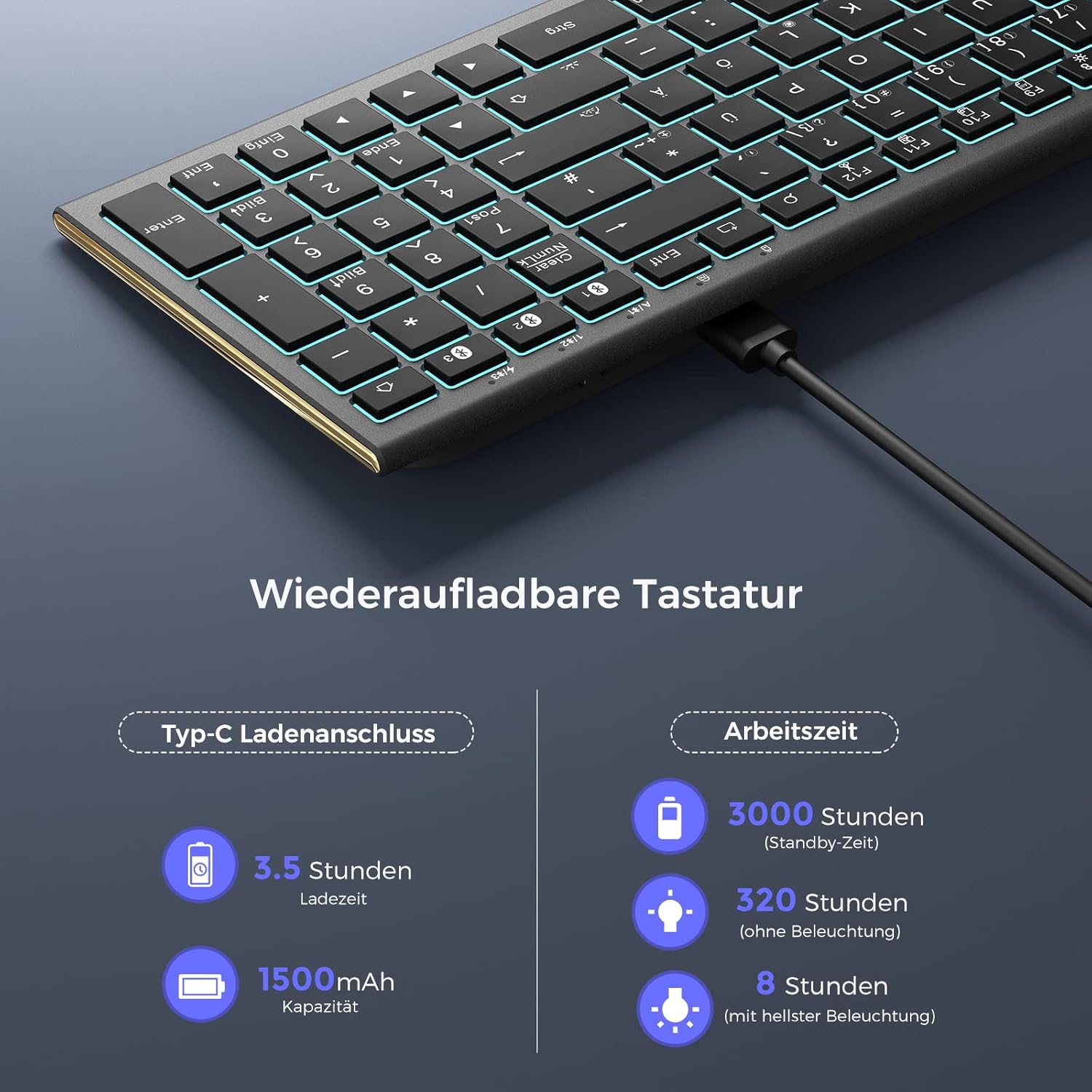
Image: Bluetooth connection diagram, illustrating how the keyboard connects to three separate devices (laptop, desktop, tablet) using distinct Bluetooth channels.
3. Betjeningsvejledning
3.1 Skift mellem tilsluttede enheder
To switch between your paired devices, simply press the Fn key along with the corresponding Bluetooth channel key (BT1, BT2, eller BT3) that your desired device is paired to. The keyboard will automatically connect to the selected device.

Image: Multi-device switching, demonstrating the use of Fn + BT1/BT2/BT3 keys to seamlessly transition between three connected Bluetooth devices.
3.2 Backlight Control
The keyboard features 7 different backlight colors and 3 brightness levels.
- Tænd/sluk baggrundslys: Trykke Fn + Light Bulb icon key for at tænde eller slukke baggrundsbelysningen.
- Juster lysstyrke: Trykke Fn + Light Bulb icon key repeatedly to cycle through 3 brightness levels.
- Skift baggrundsbelysningsfarve: Trykke Fn + RGB icon key to cycle through the 7 available backlight colors.

Image: Backlight controls, showing the specific key combinations (Fn + Light Bulb icon, Fn + RGB icon) for adjusting backlight brightness and cycling through colors.
3.3 Multimedia and Shortcut Keys
The keyboard includes dedicated function keys that can be used as multimedia controls or system shortcuts when combined with the Fn key. The specific functions may vary slightly depending on your operating system (Windows, Mac OS, Android, iPad OS).
| Nøglekombination | Fungere |
|---|---|
| Fn + F1 | Stum |
| Fn + F2 | Lydstyrke ned |
| Fn + F3 | Lydstyrke op |
| Fn + F4 | Forrige spor |
| Fn + F5 | Afspil/pause |
| Fn + F6 | Næste spor |
| Fn + F7 | Lysstyrke ned |
| Fn + F8 | Lysstyrke op |
| Fn + F9 | Vælg alle |
| Fn + F10 | Kopi |
| Fn + F11 | Indsæt |
| Fn + F12 | Skære |
| Fn + Search icon | Søg |
| Fn + Screenshot icon | Skærmbillede |
| Fn + Slet | Slet |

Image: Multimedia and shortcut keys, detailing the functions of the F-keys when used with the Fn modifier key.
4. Vedligeholdelse
4.1 Opladning af tastaturet
When the battery is low, the low battery indicator light on the keyboard will flash. Connect the keyboard to a power source using the USB-C cable to recharge. A full charge takes approximately 3.5 hours.
- Batterikapacitet: 1500mAh
- Opladningstid: Cirka 3.5 timer
- Standby tid: Op til 3000 timer
- Working Time (without backlight): Op til 320 timer
- Working Time (with brightest backlight): Op til 8 timer

Image: Rechargeable keyboard, highlighting the Type-C charging port and providing details on charging time and battery life under different usage conditions.
4.2 Rengøring
To clean your keyboard, power it off and disconnect it from any devices. Use a soft, lint-free cloth slightly dampened with water or a mild cleaning solution. Avoid excessive moisture and do not spray cleaners directly onto the keyboard. For dust and debris between keys, use compressed air.
5. Fejlfinding
Hvis du støder på problemer med dit tastatur, kan du se følgende almindelige problemer og løsninger:
- Tastatur forbinder ikke:
- Sørg for, at tastaturet er tændt og fuldt opladet.
- Sørg for, at Bluetooth er aktiveret på din enhed.
- Sørg for, at tastaturet er i parringstilstand (indikatorlampen blinker).
- Try unpairing and re-pairing the keyboard on your device.
- Ensure the correct Bluetooth channel (BT1, BT2, or BT3) is selected for your device.
- Taster reagerer ikke:
- Kontrollér batteriniveauet, og oplad tastaturet om nødvendigt.
- Sørg for, at tastaturet er korrekt tilsluttet din enhed.
- Genstart din enhed og tastaturet.
- Baggrundsbelysningen virker ikke:
- Sørg for, at baggrundsbelysningen er tændt med Fn + Light Bulb icon key.
- Check the battery level; low battery might disable backlighting.
- Lag or delayed input:
- Ensure there are no strong interferences (e.g., other wireless devices) nearby.
- Flyt tastaturet tættere på din enhed.
- Sørg for, at din enheds Bluetooth-drivere er opdaterede.
6. Specifikationer
| Feature | Detalje |
|---|---|
| Mærke | seenda |
| Model | ISJ-DJC04-2 |
| Forbindelsesteknologi | Bluetooth (Version 5.1 and higher) |
| Wireless Range | Op til 10 meter |
| Kompatible enheder | Computer, Laptop, Smartphone, Tablet |
| Operativsystemer | Windows, Mac OS, Android, iPad OS |
| Tastaturbeskrivelse | Multifunktionel |
| Særlige funktioner | Ergonomic, Shortcut and multimedia keys, Rechargeable, Backlit (RGB) |
| Baggrundslys farver | 7 RGB farver |
| Lysstyrkeniveauer | 3 niveauer |
| Strømkilde | Battery Powered (Lithium metal) |
| Batterikapacitet | 1500mAh |
| Opladningsport | Type-C |
| Switch Type | Sakseafbryder |
| Tastaturlayout | QWERTZ |
| Anbefalet brug | Kontor |
7. Garanti og support
For warranty information and customer support, please refer to the documentation provided with your purchase or contact the retailer/manufacturer directly. Keep your proof of purchase for warranty claims.


