Indledning
This manual provides comprehensive instructions for the FMOUSE Slim Multifunctional Bluetooth Mouse. Please read it carefully to ensure proper use, optimal performance, and longevity of your device. This mouse offers versatile connectivity, silent operation, and convenient shortcut functions for enhanced productivity.
Hvad er der i æsken
- 1 x Silent Wireless Mouse
- 1 x USB ladekabel
- 1 x USB-modtager
- 1 x brugsanvisning
Produkt overview

The FMOUSE Slim Multifunctional Bluetooth Mouse, shown here with its USB receiver partially extended from the top. It features a sleek grey design with RGB lighting on the scroll wheel and three prominent buttons on the top surface.
Nøglefunktioner:
- Multi-functional Bluetooth Mouse: Connects to two devices simultaneously (Bluetooth 5.1 and 2.4G USB receiver). Features a stylish design with multiple buttons for enhanced productivity. Operates silently.
- Desktop Return Button: A dedicated shortcut button to instantly return to your computer's home page, offering quick privacy protection.
- Adjustable Volume / Mute Button: A shortcut button to instantly mute your computer's volume. Long press and scroll to adjust volume.
- 4 justerbare DPI-niveauer: Easily switch cursor sensitivity between 800, 1200, 1600, and 2400 DPI. The scroll wheel's light color indicates the current DPI level. Long press the DPI button to turn off the roller light.
- Bred kompatibilitet: Dual Mode Mouse compatible with Windows, MacOS, iPadOS, ChromeOS, and Linux.
- Type-C genopladelig: Convenient USB-C charging.
- Slank og bærbar: Compact design for easy travel and storage.
- Magnetic Receiver Slot: Securely stores the USB receiver within the mouse.
Opsætning
1. Opladning af musen
Before first use, ensure the mouse is fully charged. Connect the provided USB charging cable to the Type-C port on the front of the mouse and to a USB power source (e.g., computer USB port, wall adapter).

The image shows the mouse connected via a USB-C cable for charging. The scroll wheel light indicates charging status: red for charging, off when charging is complete, and flashing red for low battery.
- Opladningsindikator: The scroll wheel light will be red while charging.
- Opladning fuldført: Lyset slukker, når opladningen er fuldført.
- Lavt batteri: The light will flash red when the battery is low.
2. Connecting the Mouse (Dual Mode)
The FMOUSE supports two connection methods: 2.4G Wireless (via USB receiver) and Bluetooth 5.1.
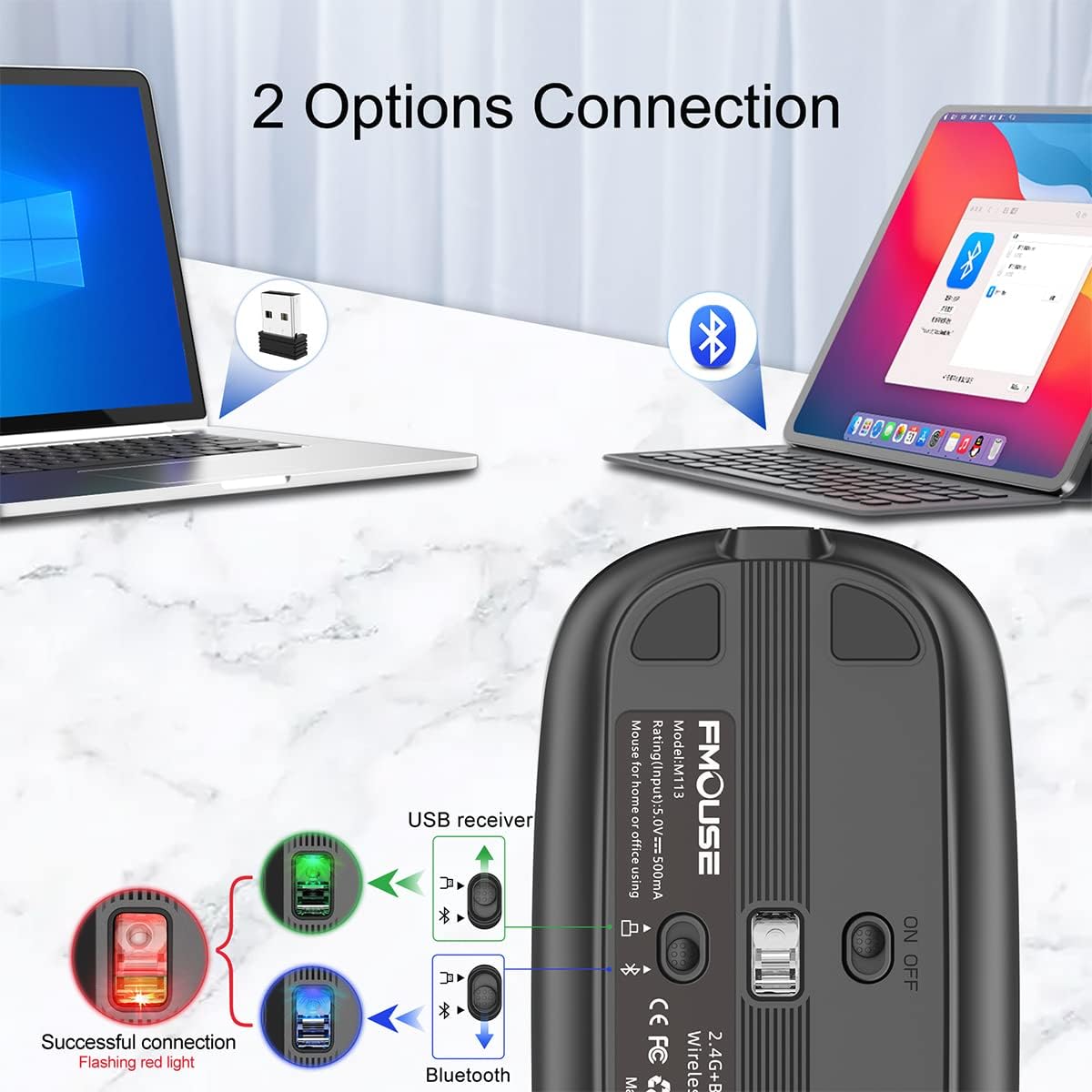
This diagram illustrates the two connection options: 2.4G wireless via a USB receiver for one laptop and Bluetooth for another. The underside of the mouse shows the power switch and the USB receiver storage slot.
2.1. 2.4G trådløs forbindelse (USB-modtager)
- Locate the USB receiver stored in the magnetic slot on the underside of the mouse.
- Sæt USB-modtageren i en ledig USB-port på din computer.
- Tænd musen ved hjælp af tænd/sluk-knappen, der er placeret på undersiden.
- Musen burde automatisk oprette forbindelse til din computer.
2.2. Bluetooth 5.1-forbindelse
- Tænd musen ved hjælp af tænd/sluk-knappen, der er placeret på undersiden.
- On your device (MacBook, iPad, PC, etc.), go to Bluetooth settings.
- Søg efter new devices. The mouse should appear as "FMOUSE" or similar.
- Select the mouse to pair. Once paired, the mouse is ready for use.
Betjeningsvejledning
1. Lydløs klikfunktion
The FMOUSE is designed for silent clicks, making it suitable for quiet environments like libraries or offices.

This image highlights the silent click feature of the mouse, indicating that it produces minimal sound when clicked, ideal for quiet environments.
2. Desktop Return Button
Press the dedicated Desktop Return button (often marked with a computer monitor icon) to instantly minimize all open windows and return to your desktop.

The image shows the mouse positioned next to a computer screen, with an arrow pointing from the mouse's desktop button to the desktop, illustrating its function to quickly return to the home screen.
3. Mute / Volume Adjustment Button
The mute button (often marked with a speaker icon) provides quick audio control.
- Instant Mute: Press the mute button once to instantly set your computer's volume to zero.
- Lydstyrkejustering: Press and hold the mute button for 2 seconds, then scroll the mouse wheel up or down to adjust the volume level.

This image demonstrates the mute and volume adjustment features. The top panel shows pressing the mute button to silence audio. The bottom panel shows pressing the mute button for 2 seconds and then using the scroll wheel to adjust volume.
4. DPI-justering
Press the DPI button (often marked "DPI") to cycle through the four adjustable DPI settings: 800, 1200, 1600, and 2400. The color of the scroll wheel light will change to indicate the current DPI level.

This image illustrates the four adjustable DPI settings (800, 1200, 1600, 2400) and how the scroll wheel's RGB light changes color to indicate the selected DPI level.
Turning Off Roller Light:
If you prefer to turn off the RGB roller light, long press the DPI button for 2 seconds.
Opretholdelse
- Rensning: Brug en blød, tør klud til at rengøre musen. Ved genstridigt snavs, tør letampRengør kluden med vand eller en mild rengøringsopløsning. Undgå skrappe kemikalier eller slibende materialer.
- Opbevaring: When not in use, store the mouse in a cool, dry place. If traveling, utilize its slim design and consider storing the USB receiver in its magnetic slot to prevent loss.
- Batteripleje: To prolong battery life, avoid fully discharging the mouse frequently. Charge it when the low battery indicator flashes.
Fejlfinding
| Problem | Mulig årsag | Løsning |
|---|---|---|
| Musen reagerer ikke | Low battery; Mouse is off; Incorrect connection mode; USB receiver not plugged in (2.4G); Bluetooth not paired. | Charge the mouse; Turn on the mouse; Ensure correct mode is selected (2.4G or BT); Re-insert USB receiver; Re-pair Bluetooth. |
| Markørbevægelsen er uregelmæssig eller langsom | Low DPI setting; Dirty optical sensor; Unsuitable surface. | Increase DPI using the DPI button; Clean the optical sensor; Use on a smooth, non-reflective surface or mouse pad. |
| Bluetooth-forbindelsen afbrydes ofte | Interference; Distance from device; Low mouse battery. | Move closer to the device; Ensure no strong interference sources; Charge the mouse. |
| Roller light is off | Light has been turned off; Low battery. | Long press the DPI button for 2 seconds to turn it back on; Charge the mouse. |
Specifikationer
- Model: B09K4248DB_CA NARF
- Mærke: FMOUSE
- Forbindelse teknologi: Bluetooth 5.1, 2.4G Wireless (USB)
- Bevægelsesdetekteringsteknologi: Optisk
- DPI niveauer: 800 / 1200 / 1600 / 2400
- Særlige funktioner: One-click muting, One-click access to desktop, One-click DPI adjustment, Three shortcut keys, Silent Click, RGB Roller Light
- Strømkilde: Genopladeligt litium-ion-batteri (1 medfølger)
- Produktdimensioner: 4.45 x 2.24 x 0.98 tommer (113 mm x 57 mm x 25 mm)
- Varens vægt: 2.4 ounces (ca. 68 g)
- Farve: Grå
- Fabrikant: FMOUSE
- Oprindelsesland: Kina

This image provides a visual representation of the mouse's dimensions, highlighting its slim and portable design with measurements of 113mm (4.45 inches) in length and 25mm (0.98 inches) in height.
Garanti og support
For warranty information or technical support, please refer to the official FMOUSE webwebstedet eller kontakt deres kundeservice. Gem din købskvittering til garantikrav.
Du kan også finde yderligere oplysninger og supportressourcer på FMOUSE Store on Amazon.


