1. Introduktion
This manual provides detailed instructions for the setup, operation, and maintenance of your Volcora Thermal Receipt Printer, Model 500204. This high-speed 80mm POS printer features an auto cutter and offers versatile connectivity options including USB and Bluetooth, supporting various operating systems. Please read this manual thoroughly before using the printer to ensure proper functionality and longevity.
2. Sikkerhedsoplysninger
- Sørg for, at printeren er tilsluttet en jordet stikkontakt.
- Do not expose the printer to water or high humidity.
- Undgå at placere printeren i direkte sollys eller i nærheden af varmekilder.
- Brug kun den strømadapter, der følger med printeren.
- Do not attempt to disassemble or repair the printer yourself. Contact customer support for assistance.
- Keep hands clear of the auto cutter mechanism during operation.
3. Pakkens indhold
Bekræft, at alle nedenstående varer er inkluderet i din pakke:
- Volcora Thermal Receipt Printer - Standard
- Strømadapter
- Papirrulle
- USB kabel
- CD (for drivers and manual)
- Manuel
- Sample Receipt Paper

Figur 3.1: Included Components - Thermal Receipt Printer, Power Adapter, USB Cable, Test Paper, and Installation CD.
4. Produktet er slutview

Figur 4.1: Front view of the Volcora Thermal Receipt Printer with a sampkvitteringen.
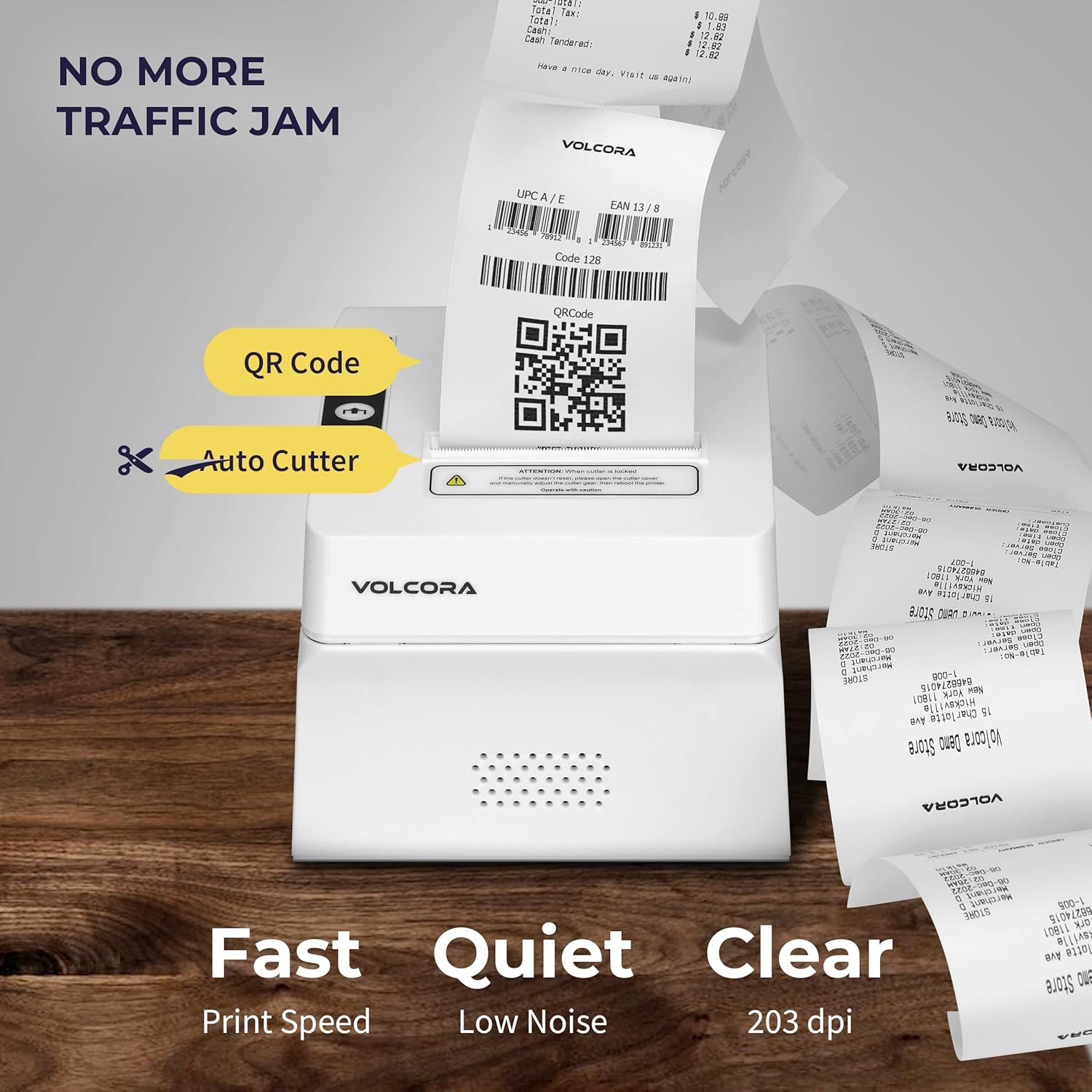
Figur 4.2: Key features include QR code printing, automatic cutter, fast print speed, low noise, and 203 dpi clear printing.
4.1 Porte og knapper

Figur 4.3: Rear ports include Power Supply, Cash Drawer Port (6Pin RJ11), and USB Port. Front panel features Power LED, Error LED, Paper LED, Feed Button, and Cover Open Button.
4.2 Placeringsmuligheder

Figur 4.4: The printer supports both wall mounting (as a kitchen printer) and counter placement (as a receipt printer).
5. Opsætning
5.1 Initial Connection and Paper Roll Installation
- Unbox the printer and all accessories.
- Connect the power adapter to the printer and a power outlet.
- Open the paper cover by pressing the "PUSH" button.
- Insert the 80mm thermal paper roll, ensuring the paper feeds from the bottom and the leading edge extends slightly past the cutter.
- Luk papirdækslet godt, indtil det klikker på plads.
- Connect the USB cable from the printer to your computer (for initial setup or USB printing).

Figur 5.1: Overview of the installation process: Download drivers, Install, Connect power and USB, and Test print.
5.2 Printer Self-Test
Performing a self-test helps verify the printer's basic functionality and prints its configuration settings.
- Sørg for, at printeren er slukket.
- Press and hold the "Feed" button.
- While holding the "Feed" button, power on the printer.
- Release the "Feed" button after approximately 5 seconds. The printer should print a self-test page.
For a visual guide on unboxing, connecting, and performing a self-test, please watch the video below:
Video 5.1: Getting Started with Volcora Thermal Receipt Printer - Unboxing, Connecting, and Self-Test.
6. Driver Installation and Connectivity
The Volcora Thermal Receipt Printer supports USB and Bluetooth connectivity. Proper driver installation is crucial for seamless operation.
6.1 Systemkompatibilitet
Venligst vedrview the compatibility chart before proceeding with driver installation:

Figur 6.1: Kompatibilitet overståetview for USB and Bluetooth connections across various operating systems. Note that Mac OS and iOS are not supported.

Figur 6.2: List of compatible and non-compatible POS software applications.
6.2 Windows Driver Installation (USB)
For Windows users, download the latest drivers from the official Volcora support website. The installation CD also contains the necessary drivers.
- Download driveren til Windows fra volcora.com/support.
- Pak den downloadede ud file and open the driver application.
- Follow the on-screen prompts, select your printer model (500204), and complete the installation.
- After installation, the printer should be recognized in your Windows "Printers & Scanners" settings, allowing you to print a test page.
Refer to Video 5.1 for initial connection steps. The video also demonstrates driver installation and testing tools for Windows.
6.3 Bluetooth Connection with Windows PC
This section outlines two methods for connecting your printer via Bluetooth to a Windows PC.
Method 1: Driver Pre-installed with USB Connection
- Ensure the printer driver has been installed using a USB cable connection (refer to Section 6.2).
- Go to Windows Settings > Bluetooth & devices > Add device > Bluetooth.
- Select the printer (e.g., "500203" or "Volcora Thermal Printer") from the list of available devices and pair it. Enter the default PIN (usually "0000" or "1234").
- After pairing, check the printer's properties in "Devices and Printers" to identify the assigned COM port (e.g., COM4).
- Use the Setting Tool (available from volcora.com/support) to select the correct COM port and perform a test print.
Method 2: Driver Installation After Bluetooth Connection
- Start by pairing the printer via Bluetooth directly (Windows Settings > Bluetooth & devices > Add device > Bluetooth). Enter the default PIN.
- Open Device Manager (search in Windows) and expand "Ports (COM & LPT)" to find the COM port used by the Bluetooth printer (e.g., COM3 or COM4).
- Install the printer driver (from volcora.com/support or CD), selecting the identified COM port during the installation process. If the first COM port doesn't work, try the other one listed.
- Once the driver is installed, the printer should appear in "Printers & Scanners" and be ready for use.
Video 6.3: How to connect your Volcora Thermal Receipt Printer via Bluetooth to a Windows PC.
6.4 Bluetooth Connection with Android Tablets
To connect your printer to an Android tablet, follow these steps:
- Go to your Android tablet's Settings and enable Bluetooth.
- Søg efter new devices and select your printer (e.g., "500203"). Pair the device using the default PIN (usually "0000" or "1234").
- Download the "PrintDemo Tool" from volcora.com/support.
- Open the PrintDemo Tool, go to "Setting", select "Bluetooth" as the interface, and search for your paired printer.
- Perform a "print test" to confirm connectivity.
- For POS applications like Loyverse POS or W&O POS, navigate to their printer settings, select "Bluetooth" as the interface, and choose your Volcora printer to perform a test print.
Video 6.4: How to connect your Volcora Thermal Receipt Printer via Bluetooth to an Android Tablet.
7. Betjeningsvejledning
Once the printer is successfully connected and drivers are installed, it will function as a standard printer for your compatible system or POS application. Ensure your application is configured to use the Volcora Thermal Printer for receipt printing.
- Trykning: Send print commands from your software. The printer will automatically feed and cut the receipt.
- Papirindføring: Press the "Feed" button on the front panel to manually advance the paper.
- Fejlindikator: The "Error" LED will illuminate if there is a paper jam, paper out, or other issues. Refer to the troubleshooting section.
8. Vedligeholdelse
Regelmæssig vedligeholdelse sikrer optimal ydeevne og forlænger printerens levetid.
- Rengøring af printhovedet: Brug en blød, fnugfri klud dampened with isopropyl alcohol to gently wipe the thermal print head. Ensure the printer is off and cooled down before cleaning.
- Rengøring af pladevalsen: Rotate the platen roller and wipe it with an alcohol-dampened cloth to remove paper dust or adhesive residue.
- Udvendig rengøring: Tør printerens yderside af med en blød, tør klud. Undgå slibende rengøringsmidler.
9. Specifikationer
Detailed technical specifications for the Volcora Thermal Receipt Printer Model 500204:

Figur 9.1: Visual representation of printer dimensions and key specifications.
| Feature | Detalje |
|---|---|
| Produktdimensioner | 4" D x 8" B x 8" H |
| Udskrivningshastighed | 220 mm/s |
| Papirbredde | 80 mm (79.5 millimeters) |
| Udskriftsbredde | 72 mm |
| Punkttæthed | 8 dot/mm, 576 dot/line |
| Udskriftsopløsning | 203 dpi (203 x 203 DPI) |
| Printerkommando | ESC/POS |
| Stregkode typer | UPC-A/ UPC-E/ EAN13/ EAN8/ CODE39/ ITF25/ CODABAR/ CODE93/ CODE128/ QRCODE/ PDF417/ Data matrix |
| Indgangseffekt | AC 110V/240V, 50-60Hz |
| Udgangseffekt | DC 24V/2A |
| Levetid for automatisk skærer | 1.5 millioner nedskæringer |
| Forbindelsesteknologi | Bluetooth, USB |
| Udskrivningsteknologi | Termisk |
| Kompatible enheder | Laptops, PC, Tablets |
| Hukommelseslagringskapacitet | 64 KB |
| Varens vægt | 3.76 pund (1.71 kilo) |
| Modelnummer | 500204 |
| UPC | 810041565044 |
10. Fejlfinding
If you encounter issues with your Volcora Thermal Receipt Printer, consider the following common solutions:
- Printeren svarer ikke:
- Kontroller strømforbindelserne, og sørg for, at printeren er tændt.
- Verify USB or Bluetooth connection status.
- Perform a printer self-test (Section 5.2) to confirm internal functionality.
- Geninstaller drivere om nødvendigt.
- Dårlig udskriftskvalitet:
- Sørg for at bruge termisk papir af høj kvalitet.
- Clean the thermal print head (Section 8).
- Check printer settings for print density or speed adjustments.
- Papirstop:
- Turn off the printer and carefully open the paper cover.
- Remove any jammed paper or debris.
- Ensure the paper roll is correctly installed and not too tight.
- Problemer med Bluetooth-forbindelse:
- Sørg for, at Bluetooth er aktiveret på både printeren og din enhed.
- Unpair and re-pair the printer.
- Verify the correct COM port is selected in your driver or application settings.
For further assistance, please refer to the support information in Section 11.
11. Garanti og support
All Volcora products are backed by a limited lifetime warranty. Our US-based customer support team is available to assist with any issues regarding setup, connection, compatibility, or other product-related concerns.
- Visit Help Portal: https://help.volcora.com
- Download Support Center: https://volcora.com/support
- Kundesupport kontakt: support@volcora.com

Figur 11.1: Volcora offers US-based customer support for product assistance.


