1. Introduktion
This manual provides comprehensive instructions for the installation, operation, and maintenance of your TP-Link Archer C5 AC1200 Dual-Band Gigabit Wireless Wi-Fi Router. The Archer C5 is designed to provide seamless Wi-Fi coverage with its dual-band capabilities, offering speeds up to 750Mbps on the 5GHz band and up to 300Mbps on the 2.4GHz band. It features four external antennas for stable wireless connections and full Gigabit ports for high-speed wired connections.
Please read this manual carefully before using the device to ensure proper setup and optimal performance.
2. Pakkens indhold
Bekræft, at din pakke indeholder følgende varer:
- TP-Link Archer C5 Router
- Power Adapter (DC Adapter)
- Ethernet-kabel (RJ45)
- Quick Installation Guide (may be a separate document)
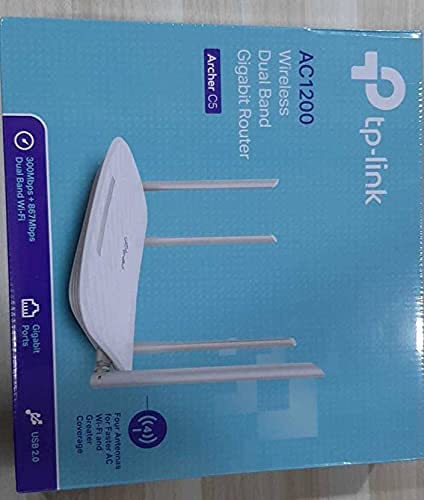
3. Produktet er slutview
3.1 Frontpanel

The front panel features LED indicators that provide information about the router's status, including power, internet connectivity, Wi-Fi status for both 2.4GHz and 5GHz bands, and LAN port activity.
3.2 Bagpanel

The rear panel includes all physical connection ports and buttons:
- Strømindgang: Tilsluttes den medfølgende strømadapter.
- Power knap: Tænder eller slukker routeren.
- USB-port: Til tilslutning af USB-lagerenheder for at dele files på tværs af netværket.
- WAN-port (blå): Connects to your modem for internet access. This is a Gigabit port.
- LAN-porte (gule): Fire Gigabit Ethernet-porte til tilslutning af kablede enheder såsom computere, spillekonsoller eller smart-tv'er.
- Nulstil knap: Bruges til at gendanne routeren til fabriksindstillingerne.
- WPS/Wi-Fi-knap: Press to enable WPS (Wi-Fi Protected Setup) for easy connection, or press and hold to turn Wi-Fi on/off.
4. Opsætningsvejledning
Follow these steps to set up your TP-Link Archer C5 router:
- Sluk dit modem: Afbryd strømmen til dit eksisterende modem.
- Tilslut routeren:
- Connect one end of the provided Ethernet cable to the WAN port (blue) on your Archer C5 router.
- Tilslut den anden ende af Ethernet-kablet til modemets Ethernet-port.
- Tænd enheder:
- Connect the power adapter to the router's power input and plug it into a power outlet.
- Power on your modem, then wait for it to fully boot up (usually indicated by stable LED lights).
- Power on the Archer C5 router. Wait for the LED indicators to stabilize, particularly the Internet LED.
- Opret forbindelse til routerens Wi-Fi-netværk:
- Find Wi-Fi-netværksnavnet (SSID) og adgangskoden, der er trykt på etiketten i bunden af din router.
- På din computer eller mobilenhed skal du vælge routerens Wi-Fi-netværk og indtaste adgangskoden for at oprette forbindelse.
- Få adgang til Web Administrationsgrænseflade:
- Åbn a web browser (f.eks. Chrome, Firefox) og skriv
http://tplinkwifi.netor192.168.0.1ind i adresselinjen. - Log ind med standardbrugernavnet og adgangskoden (normalt
adminfor begge, eller som angivet på routerens etiket). - Follow the Quick Setup wizard to configure your internet connection and personalize your Wi-Fi network name and password.
- Åbn a web browser (f.eks. Chrome, Firefox) og skriv
- Optional: Use the TP-Link Tether App: Download the TP-Link Tether app from your mobile device's app store for easy setup and management.
5. Betjeningsvejledning
Once your router is set up, you can manage its functions through the web management interface or the TP-Link Tether app.
5.1 Dual-Band Wi-Fi
The Archer C5 operates on two Wi-Fi bands:
- 2.4 GHz bånd: Provides wider coverage and better penetration through walls, suitable for general internet use and older devices.
- 5 GHz bånd: Offers faster speeds and less interference, ideal for bandwidth-intensive activities like online gaming and HD video streaming.
You can configure separate SSIDs (network names) and passwords for each band or use a single SSID with Band Steering enabled (if available in your firmware) to allow the router to automatically assign devices to the best band.
5.2 Netværksstyring
Gennem web grænseflade, kan du:
- Skift Wi-Fi-indstillinger (SSID, adgangskode, sikkerhedstype).
- Set up a Guest Network for visitors.
- Configure parental controls to manage internet access for children.
- Prioritize devices or applications using Quality of Service (QoS).
- Administrer tilsluttede enheder.
- Access advanced settings like port forwarding, VPN server, and dynamic DNS.
6. Vedligeholdelse
Regelmæssig vedligeholdelse er med til at sikre din routers levetid og optimale ydeevne.
- Firmwareopdateringer: Tjek regelmæssigt den officielle TP-Link-udbyder webwebsted for firmwareopdateringer. Opdatering af firmware kan forbedre ydeevnen, tilføje nye funktioner og rette sikkerhedssårbarheder.
- Fysisk placering: Place the router in a central location, away from obstructions and devices that emit electromagnetic interference (e.g., microwaves, cordless phones). Elevating the router can also improve signal distribution.
- Rensning: Keep the router clean and free from dust. Ensure ventilation holes are not blocked to prevent overheating.
- Genstarter: If you experience slow speeds or connectivity issues, try rebooting the router by unplugging its power adapter for 10 seconds and then plugging it back in.
7. Fejlfinding
Dette afsnit omhandler almindelige problemer, du kan støde på med din Archer C5-router.
7.1 Ingen internetadgang
- Tjek kabelforbindelser: Ensure the Ethernet cable from your modem is securely connected to the router's blue WAN port.
- Modemstatus: Kontroller, at dit modem fungerer korrekt, og at der er en aktiv internetforbindelse.
- Router-LED'er: Check the Internet LED on the router. If it's off or red, there might be an issue with your internet service provider (ISP) or modem connection.
- Genstart enheder: Power cycle your modem and then your router.
- Clone MAC Address: Some ISPs require MAC address cloning. Access the router's web interface and check WAN settings for this option.
7.2 Wi-Fi Signal Drops or is Weak
- Placering af router: Flyt routeren til en central placering, væk fra forhindringer og interferenskilder.
- Antenne orientering: Adjust the four external antennas for optimal signal reception.
- Kanalinterferens: I routerens web interface, try changing the Wi-Fi channel for both 2.4GHz and 5GHz bands to a less congested one.
- Firmwareopdatering: Sørg for, at din routers firmware er opdateret.
7.3 Forgot Router Login Password
Hvis du glemmer adgangskoden til web management interface, you will need to reset the router to its factory default settings. Locate the Reset button on the rear panel, press and hold it for about 10 seconds until the LEDs flash, then release. The router will reboot with default settings (usually admin for username and password).
8. Specifikationer
| Feature | Detalje |
|---|---|
| Mærke | TP-Link |
| Modelnavn | ArcherC5 |
| Trådløs Standard | IEEE 802.11ac/n/a 5 GHz, IEEE 802.11n/b/g 2.4 GHz |
| Wi-Fi hastighed | AC1200 (867 Mbps på 5 GHz, 300 Mbps på 2.4 GHz) |
| Frekvensbåndsklasse | Dual-Band (2.4 GHz og 5 GHz) |
| Ethernet-porte | 1x Gigabit WAN-port, 4x Gigabit LAN-porte |
| USB-port | 1 x USB 2.0 port |
| Antenner | 4x eksterne antenner |
| Sikkerhedsprotokol | WPA2-PSK |
| Operativsystem | RouterOS (as per product data, typically TP-Link custom firmware) |
| Speciel funktion | Fjernadgang |
| Varens vægt | 710 g |
| Inkluderede komponenter | Router, DC Adapter, RJ45 Ethernet Cable |
9. Garanti og support
9.1 Garantioplysninger
The TP-Link Archer C5 router typically comes with a 1 års garanti. Please refer to the warranty card included in your product packaging or visit the official TP-Link webwebstedet for detaljerede garantivilkår og -betingelser, der er specifikke for din region.
9.2 Teknisk support
For technical assistance, firmware updates, or further information, please visit the official TP-Link support website. You can usually find FAQs, troubleshooting guides, and contact information for customer support there.
TP-Link Officiel Webwebsted: www.tp-link.com


