Produkt overview
The OMOTON Bluetooth Keyboard is a versatile and ultra-slim wireless keyboard designed for seamless compatibility with a wide range of iPad devices, including iPad Pro 13/11 inch 2024, iPad Air 13/11 inch 2024, iPad 10th Generation (10.9 inch), iPad 10.2 inch (9th/8th/7th generation), iPad Pro 11/12.9, iPad Air 10.9/10.5, iPad 9.7, and iPad Mini series. It features a built-in 400mAh lithium battery for extended use, illuminated LED backlighting with 7 adjustable colors and 3 brightness levels, and effective shortcut keys for enhanced productivity. Its lightweight and compact design make it highly portable, providing a comfortable and quiet typing experience.
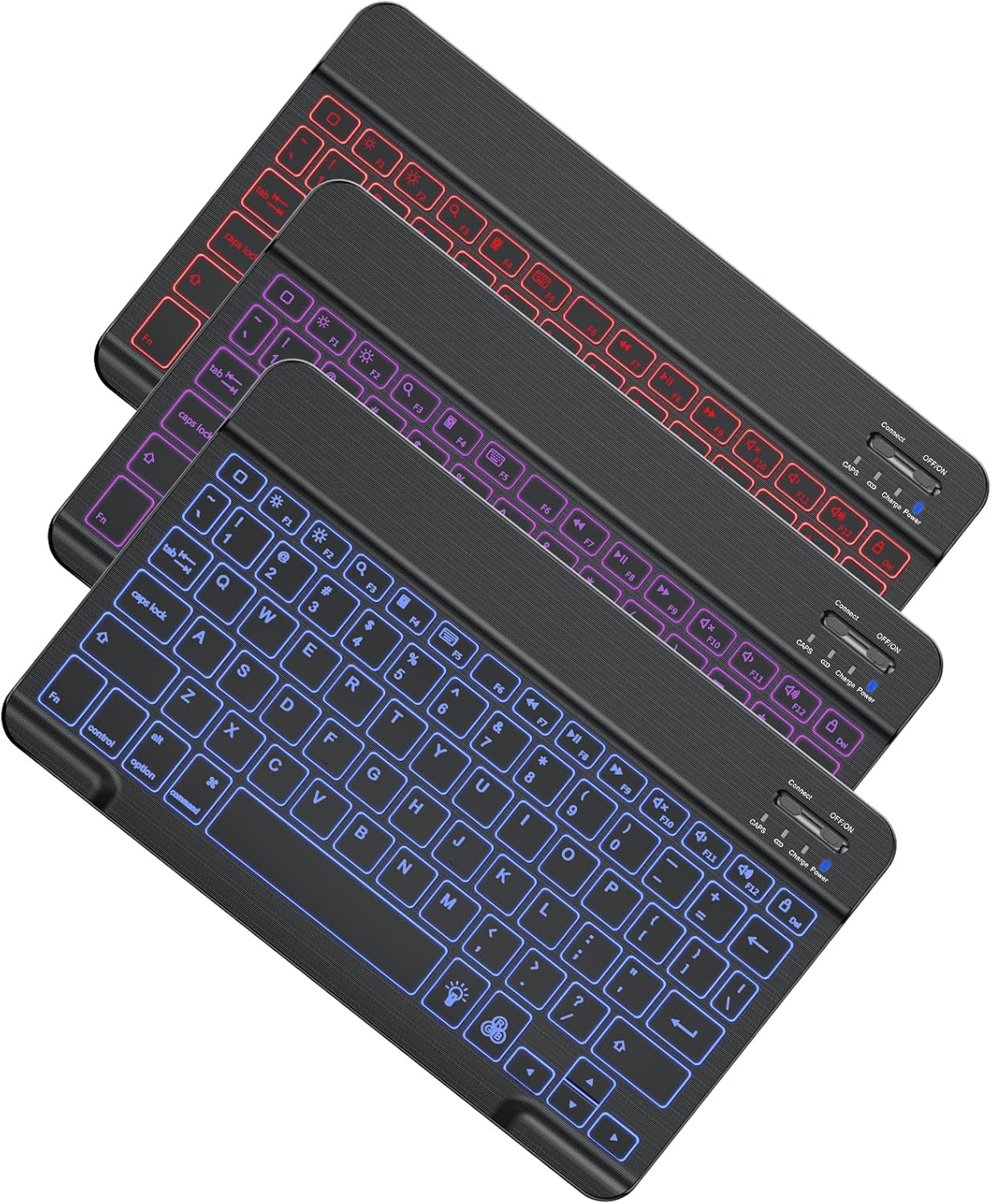
Image: The OMOTON Bluetooth Keyboard showcasing its illuminated keys in red, purple, and blue, highlighting its sleek design.
Hvad er der i æsken
- OMOTON Bluetooth Keyboard
- USB-kabel (til opladning)
- Brugervejledning (dette dokument)
Produktspecifikationer
| Mærke | OMOTON |
| Model (ASIN) | B09FLPDMKN |
| Produktdimensioner | 9.7 x 5.9 x 0.25 tommer (247 x 150 x 6.5 mm) |
| Varens vægt | 9.6 ounce (0.44 pund) |
| Batterier | 1 Lithium Polymer batterier påkrævet (medfølger) |
| Forbindelsesteknologi | Bluetooth |
| Tastaturbeskrivelse | Multimedier |
| Særlige funktioner | Portable, Backlit, Rechargeable |
| Farve | Black (RGB backlighting) |
| Antal nøgler | 78 |
| Tastaturbaggrundsbelysning Farvestøtte | RGB (7 farver) |
| Stil | Moderne |

Image: The keyboard's ultra-slim profile (6.5mm thickness) and lightweight design (0.44 pounds) are highlighted, along with its compact size (247x150mm).
Opsætningsvejledning
1. Opladning af tastaturet
Before initial use, ensure the keyboard is fully charged. Connect the provided USB cable to the charging port on the keyboard and to a USB power source (e.g., computer, USB wall adapter). The charge indicator light will illuminate during charging. A full charge takes approximately 3 hours and provides over 40 hours of working time.
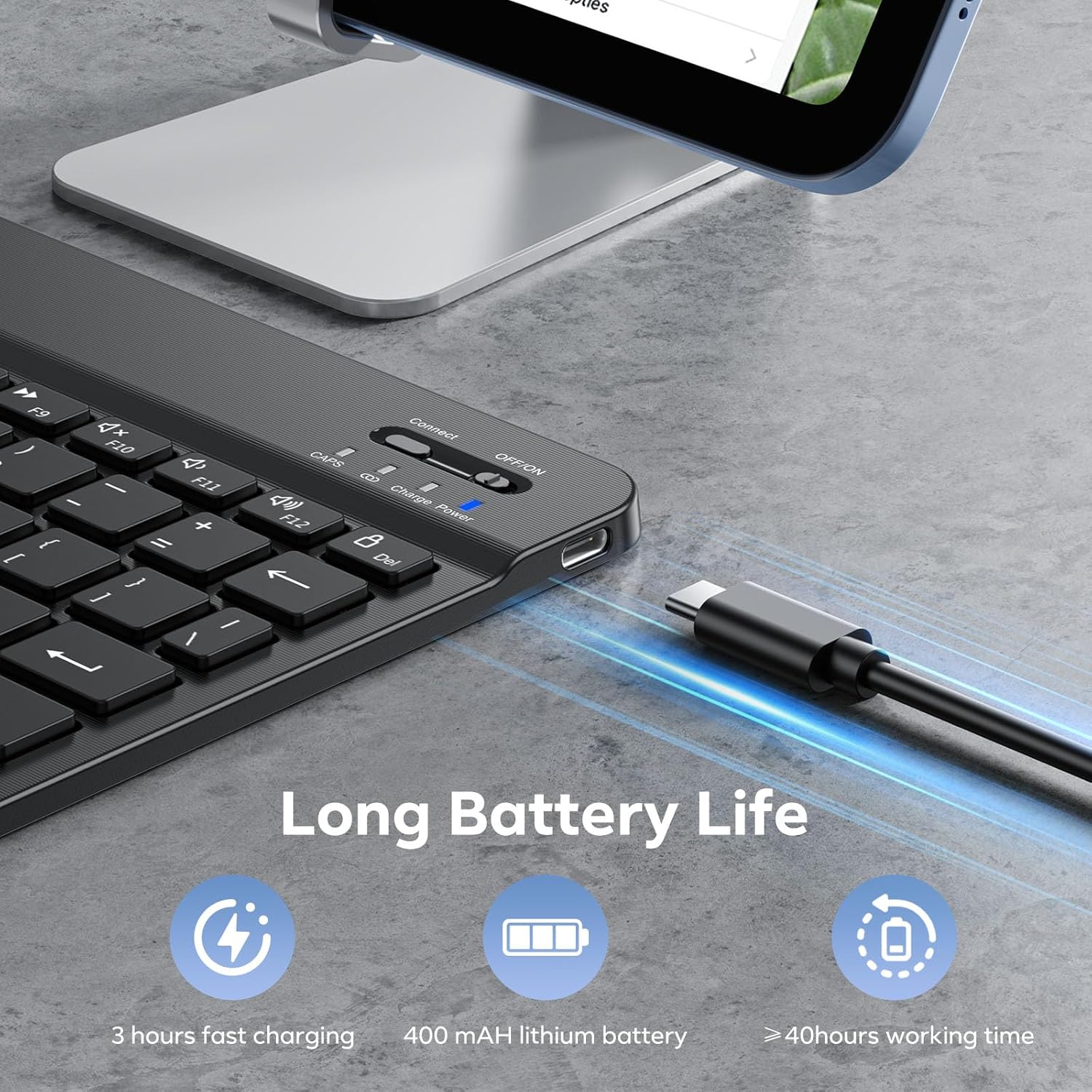
Image: The keyboard's charging port with a USB cable connected, illustrating its long battery life and fast charging capability.
2. Bluetooth-parring
- Tænd: Locate the ON/OFF switch on the top right side of the keyboard and slide it to the "ON" position. The power indicator light will turn on.
- Aktiver parringstilstand: Press the "Connect" button located next to the ON/OFF switch. The Bluetooth indicator light will start blinking, indicating the keyboard is in pairing mode.
- Enable Bluetooth on your iPad: Go to your iPad's "Settings" app, then tap on "Bluetooth". Make sure Bluetooth is toggled "On".
- Vælg tastatur: Your iPad will search for nearby Bluetooth devices. Look for "Bluetooth Keyboard" (or a similar name like "OMOTON Keyboard") in the list of "Other Devices" and tap on it.
- Bekræft forbindelse: Your iPad may display a pairing code. Type this code on the OMOTON keyboard and press Indtast. Once successfully paired, the Bluetooth indicator light on the keyboard will stop blinking and remain solid, and your iPad will show "Connected" next to the keyboard's name.

Image: Close-up of the keyboard's top right corner, showing the "Connect" button, "OFF/ON" switch, and indicator lights for CAPS, Bluetooth, Charge, and Power.
Betjeningsvejledning
1. Using the Backlight Function
- Tænd/sluk baggrundslys: Tryk på pære ikon nøgle (usually located near the bottom right of the keyboard) once to turn on the backlight. Press it a second time to activate the breathing light effect. Press it a third time to turn off the backlight.
- Skift baggrundsbelysningsfarve: Tryk på RGB icon key (next to the light bulb icon) to cycle through the 7 available backlight colors (e.g., blue, green, red, purple, yellow, cyan, white).
- Juster lysstyrke: Brug Fn + light bulb icon key (pil op) for at øge lysstyrken og Fn + light bulb icon key (down arrow) to decrease brightness. There are 3 levels of brightness.
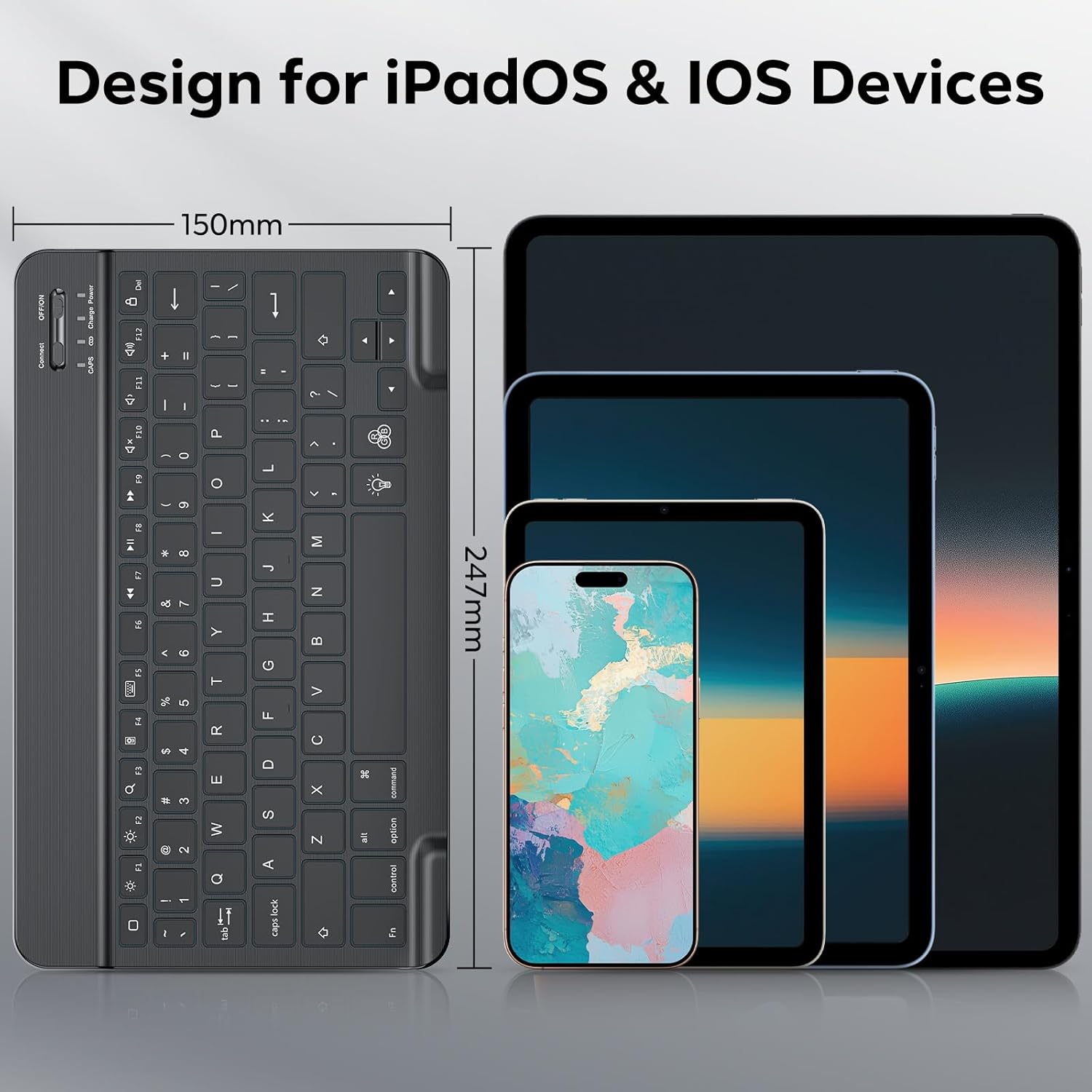
Image: A close-up of the keyboard with its keys illuminated in blue, demonstrating the adjustable backlight feature.

Image: A visual representation of the keyboard's 7 adjustable backlight colors, including blue, green, red, and purple options.
2. Brug af genvejstaster
The keyboard is equipped with multimedia shortcut keys for convenient operation. These keys are typically accessed by pressing the Fn tasten i kombination med den tilsvarende funktionstast (F1-F12).
- Fn+F1: Startskærm
- Fn+F2: Søg
- Fn+F3: Vælg alle
- Fn+F4: Kopi
- Fn+F5: Indsæt
- Fn+F6: Skære
- Fn+F7: Forrige spor
- Fn+F8: Afspil/pause
- Fn+F9: Næste spor
- Fn+F10: Dæmp lydstyrke
- Fn+F11: Lydstyrke ned
- Fn+F12: Lydstyrke op
- Caps Lock: The CAPS indicator light on the keyboard will illuminate when Caps Lock is active.
Pleje og vedligeholdelse
- Rensning: Use a soft, dry, lint-free cloth to clean the keyboard. For stubborn dirt, slightly dampRengør kluden med vand eller en mild rengøringsopløsning. Undgå for meget fugt.
- Opbevaring: Opbevar tastaturet et køligt, tørt sted væk fra direkte sollys og ekstreme temperaturer.
- Undgå væsker: Udsæt ikke tastaturet for væsker, da dette kan beskadige de interne komponenter.
- Håndteres med forsigtighed: While durable, avoid dropping the keyboard or subjecting it to strong impacts.
- Skridsikker måtte: The keyboard features non-slip mats on the bottom to prevent slipping during use. Ensure these are clean and intact for optimal stability.

Billede: Et nærbillede view of the keyboard's non-slip mat, designed to provide stability and prevent movement during typing.
Fejlfinding
Keyboard Not Connecting/Pairing:
- Sørg for, at tastaturet er tændt og fuldt opladet.
- Sørg for, at Bluetooth er aktiveret på din iPad.
- Tryk på knappen "Forbind" på tastaturet for at gå i parringstilstand.
- If the keyboard was previously paired with another device, disconnect it from that device first.
- Try forgetting the device on your iPad's Bluetooth settings and re-pairing.
- Genstart både din iPad og tastaturet.
Taster reagerer ikke:
- Kontroller tastaturets batteriniveau. Genoplad om nødvendigt.
- Ensure the keyboard is still connected via Bluetooth to your iPad.
- Genstart tastaturet og din iPad.
- Clean around the keys to ensure no debris is obstructing them.
Backlight Not Working/Changing:
- Sørg for, at tastaturet er tændt.
- Press the light bulb icon key to cycle through backlight modes.
- Press the RGB icon key to change colors.
- Adjust brightness using Fn + light bulb icon key (up/down arrows).
- If the battery is very low, the backlight might not function or might be dim. Charge the keyboard.
Garanti og support
OMOTON products are designed and manufactured to the highest quality standards. For specific warranty information, please refer to the warranty card included with your product or visit the official OMOTON website. If you encounter any issues or have questions regarding your OMOTON Bluetooth Keyboard, please contact OMOTON customer support for assistance. Contact details can typically be found on the product packaging or the brand's official webwebsted.
For further assistance, you may also refer to the OMOTON Store on Amazon: OMOTON Store


