1. Introduktion
This manual provides comprehensive instructions for the installation, configuration, and operation of your PGST Wireless Smart Home Alarm System. Please read this manual thoroughly before using the product to ensure proper functionality and safety. This system is designed to enhance the security of your home or office with advanced features including Wi-Fi/GSM connectivity, app control, and various detection sensors.
2. Pakkens indhold
Bekræft, at alle nedenstående varer er inkluderet i din pakke. Hvis der mangler eller er beskadigede varer, bedes du kontakte kundesupport.
- Alarm Host (Control Panel)
- Wireless Infrared Motion Detector
- Wireless Door/Window Opening Detectors (5 units)
- Fjernbetjeninger (2 enheder)
- RFID Tags (2 enheder)
- Sirene
- SOS knap
- Strømadapter
- Brugermanual

Billede 2.1: Overview of the PGST Wireless Smart Home Alarm System kit components.
3. Produktet er slutview
The PGST Smart Home Alarm System is a comprehensive security solution featuring a 4.3-inch IPS color touchscreen control panel, multiple wireless sensors, and smart connectivity options.
3.1. Alarm Host (Control Panel)
The central unit of the alarm system, featuring a 4.3-inch IPS color display for real-time operation and status monitoring. It supports Wi-Fi, 4G, GSM, and GPRS networks for reliable communication.

Image 3.1: The PGST Alarm Host with its 4.3-inch IPS color display.
3.2. Wireless Sensors and Accessories
- Bevægelsesdetektor: Detects movement within its range, triggering an alarm.
- Dør/vindue sensor: Triggers an alarm when a protected door or window is opened.
- Fjernbetjening: Used for arming, disarming, and triggering the SOS function remotely.
- RFID Tag: Allows for quick arming/disarming by swiping the tag near the control panel.
- SOS knap: A dedicated button for emergency alerts.

Image 3.2: A wireless motion detector.
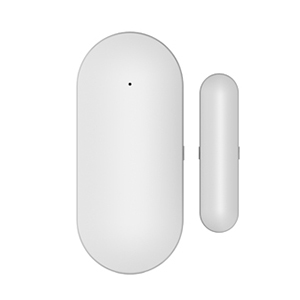
Image 3.3: A wireless door/window sensor.

Image 3.4: A remote control for the alarm system.

Image 3.5: An RFID tag for nem adgang.

Image 3.6: A dedicated SOS button.
4. Opsætning og installation
4.1. Første opstart
- Connect the power adapter to the alarm host and plug it into a power outlet.
- The system will power on and display the main interface on the 4.3-inch screen.
4.2. Connecting to the Tuya App and Wi-Fi
To control your alarm system remotely and receive notifications, connect it to the Tuya Smart app via Wi-Fi.
- Download the 'Tuya Smart' or 'Smart Life' app from your smartphone's app store.
- Registrer eller log ind på din konto.
- On the alarm host, navigate to the Wi-Fi settings.
- In the app, select 'Add Device' and choose the alarm system category.
- Follow the on-screen prompts in the app to connect the alarm host to your 2.4GHz Wi-Fi network. Ensure your Wi-Fi password is correct.
Video 4.1: Instructions for connecting the alarm host to the Tuya Smart app via Wi-Fi.
4.3. Pairing Wireless Accessories
Follow these steps to pair your remote controls, RFID tags, door/window sensors, and motion detectors with the alarm host.
- On the alarm host, navigate to the 'Parts' or 'Accessories' menu.
- Select the option to add a new remote control, RFID tag, or detector.
- For remote controls, press any button on the remote when prompted.
- Til RFID tags, stryg tag near the RFID reader on the alarm host.
- For door/window sensors, separate the two parts of the sensor when prompted.
- For motion detectors, trigger the detector by moving in front of it when prompted.
- The alarm host will confirm successful pairing. Repeat for all accessories.
Video 4.2: Demonstration of pairing remote controls, RFID tags, door sensors, and motion detectors with the alarm host.
4.4. IP Camera Setup (Optional)
If your kit includes an IP camera, you can integrate it with the Tuya app for enhanced monitoring and motion-triggered recording.
- Power on the IP camera.
- Press and hold the reset button on the camera for 5 seconds until you hear a prompt.
- In the Tuya app, select 'Add Device' and choose the camera category.
- Follow the app's instructions to connect the camera to your Wi-Fi network, typically by scanning a QR code displayed on your phone with the camera.
- Once connected, you can set up motion detection alarms within the camera settings in the app.
Video 4.3: Guide for connecting the IP camera to the Tuya app and configuring motion detection.

Image 4.4: Illustration of the Tuya IP Camera linking with the alarm system for motion detection.
5. Betjeningsvejledning
5.1. Tilkobling og frakobling
The system can be armed or disarmed using the control panel, remote controls, RFID tags, or the Tuya app.
- Tilkobling (Udetilstand): Activates all sensors. Any triggered sensor will initiate an alarm.
- Stay Arm (Home Mode): Activates perimeter sensors (e.g., door/window sensors) while allowing free movement within the property.
- Afvæbne: Deaktiverer alarmsystemet.
5.2. SOS-funktion
In an emergency, press the SOS button on the control panel or remote control to trigger an immediate alarm and notify pre-set emergency contacts.

Image 5.1: Illustration of the SOS function providing immediate assistance.
5.3. Tovejs taletelefon
The alarm host supports two-way voice communication, allowing you to make and receive calls or voice messages through the system.
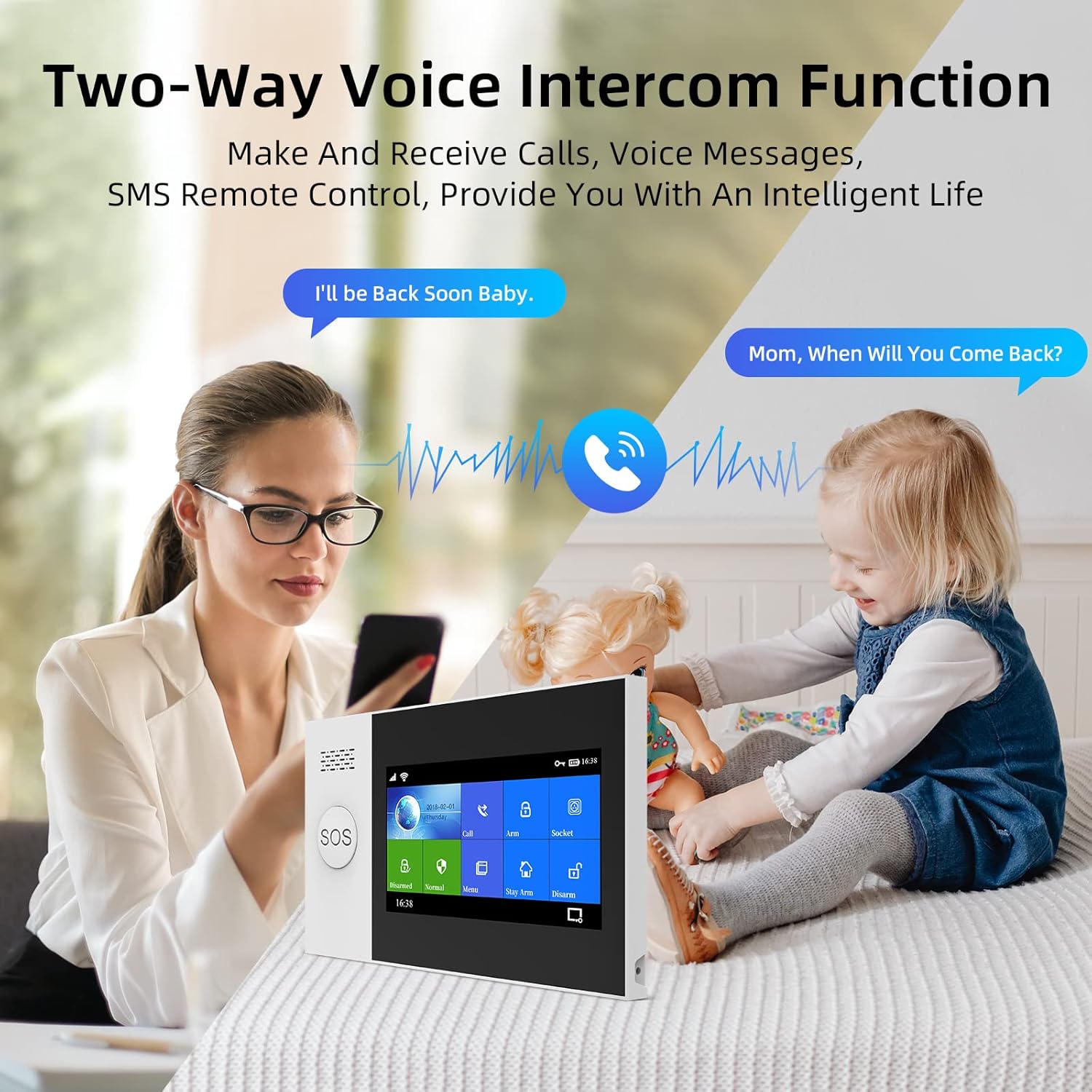
Image 5.2: The two-way voice intercom function in use.
5.4. Integration af stemmestyring
The system is compatible with voice assistants like Amazon Alexa and Google Assistant, enabling convenient voice commands for arming and disarming.

Image 5.3: The alarm system's compatibility with Alexa voice control.
5.5. Zone Settings
The system supports multiple defense zone settings, allowing customization for different areas of your property:
- Access Zone: Typically for entry/exit points with a delay.
- Interior Zone: For indoor motion sensors, active in Away mode.
- Perimeter Zone: For door/window sensors, active in Stay Arm mode.
- 24-Hour Zone: Always active, such as for smoke detectors or emergency buttons.
- Dørklokkezone: Functions as a doorbell.
You can customize the names of these zones (e.g., main door, living room, bedroom window) for clear identification.
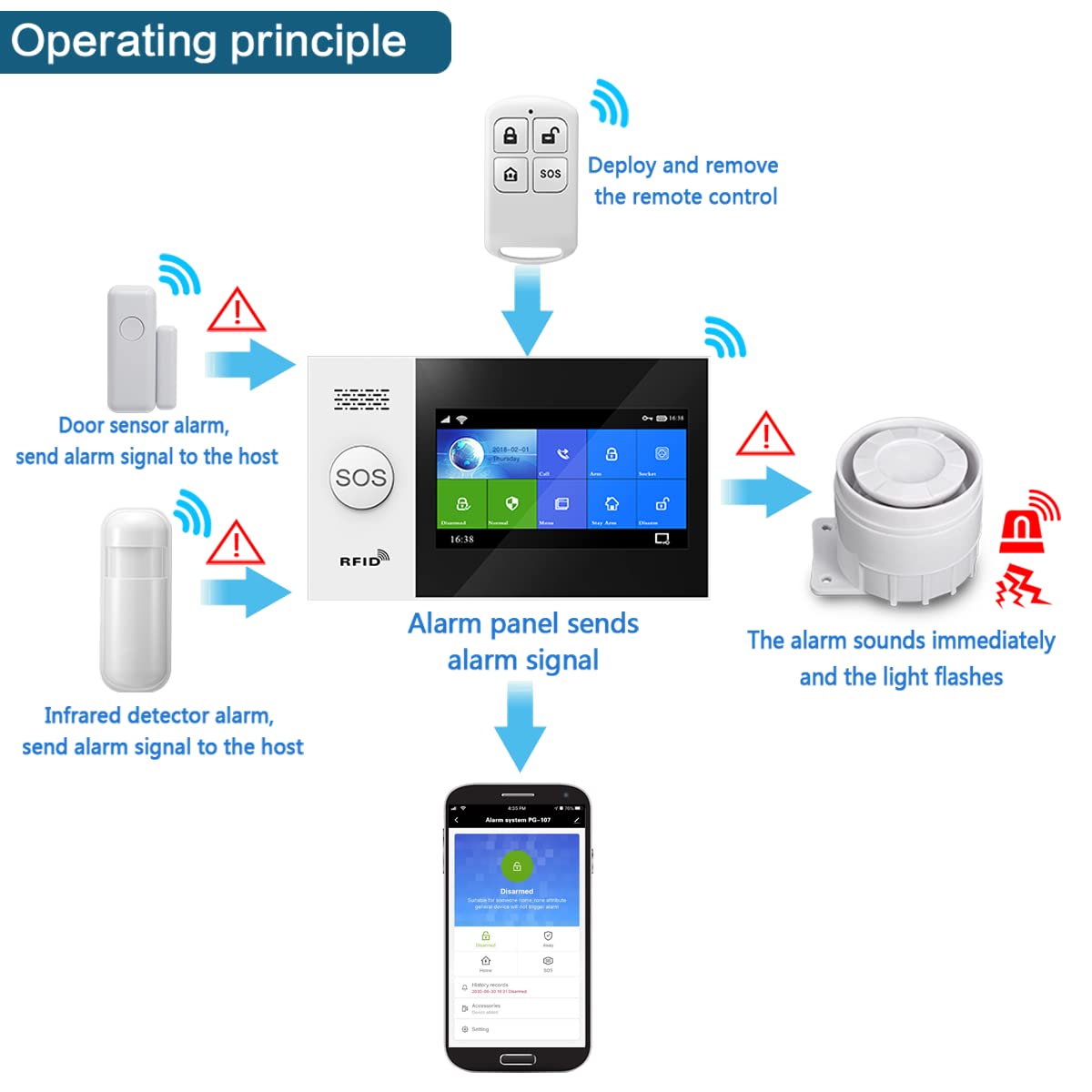
Image 5.4: Diagram illustrating the operating principle of the alarm system with various sensors.
6. Vedligeholdelse
- Udskiftning af batteri: The system will provide a low battery warning for sensors. Replace batteries promptly to ensure continuous protection. The main host uses a Lithium-ion battery.
- Rensning: Use a soft, dry cloth to clean the control panel and sensors. Avoid using abrasive cleaners or solvents.
- Firmwareopdateringer: Periodically check the Tuya app for available firmware updates for the alarm host and camera to ensure optimal performance and security.
7. Fejlfinding
If you encounter issues with your PGST alarm system, refer to the following common problems and solutions:
- Systemet opretter ikke forbindelse til Wi-Fi: Ensure your Wi-Fi network is 2.4GHz. Verify the Wi-Fi password. Restart the alarm host and your router.
- Sensorer udløser ikke alarm: Check sensor battery levels. Ensure sensors are properly paired with the alarm host. Verify sensor placement and alignment (e.g., door/window sensors).
- Fjernbetjening virker ikke: Check the remote control battery. Re-pair the remote control with the alarm host.
- Falske alarmer: Adjust sensitivity settings for motion detectors if available. Ensure sensors are not placed in areas prone to drafts or direct sunlight.
- Ingen app-notifikationer: Check app notification settings on your smartphone. Ensure the alarm host has a stable internet connection.
For further assistance, please contact PGST customer support.
8. Specifikationer
| Feature | Specifikation |
|---|---|
| Modelnummer | PG107-4G/T53A |
| Mærke | PGST |
| Forbindelsesteknologi | Wi-Fi, GSM |
| Strømkilde | WiFi/GSM (Main unit), 1 Lithium-ion battery (Main unit), other batteries for sensors |
| Kontrolmetode | Touch (Control Panel) |
| Kompatible enheder | Smartphone, tablet |
| Installationstype | Self-adhesive (for sensors) |
| Alert Type | Audio only, Motion only |
| Produktmål (L x B x H) | 30.9 x 16.1 x 10.2 cm |
| Varens vægt | 1.04 kilo |
9. Garanti og support
For warranty information, technical support, or service inquiries, please refer to the contact details provided with your purchase or visit the official PGST webwebsted. Behold din købskvittering som købsbevis i tilfælde af garantikrav.


