Indledning
Thank you for choosing the Provision ISR All-in-one Webcam. This device is designed to simplify your online video activities by integrating a high-quality webcam, microphone, speaker, and adjustable LED light into a single, convenient unit. This manual provides detailed instructions for setup, operation, maintenance, and troubleshooting to ensure you get the most out of your new webcam.

The Provision ISR All-in-one Webcam, shown with its packaging, highlighting its integrated features.
Produkt overview
The Provision ISR All-in-one Webcam combines essential features for a seamless video communication experience.
- Fuld HD Webcam: Delivers crystal clear 1080p video at 60 frames per second.
- Indbygget højttaler: Integrated 2.5W speaker for clear audio output.
- Støjreducerende mikrofon: Captures clear audio while reducing background noise.
- 3-Level Adjustable LED Light: Provides optimal illumination for various lighting conditions.
- Integreret privatlivsdækning: Ensures privacy when the webcam er ikke i brug.
- USB-stik og spil: No drivers required for quick and easy setup.
- 2-Axis Rotating Clip: Giver mulighed for fleksibel positionering og vinkeljustering.

Nøgletræk ved webcam including Full HD video, adjustable LED light, built-in speaker, and noise-cancelling microphone.

De webcam in use during a video conference, highlighting its all-in-one capabilities.
Opsætning
Setting up your Provision ISR Webcam is a simple plug-and-play process.
- Pak den ud Webcam: Fjern forsigtigt webkameraet ud af emballagen.
- Monter Webcam:
- Open the flexible clip base.
- Monter webcam on top of your monitor, laptop screen, or a flat surface.
- Adjust the clip to ensure the webcam is stable and securely positioned. The 2-axis rotating clip allows for 360° horizontal rotation and 90° vertical tilt.
- Opret forbindelse til din computer:
- Sæt USB-kablet i stikkontakten webcam til en ledig USB-port på din computer.
- De webcam is plug-and-play, meaning no additional drivers are typically required. Your operating system should automatically detect and install the necessary components.
- Bekræft forbindelsen:
- Open a video conferencing application (e.g., Zoom, Skype, Google Meet) or your computer's camera application.
- Select the "Provision ISR Webcam" as your video and audio input device in the application settings.

De webcam features USB Plug & Play connectivity, compatible with various operating systems and video conferencing applications.

Fysiske dimensioner af webcam and the flexibility of its 2-axis rotating clip for optimal positioning.
Betjeningsvejledning
Adjusting the LED Fill Light
De webcam features an integrated LED fill light with three adjustable brightness levels to ensure you are well-lit in any environment.
- To turn on the light or cycle through brightness levels, gently touch the touch-sensitive area on the top of the webcam.
- There are three distinct brightness settings. Continue touching to cycle through the levels and turn the light off.

Demonstration of the LED fill light providing illumination, with an illustration of its three adjustable levels.

The adjustable LED light is controlled via a simple touch interface.
Brug af privatlivsdækningen
For enhanced privacy and security, the webcam includes a built-in privacy cover.
- To cover the lens, simply slide the cover over the camera lens.
- To uncover the lens, slide the cover away from the camera lens.

De webcam features a built-in privacy cover for security, along with its speaker and microphone.

The privacy cover can be easily opened and closed with a single finger.
Video and Audio Quality
De webcam is equipped with a 6-layer F1.6 glass lens for superb video quality and a 100° wide field of view, ideal for conferences and family video calls.
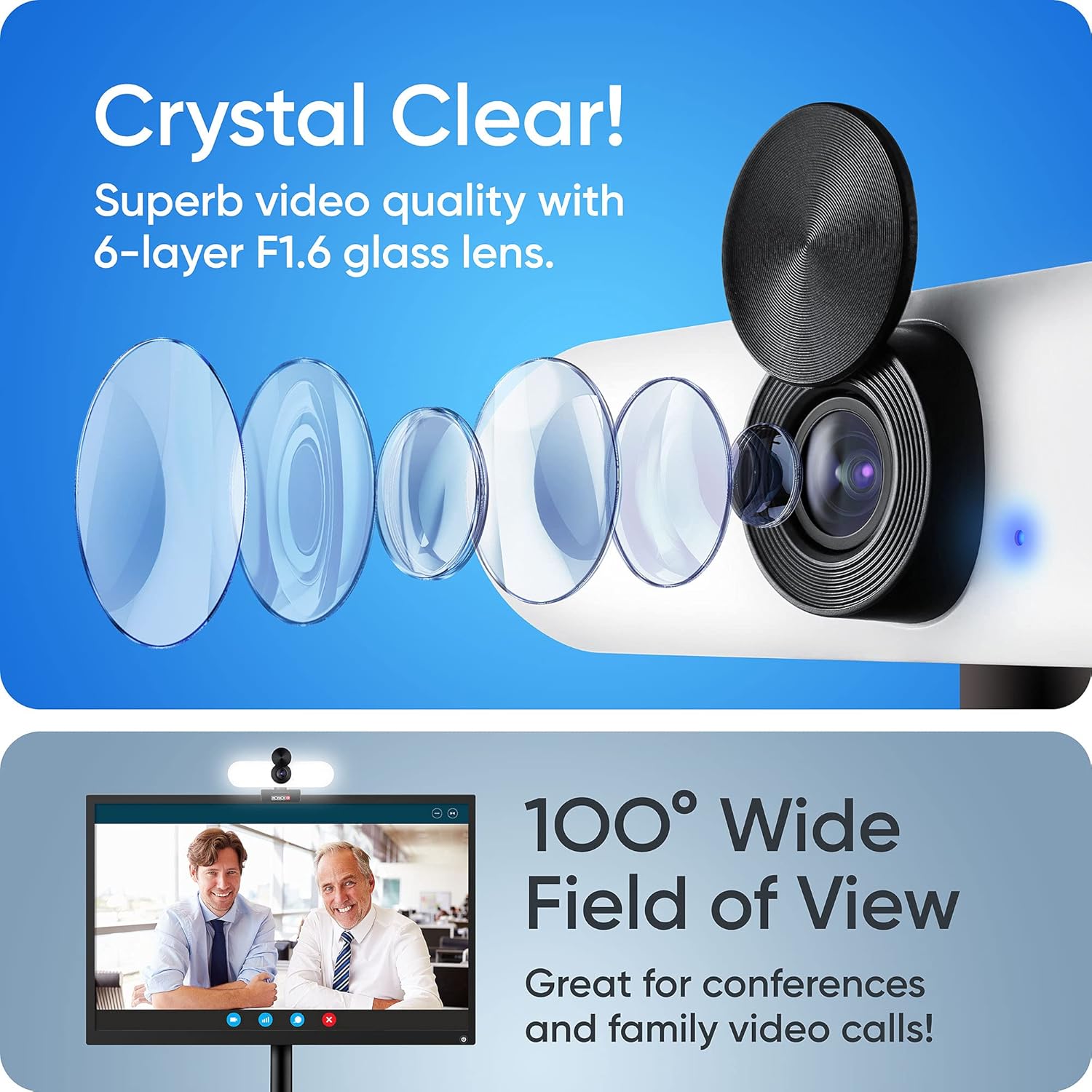
De webcam's advanced lens system provides crystal clear video and a wide field of view.

De webcam automatically adjusts for optimal exposure correction.

De webcam provides sharp focus for clear image capture.
Kompatibilitet
The Provision ISR Webcam is designed for broad compatibility with various operating systems and popular video conferencing applications.
Understøttede operativsystemer:
- Windows 7, 8, 10
- Mac OS 10.6+
- Android 5.0+
- Xbox
- Chrome OS
Kompatible applikationer:
- Zoom
- Skype
- Facebook Messenger
- Cisco Webex
- Microsoft Teams
- Google Meet
- GoToMeeting
- Og mange flere...
Opretholdelse
Korrekt vedligeholdelse sikrer levetiden og optimal ydeevne for dit webcam.
- Rengøring af linsen: Use a soft, lint-free cloth specifically designed for optical lenses to gently wipe the camera lens. Avoid using harsh chemicals or abrasive materials.
- Rengøring af kroppen: Tør af webcam body with a soft, dry cloth. If necessary, a slightly damp En klud kan bruges, men sørg for, at der ikke trænger fugt ind i enheden.
- Opbevaring: Når den ikke er i brug i længere perioder, skal den opbevares webcam in a cool, dry place, away from direct sunlight and extreme temperatures. Use the privacy cover to protect the lens.
- Undgå fald og stød: Håndtere webkameraet forsigtigt for at undgå skader fra fald eller stød.
Fejlfinding
If you encounter issues with your Provision ISR Webkamera, prøv følgende fejlfindingstrin:
- WebKamera ikke fundet:
- Sørg for, at USB-kablet er korrekt tilsluttet i begge webkameraet og din computer.
- Prøv at tilslutte webkameraet i en anden USB-port på din computer.
- Genstart din computer.
- Tjek enhedshåndteringen (Windows) eller systemoplysningerne (Mac) i dit operativsystem for at se, om webkameraet er angivet.
- Ingen video/sort skærm:
- Make sure the privacy cover is open.
- Sørg for det rigtige webcam is selected in your video conferencing application's settings.
- Check if another application is currently using the webkamera, hvilket kan forhindre adgang.
- No Audio Input (Microphone):
- Verify that "Provision ISR Webcam" is selected as the microphone input device in your application's audio settings.
- Check your computer's sound settings to ensure the microphone is not muted and its volume is adequate.
- Ensure no other application is exclusively using the microphone.
- No Audio Output (Speaker):
- Verify that "Provision ISR Webcam" or "USB Audio Device" is selected as the speaker output device in your application's audio settings and your computer's sound settings.
- Check the volume levels on both your computer and within the application.
- Dårlig videokvalitet:
- Sørg for, at linsen er ren (se afsnittet Vedligeholdelse).
- Check your internet connection speed, as a slow connection can affect video quality in online calls.
- Adjust the LED fill light for better illumination.
Specifikationer
Detailed technical specifications for the Provision ISR All-in-one Webcam.
| Feature | Specifikation |
|---|---|
| Mærke | BESTEMMELSE ISR |
| Modelnummer | BESTEMMELSE ISR |
| ASIN | B094W6SSRR |
| Video opløsning | 1080p fuld HD |
| Billedhastighed | 60 fps (implied from title) |
| Lensåbning | F1.6 (implied from image) / 1.6 Millimeters |
| Felt af View | 100° vidvinkel |
| Optisk zoom | 1x multiplikator |
| Digital Zoom | 2x multiplikator |
| Særlige funktioner | Low light performance, Built-in LED light (3 levels), Built-in Speaker (2.5W), Noise-Cancelling Microphone, Privacy Cover |
| Forbindelsesteknologi | USB |
| Billedstabilisering | Ingen |
| Sensor Technology | CMOS |
| Pakkedimensioner | 14.3 x 6.9 x 6.6 cm; 240 gram |
| USB-kabellængde | 5.25 Feet (implied from image) |
Garanti og support
Information regarding warranty and customer support for your Provision ISR Webcam.
Specific warranty details are not provided in the product information. Please refer to the product packaging or the official Provision ISR webwebsted for de mest opdaterede garantioplysninger.
For technical support or further assistance, please visit the official Provision ISR support page or contact their customer service department. Contact information can typically be found on the manufacturer's webwebsted eller produktdokumentation.

Provision ISR, a company with expertise in video surveillance and web cameras since 2007.


