1. Produktet er slutview
The DBPOWER L22 projector is designed for home entertainment, offering a high-quality viewing experience with its advanced features. This manual will guide you through its functions and ensure optimal performance.
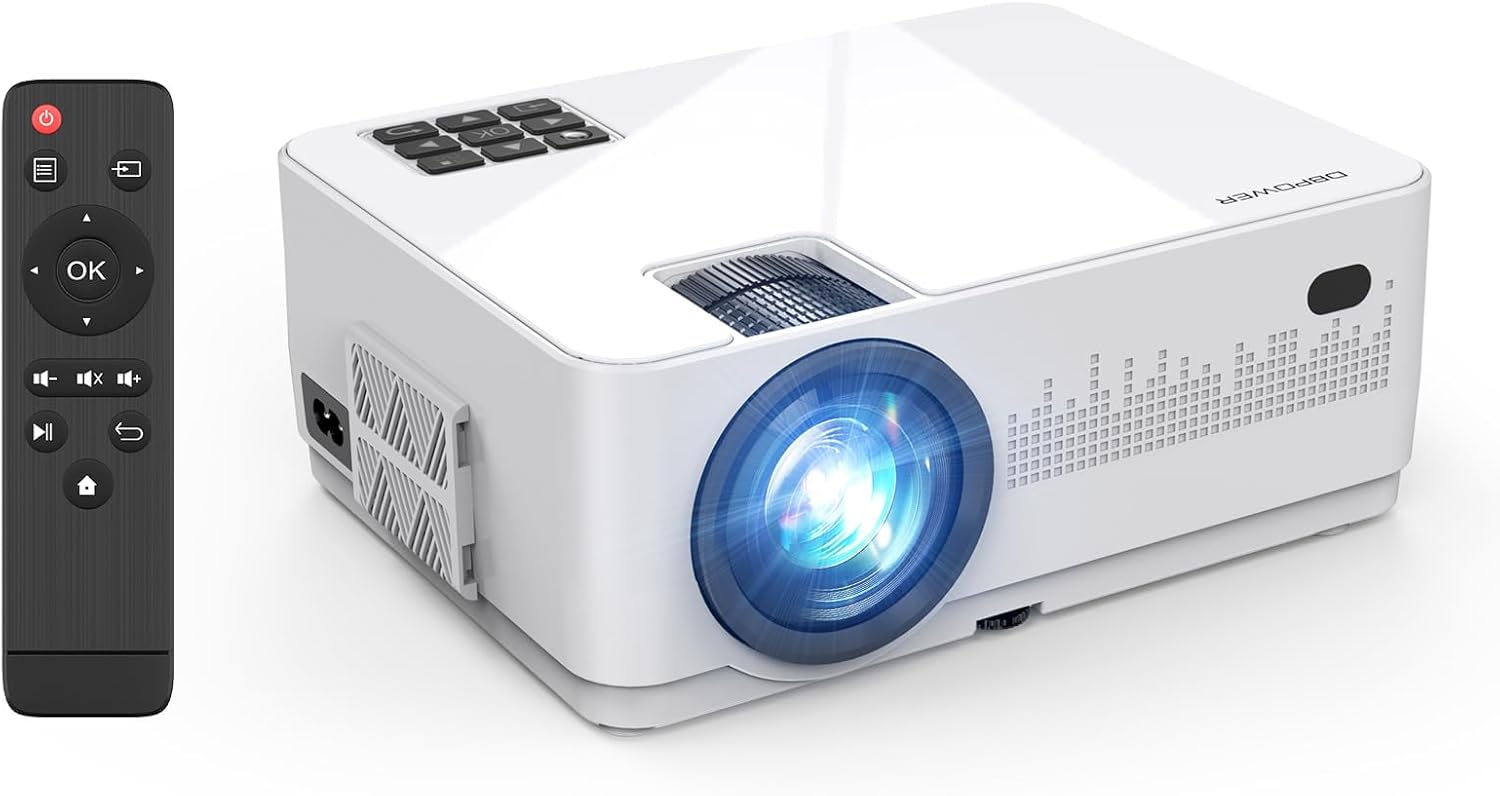
Image 1.1: The DBPOWER L22 projector and its remote control.
Nøglefunktioner:
- WiFi & Wired Connectivity: Supports both wireless screen mirroring for iOS and Android devices, and wired connections via USB cable.
- High Brightness & Native 720P: Delivers clear images with 8000 lumens brightness and a native 720P resolution, supporting 1080P Full HD input.
- Included 100-inch Screen: Comes with a dedicated 100-inch screen for immediate use, ideal for outdoor camping eller rejse.
- Dual Built-in Speakers & Efficient Cooling: Features two internal speakers for immersive sound and an optimized cooling system to extend product lifespan.
- Bred kompatibilitet: Equipped with AV, USB, VGA, and HDMI ports, compatible with smartphones, tablets, PCs, DVD players, game consoles, and TV sticks.
- Keystone Correction & Focus Function: Manual ±15° vertical keystone correction and focus adjustment for clear image projection.

Billede 1.2: Overview of DBPOWER L22 projector's main features.
2. Opsætningsvejledning
2.1 Indledende opsætning
- Before starting the projector, remove the lens protection cover.
- Ensure the remote control has two new AAA batteries installed.
- Connect the power cable to the projector and a power outlet.
- Tryk på tænd/sluk-knappen på projektoren eller fjernbetjeningen for at tænde den.
2.2 Fokus- og Keystone-justering
For at opnå et klart og rektangulært billede skal du justere fokus og keystone-korrektion:
- Fokus: Rotate the focus ring on the projector lens until the image appears sharp.
- Keystone-korrektion: Use the keystone correction dial (±15° vertical) to adjust the image shape if it appears trapezoidal.

Image 2.1: Focus and keystone correction mechanisms.
3. Betjeningsvejledning
3.1 Tilslutning af enheder
The DBPOWER L22 projector offers various connectivity options:
- HDMI: Connect PCs, laptops, DVD players, PS4, Xbox, or TV sticks using an HDMI cable.
- USB: Connect USB drives for media playback or use a USB cable for wired screen mirroring with smartphones.
- AV: Connect older devices like DVD players using the AV cable.
- VGA: Tilslut ældre computere eller bærbare computere med et VGA-kabel.

Image 3.1: Wide compatibility with various devices and input types.
3.2 Trådløs skærmspejling (WiFi)
The projector supports WiFi connectivity for screen mirroring from iOS and Android devices.
- Select the 'Screen Mirroring' input source on the projector.
- Connect your smartphone to the projector's WiFi network (e.g., 'DBPOWER-XXXXXX').
- For iOS: Swipe down/up to open Control Center, tap 'Screen Mirroring', and select 'DBPOWER-XXXXXX'.
- For Android: Swipe down to open the quick settings panel, tap 'Wireless Projection' or 'Smart View', and select 'DBPOWER-XXXXXX'.

Image 3.2: Step-by-step guide for WiFi screen mirroring with iOS and Android.
3.3 Wired Screen Mirroring (USB)
For a direct connection without WiFi, use a USB cable:
- Connect your smartphone to the projector using its original USB charging cable.
- No additional adapters or apps are required.
3.4 Valg af indgangskilde
After connecting a device, ensure you select the corresponding input source on the projector. If the wrong source is selected, the content may not display.
4. Vedligeholdelse
4.1 Kølesystem
The projector features an improved cooling system to prevent overheating and extend its operational life. The internal fan will operate during use; faster fan speed indicates more efficient cooling.
4.2 LED Lamp Liv
LED lamp has a long lifespan of up to 100,000 hours, ensuring extended use without frequent lamp udskiftning.
5. Fejlfinding
5.1 Problemer med skærmspejling
- Ensure you are on the correct screen mirroring page for your device (iOS or Android).
- For wireless connections, ensure the projector and your device are within 1 meter for stable WiFi.
- Ophavsretligt beskyttet indhold: Due to copyright protection, streaming apps like Amazon Prime Video, Hulu, and Netflix do not support screen mirroring. For these services, use a PC or a TV Stick (e.g., Fire TV Stick) connected via HDMI.
5.2 Ingen lydudgang
- If connecting a Toshiba REGZA series recorder and experiencing no sound, try connecting via AV (RCA) cable directly.
- Ensure the correct audio mode is selected if using wired connections (e.g., video mode for videos, photo mode for photos).
5.3 Fjernbetjening virker ikke
- Ensure two new AAA batteries are correctly installed in the remote control.
5.4 Problemer med billedkvalitet
- Perform manual focus adjustment before use to ensure a clear projected image.
- Juster keystone-korrektion, hvis billedet er forvrænget.
5.5 General Connection Notes
- When connecting multiple external devices, the projector can only read one signal source at a time. If one HDMI port is used for input, another HDMI port might only function as a power supply.
- For HDMI connection with iOS devices, use an authentic Apple Lightning to Digital AV adapter. For Android, use an authentic Type-C conversion cable.
6. Specifikationer

Image 6.1: Detailed product specifications and package contents.
| Feature | Specifikation |
|---|---|
| Mærke | DBPOWER |
| Modelnummer | L22 |
| Produktdimensioner | 22.1 x 17.4 x 8.7 cm |
| Varens vægt | 1.3 kg |
| Indfødt opløsning | 1280 x 720 |
| Understøttet opløsning | 1920 x 1080 MP (1080P Full HD) |
| Forbindelsesteknologi | Wi-Fi, HDMI |
| HDMI porte | 2 |
| Wattage | 75 W |
| Anbefalet brug | Hjemmebiograf |
7. Garanti og support
DBPOWER provides a reliable warranty and customer support for your product.
- Kvalitetsgaranti: 12 måneders kvalitetsgaranti.
- Returperiode: 30-day valid return period.
- Kundesupport: Dedikeret kundesupport er tilgængelig.
- Produktsikkerhed: This product is PSE and GITEKI certified, meeting safety standards for electrical products.
If the product box is damaged or if there are performance issues, please contact the seller via Amazon message for a new product exchange.

Image 7.1: DBPOWER customer support details and LINE QR code.
For direct support, scan the QR code or visit: https://lin.ee/QdlW3a0


