1. Produktet er slutview
The HyperX Alloy Origins 60 is a supremely portable 60% form factor keyboard designed to provide more room for mouse movements. It features a durable, full aluminum body and reliable HyperX switches optimized for speed and performance, rated for 80 million keypresses. The double shot PBT keycaps include secondary functions printed on them for quick access. The exposed LED design of the HyperX switches allows for stunning RGB lighting effects. Further customization, including macros and personalized lighting profiles, can be achieved using HyperX NGENUITY software.

Figure 1.1: HyperX Alloy Origins 60 Mechanical Gaming Keyboard with vibrant RGB backlighting.
2. Nøglefunktioner
- Lille 60% formfaktor: Maximizes desk space for mouse movement.

Figure 2.1: The compact 60% form factor of the keyboard.
- Fuldt flykvalitetsaluminiumskarosseri: Ensures structural soundness and stability.

Figure 2.2: Illustration of the durable full aluminum body construction.
- Dobbeltskårne PBT-taster med sidetryk: Durable keycaps resistant to wear, with secondary functions clearly printed.

Figure 2.3: Double shot PBT keycaps with secondary functions printed on the sides.
- HyperX mekaniske switche: Custom-designed for speed and accuracy, rated for 80 million keypresses.

Figure 2.4: HyperX mechanical switches designed for optimal performance.
- RGB Backlit Keys with Radiant Lighting Effects: Enhanced RGB lighting due to exposed LED design.

Figure 2.5: The keyboard displaying its radiant RGB lighting effects.
- Advanced Customization with HyperX NGENUITY: Software for Game Mode, macros, and per-key lighting.

Figure 2.6: HyperX NGENUITY software for advanced customization.
- Three Adjustable Keyboard Angles and Detachable USB-C Cable: For ergonomic comfort and portability.

Figure 2.7: The keyboard's adjustable feet for three different tilt angles.
- Included Keycap Puller and Additional Keycaps: For customization and maintenance.
Figure 2.8: Included accessories for keycap customization.
- Multi-platform kompatibilitet: Compatible with PC, PS5, PS4, Xbox Series X|S, and Xbox One.
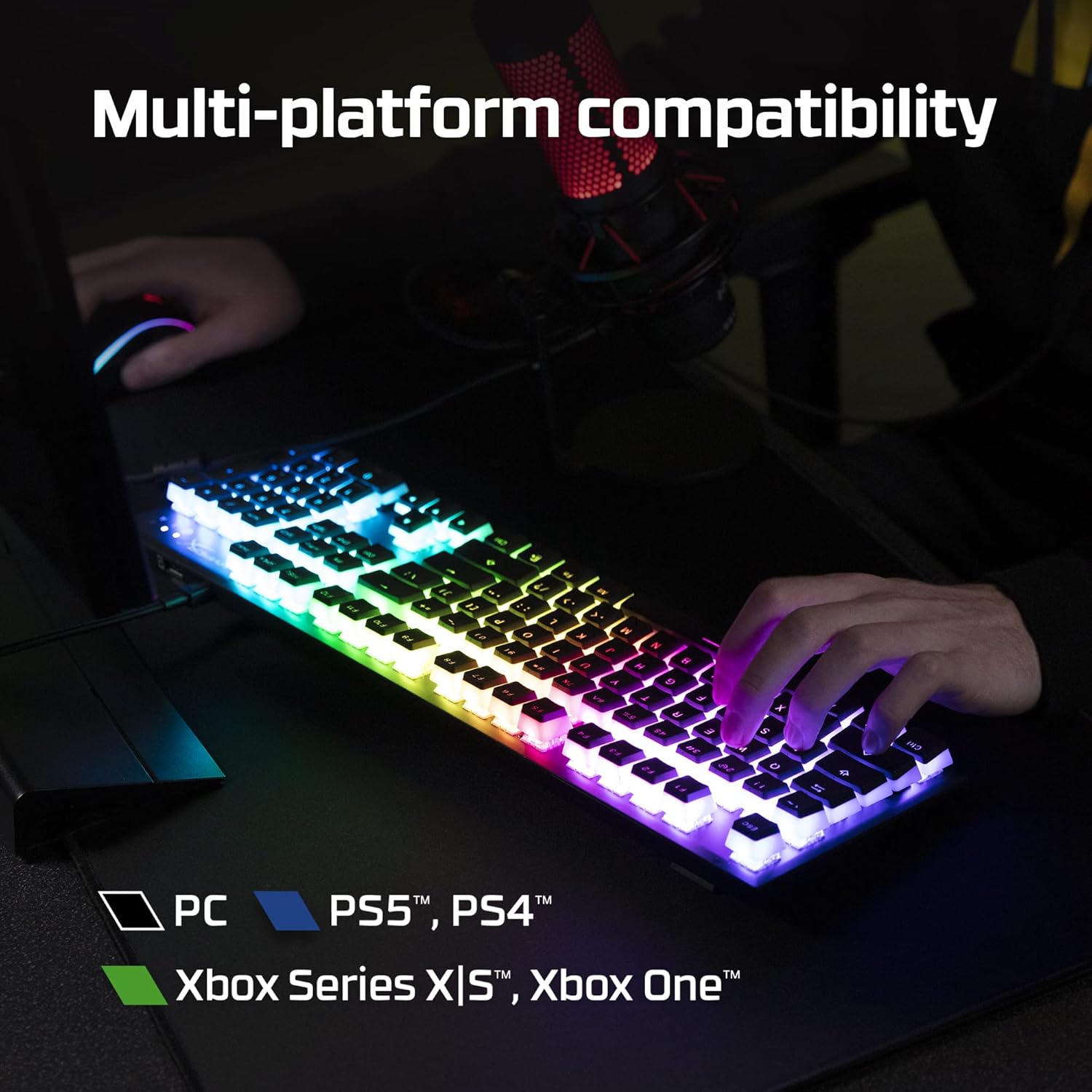
Figure 2.9: The keyboard's multi-platform compatibility.
3. Opsætningsvejledning
3.1 Pakkens indhold
Før du begynder, skal du sørge for, at alle varer er til stede i pakken:
- HyperX Alloy Origins 60 Mekanisk Gaming Keyboard
- Aftageligt USB-C til USB-A-kabel
- Keycap aftrækker
- Additional Keycaps (e.g., alternate Esc key, special spacebar)
Figure 3.1: All components included in the HyperX Alloy Origins 60 package.
3.2 Tilslutning af tastaturet
- Locate the detachable USB-C to USB-A cable.
- Connect the USB-C end of the cable to the USB-C port on the back of the HyperX Alloy Origins 60 keyboard.
- Connect the USB-A end of the cable to an available USB-A port on your PC or gaming console.
- The keyboard will automatically be detected and drivers will install if necessary. The RGB lighting will illuminate upon successful connection.

Figure 3.2: Connecting the detachable USB-C cable to the keyboard.
3.3 Justering af tastaturvinkel
The keyboard features two-step keyboard feet, allowing you to set it at three different tilt angles (3°, 7°, 11°) for optimal ergonomic comfort.
- Vend tastaturet om for at få adgang til fødderne på undersiden.
- Extend the smaller feet for a moderate tilt.
- Extend both the smaller and larger feet for the maximum tilt.

Figure 3.3: Adjusting the keyboard's tilt angle using the integrated feet.
4. Betjeningsvejledning
4.1 Grundlæggende funktioner
The HyperX Alloy Origins 60 is a 60% keyboard, meaning it omits the number pad, function row, navigation cluster, and arrow keys to achieve its compact size. These functions are typically accessed via a combination of the Fn key and other keys.
- Fn + [Tast]: Activates the secondary function printed on the side of the keycap. Refer to the side legends for specific functions.
- Spiltilstand: Prevents accidental presses of the Windows key during gaming. Activate/deactivate via NGENUITY software.
4.2 HyperX NGENUITY Software
For advanced customization of your keyboard, download and install the HyperX NGENUITY software from the official HyperX webwebsted. Denne software giver dig mulighed for at:
- Customize RGB lighting effects and colors on a per-key basis.
- Create and manage macros for complex commands.
- Set up and switch between multiple onboard profiles.
- Adjust Game Mode settings.

Figure 4.1: HyperX NGENUITY software for comprehensive keyboard control.
5. Vedligeholdelse
Proper maintenance ensures the longevity and optimal performance of your HyperX Alloy Origins 60 keyboard.
5.1 Rengøring af tastaturet
- Frakobl tastaturet fra computeren, før du rengør det.
- Brug en dåse med trykluft til at fjerne støv og snavs mellem tasterne.
- Tør forsigtigt tastaturerne og rammen af med en blød, fnugfri klud til overfladerengøring.amprengøres med en lille mængde vand eller en mild, ikke-slibende rengøringsopløsning. Undgå for meget fugt.
- Sprøjt ikke rengøringsopløsninger direkte på tastaturet.
5.2 Fjernelse og udskiftning af tastehætte
The included keycap puller can be used to safely remove and replace keycaps for cleaning or customization.
- Gently place the keycap puller over the keycap you wish to remove, ensuring the wires hook onto opposite sides of the keycap.
- Træk lige op med jævnt tryk, indtil tastaturet løsner sig fra kontaktens stilk.
- For at udskifte en tastaturhætte skal du justere den med kontaktens stilk og trykke godt ned, indtil den klikker på plads.

Figure 5.1: Using the keycap puller to remove keycaps.
6. Fejlfinding
If you encounter issues with your HyperX Alloy Origins 60 keyboard, try the following troubleshooting steps:
| Problem | Mulig årsag/løsning |
|---|---|
| Keyboard not responding / No lighting |
|
| RGB lighting not working correctly |
|
| Nøgler registreres ikke eller dobbelttastning |
|
If these steps do not resolve the issue, please contact HyperX customer support for further assistance.
7. Specifikationer
| Feature | Detalje |
|---|---|
| Produktdimensioner | 11.7 x 1.5 x 4.2 tommer |
| Varens vægt | 2.14 pund |
| Fabrikant | HP Inc. |
| Sprog | engelsk |
| ASIN | B08XBQ79MN |
| Varemodelnummer | HKBO1S-RB-US/G |
| Mærke | HyperX |
| Kompatible enheder | Spillekonsol, PC |
| Forbindelsesteknologi | USB-C til USB-A |
| Tastaturbeskrivelse | Mekanisk, spil |
| Anbefalet anvendelse af produktet | Spil |
| Speciel funktion | Backlit, Lighting, Portable |
| Farve | Sort |
| Antal nøgler | 61 |
| Farveunderstøttelse af tastaturbaggrundsbelysning | RGB |
| Stil | HyperX Red |
8. Garanti og support
For detailed warranty information and technical support, please refer to the official HyperX resources:
- Officiel brugervejledning (PDF): Download brugervejledning
- HyperX Brand Store: Visit HyperX Store on Amazon
- For further assistance, contact HyperX customer support through their official webwebsted.


