Indledning
This manual provides comprehensive instructions for the setup, operation, and maintenance of your Plantronics Poly Studio P5 Webcam and Voyager 4220 UC Headset Kit. Please read this manual thoroughly before using the product to ensure optimal performance and longevity.
The kit includes a high-definition webcam designed for professional video conferencing and a stereo Bluetooth wireless headset for clear audio communication.
Pakkens indhold
- Poly Studio P5 Webcam
- Poly Voyager 4220 UC trådløst headset
- USB-A Adapter (for headset)
- USB Cable (for webcam)
- Hurtig startvejledning
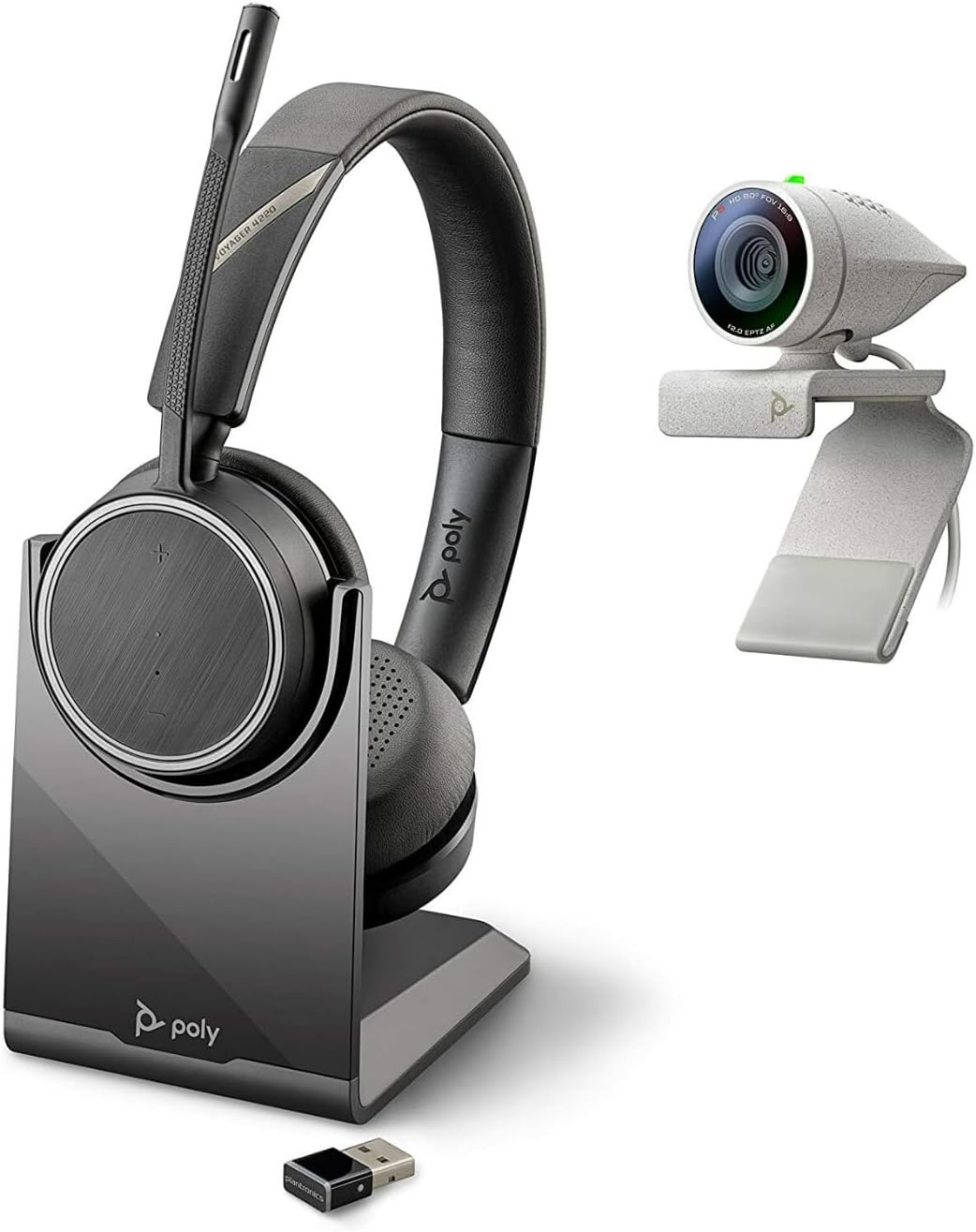
Image: Poly Studio P5 Webcam and Voyager 4220 UC Headset Kit, showing the webcam, headset, charging stand, and USB adapter.
Opsætningsinstruktioner
1. Poly Studio P5 Webcam opsætning
- Montering af Webcam:
Placer webcam on top of your monitor or laptop screen. Adjust the clip to secure it firmly. The webcam can also be mounted on a tripod using the integrated tripod-ready design.

Image: Poly Studio P5 Webcam positioned on top of a laptop screen, showing its compact design and mounting clip.
- Tilslutning til din computer:
Connect the integrated USB cable from the webcam to an available USB port on your PC or Mac. The device is plug-and-play; drivers will install automatically.
- Privatlivsudløser:
De webcam features an integrated privacy shutter. Slide the shutter to cover the lens when not in use to enhance security and privacy.

Billede: Forside view of the Poly Studio P5 Webcam, highlighting the lens and the integrated privacy shutter mechanism.
2. Voyager 4220 UC Headset Setup
- Opladning af headsettet:
Before first use, fully charge the headset. Connect the charging cable to the headset and a USB power source. A full charge provides approximately 12 hours of talk time or 15 hours of listening time.
- Connecting the USB-A Adapter:
Insert the USB-A adapter into an available USB port on your PC or Mac. The adapter will automatically pair with the Voyager 4220 UC headset.
- Brug af headsettet:
Adjust the headband for a comfortable fit. Position the microphone boom approximately two finger-widths from the corner of your mouth for optimal voice pickup.
Betjeningsvejledning
1. Using the Poly Studio P5 Webcam
- Videokonference: De webcam is compatible with Zoom, Microsoft Teams, and other video conferencing services. Select "Poly Studio P5" as your camera and microphone input within your chosen application's settings.
- Automatic Low-Light Compensation: De webcam automatically adjusts to maintain proper light exposure, ensuring clear visibility even in darker environments.
- Digital zoom: The camera supports up to 4x digital zoom. This feature can typically be controlled through your video conferencing software or the Poly Lens Desktop app.

Image: A person wearing the Voyager 4220 UC Headset and using the Poly Studio P5 Webcam with a laptop, demonstrating a typical video conferencing setup.
2. Using the Voyager 4220 UC Headset
- Tænd/sluk: Slide the power switch to turn the headset on or off.
- Lydstyrkekontrol: Use the volume up (+) and volume down (-) buttons on the earcup to adjust audio levels.
- Slå lyden fra/til: Press the mute button on the microphone boom or earcup to mute or unmute your microphone.
- Opkaldskontrol: Press the call button to answer or end calls in supported applications.
- Noise-Cancelling Microphones: The headset features dual noise-cancelling microphones to reduce background noise for clear voice transmission.
3. Poly Lens Desktop App
The Poly Lens Desktop app allows you to customize settings, receive firmware updates, and access practical tips for your devices. Download the app from the official Poly webwebsted.
- Tilpasse webcam settings (e.g., brightness, contrast, zoom).
- Configure headset audio preferences.
- Receive health and wellness reminders.
Opretholdelse
- Rensning:
Tør af webcam lens and headset surfaces with a soft, dry, lint-free cloth. Do not use liquid cleaners or abrasive materials.
- Opbevaring:
Opbevar enhederne et køligt, tørt sted væk fra direkte sollys og ekstreme temperaturer, når de ikke er i brug.
- Firmwareopdateringer:
Regularly check for firmware updates via the Poly Lens Desktop app to ensure optimal performance and access to new features.
Fejlfinding
| Problem | Mulig årsag | Løsning |
|---|---|---|
| Webcam ikke fundet | Løs USB-forbindelse, forkerte softwareindstillinger, driverproblem. |
|
| Ingen lyd fra headset | Headset not powered on, not paired, volume too low, incorrect audio output selected. |
|
| Mikrofon virker ikke | Microphone muted, incorrect audio input selected, boom not positioned correctly. |
|
| Dårlig videokvalitet | Low light conditions, dirty lens, internet bandwidth issues. |
|
Specifikationer
Poly Studio P5 Webcam
- Max skærmopløsning: FHD (1080p)
- Videooptagelsesopløsning: 1080p
- Fotosensorteknologi: CMOS
- Bag Webcam opløsning: 5 MP
- Maksimal brændvidde: 4
- Maksimal blænde: f/2.0
- Forbindelse teknologi: USB
- Hardware platform: PC, Mac
- Særlige funktioner: Integrated privacy shutter, automatic low-light compensation, tripod-ready design.
- Produktdimensioner: 14.1 x 8.3 x 4.5 inches (Kit dimensions)
- Varens vægt: 2.09 pounds (Kit weight)
Poly Voyager 4220 UC-headset
- Trådløs type: Bluetooth
- Taletid: Op til 12 timer
- Lyttetid: Op til 15 timer
- Mikrofoner: Dual noise-cancelling
- Forbindelse: USB-A-adapter
- Understøttet lydformat: AAC, MP3
- Batterier: 1 Lithium Polymer batteri (medfølger)
Garantioplysninger
For detaljerede garantioplysninger henvises til garantikortet, der følger med dit produkt, eller besøg den officielle Poly webStandardgarantibetingelser dækker typisk fabrikationsfejl i en bestemt periode fra købsdatoen.
Support og kontakt
For technical support, product registration, or to download the latest software and drivers, please visit the official Poly support webwebsted:
Webwebsted: www.poly.com/support
Du kan også finde ofte stillede spørgsmål og fællesskabsfora på supportsiden.


