1. Introduktion
Welcome to the instruction manual for your Owl Labs Meeting Owl Pro. This document provides essential information for the proper setup, operation, maintenance, and troubleshooting of your 360-degree smart video conference camera. Please read this manual thoroughly before using the device to ensure a seamless and effective conferencing experience.
2. Produktet er slutview
The Meeting Owl Pro is an advanced 360-degree smart video conferencing camera designed to enhance team meeting experiences. It integrates a camera, microphone, and speaker into a single device, providing high-quality audio and video for medium to large-sized conference rooms.
Nøglefunktioner:
- 1080p Resolution 360° Smart Video: Captures the entire room, providing a panoramic view.
- Automatic Speaker Focus: Intelligently highlights and shifts focus to the active speaker.
- Forbedret lydkvalitet: Features eight smart microphones that equalize speaking volume and pick up sound within an 18-foot radius.
- Integreret højttaler: Delivers clear audio to all participants.
- Nem opsætning: Plug-and-play functionality with USB connectivity.

Figur 2.1: Forside view of the Owl Labs Meeting Owl Pro, showcasing its cylindrical design and speaker grille.

Figur 2.2: Top-down view of the Meeting Owl Pro, highlighting the 360-degree camera lens at its apex.
3. Opsætningsvejledning
Setting up your Meeting Owl Pro is a straightforward process. Follow these steps to get your device ready for conferencing.
Trin-for-trin opsætning:
- Placering: Position the Meeting Owl Pro in the center of your conference table. Ensure it has a clear line of sight to all participants.
- Strømtilslutning: Connect the provided power adapter to the Meeting Owl Pro and plug it into a power outlet. The device will power on automatically.
- USB-forbindelse: Connect the USB cable from the Meeting Owl Pro to an available USB port on your computer (laptop or desktop) that will host the video conference.
- Softwaregenkendelse: Your computer should automatically recognize the Meeting Owl Pro as a camera, microphone, and speaker device. No special drivers or software installations are typically required.
- Select in Conferencing Platform: Open your preferred video conferencing platform (e.g., Zoom, Microsoft Teams, Google Meet) and select the Meeting Owl Pro as your camera, microphone, and speaker source in the audio/video settings.

Figure 3.1: The Meeting Owl Pro connected via USB to a laptop, ready for a conference.
4. Betjeningsvejledning
Once set up, the Meeting Owl Pro operates largely autonomously, focusing on ease of use during your meetings.
During a Conference:
- Automatisk indramning: The 360-degree camera will automatically detect and frame participants in the room. When someone speaks, the camera intelligently shifts focus to that individual, providing a dynamic and engaging view for remote participants.
- Sound Pickup: The integrated microphones are designed to pick up voices from all directions within an 18-foot radius, ensuring everyone is heard clearly.
- Højttaler output: The built-in speaker projects audio from remote participants into the room, creating an immersive experience.
- Lydstyrkekontrol: Adjust the speaker volume directly from your computer's operating system or within your video conferencing application.

Figure 4.1: The Meeting Owl Pro positioned centrally on a conference table, facilitating a meeting with multiple participants.
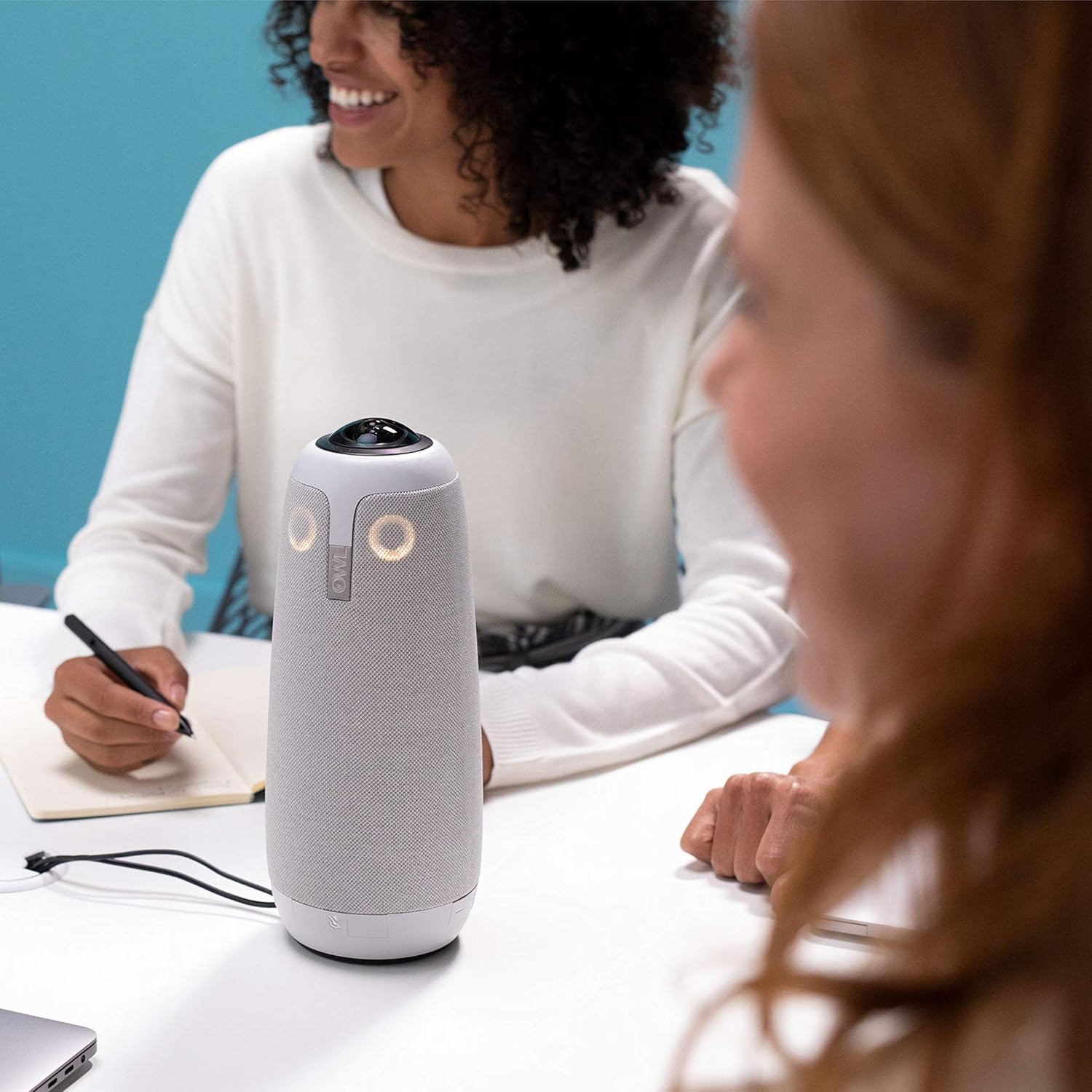
Figur 4.2: Et nærbillede view of the Meeting Owl Pro during a conference, demonstrating its unobtrusive presence.
5. Vedligeholdelse
Proper maintenance ensures the longevity and optimal performance of your Meeting Owl Pro.
Rengøring og pleje:
- Udvendig rengøring: Use a soft, dry, lint-free cloth to wipe the exterior of the device. For stubborn marks, a slightly damp en klud med mild sæbe kan bruges, efterfulgt af en tør klud. Undgå slibende rengøringsmidler eller opløsningsmidler.
- Kameraobjektiv: Gently clean the camera lens with a microfiber cloth specifically designed for optics. Do not use harsh chemicals or rough materials that could scratch the lens.
- Opbevaring: When not in use for extended periods, store the Meeting Owl Pro in a clean, dry environment, away from extreme temperatures and direct sunlight.
- Kabelstyring: Ensure USB and power cables are not excessively bent or strained, especially at connection points, to prevent damage.
6. Fejlfinding
If you encounter issues with your Meeting Owl Pro, refer to the following common problems and solutions.
Almindelige problemer og løsninger:
- Ingen strøm/Enhed tænder ikke:
• Ensure the power adapter is securely connected to both the device and a working power outlet.
• Try a different power outlet. - Camera Not Working / Poor Video Quality:
• Verify the USB cable is firmly connected to both the Meeting Owl Pro and your computer.
• Confirm the Meeting Owl Pro is selected as the camera source in your video conferencing application.
• Check for any physical obstructions blocking the camera lens.
• Restart your computer and the Meeting Owl Pro. - No Sound / Poor Audio Quality (Microphone or Speaker):
• Ensure the USB cable is securely connected.
• Confirm the Meeting Owl Pro is selected as both the microphone and speaker source in your video conferencing application's audio settings.
• Check your computer's volume settings and ensure the Meeting Owl Pro's speaker is not muted.
• Ensure participants are within the 18-foot microphone pickup radius.
• Avoid placing the device too close to noisy equipment. - USB Connector Wear:
• Repeated movement or stress on the USB connector can lead to wear. Consider using a strain relief accessory if frequently moving the device.
• If the connector is damaged, contact support for repair or replacement options. - Enhed genkendes ikke af computeren:
• Try connecting to a different USB port on your computer.
• Use a different USB cable if available.
• Genstart din computer.
7. Specifikationer
Detailed technical specifications for the Owl Labs Meeting Owl Pro.
| Feature | Specifikation |
|---|---|
| Mærke | Ugle Labs |
| Modelnummer | Møde Owl Pro |
| Varens vægt | 3.74 pund |
| Produktdimensioner | 4.4 x 4.4 x 10.75 tommer |
| Farve | Sølv |
| Videooptagelsesopløsning | 1080p |
| Fotosensorteknologi | BSI CMOS |
| Forbindelsesteknologi | USB |
| Understøttet lydformat | AAC, MP3, PCM |
| Særlige funktioner | Lavt lys |
| Skærmstørrelse (synlig diagonal) | 18 tommer / 46 cm |
8. Garanti og support
Dette produkt tilbydes som en Amazon Renewed-vare. Amazon Renewed-produkter er professionelt inspiceret og testet for at sikre, at de fungerer og ser ud som nye. Hvis du ikke er tilfreds med dit køb, er fornyede produkter berettiget til ombytning eller refusion under Amazon Renewed-garantien.
For further assistance, technical support, or warranty claims, please refer to the Amazon Renewed Guarantee details or contact Amazon customer service directly.


