1. Introduktion
The WAINLUX JL3 Laser Engraver is a versatile and powerful machine designed for precision engraving and cutting. It features a unique auto power-off function for safety when the machine is offset. This manual provides essential information for setting up, operating, and maintaining your JL3 laser engraver to ensure optimal performance and safety.

Figure 1: WAINLUX JL3 Laser Engraver in operation, demonstrating an engraved owl design on a wooden surface.
2. Pakkens indhold
Upon unpacking your WAINLUX JL3, please verify that all the following items are included:
- WAINLUX JL3 Laser Engraver Unit (Aluminum profile + Acrylic frame)
- Laser Module (20W version, as specified)
- Strømforsyning
- Datakabel (USB)
- U Disk (containing software and drivers)
- Beskyttelsesbriller
- Kraft Paper and Black Card (for testing)
- Testbord
- Brugervejledning (dette dokument)
- Small Brush and Wrench (for maintenance/assembly)

Figure 2: All components included in the WAINLUX JL3 Laser Engraver package.
3. Specifikationer
| Feature | Detalje |
|---|---|
| Produkt model | JL3 |
| Laser Power | 20W (Electric Power) |
| Graveringsområde | 410 x 370 mm (approx. 16.1" x 14.5") |
| Produktdimensioner | 590 x 510 x 210 mm |
| Produktets vægt | 2.68 kg |
| Produkt materiale | Aluminium Profile + Acrylic |
| Forbindelse | Computer USB, Mobile APP (WiFi), One-key Offline Engraving |
| Understøttet OS | Windows, MAC, Android, iOS |
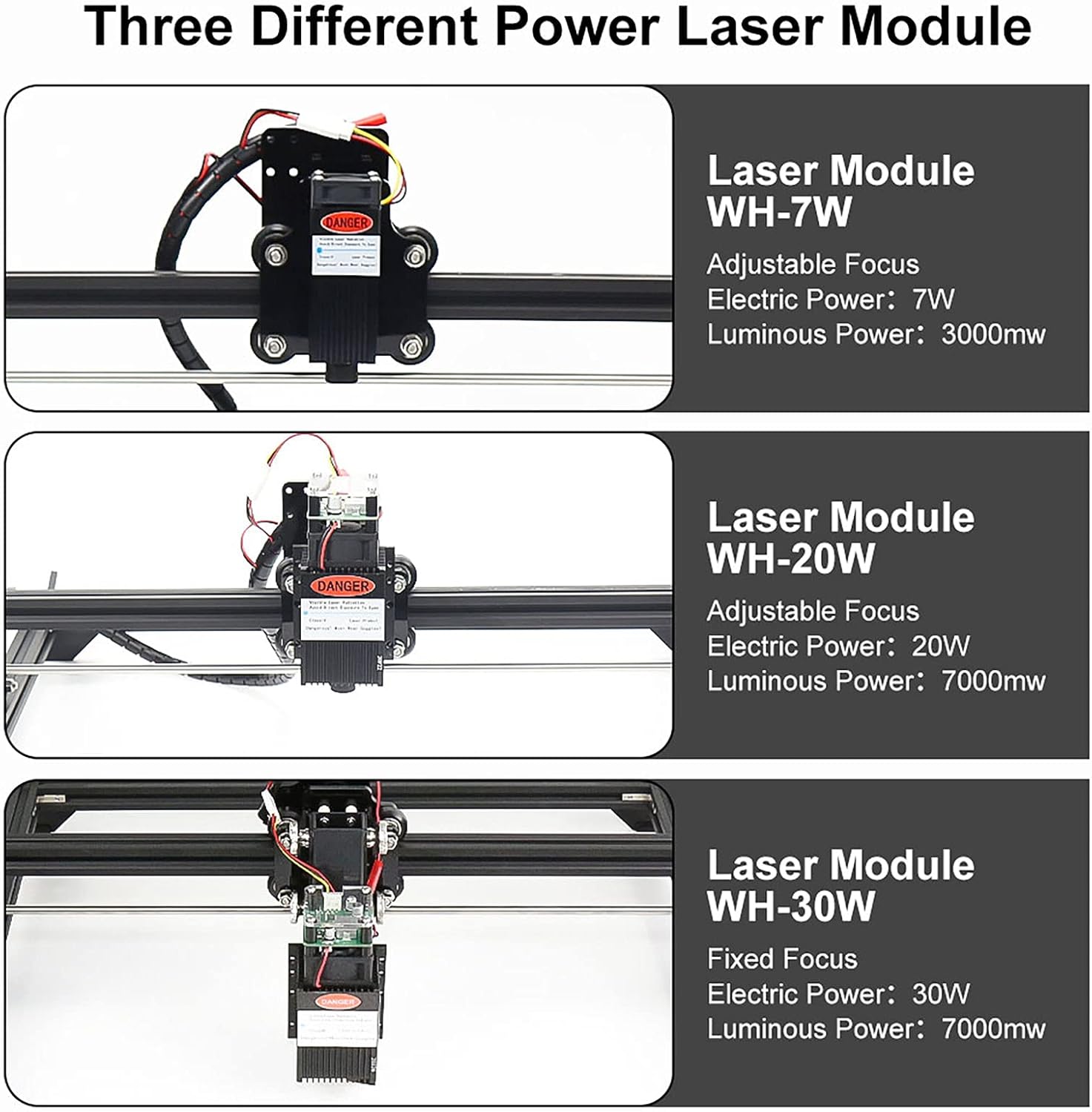
Figure 3: Illustration of various laser module power options available for WAINLUX engravers, including the 20W module.

Figur 4: Overview of the WAINLUX JL3's large engraving area and structural components.
4. Opsætning
Before operating your WAINLUX JL3, ensure it is properly set up and connected.
4.1. Indledende samling
The JL3 comes partially assembled. Follow the detailed instructions in the included physical user manual for complete assembly of the aluminum profile and acrylic components, and for mounting the laser module securely.
4.2. Software installation
- Insert the provided U Disk into your computer.
- Locate and install the appropriate software and drivers for your operating system (Windows or MAC).
- For mobile control, download the WAINLUX APP from your device's app store (Android or iOS).
4.3. Connecting the Engraver
The JL3 offers multiple connection options:
- Computer USB Connection: Connect the engraver to your computer using the provided USB data cable. Ensure the necessary drivers are installed for proper communication.
- Mobile APP (WiFi) Connection: Connect your mobile device to the engraver via WiFi using the WAINLUX APP. Follow the in-app instructions for pairing.
- One-key Offline Engraving: For pre-loaded designs, the machine supports offline engraving without a continuous computer or mobile connection. Refer to the software guide for preparing offline files.

Figure 5: WAINLUX software interface on both desktop and mobile devices, demonstrating connectivity options.
5. Betjeningsvejledning
This section outlines the general steps for operating your WAINLUX JL3 Laser Engraver.
5.1. Software overståetview
The WAINLUX software provides a user-friendly interface for preparing your engraving projects. It supports various input types:
- Image Engraving: Import common image formats.
- Text Engraving: Create and engrave text with various fonts.
- Vector Diagram Engraving: Importer vektor files for precise cuts and engravings.
The software offers four engraving modes:
- Sort og hvid: For high-contrast images.
- Disposition: Engraves only the contours of a design.
- Diskret: Creates a dotted or patterned effect.
- Skitse: Simulates a hand-drawn sketch.
The software also features automatic detection of the maximum carving area, simplifying project setup.
5.2. Engraving Process
- Forbered materiale: Place your chosen material flat and securely within the engraving area.
- Design in Software: Open the WAINLUX software (on PC or mobile APP) and import or create your design.
- Juster indstillinger: Select the appropriate engraving mode, adjust laser power, speed, and other parameters based on your material and desired outcome.
- Preview and Position: Use the software's preview function to ensure the design is correctly positioned on your material.
- Start gravering: Initiate the engraving process from the software. The machine will begin working.
5.3. Compatible Materials
The WAINLUX JL3 is capable of engraving and cutting a wide range of materials, including but not limited to:
- Pap
- Træ
- Læder
- Klæde
- Bambus
- Filt
- Fruit (e.g., peels)
- Plastic (certain types)
- Acrylic (certain types)
- Metal with spray paint coating (engraves the coating)
Note: The surface of transparent or reflective materials needs to be coated with black baking paint or a similar opaque, non-reflective layer for the laser to engrave effectively.

Figur 6: Eksamples of materials successfully engraved by the WAINLUX JL3.

Figur 7: Yderligere eksemplerampshowetasing the versatility of the WAINLUX JL3 in engraving various objects.
6. Sikkerhed og vedligeholdelse
Adhering to safety guidelines and performing regular maintenance will ensure the longevity and safe operation of your engraver.
6.1. Sikkerhedsforanstaltninger
- Øjenbeskyttelse: Always wear the provided protective goggles when the laser is in operation. Do not look directly at the laser with naked eyes to avoid injury.
- Håndsikkerhed: Never place your hands or any body parts under the laser head while the machine is working.
- Automatic Safety Feature: The laser head is designed to automatically close (power off) if abnormal movement is detected, enhancing safety.
- Ventilation: Ensure adequate ventilation in your workspace, especially when engraving materials that may produce fumes.
6.2. Vedligeholdelse
- Laser hoved: The laser head is a consumable item and has a limited lifespan.
- Afkølingsperioder: To prolong the life of the laser module, it is recommended to follow these power-off schedules:
- After four hours of continuous engraving, power off for ten minutes.
- After one hour of continuous engraving, power off for ten minutes.
- Rensning: Regularly clean the laser lens and the machine's frame using a soft, dry cloth to prevent dust and debris buildup.
7. Fejlfinding
If you encounter any issues during the setup or operation of your WAINLUX JL3 Laser Engraver, please consider the following general advice:
- Forbindelsesproblemer: Ensure all cables are securely connected and that your device (computer/mobile) is properly paired via USB or WiFi.
- Softwareproblemer: Verify that you have the latest version of the WAINLUX software and drivers installed. Try restarting the software or your device.
- Engraving Quality: Check your material type and adjust laser power and speed settings accordingly. Ensure the material surface is clean and properly prepared.
- Laser affyres ikke: Confirm the laser module is correctly installed and connected. Check for any error messages in the software.
For persistent problems or issues not covered here, please refer to the comprehensive troubleshooting section in the physical user manual or contact WAINLUX customer support.
8. Garanti og support
WAINLUX is committed to providing high-quality products and excellent customer service. While specific warranty details are typically provided with your purchase documentation, WAINLUX offers support for its products.
If you encounter any problems during use, please contact WAINLUX customer support immediately. Our team is ready to assist you with troubleshooting, technical queries, and any other support needs to ensure your satisfaction with the JL3 Laser Engraver.
Please retain your purchase receipt and product serial number for any warranty claims or support inquiries.


