1. Introduktion
This manual provides essential information for the installation, operation, and maintenance of your Sapphire Nitro+ AMD Radeon RX 6800 XT graphics card. Please read this manual thoroughly before installing and using the product to ensure proper functionality and to prevent damage.

Figur 1.1: The Sapphire Nitro+ AMD Radeon RX 6800 XT graphics card and its retail packaging. This image displays the overall design of the card with its triple-fan cooling solution and the product box.
2. Sikkerhedsoplysninger
Observe the following safety precautions to prevent injury or damage to the graphics card and other components:
- Afbryd altid strømforsyningen til din computer, før du installerer eller fjerner komponenter.
- Bær en antistatisk håndledsrem, eller rør ofte ved en jordforbundet metalgenstand for at aflade statisk elektricitet, før du håndterer grafikkortet.
- Hold grafikkortet i kanterne for at undgå at berøre følsomme komponenter.
- Sørg for tilstrækkelig ventilation i computerens kabinet for at forhindre overophedning.
- Udsæt ikke grafikkortet for fugt eller ekstreme temperaturer.
3. Opsætning og installation
3.1 Systemkrav
Før installation skal du sørge for, at dit system opfylder følgende minimumskrav:
- PCI Express-kompatibelt bundkort med ét x16-grafikkortstik.
- Sufficient power supply unit (PSU) with appropriate PCIe power connectors. Consult your PSU manufacturer for compatibility.
- Minimum 16GB system memory (RAM) recommended for optimal performance.
- Compatible operating system (e.g., Windows 10 64-bit or later).
- Sufficient space within the PC case for the graphics card dimensions (approximately 17 x 9.5 x 3.5 inches).
3.2 Fysisk installation
- Forbered dit system: Sluk computeren, og frakobl alle kabler. Åbn computerkabinettet.
- Find PCIe-slot: Identify an available PCI Express x16 slot on your motherboard. Remove any expansion slot covers that obstruct the installation.

Figur 3.1: Top view of the graphics card, showing the triple-fan cooling system. This perspective highlights the length and width of the card, which is important for case compatibility.
- Indsæt grafikkort: Carefully align the graphics card with the PCIe slot and press down firmly until it is securely seated. Ensure the retention clip on the motherboard's PCIe slot locks into place.

Figur 3.2: Vinklet view af grafikkortet, visasing its robust cooling design and the PCIe connector. This view helps in understanding the card's physical dimensions and how it would sit in a motherboard slot.
- Sikre kortet: Fasten the graphics card to the computer case using the screws from the expansion slot covers.
- Tilslut strøm: Connect the required PCIe power cables from your power supply unit to the graphics card. The Sapphire Nitro+ RX 6800 XT typically requires two 8-pin PCIe power connectors. Ensure all connections are firm.

Figur 3.3: Side view of the graphics card, highlighting the power connectors and the illuminated Sapphire logo. This image is useful for identifying where power cables connect and observing the card's aesthetic features.
- Luk sagen og genopret forbindelsen: Close your computer case and reconnect all external cables (monitor, keyboard, mouse, power).
3.3 Driverinstallation
- Tænd: Turn on your computer. It may boot into a basic display mode.
- Download drivere: Besøg den officielle AMD webwebsted (www.amd.com/en/support) or the Sapphire support page (www.sapphiretech.com/en/consumer/nitro-radeon-rx-6800-xt-16g-gddr6) for at downloade de nyeste AMD Radeon Software Adrenalin Edition-drivere til dit RX 6800 XT.
- Installer drivere: Run the downloaded installer and follow the on-screen instructions. It is recommended to perform a clean installation to avoid conflicts with previous drivers.
- Genstart systemet: Genstart computeren, når driverinstallationen er fuldført.
4. Betjening af grafikkortet
4.1 Display Output
Connect your monitor(s) to the display outputs on the graphics card. The Sapphire Nitro+ RX 6800 XT typically features DisplayPort and HDMI outputs. Ensure your monitor is set to the correct input source.
4.2 AMD Radeon-software
The AMD Radeon Software Adrenalin Edition provides a comprehensive interface for managing your graphics card. Through this software, you can:
- Adjust display settings and resolutions.
- Optimer spilindstillinger for ydeevne og visuel kvalitet.
- Monitor GPU performance, temperature, and fan speeds.
- Access features like Radeon Anti-Lag, Radeon Boost, and FidelityFX.
- Opdater grafikdrivere.
4.3 Sapphire TriXX Software
For advanced control and customization, Sapphire offers the TriXX software. This utility allows you to:
- Monitor hardware status in real-time.
- Adjust fan curves for optimal cooling and noise levels.
- Control and synchronize the external RGB LED lighting on the card.
- Utilize features like Fan Check and Nitro Glow.
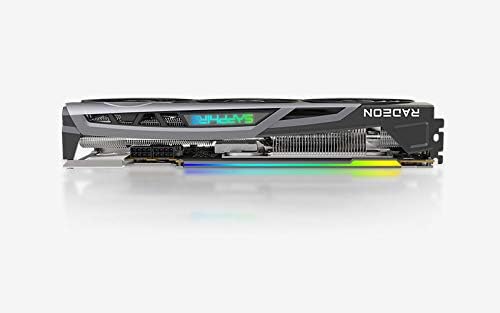
Figur 4.1: The Sapphire Nitro+ graphics card showcasing its customizable RGB LED lighting. This feature can be controlled via the Sapphire TriXX software for personalized aesthetics.
5. Vedligeholdelse
Regelmæssig vedligeholdelse er med til at sikre grafikkortets levetid og optimale ydeevne.
- Fjernelse af støv: Periodically clean dust from the heatsink fins and fan blades using compressed air. Ensure the fans are held stationary during cleaning to prevent damage to the bearings.
- Softwareopdateringer: Keep your graphics drivers and Sapphire TriXX software updated to benefit from performance improvements and bug fixes.
- Temperaturovervågning: Use AMD Radeon Software or Sapphire TriXX to monitor GPU temperatures, especially during heavy loads, to ensure it operates within safe limits.
6. Fejlfinding
Hvis du støder på problemer med dit grafikkort, skal du se følgende fejlfindingstrin:
- Ingen skærmoutput:
- Sørg for, at skærmkablet er korrekt tilsluttet til både grafikkortet og skærmen.
- Kontroller, at skærmen er tændt og indstillet til den korrekte inputkilde.
- Check that the graphics card is fully seated in the PCIe slot and all power cables are connected.
- Test med et andet skærmkabel eller en anden skærm, hvis det er muligt.
- Systemustabilitet eller nedbrud:
- Ensure your power supply unit (PSU) meets the recommended wattage for your system, including the graphics card.
- Opdater dine grafikdrivere til den nyeste version.
- Monitor GPU temperatures. Overheating can cause instability.
- Check for conflicts with other installed drivers or software.
- Dårlig ydeevne i spil/applikationer:
- Bekræft, at de nyeste grafikdrivere er installeret.
- Tjek indstillingerne i spillet; reducer opløsningen eller grafikkvaliteten om nødvendigt.
- Sørg for, at din CPU og RAM ikke flaskehalser GPU'en.
- Monitor GPU utilization and clock speeds using AMD Radeon Software.
- Ventilatorstøj eller -fejl:
- Rengør ventilatorbladene og kølepladen for støv.
- Use Sapphire TriXX software to adjust fan curves or check fan health.
- Sørg for, at ingen kabler blokerer ventilatorens rotation.
7. Specifikationer
| Feature | Detalje |
|---|---|
| Grafik processor | AMD Radeon RX 6800 XT |
| Hukommelse | 16GB GDDR6 |
| Hukommelseshastighed | 16 GHz |
| Spilletur | Op til 2110 MHz |
| Boost ur | Op til 2360 MHz |
| Interface | PCIe 4.0 x16 |
| Video Output Interface | DisplayPort, HDMI |
| Max skærmopløsning | 3840x2160 (4K) |
| Dimensioner (LxBxH) | 17 x 9.5 x 3.5 tommer (ca.) |
| Varens vægt | 4.53 pund |
| Modelnummer | 11304-02-20G |

Figur 7.1: Bag view of the graphics card, showing the backplate and the overall robust construction. This view emphasizes the structural integrity and cooling design from the back.
8. Garanti og support
Sapphire products are manufactured to the highest quality standards. For information regarding the warranty period and terms for your Sapphire Nitro+ AMD Radeon RX 6800 XT graphics card, please refer to the warranty card included with your product or visit the official Sapphire webwebsted.
For technical support, driver downloads, and frequently asked questions, please visit the Sapphire support portal: www.sapphiretech.com/en/support.


