1. Introduktion
Thank you for choosing the Brydge SPX+ Wireless Keyboard with Precision Touchpad. This manual provides detailed instructions for setting up, operating, and maintaining your keyboard, designed specifically for seamless integration with your Microsoft Surface Pro X. Enjoy a full laptop experience with enhanced productivity and comfort.
2. Hvad er der i æsken
- Brydge SPX+ Wireless Keyboard
- USB-C ladekabel
- Brugervejledning (dette dokument)
3. Opsætning
3.1 Indledende opladning
Before first use, fully charge your Brydge SPX+ keyboard. Connect the supplied USB-C charging cable to the keyboard's charging port and to a USB power source. The charging indicator light will show the charging status.
3.2 Attaching Your Surface Pro X
Align your Microsoft Surface Pro X with the Brydge SPX+ keyboard's hinges. Gently push the Surface Pro X into the hinges until it is securely seated. The keyboard is designed to hold your device firmly, transforming it into a functional laptop.
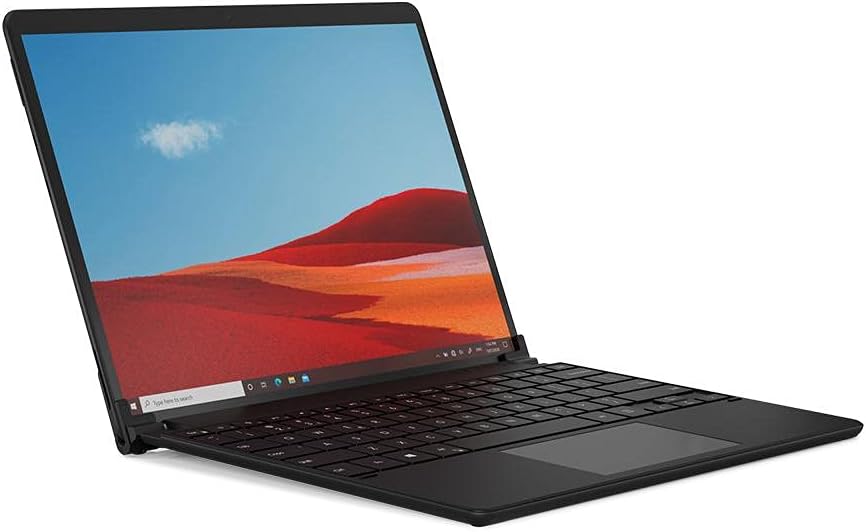
Image: Brydge SPX+ Wireless Keyboard attached to a Microsoft Surface Pro X, forming a laptop-like setup.

Image: The Brydge SPX+ Wireless Keyboard separated from the Microsoft Surface Pro X, showing the hinge mechanism.
3.3 Bluetooth -parring
- Ensure your Brydge SPX+ keyboard is charged and turned on.
- On your Surface Pro X, go to Indstillinger > Enheder > Bluetooth og andre enheder.
- Slå Bluetooth til.
- On the keyboard, press and hold the Bluetooth pairing key (often indicated by a Bluetooth symbol) until the indicator light flashes, signifying it's in pairing mode.
- On your Surface Pro X, click Tilføj Bluetooth eller anden enhed > Bluetooth.
- Select "Brydge SPX+" from the list of available devices.
- Follow any on-screen prompts to complete the pairing process. The indicator light on the keyboard will turn solid when successfully paired.
Video: Official product video demonstrating the Brydge SPX+ Wireless Keyboard's features and integration with the Surface Pro X.
4. Betjeningsvejledning
4.1 Tastaturfunktioner
The Brydge SPX+ features a full QWERTY layout with dedicated function keys for quick access to common commands. These include media controls, screen brightness, and Windows-specific functions.

Billede: Top-down view of the Brydge SPX+ Wireless Keyboard, highlighting the key layout and precision touchpad.
4.2 Backlight Control
The keyboard features adjustable backlighting. Use the dedicated backlight keys (often F10/F11 or similar, check keyboard legends) to cycle through brightness levels or turn the backlight off.
4.3 Precision Touchpad Gestures
The integrated precision touchpad supports multi-touch gestures for enhanced navigation:
- Tryk med én finger: Venstre klik
- Tryk med to fingre: Højreklik
- Rul med to fingre: Scroll up/down or left/right
- Knib sammen for at zoome: Zoom ind/ud
- Stryg opad med tre fingre: Opgave View
- Stryg ned med tre fingre: Vis skrivebordet
- Stryg til venstre/højre med tre fingre: Skift mellem åbne vinduer
5. Vedligeholdelse
To ensure the longevity and optimal performance of your Brydge SPX+ keyboard, follow these maintenance guidelines:
- Rensning: Brug en blød, fnugfri klud til at tørre tastaturet og touchpad'en af. Tør genstridige mærker let op.ampRengør kluden med vand eller et mildt, ikke-slibende rengøringsmiddel. Undgå for meget fugt.
- Batteripleje: For best battery health, avoid fully discharging the keyboard frequently. If storing for an extended period, charge the battery to about 50% before storage.
- Opbevaring: Opbevar tastaturet et køligt, tørt sted væk fra direkte sollys og ekstreme temperaturer.
6. Fejlfinding
6.1 Keyboard Not Pairing/Connecting
- Sørg for, at tastaturet er opladet og tændt.
- Verify Bluetooth is enabled on your Surface Pro X.
- Put the keyboard into pairing mode by pressing and holding the Bluetooth pairing key.
- Remove any previous "Brydge SPX+" entries from your Surface's Bluetooth devices list and attempt to re-pair.
- Restart both your Surface Pro X and the keyboard.
6.2 Taster reagerer ikke
- Kontroller batteriniveauet og oplad om nødvendigt.
- Sørg for, at tastaturet er korrekt forbundet via Bluetooth.
- Restart the keyboard and your Surface Pro X.
6.3 Touchpad Issues
- Sørg for, at touchpad-overfladen er ren og fri for snavs.
- Kontroller Bluetooth-forbindelsens stabilitet.
- Verify touchpad settings in Windows (Settings > Devices > Touchpad).
6.4 Dårlig batterilevetid
- Reducer baggrundsbelysningens lysstyrke, eller sluk den, når den ikke er nødvendig.
- Sørg for, at tastaturet er fuldt opladet før brug.
- Turn off the keyboard when not in use for extended periods.
7. Specifikationer
| Modelnummer | BRY7032 |
| Produktdimensioner | 11.32 x 8.2 x 0.28 tommer |
| Varens vægt | 2.44 pund |
| Forbindelse | Bluetooth |
| Kompatible enheder | Microsoft Surface Pro X |
| Batteritype | 1 Lithium Polymer batteri (medfølger) |
| Materiale | Aluminium |
8. Garanti og support
Your Brydge SPX+ Wireless Keyboard comes with a manufacturer's warranty. For detailed warranty information, product support, or to register your product, please visit the official Brydge webwebstedet eller kontakt deres kundeservice. Gem din købsbevis til garantikrav.


