Indledning
The Avantree Orbit is a versatile Bluetooth 5.0 audio transmitter designed to enhance your TV viewing experience. It allows you to wirelessly stream audio from your television to Bluetooth headphones or speakers, providing clear sound without disturbing others. Featuring an intuitive LCD screen, wide compatibility with various audio inputs, and support for aptX Low Latency, the Orbit ensures synchronized audio with minimal delay. Its pass-through function enables simultaneous audio output to both headphones and external speakers, catering to diverse listening needs.

Image: The Avantree Orbit Bluetooth Transmitter, a compact device with an LCD screen displaying connection information.
Kassens indhold
Tjek venligst pakken for følgende varer:
- Avantree Orbit Bluetooth Transmitter
- USB Type C Power Cable (1.5M/5FT)
- Optical Audio Cable (1.5M/5FT)
- AUX 3.5mm Audio Cable (1.5M/5FT)
- AUX 3.5mm to RCA Audio Adapter (35CM/1FT)
- Wired Microphone (65CM/2FT)
- Hurtig startguide (QSG)

Image: A visual representation of the Avantree Orbit transmitter and its included accessories: USB-C power cable, optical cable, 3.5mm AUX cable, and 3.5mm to RCA adapter.
Produkt overview
The Avantree Orbit is designed for ease of use and high-quality audio transmission. Key features include:
- LCD skærm: Provides visual feedback for pairing, connected devices, audio codec, and volume levels, eliminating "blind pairing."
- Bred kompatibilitet: Supports Digital Optical (SPDIF/TOSLINK), 3.5mm AUX, and RCA audio inputs, making it compatible with nearly all TVs.
- Automatic 5.1CH Audio Conversion: Automatically converts 5.1 channel audio to 2.0 for seamless Bluetooth transmission without requiring TV setting changes.
- aptX lav latenstid: When paired with aptX Low Latency or FastStream compatible headphones/speakers, it delivers audio with virtually no lip-sync delay.
- Lydgennemgang: Allows simultaneous audio output to connected Bluetooth headphones and your TV's external speakers (soundbar/AVR).
- Dual Link Function: Connects two Bluetooth headphones or speakers simultaneously, enabling shared listening experiences.
- Lang distance: Class 1 Bluetooth provides an operating range of up to 164ft (50M) in open air.

Image: The Avantree Orbit transmitter positioned near a TV, illustrating its role in connecting to headphones for a personalized listening experience.

Image: The back panel of the Avantree Orbit, highlighting its various input ports: Optical, AUX, and RCA, demonstrating wide compatibility.
Opsætningsvejledning
Follow these steps to connect your Avantree Orbit to your TV and Bluetooth audio devices.
Step 1: Power On the Orbit
- Connect the USB Type C Power Cable to the "DC IN" port on the Orbit and to a USB power source (e.g., TV USB port, USB wall adapter).
- The Orbit's LCD screen will light up.
Step 2: Connect to Your TV (Audio Input)
Choose one of the following audio input methods:
- Optical (Recommended for Digital Audio):
- Connect one end of the Optical Audio Cable to the "OPT" input on the Orbit.
- Connect the other end to your TV's "Optical Out" or "Digital Audio Out" port.
- On the Orbit, ensure the input is set to "OPT" (displayed on the LCD). If your TV outputs 5.1CH audio, the Orbit will automatically convert it to 2.0.
- AUX 3.5mm:
- Connect one end of the AUX 3.5mm Audio Cable to the "AUX" input on the Orbit.
- Connect the other end to your TV's "Headphone Out" or "Audio Out" 3.5mm port.
- On the Orbit, ensure the input is set to "AUX" (displayed on the LCD).
- RCA (using 3.5mm to RCA Adapter):
- Connect the AUX 3.5mm Audio Cable to the 3.5mm to RCA Audio Adapter.
- Connect the RCA ends (red and white) to your TV's "Audio Out" RCA ports.
- Connect the 3.5mm end of the cable to the "AUX" input on the Orbit.
- On the Orbit, ensure the input is set to "AUX" (displayed on the LCD).
Step 3: Pair with Bluetooth Headphones/Speakers
- Put your Bluetooth headphones/speakers into pairing mode (refer to their user manual).
- On the Orbit, press the Søg button (magnifying glass icon). The Orbit will display a list of nearby Bluetooth devices.
- Brug Op/Ned arrows on the Orbit to select your device from the list.
- Tryk på Vælge button (check mark icon) to confirm. The Orbit will attempt to connect.
- Once connected, the device name will show "Connected" on the Orbit's screen, and you should hear audio through your headphones/speakers.
Video: An official Avantree video demonstrating the setup and pairing process of the Orbit Bluetooth Transmitter with various audio devices.
Betjeningsvejledning
Styring af lydstyrke
Brug '+' og '-' buttons on the Orbit to adjust the volume of the connected Bluetooth headphones/speakers. The volume level will be displayed on the LCD screen.
Dual Link (Connecting Two Devices)
The Orbit can connect to two Bluetooth headphones or speakers simultaneously for shared listening.
- Connect the first device as described in Step 3 of the Setup Guide.
- Once the first device is connected, put your second Bluetooth device into pairing mode.
- Tryk på Søg button on the Orbit again.
- Select the second device from the list using the Op/Ned arrows and press the Vælge knap.
- Both devices will now be connected, and audio will play through both simultaneously.

Image: Two individuals wearing headphones, enjoying TV audio transmitted wirelessly by the Avantree Orbit, demonstrating the dual link feature.
Audio Pass-Through Function
The pass-through feature allows you to hear TV audio through both your connected Bluetooth headphones and your external TV speakers (soundbar or AVR) at the same time.
- Connect the Orbit to your TV using one of the audio input methods (Optical, AUX, RCA).
- Connect your external speakers (soundbar/AVR) to the "Bypass / Speaker" output port on the Orbit using the appropriate cable (e.g., Optical or AUX).
- Ensure the "Bypass / Speaker" switch on the Orbit is set to "ON".
- Pair your Bluetooth headphones as usual. Audio will now be output to both your headphones and external speakers.

Image: A diagram illustrating the Avantree Orbit's pass-through capability, connecting to a TV, Bluetooth headphones, and either a soundbar or stereo receiver simultaneously.
Opretholdelse
To ensure the longevity and optimal performance of your Avantree Orbit, please follow these maintenance guidelines:
- Rensning: Brug en blød, tør klud til at rengøre enheden. Undgå at bruge slibende rengøringsmidler, opløsningsmidler eller stærke kemikalier.
- Opbevaring: Opbevar enheden et køligt, tørt sted væk fra direkte sollys og ekstreme temperaturer.
- Håndtering: Handle the Orbit with care. Avoid dropping it or subjecting it to strong impacts.
- Kabler: Ensure all cables are connected securely and are not bent or kinked excessively.
Fejlfinding
Ingen lyd / Dårlig lydkvalitet
- Tjek inputkilde: Ensure the correct audio input (OPT, AUX) is selected on the Orbit and that the cable is securely connected to both the Orbit and your TV.
- TV-lydindstillinger: For Optical input, ensure your TV's audio output format is set to "PCM" or "Stereo" (not "Dolby Digital" or "Bitstream"). The Orbit automatically converts 5.1CH, but some TVs require manual adjustment.
- Lydstyrkeniveauer: Increase the volume on both the Orbit and your connected headphones/speakers.
- Hovedtelefonforbindelse: Verify your headphones/speakers are properly paired and connected to the Orbit (check the LCD screen).
Lip-Sync Delay
- aptX lav latenstid: For minimal delay, ensure both the Avantree Orbit and your Bluetooth headphones/speakers support aptX Low Latency or FastStream. The Orbit's LCD will display "aptX-LL" if connected with this codec.
- Interferens: Move the Orbit closer to your headphones/speakers and away from other wireless devices (Wi-Fi routers, cordless phones) that might cause interference.

Image: Two individuals reacting to a TV screen, with text indicating "ALL SYNCHRONIZED" and "no audio lag" when using aptX Low Latency compatible devices with the Avantree Orbit.
Parringsproblemer
- Parringstilstand: Confirm your headphones/speakers are in actual pairing mode (often indicated by a flashing LED).
- Clear Previous Connections: If your headphones/speakers were previously connected to another device (e.g., phone), turn off Bluetooth on that device or clear its pairing history.
- Reset Orbit: If issues persist, you may need to reset the Orbit's pairing history (refer to the full user manual for specific steps).
Specifikationer
| Model nr. | BTTC-580-TTN |
| Bluetooth version | V5.0 |
| Audio Codec Support | aptX-LL, aptX, FS, SBC |
| Audio Ports Support | Optical, AUX 3.5mm, RCA (for TV), Mic |
| Understøttet Profiles | HFP, A2DP V1.3.1, AVRCP V1.0 |
| Driftsområde | Class 1, up to 164FT / 50M |
| Opladningsport | Type C |
| Produktdimensioner | 8.5 cm x 8 cm x 10 cm (3.35 x 3.15 x 3.94 tommer) |
| Varens vægt | 8 ounce |
| Materiale | Acrylonitril Butadien Styren (ABS) |
Sikkerhedsoplysninger
- Undgå at placere enheden i nærheden af andre trådløse enheder for at forhindre interferens.
- Operate within a temperature range of 0°C to 40°C (32°F to 104°F).
- Udsæt ikke enheden for vand eller overdreven fugt.
- Forsøg ikke at skille enheden ad eller ændre den. Dette vil ugyldiggøre garantien.
- Opbevares utilgængeligt for børn.
ADVARSEL: Dette produkt kan indeholde kemikalier, der af staten Californien er kendt for at forårsage kræft og fosterskader eller andre reproduktionsskader. For mere information, besøg www.P65Warnings.ca.gov.
Garanti & Support
Avantree products come with a standard warranty. You can extend your warranty by registering your product.
- Garantiregistrering: Register your product within 30 days for an extended 24-month warranty. Visit avantree.com/warranty for detaljer.
- Produktsupport: For user manuals, FAQs, video tutorials, and more, visit support.avantree.com.
- E-mail support: Contact Avantree support at support@avantree.com.
- Live chat: Chat with Avantree support at www.avantree.com.
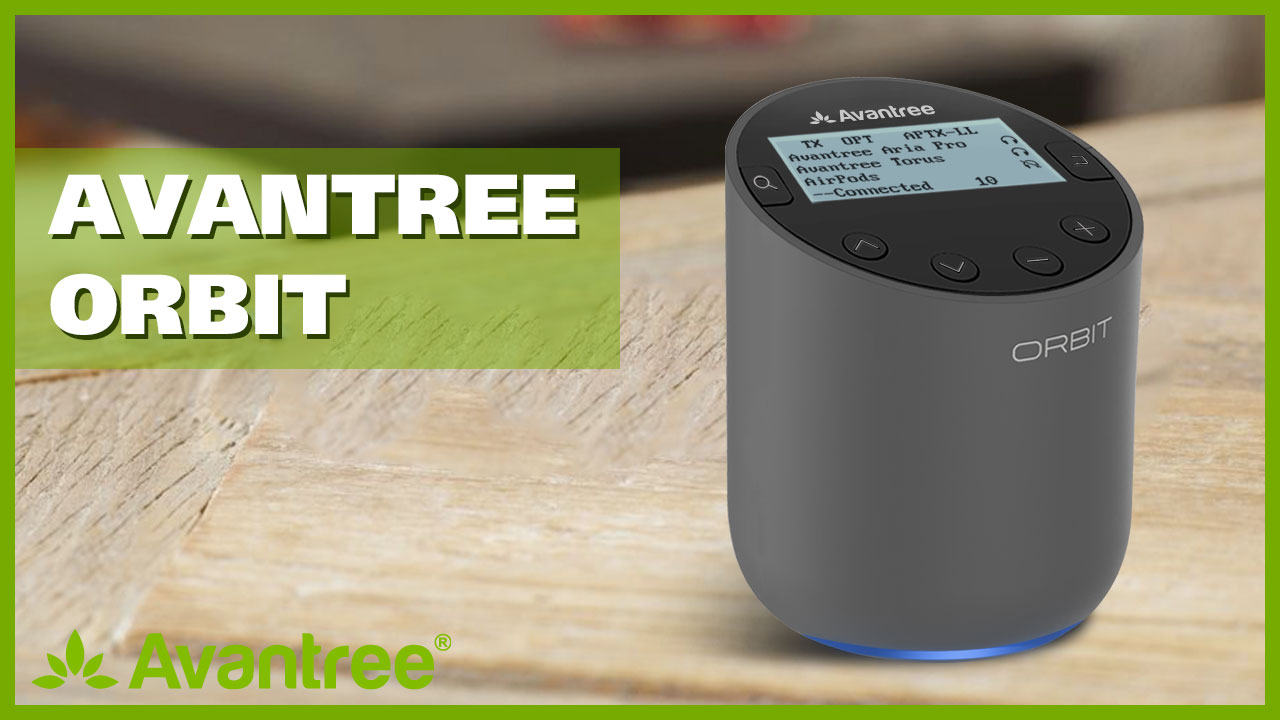
Image: The Avantree Orbit product box, displaying information about warranty registration and support contact details.


