1. Introduktion
Welcome to your new qunyiCO Y10 Android Tablet. This manual provides essential information for setting up, operating, and maintaining your device. Please read it thoroughly to ensure optimal performance and longevity.
Sikkerhedsoplysninger
- Do not expose the tablet to extreme temperatures or direct sunlight.
- Undgå at tabe tabletten eller udsætte den for kraftige stød.
- Brug kun den medfølgende oplader og tilbehør.
- Hold tabletten væk fra vand og andre væsker.
- Do not attempt to disassemble or repair the tablet yourself.
2. Produktet er slutview
Fysiske komponenter
The qunyiCO Y10 tablet features a sleek design with essential ports and buttons for ease of use.
Front View

This image shows the front of the qunyiCO Y10 tablet, highlighting its 10.1-inch IPS HD display.
Bag View

This image displays the back of the qunyiCO Y10 tablet, featuring the rear camera and the qunyiCO logo.
Knapper og porte
Familiarize yourself with the location of key controls and connections.
An illustrative diagram highlighting key features such as Android 10.0, Quad-core CPU, 5000mAh battery, 10.1-inch display, 2.4GHz Wi-Fi, Dual Camera, 2GB RAM + 32GB ROM, and 1280x800 IPS HD.
- Power/Volume Buttons: Located on the side for power on/off and volume control.
- Hovedtelefonstik: Standard 3.5 mm lydudgang.
- SD-kortplads: Til udvidelig lagerplads på op til 128 GB.
- Opladningsport: Micro USB-port til opladning.
- Kameraer: 2MP front camera and 8MP rear camera.
3. Opsætning
Indledende opladning
Before first use, fully charge your tablet using the provided power adapter.
Tænd/sluk
- Tænd: Press and hold the Power button until the qunyiCO logo appears.
- Sluk: Tryk og hold tænd/sluk-knappen nede, og vælg derefter "Sluk" fra valgmulighederne.
- Genstart: Tryk og hold tænd/sluk-knappen nede, og vælg derefter "Genstart" fra valgmulighederne.
Førstegangsopsætning
Følg vejledningen på skærmen for at fuldføre den indledende opsætning, herunder valg af sprog, Wi-Fi-forbindelse og login til Google-konto.
4. Betjeningsvejledning
Grundlæggende navigation
Your tablet runs on Android 11, offering an intuitive user interface.
- Berøringsbevægelser: Tryk for at vælge, swipe for at rulle, knib for at zoome.
- Startskærm: Få adgang til dine apps og widgets.
- Meddelelser: Swipe down from the top to view notifikationer og hurtigindstillinger.
Wi-Fi-forbindelse
Opret forbindelse til et Wi-Fi-netværk for at få adgang til internettet.
- Gå til Indstillinger > Netværk og internet > Wi-Fi.
- Slå Wi-Fi til/fra On.
- Vælg det ønskede netværk fra listen, og indtast adgangskoden, hvis du bliver bedt om det.
App Management
Download og administrer apps fra Google Play Butik.

This image illustrates the tablet's screen with various popular application icons, demonstrating its compatibility with a wide range of apps.
- Åbn Play Butik app.
- Søg efter apps and games.
- Tryk på Installere at downloade.
Brug af kamera
Capture photos and videos using the built-in cameras.

A visual comparison demonstrating the clarity and quality of images captured by the tablet's 2MP front and 8MP rear cameras.
- Åbn Kamera app.
- Skift mellem for- og bagkameraer efter behov.
- Tryk på udløserknappen for at tage et billede eller starte/stoppe videooptagelse.
5. Lagerstyring
Intern opbevaring
The tablet comes with 32GB of internal storage for your apps and files.
Udvidelig opbevaring
You can expand the storage up to 128GB using a microSD card.

This image visually represents the tablet's storage capabilities, indicating 32GB of internal ROM and the option to expand up to 128GB, suitable for storing various media and applications.
- Indsæt microSD-kortet i den udpegede slot.
- Follow on-screen prompts to format the card if necessary.
- Note: While expandable up to 128GB, 32GB is recommended for optimal performance. Larger cards may slow down the system.
6. Batterioplysninger
Batterilevetid
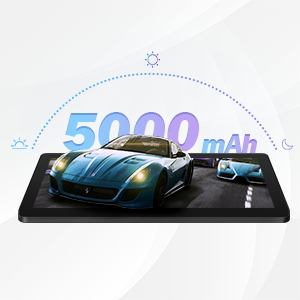
The qunyiCO Y10 is equipped with a 5000mAh battery, providing up to 8 hours of usage on a single charge, depending on usage patterns.

An image highlighting the 5000mAh battery, with icons indicating approximate usage times for video playback (6H), gaming (6H), and browsing (12H), showcasing its long-lasting capability.
Opladning
Use the provided charger to ensure proper charging and battery health.
- Connect the charger to the tablet's charging port and a power outlet.
- Batteriikonet på skærmen viser opladningsstatus.
7. Forbindelse
Wi-Fi
Supports 2.4G Wi-Fi for stable internet connection.
Bluetooth
Connect to Bluetooth devices such as headphones or speakers.
- Gå til Indstillinger > Tilsluttede enheder > Bluetooth.
- Slå Bluetooth til/fra On.
- Select the device you wish to pair with from the list.
8. Multimedier
Nyder indhold
The 1280x800 IPS HD display provides clear visuals for various media.
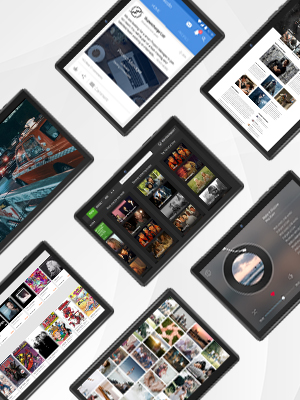
This image presents a collage of tablet screens, each showing different forms of digital content such as social media feeds, news articles, movie interfaces, and music players, emphasizing the tablet's versatility for media consumption.
You can enjoy movies, music, photos, and e-books.
Officiel produktvideo
Se denne officielle video for et visuelt overblikview of the qunyiCO Y10 Tablet's features and capabilities.
This video, titled "qunyiCO Y10 Tablet 10 inch Android 10.0", provides a comprehensive look at the tablet's design, performance, and user experience.
9. Fejlfinding
Fælles problemer og løsninger
| Spørgsmål | Potentiel årsag | Løsning |
|---|---|---|
| Tablet keeps shutting off / rebooting | Software glitch, low battery, faulty charger/port, overheating. | Ensure full charge. Perform a factory reset if software related. Check charger and port for damage. Avoid heavy usage in hot environments. |
| Berøringsskærm reagerer ikke | Software freeze, screen protector interference, physical damage. | Restart the tablet. Remove any screen protectors. If problem persists, contact support. |
| Won't charge | Damaged charging cable/adapter, dirty charging port, battery issue. | Try a different compatible charger. Clean the charging port gently. If still no charge, battery may need service. |
| Problemer med Wi-Fi-forbindelse | Incorrect password, router issues, tablet software glitch. | Double-check password. Restart router and tablet. Forget and reconnect to the network. |
| Apps flip/rotate incorrectly | Auto-rotate setting, app compatibility, sensor issue. | Check auto-rotate settings in quick panel/settings. Some apps may not support all orientations. If persistent, sensor may be faulty. |
10. Specifikationer
Tekniske detaljer
| Feature | Detalje |
|---|---|
| Model | Y10 |
| Operativsystem | Android 11 |
| Processor | 1.6 GHz firekernet processor (Allwinner) |
| VÆDDER | 2 GB DDR4 SDRAM |
| Intern opbevaring | 32 GB |
| Udvidelig opbevaring | Op til 128 GB (MicroSD) |
| Skærmstørrelse | 10.1 tommer |
| Skærmopløsning | 1280x800 IPS HD |
| Bagkamera | 8 MP |
| Forreste kamera | 2 MP |
| Batteri | 5000mAh Lithium Ion |
| Forbindelse | Wi-Fi (2.4G), Bluetooth |
| Dimensioner (LxBxH) | 9.62 x 6.83 x 0.39 tommer |
| Varens vægt | 1.08 pund |
11. Vedligeholdelse
Rengøring og pleje
- Brug en blød, fnugfri klud til at rengøre skærmen og tablettens kabinet.
- Brug ikke slibende rengøringsmidler eller opløsningsmidler.
- Keep the tablet in a protective case to prevent scratches and damage.
Softwareopdateringer
Tjek regelmæssigt for systemopdateringer for at sikre optimal ydeevne og sikkerhed.
- Gå til Indstillinger > System > Systemopdatering.
- Følg instruktionerne på skærmen for at downloade og installere alle tilgængelige opdateringer.
12. Garanti og support
Garantioplysninger
Your qunyiCO Y10 tablet comes with a standard manufacturer's warranty. Please refer to the warranty card included in your product packaging for specific terms and conditions.
Kundesupport
For technical assistance, troubleshooting beyond this manual, or warranty claims, please contact qunyiCO customer support through their official webwebstedet eller kontaktoplysningerne i din produktdokumentation.
You can also visit the official qunyiCO store on Amazon for more information: qunyiCO Store.


