1. Introduktion
The Plugable USB-C Hub 7-in-1 is a versatile multiport adapter designed to expand the connectivity of your USB-C or Thunderbolt 3/4 enabled laptop, tablet, or smartphone. This compact and driverless hub provides essential ports for enhanced productivity and convenience.
It features a 4K HDMI display output, three USB 3.0 ports for high-speed data transfer, dedicated SD and microSD card readers, and a USB-C Power Delivery charging port, allowing you to charge your host device while using the hub.

Image: The Plugable USB-C 7-in-1 Hub showcasing its various connectivity options with connected peripherals.
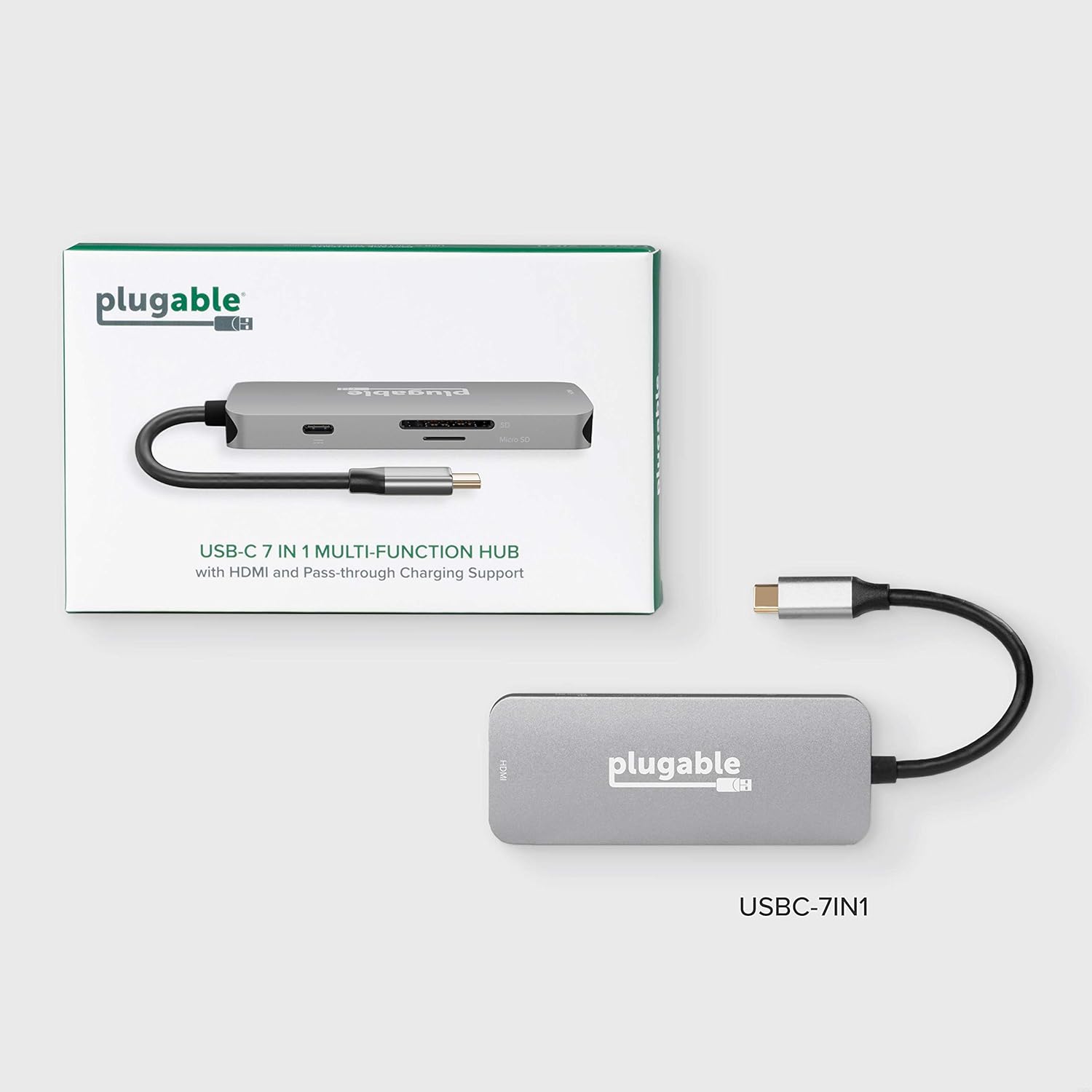
Image: The compact design of the Plugable USB-C Hub, highlighting its portability for on-the-go use.
2. Opsætning og tilslutning
Follow these steps to set up your Plugable USB-C Hub:
- Opret forbindelse til værtsenhed: Plug the integrated USB-C cable from the hub into an available USB-C or Thunderbolt 3/4 port on your laptop, tablet, or smartphone. The hub is driverless and should be recognized automatically by your operating system (Windows, macOS, ChromeOS, etc.).
- Tilslut strøm (valgfrit): If your host device requires charging or if you are connecting power-intensive peripherals, connect your original USB-C power adapter to the USB-C Power Delivery (PD) port on the hub. The hub supports up to 100W pass-through charging.
- Tilslut HDMI-skærm: Connect an HDMI cable from your monitor or TV to the HDMI port on the hub. Ensure your display is set to the correct input source. The hub supports resolutions up to 4K at 30Hz. For 4K 60Hz, your host device must support DisplayPort 1.4.
- Tilslut USB-enheder: Plug your USB peripherals (e.g., mouse, keyboard, external hard drive, USB flash drives) into the three USB 3.0 ports on the hub. These ports offer data transfer speeds up to 5Gbps.
- Indsæt hukommelseskort: Insert your SD or microSD cards into the corresponding slots on the hub for data access.

Image: A detailed diagram illustrating the various ports available on the Plugable USB-C 7-in-1 Hub.

Image: Illustration of the pass-through USB-C charging feature, allowing your laptop to charge while connected to the hub.
3. Betjeningsvejledning
Once connected, the Plugable USB-C Hub operates seamlessly with your device. Here are key functionalities:
- HDMI Display Output: Use the HDMI port to extend or mirror your desktop to an external display. This is ideal for presentations, multitasking, or enjoying media on a larger screen. Ensure your display settings are configured correctly in your operating system.
- USB 3.0 Dataoverførsel: The three USB 3.0 ports provide high-speed data transfer for external storage devices, ensuring quick file transfers. They are also suitable for connecting standard USB peripherals like keyboards, mice, and webknaster.
- SD and MicroSD Card Readers: Access photos, videos, and other files directly from your camera's memory cards. The hub supports simultaneous reading of both SD and microSD cards.
- Strømforsyning: The USB-C PD port allows your laptop to receive power through the hub, eliminating the need for a separate power connection to your laptop's dedicated charging port.
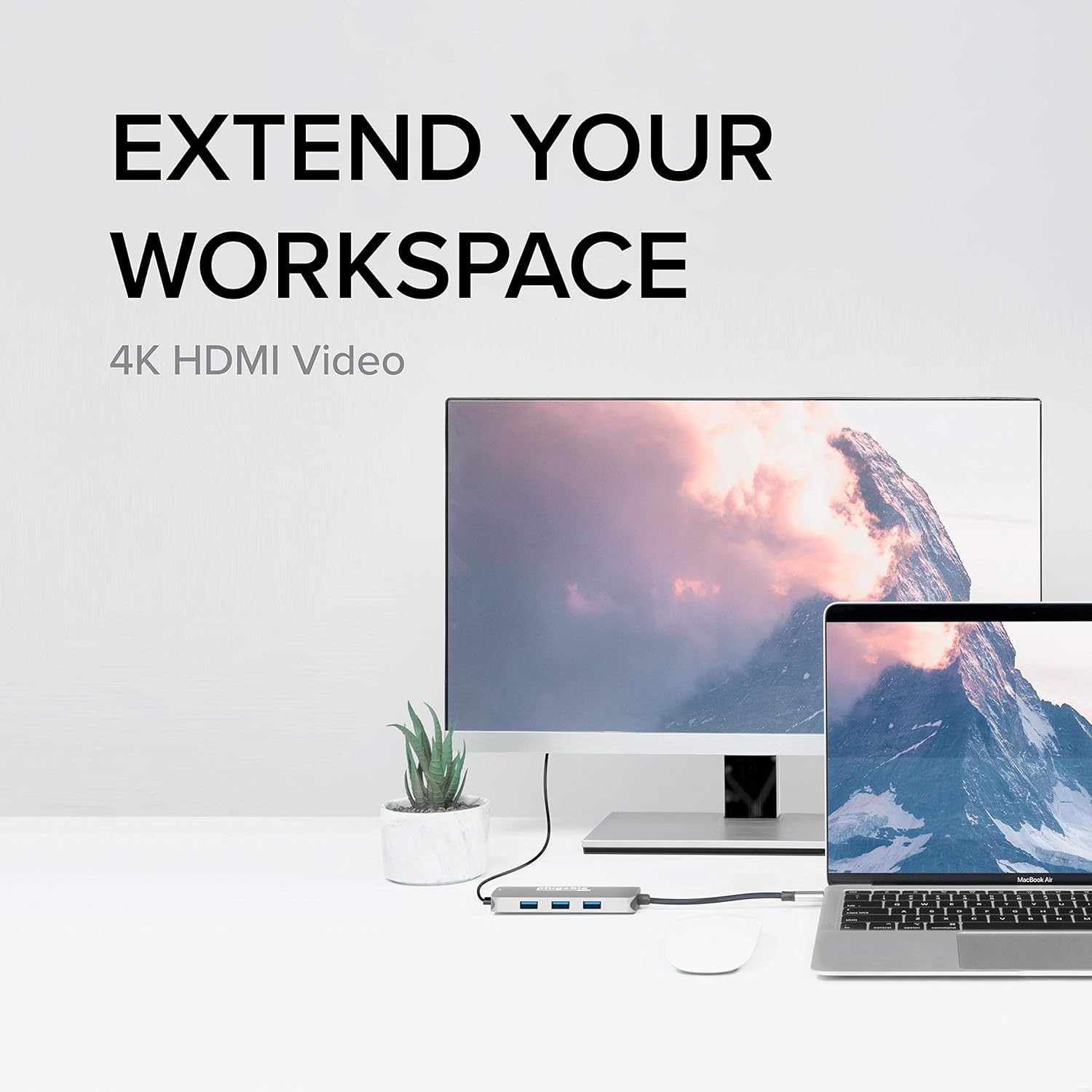
Image: The hub enabling an extended workspace by connecting a laptop to an external 4K HDMI monitor.
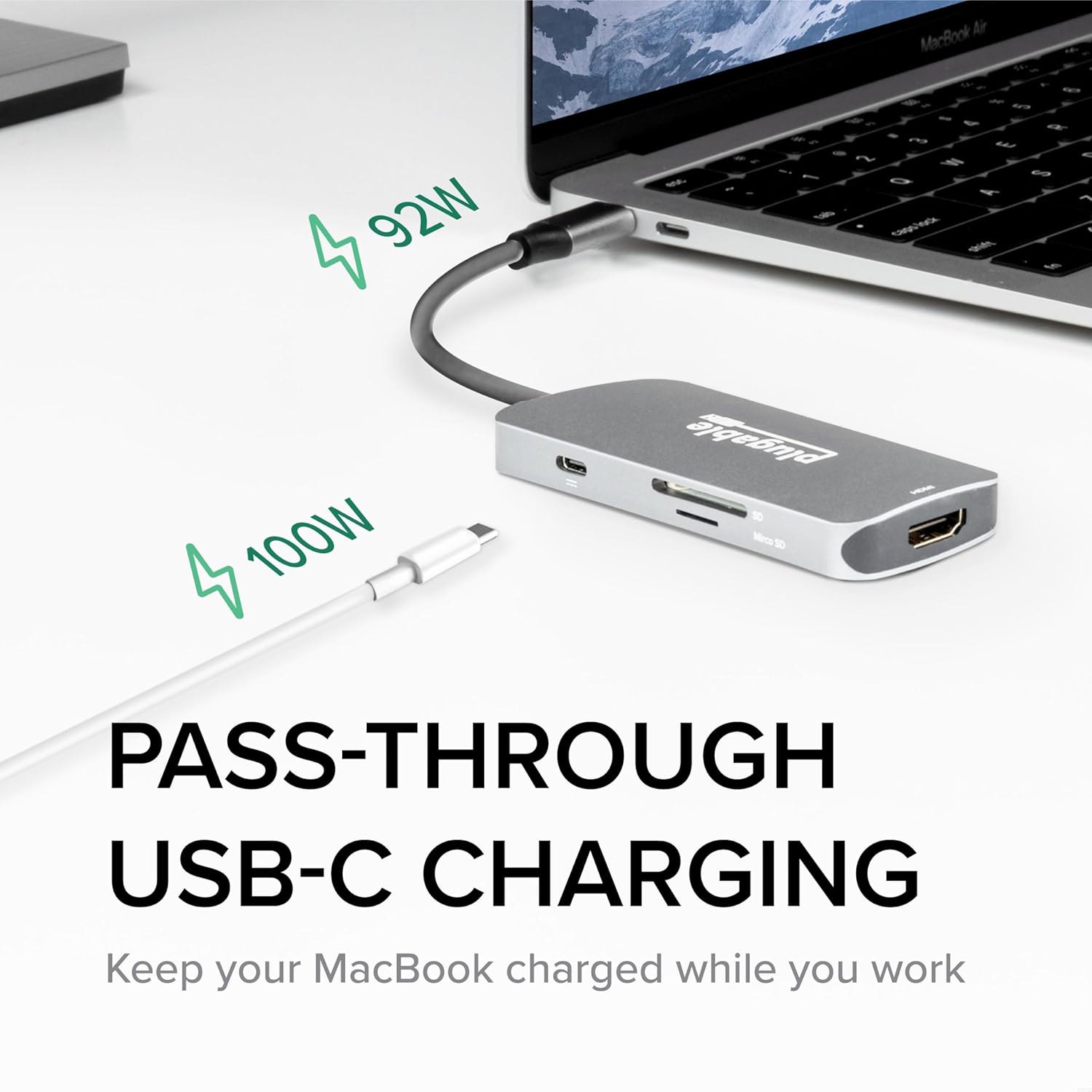
Image: The three USB 3.0 ports on the hub, capable of 5Gbps data transfer speeds, shown with USB drives connected.
4. Vedligeholdelse
To ensure the longevity and optimal performance of your Plugable USB-C Hub, follow these simple maintenance guidelines:
- Rensning: Use a soft, dry, lint-free cloth to gently wipe the surface of the hub. Avoid using liquid cleaners, aerosols, or abrasive materials, as these can damage the device.
- Opbevaring: Når hubben ikke er i brug, skal den opbevares køligt og tørt, væk fra direkte sollys og ekstreme temperaturer.
- Håndtering: Avoid dropping the hub or subjecting it to strong impacts. Do not bend or excessively pull the integrated USB-C cable.
- Ventilation: Sørg for tilstrækkelig ventilation af hubben, især ved længere tids brug, for at forhindre overophedning.
5. Fejlfinding
If you encounter issues with your Plugable USB-C Hub, refer to the following common troubleshooting tips:
- Ingen skærmudgang via HDMI:
- Sørg for, at HDMI-kablet er korrekt tilsluttet til både hubben og skærmen.
- Verify that your monitor is set to the correct HDMI input source.
- Check your computer's display settings to ensure the external display is detected and configured (e.g., extended, mirrored).
- If attempting 4K 60Hz, confirm your host device supports DisplayPort 1.4 over USB-C. The hub supports 4K 30Hz universally.
- Try a different HDMI cable or monitor to rule out external component issues.
- USB-enheder genkendes ikke:
- Ensure the USB device is fully inserted into the hub's port.
- Try connecting the USB device to a different port on the hub or directly to your computer to confirm functionality.
- For some older USB-A 2.0 devices, if connectivity is intermittent, try flipping the USB-A plug's orientation. This is a known characteristic of some USB-A/USB-C connections.
- If using power-intensive USB devices (e.g., external hard drives), ensure your host device is connected to power via the hub's PD port.
- Opladningsproblemer:
- Verify that your USB-C power adapter is connected to the hub's PD port and is functioning correctly.
- Sørg for, at din strømadapter leverer tilstrækkeligt med strømtage for your laptop and connected devices.
- Intermitterende forbindelse:
- Ensure the hub's integrated USB-C cable is firmly seated in your host device's port.
- Try disconnecting and reconnecting the hub.
- Genstart din værtsenhed.
Hvis disse trin ikke løser dit problem, kan du finde yderligere hjælp i afsnittet "Garanti og support".
6. Specifikationer
| Feature | Detalje |
|---|---|
| Modelnummer | USBC-7IN1 |
| Produktdimensioner | 6.3 x 3.94 x 0.71 tommer |
| Varens vægt | 3.52 ounce |
| HDMI udgang | Up to 4K 30Hz (4K 60Hz with DisplayPort 1.4 host) |
| USB-porte | 3 x USB 3.0 (5Gbps data transfer) |
| Kortlæsere | SD and microSD |
| USB-C strømforsyning | Up to 100W pass-through charging |
| Hardware-interface | USB Type C |
| Kompatible enheder | USB-C Chromebooks, Thunderbolt 3/4 MacBooks (M1/M2/M3 and Intel-based), USB-C Microsoft Surface line, HP Spectre x360, Dell XPS, Lenovo Thinkpad T series, Huawei Matebook Pro, LG Gram, Samsung Galaxy TabPro S, iPhone 15 Pro/Plus/Max |
| Fabrikant | Stikbar |
| Oprindelsesland | Kina |
7. Garanti og support
Plugable stands behind the quality of its products. The Plugable USB-C Hub 7-in-1 is backed by a 2-års garanti.
For technical assistance, troubleshooting, or warranty claims, please contact Plugable's NA-Based Technical Support team. You can find contact information and additional resources on the official Plugable webwebsted:
Visit Plugable Support Webwebsted
Plugable is committed to providing excellent customer service and support, as evidenced by positive customer feedback regarding their responsiveness and willingness to assist with product issues.


