Indledning
This manual provides essential information for the proper setup, operation, and maintenance of your Schubert Preludio 88-Key Digital Piano. Please read this manual thoroughly before using the instrument to ensure optimal performance and longevity. Keep this manual for future reference.
Sikkerhedsinstruktioner
- Sørg for, at strømadapterens lydstyrketage matcher din lokale strømforsyning.
- Do not expose the instrument to rain, moisture, or extreme temperatures.
- Avoid placing the instrument near heat sources or in direct sunlight.
- Åbn ikke c'enasing; overlad al service til kvalificeret personale.
- Opbevares utilgængeligt for små børn for at forhindre ulykker.
- Disconnect power during thunderstorms or when not in use for extended periods.
Opsætning
Udpakning og montering
Carefully remove all components from the packaging. Ensure all items listed in the "Included in Delivery" section are present.
- Place the keyboard on a stable, flat surface or a compatible keyboard stand.
- Attach the music stand to the designated slot on the keyboard.
- Connect the sustain pedal to the "PEDAL" input on the rear panel of the keyboard.
- Connect the power adapter to the "DC 12V" input and then to a power outlet.

Figur 1: Medfølgende tilbehør. The image displays the Schubert Preludio keyboard's accessories, including the music stand, sustain pedal, power adapter, and various USB cables for connectivity.

Figure 2: Connection Options. This image shows the various input/output ports on the rear of the keyboard, including Audio In, Audio Out, USB, pedal input, and two 6.3mm headphone jacks.
Betjeningsvejledning
Tænd/sluk
Tryk på MAGT knappen til at tænde eller slukke tastaturet.
Lydstyrkekontrol
Juster mastervolumen ved hjælp af MASTER VOLUME knob. Individual volumes for Upper and Lower voices can be adjusted via the VOL+ og VOL- buttons in Function mode.
Selecting Voices (Sounds)
The Schubert Preludio offers 140 different voices. To select a voice:
- Tryk på STEMME knap.
- Use the number pad or the +/- buttons to select the desired voice number. The selected voice number will be displayed on the LED screen.

Figure 3: Control Panel and Voice Selection. The image highlights the control panel with buttons for voice selection, layering, splitting, and reverb, along with categories like Piano, Organ, Guitar, and Strings.
Lag- og opdelingsfunktioner
- Lag: Tryk på LAG button to combine two voices simultaneously. Select the second voice using the voice selection method.
- Dele: Tryk på SPLIT button to divide the keyboard into two sections, each with a different voice. The split point can be adjusted. This is useful for teaching or playing duets.
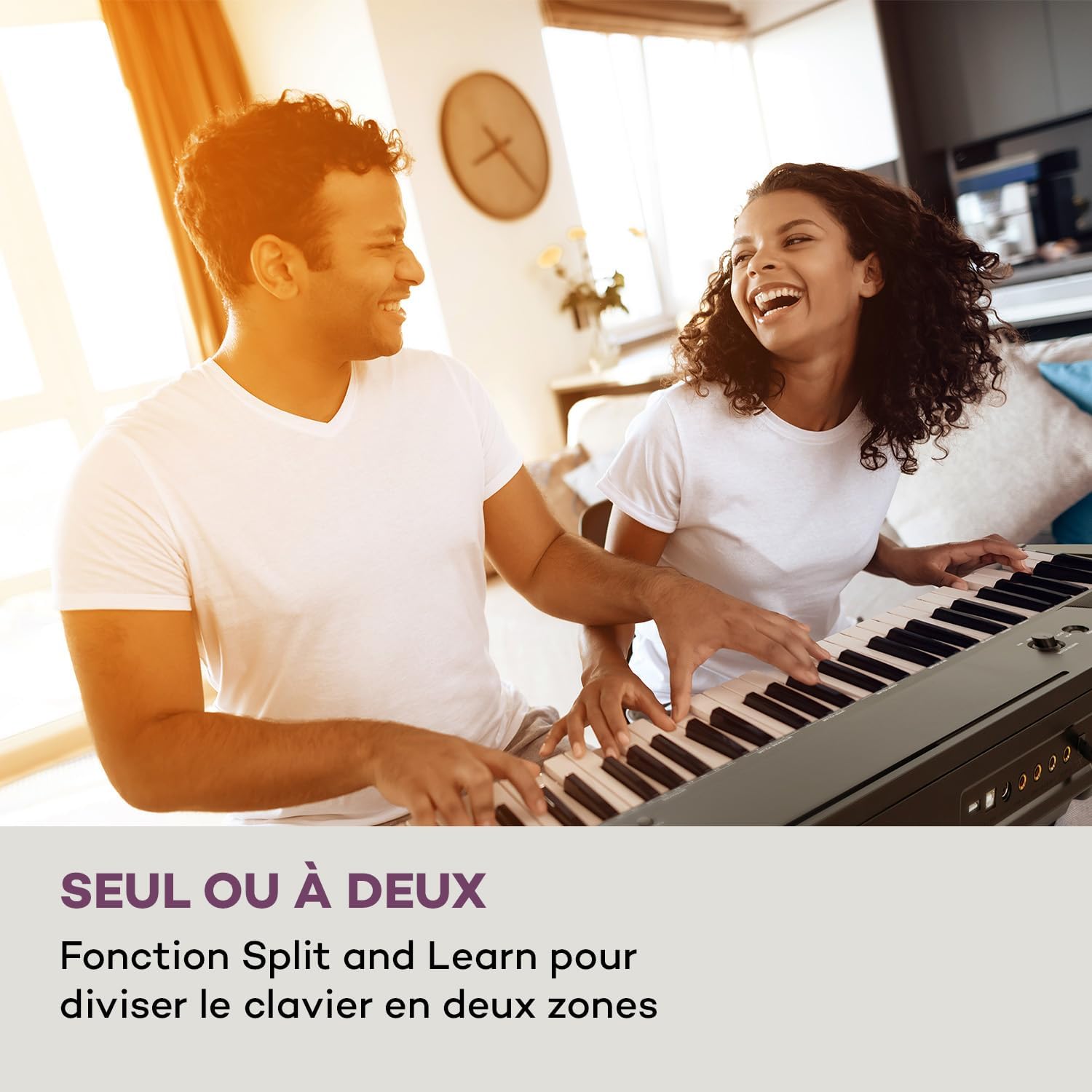
Figure 4: Split and Learn Function. This image shows two individuals playing the keyboard simultaneously, demonstrating the Split function which divides the keyboard into two playable zones.
Metronome and Tempo
Activate the metronome by pressing the METRO knappen. Juster tempoet ved hjælp af TEMPO knapper.
Optagelse og afspilning
The keyboard features a recording function:
- Tryk på OPTAGE button to start recording your performance.
- Trykke SPIL to listen to your recorded track.
USB-forbindelse
The integrated USB port allows for MP3 playback and MIDI connectivity:
- MP3-afspilning: Indsæt et USB-drev, der indeholder MP3 files into the USB port. Use the SANG buttons to navigate and play tracks.
- USB-MIDI: Connect the keyboard to a computer using the provided USB-MIDI cable for use with educational and recording software.

Figure 5: Recording and USB Playback. The image depicts the keyboard's capability for recording performances and playing MP3 files via its integrated USB port, enhanced by its 5-watt RMS speakers.
Opretholdelse
- Rensning: Brug en blød, tør klud til at rengøre tastaturets overflade. Brug ikke slibende rengøringsmidler eller opløsningsmidler.
- Opbevaring: When not in use, store the keyboard in a dry, dust-free environment. If storing for a long period, disconnect the power adapter.
- Nøglepleje: Avoid excessive force on the keys. Clean keys gently with a slightly damp klud om nødvendigt, og tør derefter straks.
Fejlfinding
| Problem | Mulig årsag | Løsning |
|---|---|---|
| Ingen lyd | Power not connected, volume too low, headphones connected. | Check power connection, increase master volume, disconnect headphones. |
| Taster reagerer ikke | Function mode active, internal error. | Exit Function mode, power cycle the instrument. |
| Sustain pedalen virker ikke | Pedal not fully inserted, pedal polarity issue. | Ensure pedal is firmly connected. Some pedals require the keyboard to be powered on with the pedal already pressed to set polarity. |
| Problemer med USB-afspilning | Ikke understøttet file format, corrupted USB drive. | Sikre files are MP3 format. Try a different USB drive or reformat the current one. |
Specifikationer
- Modelnavn: Preludio
- Antal nøgler: 88
- Nøgletype: Full-size, touch-sensitive (3 levels)
- Sounds (Voices): 140
- Demo sange: 16
- Funktioner: Sustain, Vibrato, Transposition, Octave, Split, Layer, Metronome, Record, Playback, Learning Function
- Forbindelse: 1 x 6.3 mm Audio In, 1 x 6.3 mm Audio Out, 2 x 6.3 mm Headphone Outputs, 1 x USB (Type A for MP3), 1 x USB-MIDI (Type B)
- Strømforsyning: AC adapter (220-240 V~ | 50/60 Hz)
- Dimensioner (L x H x D): Ca. 130 x 29 x 35 cm (51.2 x 11.4 x 13.8 tommer)
- Vægt: Ca. 6.2 kg (13.7 lbs)
- Materiale: Plast

Figur 6: Produktmål. A visual representation of the keyboard's length, height, and depth measurements.
Garanti og support
For detailed warranty information and technical support, please refer to the warranty card included with your product or visit the official Schubert webwebsted. Gem din købsbevis i tilfælde af garantikrav.
Produktvideoer
Sustain Pedal Overview
This video provides a close-up view and demonstration of the M-Audio SP-2 sustain pedal, which is compatible with digital pianos like the Schubert Preludio. It shows how the pedal functions to extend notes, similar to an acoustic piano.
Keyboard Features Overview
This video offers a detailed close-up view of the digital piano, showcasing its keys, control panel, and various functions. It provides a visual guide to the instrument's design and user interface.


