1. Introduktion
Welcome to the user manual for your Orbic Journey V Verizon Postpaid 4G LTE Flip Phone. This guide provides essential information on setting up, operating, maintaining, and troubleshooting your device. The Orbic Journey V is a compact and reliable flip phone designed for clear communication and essential smart features, running on the KaiOS operating system and supporting 4G LTE connectivity.
Please read this manual thoroughly to ensure proper use and to maximize the performance and longevity of your phone.
2. Opsætning
2.1. Udpakning og pakkeindhold
Upon opening your Orbic Journey V package, verify that all components are present:
- Orbic Journey V Flip-telefon
- Genopladeligt lithium-ion-batteri
- Oplader
2.2. Batteriinstallation
- Find batteridækslet på bagsiden af telefonen.
- Gently pry open the battery cover using the designated notch.
- Juster batteriets guldkontakter med terminalerne inde i batterirummet.
- Tryk batteriet godt ned, indtil det klikker på plads.
- Sæt batteridækslet på igen, og sørg for, at det er sikkert låst.
2.3. SIM-kort installation
Your Orbic Journey V requires a Nano-SIM card for cellular service. Ensure the phone is powered off before inserting or removing the SIM card.
- Remove the battery cover and the battery as described in Section 2.2.
- Locate the SIM card slot, typically near the battery compartment.
- Insert the Nano-SIM card into the slot with the gold contacts facing down and the notched corner aligned with the slot's guide.
- Gently push the SIM card until it locks into place.
- Sæt batteriet og batteridækslet på igen.
2.4. Første opstart og opladning
To power on your phone for the first time, press and hold the Power/End Call button until the screen illuminates. It is recommended to fully charge the phone before first use.
- Tilslut opladeren til telefonens opladningsport.
- Sæt opladeren i en almindelig stikkontakt.
- Opladningsindikatoren vises på skærmen.
- Når den er fuldt opladet, skal du frakoble opladeren.
3. Betjening af din telefon
3.1. Phone Layout and Keys
Familiarize yourself with the physical components and buttons of your Orbic Journey V.
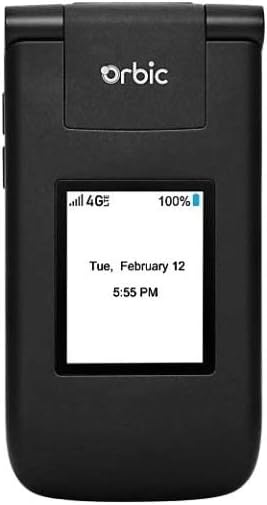
Figur 3.1: Forside view of the Orbic Journey V, closed. The external display shows signal strength, battery level, and the current time and date.

Figure 3.2: Orbic Journey V in open position, revealing the main screen and the full alphanumeric keypad with navigation buttons.

Figur 3.3: Bagside view of the Orbic Journey V, highlighting the main camera lens and the Verizon branding.
- Eksternt display: Shows time, date, notifications, and caller ID when the phone is closed.
- Intern skærm: Main screen for navigating menus, viewing content, and interacting with applications.
- Navigation Key (D-Pad): Bruges til at navigere gennem menuer og vælge muligheder.
- Center Select Key: Bekræfter valg.
- Opkald/Send-tast: Initiates calls and answers incoming calls.
- Afslut opkald/Tænd/sluk-knap: Ends calls, returns to the home screen, and powers the phone on/off.
- Tilbage/Slet-tast: Returns to the previous screen or deletes characters.
- Lydstyrketaster: Adjusts call volume, media volume, and ringer volume.
- Kameratast: Quick access to the camera function.
3.2. Grundlæggende navigation
The Orbic Journey V operates on KaiOS. Use the Navigation Key to scroll through menu options and the Center Select Key to open applications or confirm actions.
- From the home screen, press the Navigation Key (up, down, left, right) to access shortcuts or navigate the main menu.
- Press the Center Select Key to open the main application menu.
- Press the Back/Clear key to go back to the previous screen.
3.3. Foretage og modtage opkald
- Sådan foretager du et opkald: Enter the phone number using the keypad and press the Call/Send key. Alternatively, navigate to Contacts, select a contact, and press the Call/Send key.
- For at besvare et opkald: Når telefonen ringer, skal du trykke på Send/Opkald-tasten.
- Sådan afslutter du et opkald: Tryk på Afslut opkald/Tænd/sluk-tasten.
3.4. Afsendelse og modtagelse af beskeder
- To Send a Message: From the main menu, select 'Messages'. Choose 'New Message', enter the recipient's number or select from contacts, type your message using the keypad, and press 'Send'.
- To Receive a Message: New messages will typically display a notification on the screen. Navigate to the 'Messages' application to view din indbakke.
3.5. Kamerabrug
The Orbic Journey V is equipped with front and rear cameras. The rear camera is located on the upper-right back of the phone.
- To Open Camera: Press the dedicated Camera key or navigate to the 'Camera' application from the main menu.
- Sådan tager du et billede: Frame your shot on the screen and press the Center Select key to capture the image.
- Viewmed billeder: Access your photos through the 'Gallery' application.
3.6. Connectivity (Bluetooth, Wi-Fi)
Your phone supports Bluetooth and Wi-Fi for wireless connectivity.
- Bluetooth: Go to 'Settings' > 'Network & Connectivity' > 'Bluetooth'. Turn Bluetooth on, and the phone will search for available devices. Select a device to pair.
- Wi-Fi: Go to 'Settings' > 'Network & Connectivity' > 'Wi-Fi'. Turn Wi-Fi on, select an available network, and enter the password if required.
4. Vedligeholdelse
4.1. Cleaning Your Phone
To keep your phone in optimal condition, clean it regularly:
- Brug en blød, fnugfri klud til at tørre skærmen og kabinettet af.
- Undgå at bruge skrappe kemikalier, slibende rengøringsmidler eller aerosolspray.
- Sørg for, at telefonen er slukket og taget ud af stikket, inden rengøring.
4.2. Batteripleje
Korrekt batteripleje kan forlænge dets levetid:
- Undgå ekstreme temperaturer.
- Lad ikke telefonen oplade i for lang tid, efter den er fuldt opladet.
- Hvis telefonen ikke skal bruges i længere tid, skal den opbevares delvist opladet (ca. 50%).
4.3. Softwareopdateringer
Regelmæssige softwareopdateringer giver nye funktioner, sikkerhedsforbedringer og fejlrettelser.
- Tilslut din telefon til Wi-Fi.
- Go to 'Settings' > 'Device' > 'Software Update'.
- Følg vejledningen på skærmen for at søge efter og installere tilgængelige opdateringer.
5. Fejlfinding
This section addresses common issues you might encounter with your Orbic Journey V.
5.1. Phone Not Turning On
- Sørg for, at batteriet er korrekt installeret og opladet. Tilslut opladeren, og vent et par minutter, før du forsøger at tænde.
- Try removing and reinserting the battery, then attempt to power on again.
5.2. Dårlig opkaldskvalitet eller intet signal
- Check your location for network coverage. Move to an area with better signal.
- Sørg for, at dit SIM-kort er korrekt isat.
- Genstart telefonen.
- Verify that your account with Verizon is active and in good standing.
5.3. Hurtig batteridræning
- Luk ubrugte programmer, der kører i baggrunden.
- Reducer skærmens lysstyrke.
- Sluk Wi-Fi, Bluetooth eller GPS, når de ikke er i brug.
- Check for and install any available software updates, as these often include battery optimizations.
5.4. Software or Navigation Issues
- If the phone is unresponsive, try a soft reset by removing and reinserting the battery.
- Ensure the phone's software is up to date.
- Hvis problemerne fortsætter, bør du overveje en fabriksnulstilling (Bemærk: Dette vil slette alle data på telefonen. Sikkerhedskopier først vigtige oplysninger.). Navigate to 'Settings' > 'Device' > 'Reset Phone'.
6. Specifikationer
| Feature | Detalje |
|---|---|
| Modelnavn | Orbic Journey V |
| Mærke | Orbisk |
| ASIN | B08971YYM1 |
| Operativsystem | KaiOS |
| Trådløs bærer | Verizon |
| Cellulær teknologi | LTE |
| Forbindelsesteknologier | Bluetooth, WiFi |
| Formfaktor | Vend |
| Farve | Sort |
| Skærmstørrelse | 5.8 inches (Standing screen display size) |
| Opløsning | 1520 x 720 |
| Kamerafunktioner | Forende bagende |
| Lydstik | Intet hovedtelefonstik |
| Batterier | 1 lithium-ion batteri (medfølger) |
| Varens vægt | 12.8 ounce |
| Pakkedimensioner | 5 x 3 x 3 tommer |
| Dato først tilgængelig | 26. maj 2020 |
7. Garanti og support
For warranty information and technical support regarding your Orbic Journey V phone, please refer to the documentation provided with your purchase or contact Orbic directly. You can also visit the official Orbic webwebsted for supportressourcer.
For service-related inquiries, please contact your wireless carrier, Verizon.
- Fabrikant: Orbisk
- Trådløs operatør: Verizon


