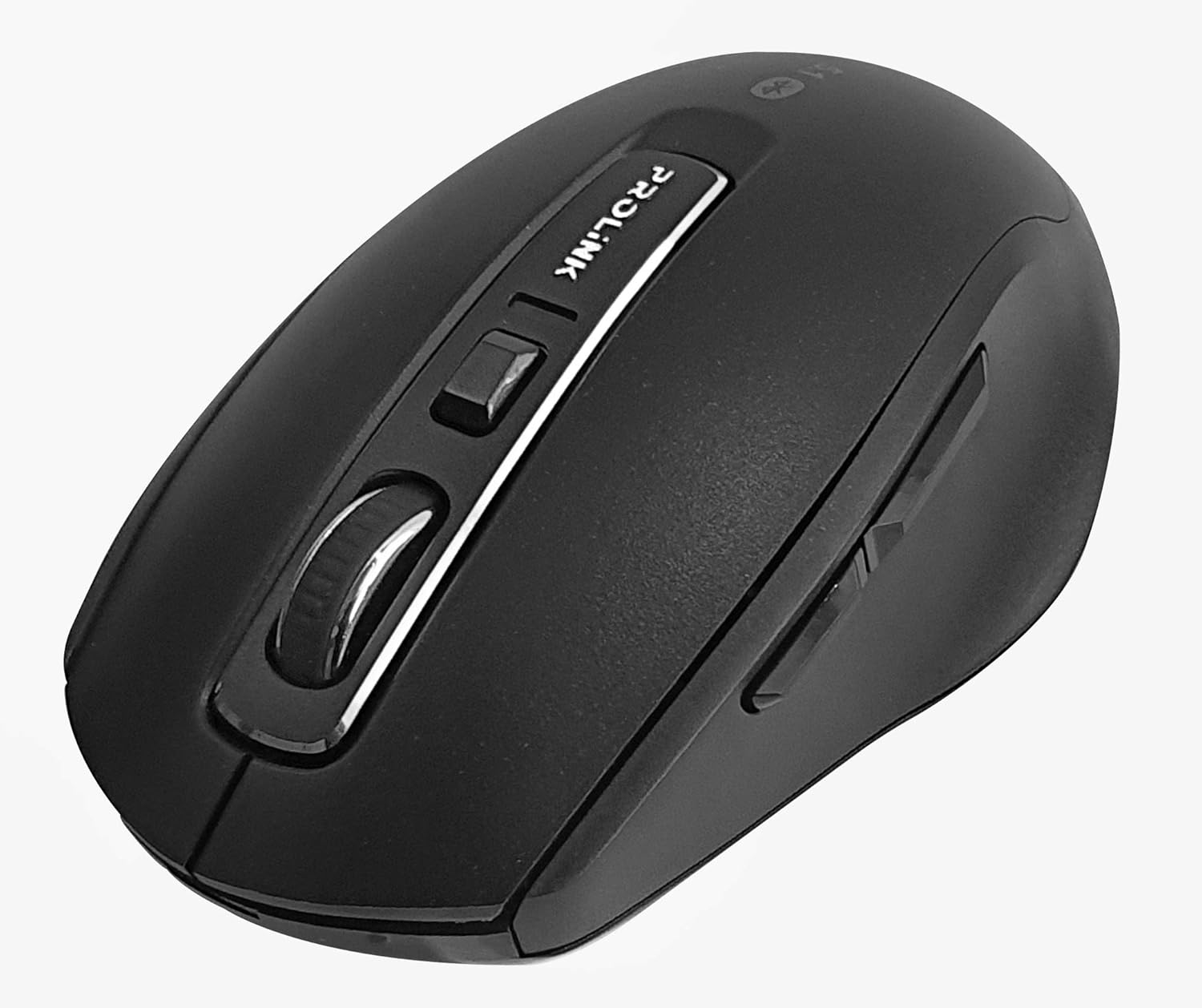
Billede: Top-down view of the Prolink PMB8502 Bluetooth Wireless Optical Mouse.
1. Introduktion og overview
The Prolink PMB8502 Bluetooth Mouse is designed for seamless wireless control of your desktop, laptop, or tablet. It features Bluetooth 5.2 connectivity, an ergonomic design, and adjustable DPI settings for personalized comfort and precision. This manual provides detailed instructions for setup, operation, maintenance, and troubleshooting.
Nøglefunktioner:
- Bluetooth 5.2 connectivity (backward compatible with 5.1/5.0/4.2/4.1/4.0)
- Up to 27 months battery life (based on supplied batteries)
- Justerbar DPI: 800/1200/1600
- 6-button design including back and forward buttons
- Ergonomisk design til behagelig brug
- Operating range of up to 10 meters

Image: Prolink PMB8502 mouse highlighting its Bluetooth 5.2, battery life, DPI, and range features.
2. Pakkens indhold
- Prolink PMB8502 Bluetooth Wireless Optical Mouse
- 1 x AA-batteri (forinstalleret eller medfølger separat)
- Brugervejledning (dette dokument)
3. Opsætningsvejledning
3.1. Batteriinstallation
- Find batteridækslet på undersiden af musen.
- Skub eller løft forsigtigt dækslet for at åbne rummet.
- Insert one AA battery, ensuring the positive (+) and negative (-) terminals align correctly with the markings inside the compartment.
- Sæt batteridækslet på plads, indtil det klikker sikkert på plads.
3.2. Bluetooth-parring
Before pairing, ensure your device (computer, laptop, tablet) has Bluetooth enabled.
- Tænd musen ved hjælp af tænd/sluk-knappen, der er placeret på undersiden.
- Press and hold the Bluetooth 'Connect' button (usually located near the On/Off switch or within the battery compartment) for 3-5 seconds until the LED indicator on the mouse begins to flash, indicating it is in pairing mode.
- Naviger til Bluetooth-indstillingerne på din enhed.
- Søg efter new devices. The mouse should appear as "Prolink PMB8502" or similar.
- Select the mouse from the list to complete the pairing process. The LED indicator on the mouse will stop flashing and remain solid for a few seconds, then turn off, indicating a successful connection.

Billede: Forside view of the Prolink PMB8502 mouse, showing its ergonomic shape.
4. Betjeningsvejledning
4.1. Knapfunktioner
- Venstreklikknap: Standardvalg og aktivering.
- Højreklik-knap: Åbner kontekstmenuer.
- Scrollhjul: Ruller dokumenter og web pages vertically. Can also be pressed for middle-click functionality.
- DPI-justeringsknap: Located below the scroll wheel. Press to cycle through DPI settings (800/1200/1600).
- Frem-knap: Navigerer fremad i web browsere eller file opdagelsesrejsende.
- Tilbage knap: Navigerer baglæns i web browsere eller file opdagelsesrejsende.

Billede: Side view of the Prolink PMB8502 mouse, illustrating the placement of the back and forward navigation buttons.
4.2. DPI-justering
The mouse offers three DPI (Dots Per Inch) settings: 800, 1200, and 1600. Press the DPI button located below the scroll wheel to switch between these sensitivities. A higher DPI setting results in faster cursor movement across the screen.
4.3. Strømstyring
- Tænd/sluk-knap: To conserve battery life, turn off the mouse using the switch on its underside when not in use for extended periods.
- Automatisk dvaletilstand: The mouse automatically enters a sleep mode after more than 10 minutes of inactivity. To wake it up, simply move the mouse or click any button.
5. Vedligeholdelse
5.1. Rensning
To clean the mouse, use a soft, dry, lint-free cloth. For stubborn dirt, slightly dampen the cloth with water or a mild cleaning solution. Avoid using harsh chemicals, abrasive cleaners, or spraying liquids directly onto the mouse.
5.2. Udskiftning af batteri
When the mouse performance degrades or the LED indicator suggests low battery, replace the AA battery following the steps in Section 3.1. Dispose of used batteries responsibly according to local regulations.
6. Fejlfinding
- Mouse not connecting or erratic movement:
- Sørg for, at musen er tændt.
- Kontroller batteriniveauet og udskift det om nødvendigt.
- Sørg for, at Bluetooth er aktiveret på din enhed.
- Try re-pairing the mouse with your device (refer to Section 3.2).
- Flyt musen tættere på din enhed for at udelukke problemer med rækkevidden.
- Ensure there are no other strong wireless signals interfering with the Bluetooth connection.
- Cursor not moving smoothly:
- Rengør den optiske sensor på undersiden af musen.
- Brug musen på en ren, ikke-reflekterende overflade.
- Adjust the DPI setting to a level that suits your preference.
- Knapper reagerer ikke:
- Kontroller batteriniveauet.
- Ensure the mouse is properly connected via Bluetooth.
- Genstart din computer eller enhed.
7. Specifikationer
| Feature | Detalje |
|---|---|
| Knapper | 6 |
| Sensor | Optisk |
| DPI opløsning | 800 / 1200 / 1600 DPI |
| Interface | Bluetooth 5.2 (backward compatible with Bluetooth 5.1/5.0/4.2/4.1/4.0) |
| USB-rapporthastighed | 125 Hz |
| FPS | 2400 gange/sek |
| Driftsfugtighed | 30%RH - 95%RH |
| Driftstemperatur | -20°C - +60°C |
| Operativsystem | Windows 7 / 10 / 11, Mac OS 10.2 above |
| Dimensioner (L x B x H) | 108 mm x 66.7 mm x 40.2 mm |
| Vægt | 69.2g (product only) |
| Batteritype | 1 x AA batteri |

Image: Graphic displaying the technical specifications of the Prolink PMB8502 mouse.
8. Garanti og support
The Prolink PMB8502 Bluetooth Wireless Optical Mouse typically comes with a 3 års garanti from the date of purchase. Please refer to your purchase receipt or the official Prolink website for specific warranty terms and conditions applicable in your region.
For technical support, troubleshooting assistance, or warranty claims, please visit the official Prolink website or contact their customer service department. Contact information can usually be found on the product packaging or the Prolink official webwebsted.
Online ressourcer:

Image: Prolink PMB8502 mouse with a "3 Year Warranty" label, indicating product assurance.


