1. Introduktion
This user manual provides detailed instructions for the installation, operation, and maintenance of the Delock HDMI/USB-C™ KVM Switch 4K 60Hz with USB 2.0, Model 11477. Please read this manual thoroughly before using the device to ensure proper functionality and to prevent damage.
2. Sikkerhedsoplysninger
To ensure safe operation and prolong the life of your device, please observe the following safety precautions:
- Udsæt ikke enheden for fugt, ekstreme temperaturer eller direkte sollys.
- Do not disassemble or modify the device. This will void the warranty and may cause damage.
- Use only the specified power adapter (if applicable) and cables.
- Hold enheden væk fra stærke elektromagnetiske felter.
- Sørg for tilstrækkelig ventilation omkring enheden under drift.
3. Pakkens indhold
Kontroller venligst pakkens indhold ved udpakning. Hvis der mangler eller er beskadigede dele, skal du straks kontakte din forhandler.
- Delock HDMI/USB-C™ KVM Switch 4K 60Hz (Model 11477)
- USB-C™ to USB-C™ cable
- USB-A til USB-B-kabel
- Brugermanual

Figure 3.1: Delock KVM Switch with included USB-C to USB-C and USB-A to USB-B cables.
4. Produktet er slutview
The Delock KVM Switch allows you to control two computers (one with HDMI/USB-A, one with USB-C) from a single set of console peripherals (monitor, keyboard, mouse).
4.1 Front/Top Panel

Figur 4.1: Øverst view of the Delock KVM Switch.
- Console USB Ports (Keyboard/Mouse): Two USB 2.0 Type-A ports for connecting your keyboard and mouse.
- PC 2 USB-C™ Port: Connects to a computer with a USB-C™ port for video and USB data.
- PC 1 USB Port: Connects to a computer's USB-A port for USB data.
- PC 1 HDMI Port: Connects to a computer's HDMI output for video.
- Skift knap: Press to switch between PC 1 and PC 2.
- LED-indikatorer: Indicate the currently active PC (PC 1 or PC 2).
4.2 Bagpanel
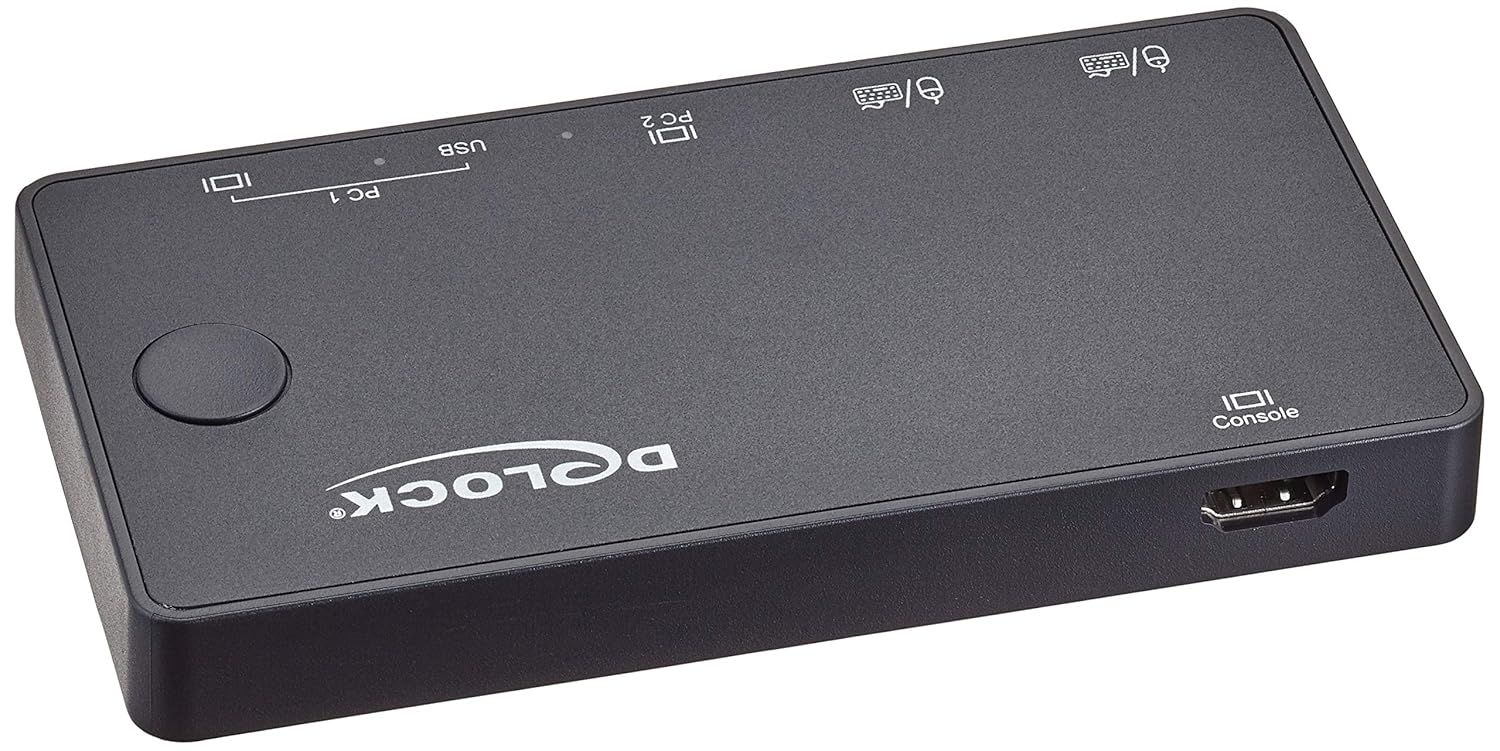
Figur 4.2: Bagside view of the Delock KVM Switch.
- Console HDMI Port: Connects to your monitor.
5. Opsætning og installation
Follow these steps to set up your Delock KVM Switch:
- Connect Console Peripherals:
- Connect your HDMI monitor to the "Console HDMI" port on the rear of the KVM switch.
- Connect your USB keyboard and mouse to the "Console USB" ports on the front of the KVM switch.
- Connect PC 1:
- Connect an HDMI cable from your PC 1's HDMI output to the "PC 1 HDMI" input on the KVM switch.
- Connect the included USB-A to USB-B cable from your PC 1's USB-A port to the "PC 1 USB" input on the KVM switch.
- Connect PC 2:
- Connect the included USB-C™ to USB-C™ cable from your PC 2's USB-C™ port (which supports DisplayPort Alternate Mode and USB data) to the "PC 2 USB-C™" input on the KVM switch.
- Tænd:
The KVM switch is typically powered via the USB connections from the connected computers. Ensure both PCs are powered on for stable operation.
Once all connections are made, the KVM switch should automatically detect the active computer. The LED indicator will show which PC is currently selected.
6. Betjeningsvejledning
The Delock KVM Switch offers simple operation to switch between connected computers.
6.1 Skift mellem computere
To switch between PC 1 and PC 2, simply press the "Switch Button" located on the top panel of the KVM switch. The corresponding LED indicator will illuminate to show the active computer.
Note: Ensure both computers are powered on and sending a video signal for seamless switching.
7. Fejlfinding
If you encounter issues with your Delock KVM Switch, please refer to the following common problems and solutions:
| Problem | Mulig årsag/løsning |
|---|---|
| Ingen videoudgang på skærmen. |
|
| Tastatur/mus reagerer ikke. |
|
| Cannot switch between PCs. |
|
| Video resolution/refresh rate issues. |
|
8. Specifikationer
The following are the technical specifications for the Delock KVM Switch 11477:
- Model: 11477
- Fungere: HDMI / USB-C™ KVM Switch
- Videoopløsning: Up to 4K (3840 x 2160) @ 60Hz
- USB standard: USB 2.0 (for keyboard/mouse), USB-C™ (for PC 2 data/video)
- Indgangsporte:
- PC 1: 1 x HDMI, 1 x USB-B
- PC 2: 1 x USB-C™ (DisplayPort Alt Mode)
- Output Ports (Console):
- 1 x HDMI
- 2 x USB-A (for keyboard/mouse)
- Skiftemetode: Tryk knap
- Dimensioner (LxBxH): 3.6 x 1.72 x 2.25 tommer (ca. 91.44 x 43.69 x 57.15 mm)
- Vægt: 11.29 ounce (ca. 320 gram)
- Driftstilstand: Manuel
- Fabrikant: Delock
9. Vedligeholdelse
The Delock KVM Switch requires minimal maintenance. Follow these guidelines to keep your device in optimal condition:
- Rensning: Brug en blød, tør klud til at rengøre enhedens yderside. Brug ikke flydende rengøringsmidler eller aerosoler.
- Opbevaring: Når enheden ikke er i brug i længere perioder, skal den opbevares køligt og tørt, væk fra direkte sollys og ekstreme temperaturer.
- Ventilation: Ensure the device's ventilation openings are not blocked to prevent overheating.
10. Garanti og support
For warranty information and technical support, please refer to the documentation provided with your purchase or visit the official Delock webwebsted. Gem din købsbevis til garantikrav.
Delock Official Webwebsted: www.delock.com


