1. Introduktion
This manual provides detailed instructions for the PRITOM L10 10-inch Android Tablet. It covers essential information regarding device setup, operation, maintenance, and troubleshooting to ensure optimal performance and user experience. Please read this manual thoroughly before using your tablet.
2. Enhed overview
The PRITOM L10 tablet is designed for portability and performance, featuring a 10-inch display and the Android 10.0 operating system.

Figure 2.1: The PRITOM L10 tablet's home screen, showing the Android interface with pre-installed applications like Google, YouTube, Netflix, Instagram og Facebook.
2.1 Nøglefunktioner
- Operativsystem: Android 10.0
- Processor: Octa-core, up to 1.6 GHz
- Hukommelse: 3GB RAM, 32GB Internal Storage (ROM)
- Vise: 10-inch HD IPS (1280 x 800 pixels)
- Kameraer: 5 MP foran, 8 MP bagpå
- Batteri: 6000 mAh Lithium-polymer
- Forbindelse: Dual-band Wi-Fi (2.4G/5G), Bluetooth, GPS
- Udvidelig lagerplads: Micro SD-kortstik (op til 128 GB)
- Lyd: Dual BOX speakers

Figure 2.2: An illustration highlighting the tablet's 3GB RAM, 32GB internal storage (ROM), and the capability to expand storage up to 128GB via a Micro SD card.
3. Opsætning
3.1 Indledende tænding
- Oplad tabletten: Before first use, fully charge the tablet using the provided USB-C cable and power adapter. The charging port is typically located on the side or bottom edge of the device.
- Tænd: Press and hold the Power button (usually on the side) for a few seconds until the PRITOM logo appears on the screen.
- Initial Setup Wizard: Follow the on-screen instructions to select your language, connect to a Wi-Fi network, set up your Google account, and configure basic settings.
3.2 Wi-Fi-forbindelse
Sådan opretter du forbindelse til et Wi-Fi-netværk:
- Gå til Indstillinger > Netværk og internet > Wi-Fi.
- Toggle the Wi-Fi switch to the On position.
- Vælg dit ønskede netværk fra listen over tilgængelige netværk.
- Hvis du bliver bedt om det, skal du indtaste netværksadgangskoden og trykke på Forbinde.

Figure 3.1: This image illustrates the tablet's support for both 2.4G and 5G Wi-Fi bands, indicating faster and more stable internet connectivity.
4. Betjening af tabletten
4.1 Navigation
- Startskærm: Tap the home button (circle icon) to return to the main screen.
- Tilbage: Tap the back button (triangle icon) to go back to the previous screen.
- Seneste apps: Tap the square icon to view og skifte mellem nyligt åbnede applikationer.
- Meddelelser: Stryg nedad fra toppen af skærmen for at få adgang til notifikationer og hurtigindstillinger.
4.2 Installation og administration af apps
The PRITOM L10 tablet is Google Certified, allowing access to the Google Play Store for downloading applications.
- Download apps: Åbn Play Butik app, search for your desired application, and tap Installere.
- Afinstaller apps: Gå til Indstillinger > Apps og notifikationer, vælg appen, og tryk på Afinstaller.
4.3 Kamerabrug
The tablet features a 5 MP front camera and an 8 MP rear camera.
- Åbn Kamera app.
- Tryk på udløserknappen for at tage et billede.
- Skift mellem forreste og bageste kamera ved hjælp af kameraskifterikonet.
- Vælg videotilstand for at optage videoer.
5. Batteristyring
The PRITOM L10 tablet is equipped with a 6000 mAh lithium-polymer battery.

Figure 5.1: A visual showing the tablet's 6000mAh battery, with estimated usage times: 9 hours for video playback, 11 hours for mixed use, and 15 hours for reading.
5.1 Opladning
- Use only the original charger and USB-C cable provided with the tablet.
- Undgå opladning i ekstreme temperaturer.
5.2 Optimering af batterilevetid
- Reducer skærmens lysstyrke.
- Slå Wi-Fi, Bluetooth og GPS fra, når de ikke er i brug.
- Luk baggrundsapplikationer.
- Aktivér batterisparetilstand i Indstillinger > Batteri.
6. Lagerstyring
The tablet comes with 32GB of internal storage, which can be expanded.
6.1 Udvidelse af lagerplads
You can expand the tablet's storage up to 128GB using a Micro SD card.
- Locate the Micro SD card slot on the tablet (refer to the device diagram if available).
- Sæt forsigtigt Micro SD-kortet i åbningen, indtil det klikker på plads.
- Tabletten vil registrere den nye lagerplads. Du bliver muligvis bedt om at formatere kortet for optimal brug med enheden.
6.2 Managing Internal Storage
To check and manage storage usage:
- Gå til Indstillinger > Opbevaring.
- Here you can see how much space is used by apps, photos, videos, and other files.
- You can clear cached data or uninstall unused apps to free up space.
7. Skærmindstillinger
The PRITOM L10 features a 10-inch HD IPS display with a resolution of 1280 x 800 pixels.

Figur 7.1: En detaljeret view of the tablet's 10-inch HD IPS display, emphasizing its clear resolution and vibrant color reproduction.
7.1 Adjusting Brightness and Eye Health Mode
- Gå til Indstillinger > Vise.
- Adjust the brightness slider to your preference.
- Look for an option like 'Eye Comfort Shield' or 'Reading Mode' to reduce blue light emission, which can be beneficial for eye health during prolonged use.
8. Vedligeholdelse
8.1 Rengøring af tabletten
- Sluk tabletten før rengøring.
- Brug en blød, fnugfri klud til at tørre skærmen og kabinettet af.
- For genstridige mærker, let dampRengør kluden med vand eller et skærmrensemiddel. Undgå skrappe kemikalier.
8.2 Generel pleje
- Avoid dropping the tablet or exposing it to strong impacts.
- Hold tabletten væk fra ekstreme temperaturer, direkte sollys og fugt.
- Do not attempt to disassemble the tablet, as this will void the warranty.
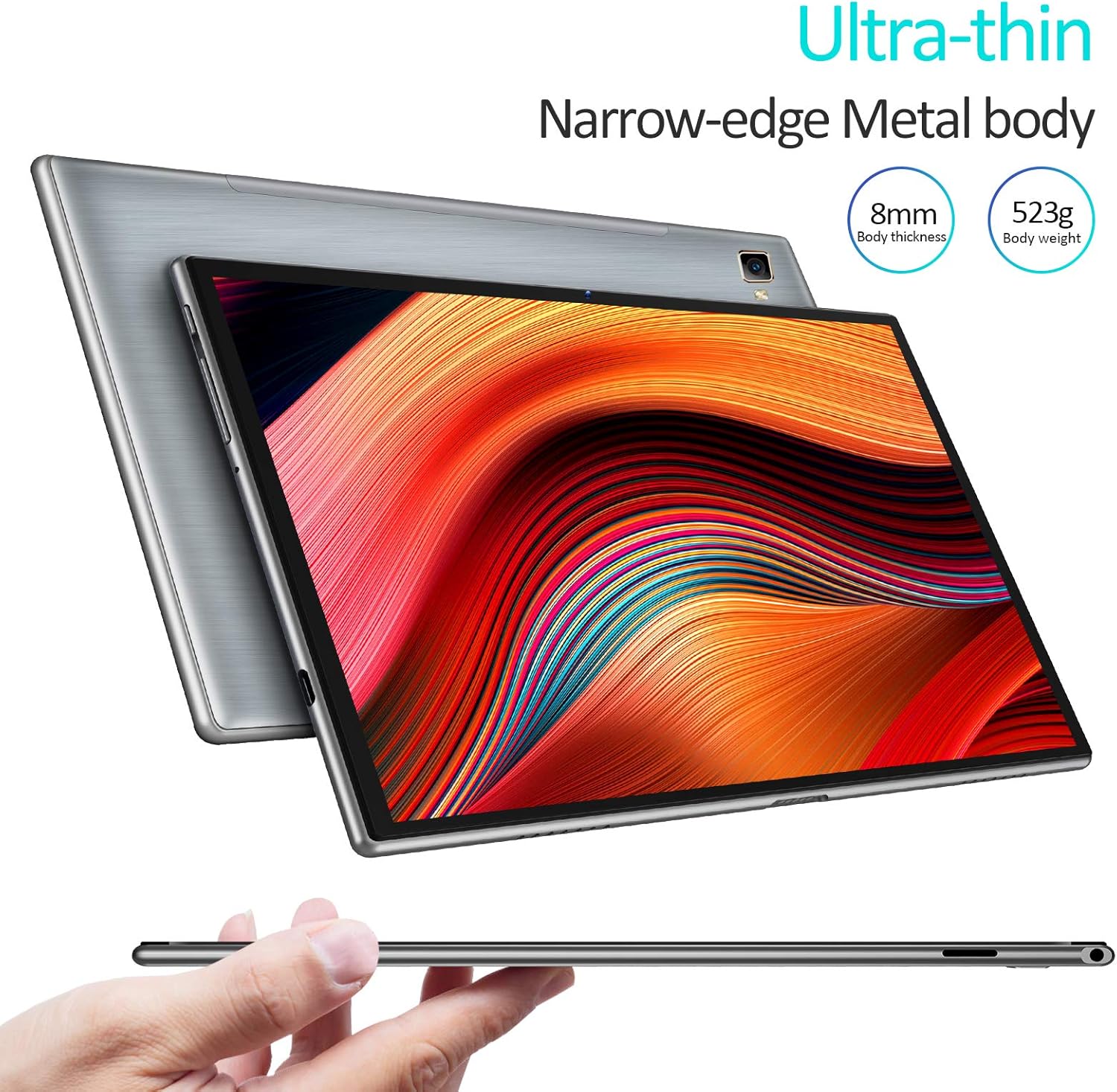
Figure 8.1: This image showcases the tablet's slim profile (8mm thickness) and lightweight metal body (523g), highlighting its portable design.
9. Fejlfinding
9.1 Almindelige problemer og løsninger
- Tabletten tænder ikke: Sørg for, at batteriet er opladet. Tilslut opladeren, og vent et par minutter, før du forsøger at tænde igen.
- Skærm frosset: Tryk og hold tænd/sluk-knappen nede i cirka 10-15 sekunder for at fremtvinge en genstart.
- Problemer med Wi-Fi-forbindelse: Tjek om Wi-Fi er aktiveret i indstillingerne. Genstart din router og tablet. Glem netværket, og genopret forbindelsen.
- Apps der går ned: Clear the app's cache (Settings > Apps & notifications > [App Name] > Storage & cache > Clear cache). If the issue persists, uninstall and reinstall the app.
- Langsom ydeevne: Close unused apps, clear unnecessary files, and consider performing a factory reset if the issue is severe (back up your data first).
10. Specifikationer
| Feature | Specifikation |
|---|---|
| Mærke | PRITOM |
| Modelnummer | L10 |
| Operativsystem | Android 10.0 |
| Processor | Octa-core Unisoc, 1.6 GHz |
| VÆDDER | 3 GB |
| Internt lager (ROM) | 32 GB |
| Udvidelig opbevaring | Micro SD op til 128 GB |
| Skærmstørrelse | 10 tommer |
| Skærmopløsning | 1280 x 800 pixels (HD IPS) |
| Forreste kamera | 5 MP |
| Bagkamera | 8 MP |
| Batteri | 6000 mAh Lithium-polymer |
| Wi-Fi | Dual-band (2.4G & 5G) |
| Bluetooth | Ja |
| GPS | Ja |
| Dimensioner (L x B x H) | 24.3 x 16.2 x 8.9 cm |
| Vægt | 520 gram |
| Særlige funktioner | Stereo speakers, Metal body |
11. Sikkerhedsoplysninger
- Do not use the tablet in environments with extreme temperatures or high humidity.
- Avoid exposing the tablet to water or other liquids.
- Hold tabletten væk fra stærke magnetfelter.
- Do not use damaged accessories, such as chargers or cables.
- Bortskaf tabletten og dens batteri på en ansvarlig måde i henhold til lokale regler.
12. Garanti og support
The PRITOM L10 tablet typically comes with a manufacturer's warranty. Please refer to the warranty card included in your product packaging for specific terms and conditions, including the warranty period and coverage details.
For technical support, troubleshooting assistance, or warranty claims, please contact PRITOM customer service through their official website or the contact information provided with your purchase. When contacting support, please have your tablet's model number (L10) and purchase details ready.


