1. Introduktion
This manual provides detailed instructions for the installation, operation, and maintenance of your Phonocar VM011D 2-DIN Car Radio. Please read this manual thoroughly before using the product to ensure correct operation and to prevent damage.
The Phonocar VM011D is a versatile 2-DIN car radio featuring a 6.75-inch capacitive touchscreen monitor, Apple CarPlay, Android Auto, DAB+ digital radio, Bluetooth connectivity, and GPS capabilities.
2. Sikkerhedsoplysninger
Observe the following safety precautions to prevent accidents and damage to the unit:
- Betjen ikke enheden på en måde, der distraherer dig fra kørslen.
- Sørg for, at alle ledninger er korrekt tilsluttet for at forhindre kortslutninger eller elektriske farer.
- Kontakt en kvalificeret tekniker for installation, hvis du er usikker på nogle trin.
- Udsæt ikke enheden for ekstreme temperaturer, direkte sollys i længere perioder eller overdreven fugtighed.
3. Pakkens indhold
Bekræft at alle varer er til stede i pakken:
- Phonocar VM011D Main Unit
- Strømforsyning
- GPS antenne
- USB-forlængerkabel
- Monteringshardware
- Brugervejledning (dette dokument)
4. Opsætning og installation
Installation of the Phonocar VM011D requires basic automotive electrical knowledge. If you are not confident in performing the installation yourself, it is recommended to seek professional assistance.
4.1 Ledningsdiagram
Refer to the detailed wiring diagram provided with your unit for specific connections. Key connections include:
- Strøm (Gul): Konstant 12V (batteri)
- Tilbehør (rød): Skiftet 12V (tænding)
- Jord (sort): Chassis jord
- Højttalerudgange: Front Left, Front Right, Rear Left, Rear Right (ensure correct polarity)
- Antenne: Tilslut bilens radioantenne.
- GPS-antenne: Tilslut GPS-antennen, og monter den på et sted med frit view af himlen.
- USB-porte: For Apple CarPlay, Android Auto, and media playback.

Figur 1: Forside view of the Phonocar VM011D display showing the main menu with icons for Radio, Bluetooth Phone, Bluetooth Music, DAB, and AV In1. USB and SD card slots are visible at the bottom.
4.2 Montering af enheden
- Remove the existing car radio from the dashboard.
- Connect all necessary wiring harnesses to the VM011D.
- Slide the VM011D into the 2-DIN opening in your dashboard.
- Fastgør enheden med de medfølgende monteringsbeslag og skruer.
- Saml instrumentbrætbeklædningen igen.
5. Betjeningsvejledning
5.1 Tænd/sluk
The unit will power on automatically when the vehicle's ignition is turned on. To manually power off (if supported by vehicle wiring), press and hold the power button (usually located on the front panel).
5.2 Berøringsskærmsgrænseflade
The VM011D features a 6.75-inch capacitive touchscreen. Navigate through menus and select functions by tapping icons or swiping across the screen.

Figure 2: The VM011D display highlighting compatibility with Apple CarPlay and Phonelink, indicating its smartphone integration features.
5.3 Radio (DAB+/FM/AM)
- Valg af kilde: Tap the "Radio" or "DAB" icon on the main menu.
- Scanning: Use the scan function to automatically find and store available stations.
- Presets: Gem dine yndlingsstationer under forudindstillede knapper for hurtig adgang.
5.4 Bluetooth-forbindelse
Pair your smartphone to the VM011D for hands-free calling and audio streaming.
- Go to the Bluetooth settings on the VM011D.
- Aktiver Bluetooth på din smartphone, og søg efter tilgængelige enheder.
- Select "Phonocar VM011D" from the list on your phone.
- Bekræft parringskoden, hvis du bliver bedt om det.
Once paired, you can access "BT Phone" for calls and "Musica BT" for audio streaming.
5.5 Apple CarPlay / Android Auto
Connect your compatible smartphone via USB to access Apple CarPlay or Android Auto functionalities directly on the VM011D screen.
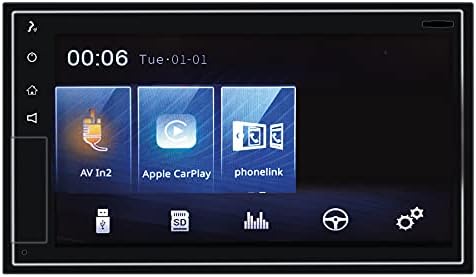
Figure 3: The VM011D display showing icons for AV In2, Apple CarPlay, and Phonelink, indicating various input and smartphone integration options.
- Apple CarPlay: Connect your iPhone using a certified USB cable. The CarPlay interface will automatically launch.
- Android Auto: Connect your Android phone using a certified USB cable. Ensure Android Auto is installed on your phone. The Android Auto interface will automatically launch.
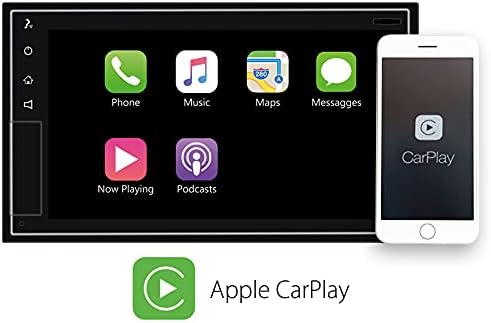
Figure 4: The VM011D display showing the Apple CarPlay interface with common applications like Phone, Music, Maps, and Messages, alongside an iPhone demonstrating connectivity.

Figure 5: The Phonocar VM011D integrated into a car's dashboard, displaying the Apple CarPlay interface with multiple application icons, demonstrating in-car usage.
5.6 GPS-navigation
The unit includes GPS functionality. Depending on the software pre-installed or accessed via CarPlay/Android Auto, you can use navigation applications for route guidance.

Figure 6: The VM011D display showing a navigation map, likely mirrored from a smartphone via Phonelink, with route details and traffic information.
5.7 Medieafspilning (USB/SD)
Insert a USB drive or SD card into the designated slots to play audio or video files. The unit supports various media formats.
6. Vedligeholdelse
- Rengøring af skærmen: Brug en blød, fnugfri klud til forsigtigt at tørre berøringsskærmen af. Brug ikke slibende rengøringsmidler eller opløsningsmidler.
- Softwareopdateringer: Periodically check the Phonocar website for any available firmware updates for your VM011D model. Follow the instructions provided with the update carefully.
- Generel pleje: Avoid exposing the unit to extreme temperatures, direct sunlight, or excessive dust.
7. Fejlfinding
| Problem | Mulig årsag | Løsning |
|---|---|---|
| Ingen strøm | Forkert ledningsføring; Sprunget sikring; Bilens tænding er afbrudt. | Check power and ground connections. Inspect vehicle fuse box and unit's fuse. Ensure ignition is on. |
| Ingen lyd | Lydstyrken er for lav; Mute aktiveret; Forkert højttalerledningsføring. | Increase volume. Deactivate mute function. Verify speaker connections and polarity. |
| Bluetooth forbinder ikke | Bluetooth not enabled on phone/unit; Device not in pairing mode; Interference. | Ensure Bluetooth is active on both devices. Put unit in pairing mode. Try pairing again. Move closer to the unit. |
| CarPlay/Android Auto not launching | Faulty USB cable; Incompatible phone; Software issue. | Use a certified USB cable. Ensure your phone is compatible and has the latest OS. Restart phone and unit. |
| Touchscreen reagerer ikke | Midlertidig softwarefejl; Skærm snavset. | Restart the unit (turn vehicle ignition off and on). Clean the screen with a soft cloth. |
8. Specifikationer
- Model: VM011D
- Mærke: Phonocar
- Vise: 6.75-tommer kapacitiv berøringsskærm
- Formfaktor: 2-DIN
- Forbindelse: Bluetooth, USB
- Smartphone-integration: Apple CarPlay, Android Auto, Phonelink
- Radiotuner: DAB+, FM, AM
- Lydudgangseffekt: 50 Watts (per channel, typically 4 channels)
- Kompatible enheder: Smartphone
- Kontrolmetode: Røre
9. Garanti og support
For warranty information and technical support, please refer to the warranty card included with your product or visit the official Phonocar webwebstedet. Behold din købskvittering som købsbevis.
Phonocar Official Webwebsted: www.phonocar.com


