1. Introduktion
The Vaddio EasyIP 10 Camera is a key component of the EasyIP Ecosystem, designed for high-quality videoconferencing in various room sizes. This camera delivers 1080p/60 resolution video feeds and integrates seamlessly into an AV-over-IP solution. It connects to a 1 GB PoE+ switch, simplifying installation by eliminating the need for separate power supplies and costly USB extensions. This manual provides essential information for the proper setup, operation, and maintenance of your EasyIP 10 Camera.
2. Produktet er slutview
The EasyIP 10 Camera is a Power over Ethernet (PoE+) enabled Pan-Tilt-Zoom (PTZ) camera. It is optimized for use within the Vaddio EasyIP Ecosystem, providing high-definition video capture for unified communications (UC) soft clients.
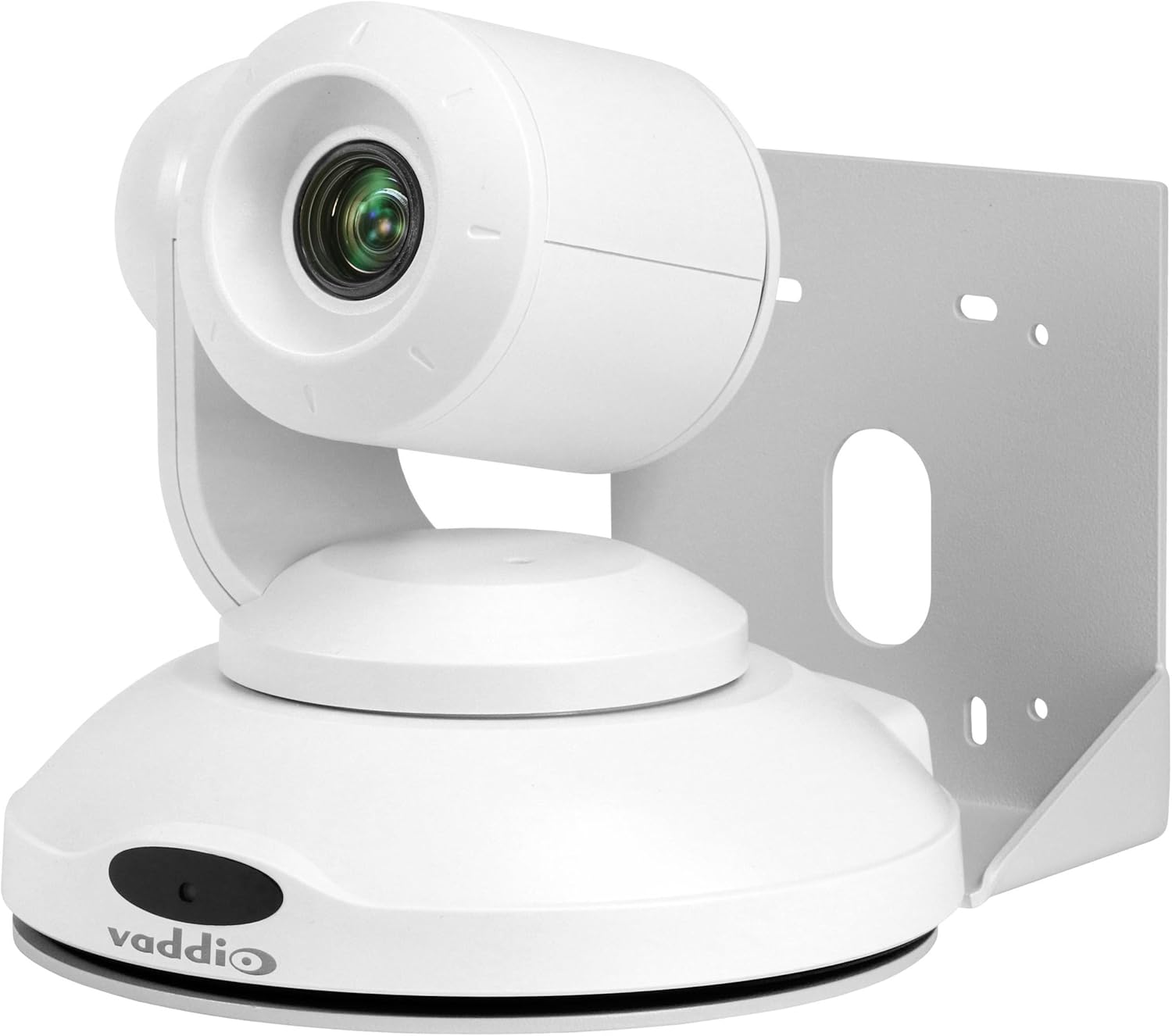
Figur 1: Vaddio EasyIP 10 PoE PTZ Camera. This image shows the white dome-shaped camera with its lens visible, mounted on a bracket, and the Vaddio logo on its base.
Nøglefunktioner:
- HD PTZ camera with 10x optical zoom.
- 67-degree horizontal field of view.
- Controlled via an intuitive browser-based user interface from the EasyIP Decoder.
- One EasyIP (Network PoE+) video output.
- Supports up to two EasyIP Decoders simultaneously.
- PoE+ powered, requiring a single Ethernet cable for power and data.
3. Opsætning og installation
3.1 Pakkens indhold (typisk):
- Vaddio EasyIP 10 Camera
- Mounting bracket (for wall or ceiling installation)
- Installationshardware
- Quick Start Guide (refer to Vaddio's official website for full documentation)
3.2 Montering af kameraet:
- Vælg placering: Choose a suitable indoor location for the camera, considering the desired field of view and proximity to a network switch. The camera supports wall mount installation.
- Sikkert beslag: Attach the provided mounting bracket securely to the chosen surface using appropriate hardware. Ensure the bracket is level and can support the camera's weight.
- Tilslut kamera: Carefully attach the EasyIP 10 Camera to the mounted bracket. Follow the specific instructions provided with the mounting hardware to ensure a stable connection.
3.3 Connecting the Camera:
- Netværks forbindelse: Connect a standard Ethernet cable from the camera's network port to a 1 GB PoE+ (Power over Ethernet Plus) switch. The PoE+ connection provides both power and data to the camera.
- Switch Compatibility: The camera is optimized to work with the Luxul AMS-1208P Managed PoE Switch but is compatible with other properly configured 1 GB PoE switches. Ensure your switch meets the PoE+ (802.3at) standard for adequate power delivery.
- Systemintegration: Integrate the camera into your EasyIP Ecosystem by connecting the PoE+ switch to the EasyIP Decoder.
4. Betjening af kameraet
4.1 Tænd:
Once connected to a PoE+ switch, the camera will power on automatically. Allow a few moments for the camera to initialize and connect to the network.
4.2 Accessing Controls:
The EasyIP 10 Camera is controlled via an intuitive browser-based user interface accessible through the EasyIP Decoder. Refer to your EasyIP Decoder manual for detailed instructions on accessing and navigating this interface.
4.3 Pan-Tilt-Zoom (PTZ) Functions:
From the browser interface, you can control the camera's pan, tilt, and zoom functions to adjust the field of view. The camera features 10x optical zoom for detailed imaging.
4.4 Video Output:
The camera sends 1080p/60 resolution video feeds to the EasyIP Ecosystem. These feeds are then delivered to UC soft clients through the EasyIP Decoder. The camera supports simultaneous output to up to two EasyIP Decoders.
5. Vedligeholdelse
Regular maintenance ensures optimal performance and longevity of your EasyIP 10 Camera.
- Rensning: Gently wipe the camera's exterior and lens with a soft, dry, lint-free cloth. Avoid abrasive cleaners or solvents.
- Firmwareopdateringer: Periodically check the Vaddio website for firmware updates. Keeping the firmware current ensures access to the latest features and performance improvements. Follow the instructions provided by Vaddio for any update procedures.
- Miljøforhold: Ensure the camera operates within its specified environmental conditions (temperature, humidity) to prevent damage. The camera is designed for indoor use.
6. Fejlfinding
This section addresses common issues you might encounter with your EasyIP 10 Camera.
6.1 No Power/No Video:
- Check PoE+ Connection: Ensure the Ethernet cable is securely connected to both the camera and a PoE+ enabled switch.
- Bekræft switch: Confirm that the network switch is powered on and that the port connected to the camera is providing PoE+ power (802.3at).
- Netværkskonfiguration: Verify that the network is properly configured and that the camera can obtain an IP address.
6.2 Camera Not Responding to Controls:
- Netværksforbindelse: Ensure the camera has a stable network connection to the EasyIP Decoder.
- Decoder Status: Check the status of your EasyIP Decoder to ensure it is functioning correctly.
- Browsergrænseflade: Refresh the browser interface or try accessing it from a different device to rule out browser-specific issues.
6.3 Poor Video Quality:
- Linserens: Rengør kameralinsen som beskrevet i afsnittet Vedligeholdelse.
- Lysforhold: Ensure adequate lighting in the camera's field of view.
- Netværks båndbredde: Verify that your network has sufficient bandwidth to support 1080p/60 video streaming.
For persistent issues, consult the full Vaddio EasyIP Ecosystem documentation or contact Vaddio technical support.
7. Specifikationer
| Feature | Detalje |
|---|---|
| Modelnummer | EasyIP 10 kamera |
| Mærke | Vaddio |
| Videooptagelsesopløsning | 1080p (Effective 1080 Pixels) |
| Optisk zoom | 10x |
| Felt af View (Vandret) | 67 grader |
| Forbindelsesteknologi | Kablet (Ethernet) |
| Forbindelsesprotokol | Ethernet (PoE+) |
| Strømkilde | Power over Ethernet Plus (PoE+) |
| Formfaktor | Kuppel |
| Monteringstype | Vægmontering |
| Farve | Hvid |
| Dimensioner (L x B x H) | 19.69 x 19.69 x 11.02 tommer |
| Varens vægt | 8.01 pund (128.15 ounces) |
| Indendørs/Udendørs brug | Indendørs |
| UPC | 840077505950 |
8. Garanti og support
For detailed warranty information and technical support, please refer to the official Vaddio website or contact your authorized Vaddio dealer. Keep your purchase receipt for warranty claims.
Vaddio Official Webwebsted: www.vaddio.com


