1. Introduktion
This manual provides detailed instructions for the setup, operation, maintenance, and troubleshooting of your RAPOO Wireless Keyboard and Laser Mouse Combo. This versatile combo offers seamless connectivity across multiple devices, enhancing your productivity and user experience.

Figure 1: RAPOO Wireless Keyboard and Laser Mouse Combo
2. Produktfunktioner
- Forbindelse til flere enheder: Reliable connectivity via Bluetooth 3.0, Bluetooth 4.0, and 2.4G USB receiver. Switch freely between up to 4 devices.
- Ultra-thin Keyboard: The keyboard is only 4.0mm thick, featuring a stainless steel base, precise scissor key structure, and floating chic buttons for a stylish and durable design.
- Multi-functional Wireless Mouse: Equipped with 8 custom buttons and 4 adjustable DPI settings (600/1200/1600/3200) to meet various precision requirements. The laser engine mouse with PTFE foot pad is suitable for various surfaces without a mouse pad.
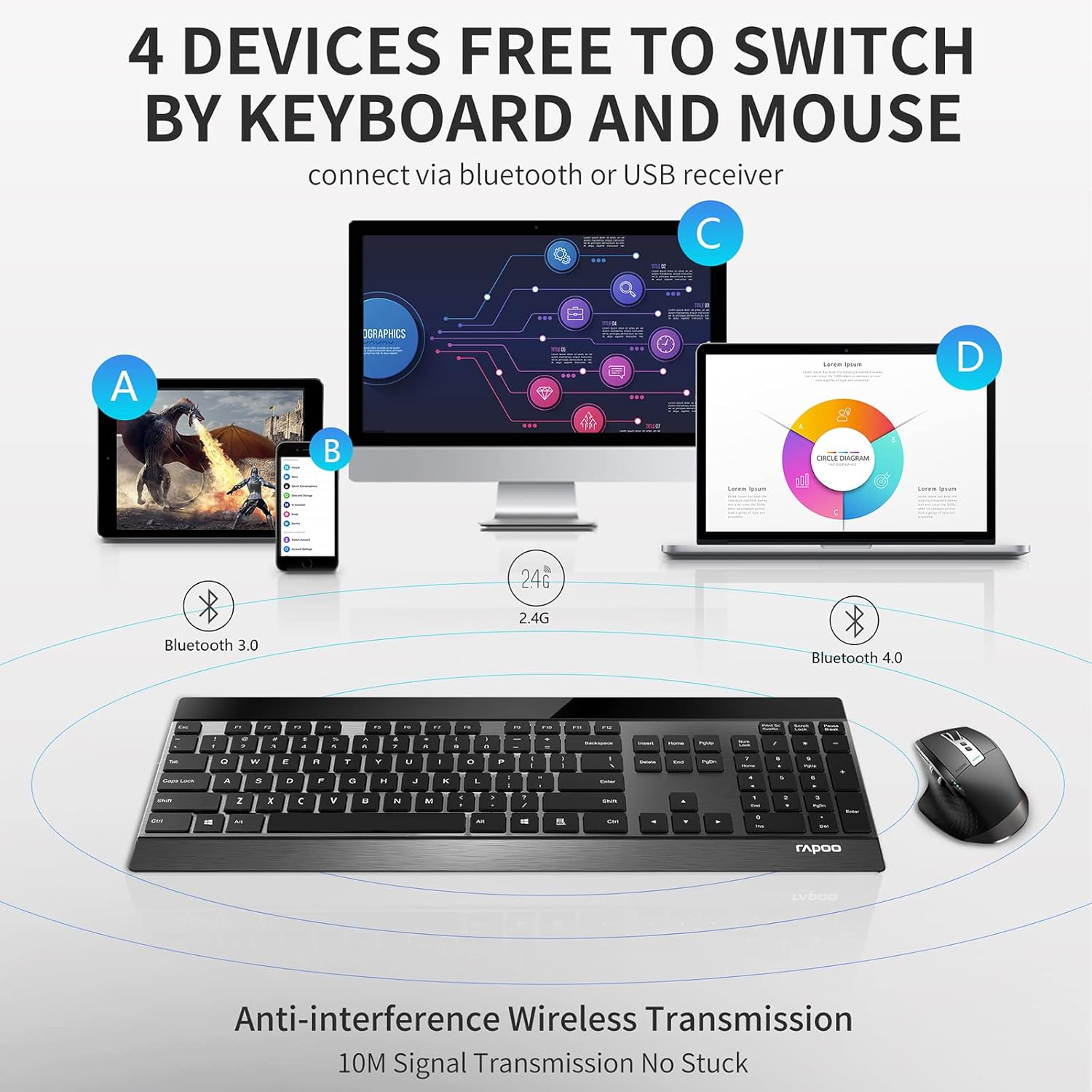
Figure 2: Multi-device switching capability

Figure 3: Ultra-thin keyboard profile
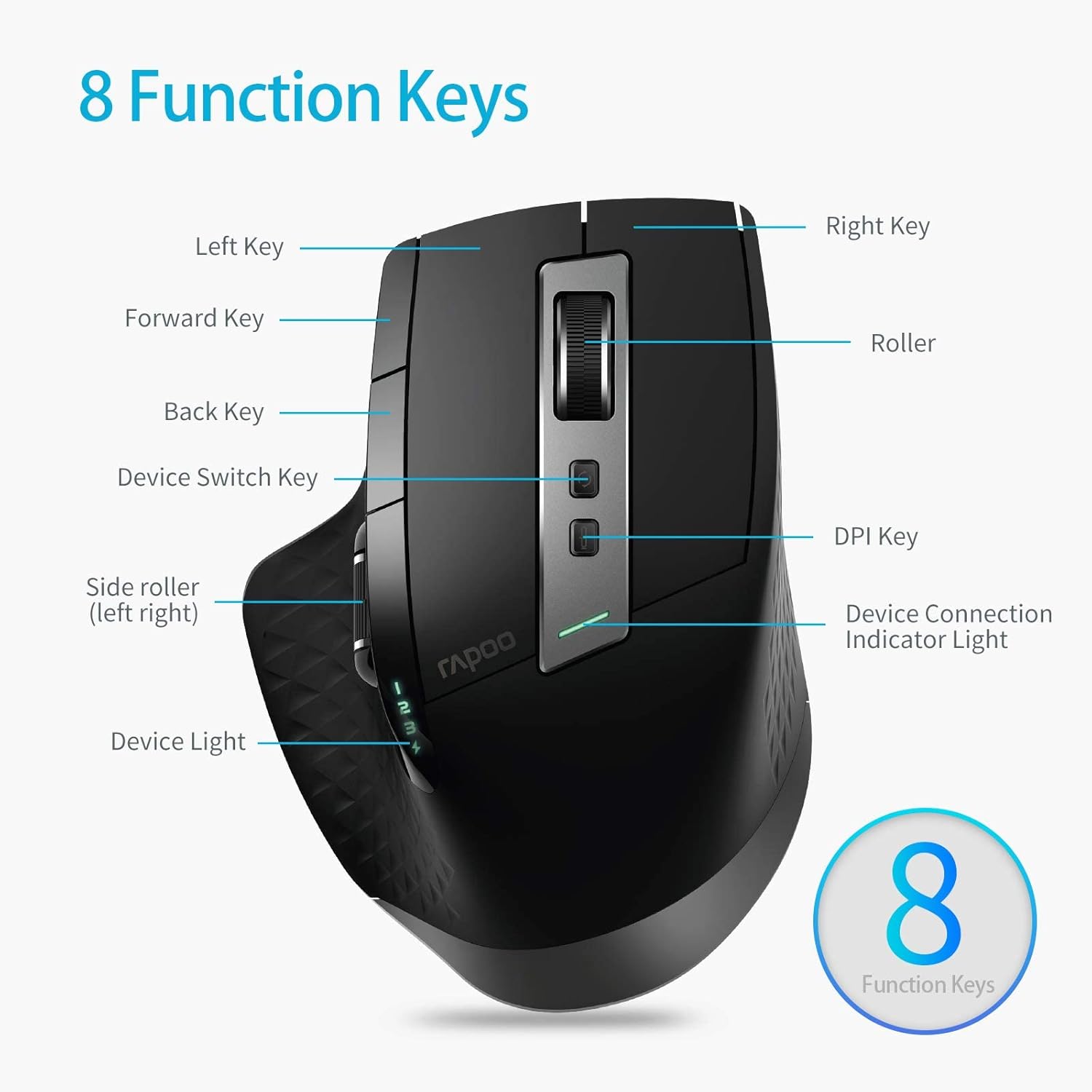
Figure 4: Mouse with programmable function keys
3. Opsætning
3.1. Battery Installation (Keyboard)
The keyboard requires 2 AA batteries (included). To install, slide open the battery compartment cover located on the underside of the keyboard. Insert the batteries according to the polarity markings and close the cover securely.
3.2. Charging (Mouse)
The mouse features an eco-friendly rechargeable battery. Connect the provided USB charging cable to the mouse's charging port and to a USB power source (e.g., computer USB port, USB wall adapter). The mouse can be used while charging.
3.3. Tilslutningsmetoder
Your RAPOO combo supports three connection modes: Bluetooth 3.0, Bluetooth 4.0, and 2.4G wireless via USB receiver. You can pair up to 4 devices simultaneously.
2.4G trådløs forbindelse
For 2.4G wireless connection, plug the USB receiver into an available USB port on your computer. The keyboard and mouse should automatically connect. This mode offers stable wireless transmission with minimal interference.
Bluetooth Connection (3.0 & 4.0)
For at oprette forbindelse via Bluetooth:
- On the keyboard, locate the connection switch on the back. Slide it to one of the Bluetooth channels (1, 2, or 3).
- Press and hold the 'Connect' button on the keyboard until the Bluetooth indicator light starts flashing blue.
- On the mouse, press the DPI button to cycle through profiles (1, 2, or 3) until the desired Bluetooth profile is selected. Press and hold the profile button until the indicator light flashes.
- Aktiver Bluetooth på din enhed (computer, tablet, smartphone) og søg efter nye enheder.
- Select 'RAPOO KB' for the keyboard and 'RAPOO Mouse' for the mouse from the list of available devices to complete pairing.

Figure 5: Keyboard connection indicators and buttons

Figure 6: Mouse with customizable buttons
3.4. Official Setup and Usage Video
For a visual guide on setting up and using your RAPOO Wireless Keyboard and Laser Mouse Combo, please watch the official product video below:
Video 1: Rapoo 9900M Blade Keyboard and Multi Device Mouse (Official)
This video demonstrates the unboxing, battery installation, connection process for both keyboard and mouse, and switching between multiple devices.
4. Betjeningsvejledning
4.1. Skift mellem enheder
Once paired with multiple devices, you can easily switch between them using the dedicated buttons on both the keyboard and mouse.
- Tastatur: Use the connection switch on the back to select the desired channel (1, 2, 3 for Bluetooth, 2.4G for USB receiver).
- Mus: Tryk på profile button on the top of the mouse to cycle through the paired devices.

Figure 7: Seamless switching between multiple devices
4.2. Justering af musens DPI
The mouse offers 4 adjustable DPI settings (600/1200/1600/3200) for varying cursor speeds and precision. Use the DPI button on the mouse to cycle through these settings.
4.3. Programmerbare knapper
The mouse features 8 customizable buttons. Utilize the accompanying software (if available from Rapoo's official website) to assign specific functions to these buttons for enhanced productivity.
5. Vedligeholdelse
- Rensning: Use a soft, dry cloth to clean the keyboard and mouse. Avoid using harsh chemicals or abrasive materials.
- Battery Replacement (Keyboard): Replace the 2 AA batteries when the keyboard's indicator light signals low power.
- Charging (Mouse): Recharge the mouse battery when the indicator light shows low power.
- Opbevaring: Opbevar kombinationen et køligt, tørt sted væk fra direkte sollys og ekstreme temperaturer.
6. Fejlfinding
- Ingen forbindelse: Ensure batteries are correctly installed and charged. Verify the USB receiver is properly plugged in. For Bluetooth, ensure the device's Bluetooth is enabled and the pairing process is correctly followed. Try re-pairing the devices.
- Lag eller intermitterende forbindelse: Ensure the devices are within the effective range (typically 10 meters). Minimize interference from other wireless devices.
- Mouse Not Tracking: Check the mouse's laser sensor for obstructions. Ensure the surface is clean and suitable for laser tracking.
- Taster reagerer ikke: Check keyboard batteries. Ensure the correct device channel is selected.
7. Specifikationer
| Feature | Specifikation |
|---|---|
| Produktdimensioner | 11.05 x 6.61 x 0.9 tommer |
| Varens vægt | 2.59 pund |
| Varemodelnummer | 9900M-CA |
| Tastatur batterier | 2 AA batterier (medfølger) |
| Forbindelsesteknologi | Bluetooth (3.0, 4.0), USB (2.4G) |
| Kompatible enheder | Laptop, personlig computer, tablet, smartphone |
| Mus DPI | 600/1200/1600/3200 |
| Fabrikant | Shenzhen Rapoo Technology Co., Ltd. |

Figur 8: Produktmål
8. Garanti og support
Rapoo is committed to providing high-quality products. Your purchase includes:
- 30 Days Return Window
- 7/24 kundesupport
For further assistance or warranty claims, please contact Rapoo Official customer support.


