Indledning

Figure 1: The KNEWKEY RYMEK Typewriter Style Mechanical Keyboard.
This manual provides comprehensive instructions for the KNEWKEY RYMEK Typewriter Style Mechanical Keyboard. Designed for both wired and wireless connectivity, this keyboard offers a unique typing experience with its retro design, mechanical switches, and integrated tablet stand. It supports various operating systems including Windows, Mac, iOS, and Android, allowing seamless connection with multiple devices.
Nøglefunktioner
- Klassisk retro design: Kombinerer vintage æstetik med moderne funktionalitet.
- Dobbelt tilslutning: Supports both Bluetooth wireless and USB wired connections for versatile use.
- Multi-OS kompatibilitet: Compatible with Windows, Mac, iOS, and Android devices.
- Parring af flere enheder: Connect and switch between up to 3 devices simultaneously.
- LED Dynamic Backlight: Enhances visibility and typing accuracy in low-light conditions.
- Integrated Tablet Stand: Conveniently holds your iPad or smartphone.
- Blue Switch Mechanical Keys: Provides a tactile and audible click feedback for an authentic typing feel.
Opsætningsvejledning
Pakkeindhold:
- KNEWKEY RYMEK Keyboard
- USB kabel
- Brugervejledning (dette dokument)
Indledende opladning:
Before first use, fully charge the keyboard using the provided USB cable. Connect the micro USB end to the keyboard's charging port and the USB-A end to a power source (e.g., computer USB port, USB wall adapter). The charging indicator light will show charging status.
Kablet forbindelse:
To use the keyboard in wired mode, simply connect the provided USB cable from the keyboard to your computer's USB port. The keyboard will be recognized automatically.
Bluetooth trådløs forbindelse:
- Sørg for, at tastaturet er opladet og tændt.
- Tryk og hold på Fn nøgle og en af Bluetooth device keys (BT1, BT2, BT3) for 3 seconds until the corresponding indicator light flashes rapidly. This indicates pairing mode.
- On your device (computer, tablet, smartphone), go to Bluetooth settings and search for available devices.
- Select "RYMEK Keyboard" from the list.
- Follow any on-screen prompts to complete the pairing process. The indicator light on the keyboard will turn solid when successfully paired.
- Repeat for up to two additional devices using BT2 and BT3.
For at skifte mellem parrede enheder skal du blot trykke på Fn key and the corresponding BT1, BT2, or BT3 nøgle én gang.

Figure 2: The integrated tablet stand securely holds your device for comfortable typing.
Betjeningsvejledning
Skriverfaring:
The RYMEK keyboard features blue mechanical switches, providing a distinct tactile bump and an audible click sound with each keystroke. This design is intended to replicate the classic typewriter feel, enhancing the typing experience.
Baggrundslys kontrol:
The keyboard is equipped with LED dynamic backlighting. Use the dedicated backlight control keys (often combined with function keys) to adjust brightness levels or switch between different lighting modes. Refer to the keycap legends for specific backlight functions.
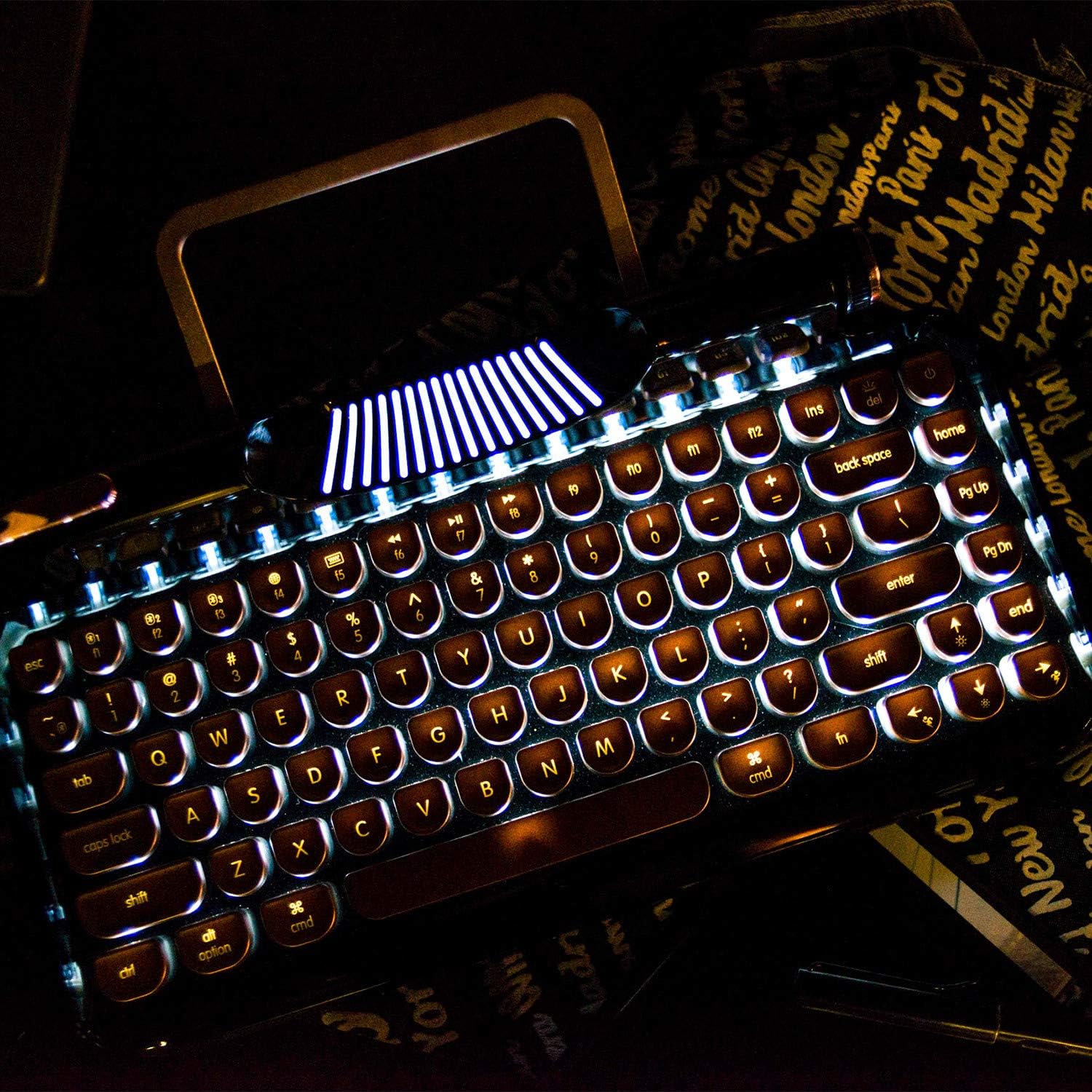
Figure 3: The dynamic LED backlight illuminates the keys for use in various lighting conditions.
Multimedie- og funktionstaster:
The top row of keys includes various function keys (F1-F12) and multimedia controls. These often require pressing the Fn key in combination with the desired function key. Examples include volume control, media playback, and screen brightness adjustments.
Lever Functionality:
The decorative lever on the left side of the keyboard functions as a carriage return in some applications or can be programmed for custom actions depending on your operating system and software.
Video 1: Officiel produktvideovisningasing the RYMEK Typewriter Style Mechanical Keyboard's features and usage, including typing experience and backlight.
Opretholdelse
To ensure the longevity and optimal performance of your KNEWKEY RYMEK keyboard, follow these maintenance guidelines:
- Rensning: Brug en blød, tør klud til at tørre tastaturoverfladen af. For en grundigere rengøring skal du bruge trykluft til at fjerne støv og snavs mellem tasterne. Undgå at bruge skrappe kemikalier eller slibende materialer.
- Opbevaring: Når tastaturet ikke er i brug, skal det opbevares et rent og tørt sted, væk fra direkte sollys og ekstreme temperaturer.
- Væskespild: In case of liquid spills, immediately disconnect the keyboard from power and turn it off. Invert the keyboard to drain excess liquid and allow it to dry completely before reconnecting. Professional service may be required for significant spills.
Fejlfinding
| Problem | Mulig årsag | Løsning |
|---|---|---|
| Tastaturet svarer ikke (kablet) | Løs USB-forbindelse, defekt kabel, driverproblem. | Sørg for, at USB-kablet er korrekt tilsluttet. Prøv en anden USB-port eller et andet kabel. Genstart computeren. |
| Tastatur opretter ikke forbindelse (Bluetooth) | Keyboard not in pairing mode, device Bluetooth off, interference, low battery. | Ensure keyboard is in pairing mode (flashing indicator). Check if Bluetooth is enabled on your device. Recharge the keyboard. Move closer to the device. Forget the device in Bluetooth settings and re-pair. |
| Baggrundslys virker ikke | Baggrundsbelysningen er slukket eller indstillet til laveste lysstyrke. | Press the backlight control keys to increase brightness or change modes. |
| Nøgler registreres ikke | Snavs under tastaturet, defekt kontakt. | Use compressed air to clear debris. If problem persists for a specific key, contact support. |
Specifikationer
- Produktdimensioner: 14 x 42 x 2 tommer
- Varens vægt: 3.34 pund
- Forbindelse teknologi: Micro USB, Bluetooth
- Tastaturbeskrivelse: Mekanisk
- Antal nøgler: 83
- Speciel funktion: Baggrundsbelyst (RGB)
- Kompatible enheder: Tablet, Smartphone, PC (Windows, Mac, iOS, Android)
- Stil: Retro
Garanti og support
For garantioplysninger og teknisk support henvises til producentens officielle webwebstedet eller kontakt deres kundeservice direkte. Gem din købskvittering som købsbevis i tilfælde af garantikrav.


